AUTOMATIC1111
Deprecated Backend
AUTOMATIC1111 (A1111) is essentially dead at this point - development has largely stopped and the project is no longer actively maintained. Support for AUTOMATIC1111 has only been carried forward in Talemate because it was easy to maintain compatibility.
We strongly recommend using SD.Next instead, which is an actively maintained fork of AUTOMATIC1111 with improved performance, better features, and ongoing development. SD.Next maintains API compatibility with AUTOMATIC1111, so migration is straightforward.
The AUTOMATIC1111 backend provides basic text-to-image generation capabilities using the AUTOMATIC1111 Stable Diffusion WebUI API. This backend only supports text-to-image generation - it does not support image editing or image analysis.
Prerequisites
Before configuring the AUTOMATIC1111 backend, you need to have AUTOMATIC1111 installed and running:
- Install and start AUTOMATIC1111 Stable Diffusion WebUI on your system
- Ensure the API is enabled and accessible
- Note the API URL (default is
http://localhost:7860)
Migration to SD.Next
If you're setting up a new installation, please use SD.Next instead. If you have an existing AUTOMATIC1111 installation, consider migrating to SD.Next for better performance and ongoing support.
Configuration
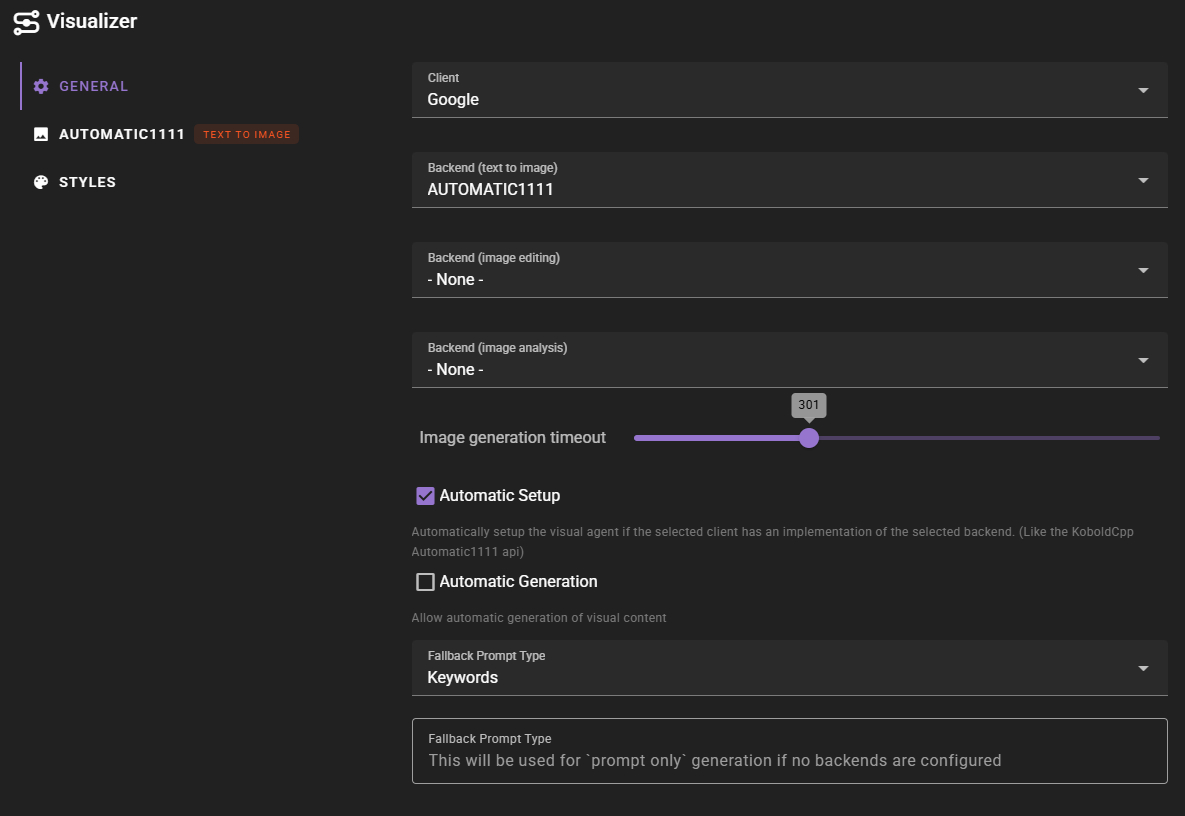
In the Visualizer agent settings, select AUTOMATIC1111 as your backend for text-to-image generation.
Text-to-Image Configuration
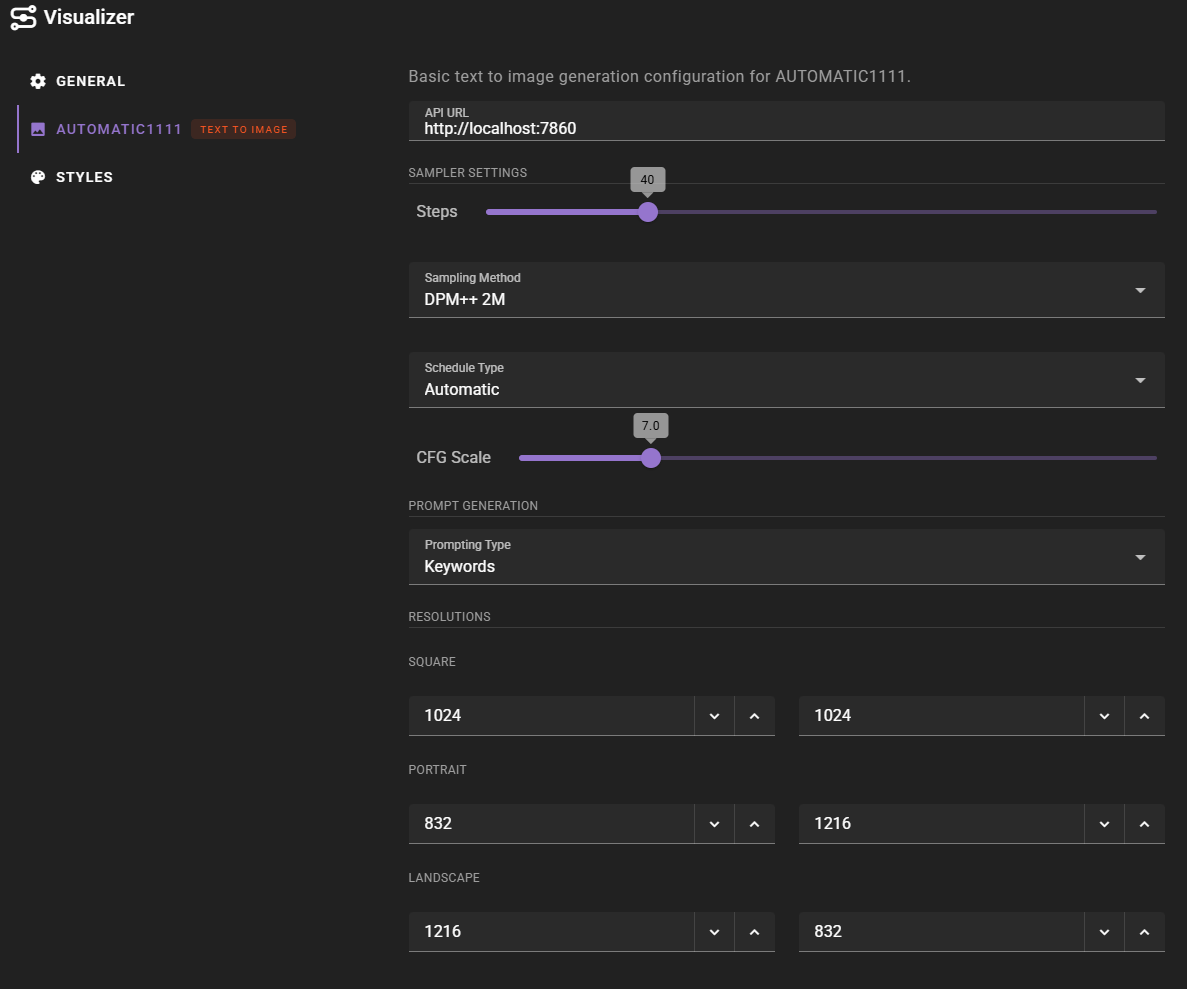
For text-to-image generation, configure the following settings:
- API URL: The URL where your AUTOMATIC1111 instance is running (e.g.,
http://localhost:7860) - Steps: Number of sampling steps (default: 40, range: 5-150)
- Sampling Method: The sampling algorithm to use (e.g., "DPM++ 2M", "Euler a")
- Schedule Type: The sampling schedule to use (e.g., "Automatic", "Karras", "Uniform")
- CFG Scale: Classifier-free guidance scale (default: 7.0, range: 1-30)
- Prompt Type: Choose between "Keywords" or "Descriptive" prompt formatting
- Resolutions: Configure the pixel dimensions for Square, Portrait, and Landscape formats
No Authentication
AUTOMATIC1111 backend does not support authentication. If your AUTOMATIC1111 instance requires authentication, you'll need to either disable it or use SD.Next instead, which supports authentication.
Model Selection
AUTOMATIC1111 does not support model selection through the API. The backend will use whatever model is currently loaded in your AUTOMATIC1111 instance. You need to change models manually in the AUTOMATIC1111 WebUI interface.
Usage
Once configured, the AUTOMATIC1111 backend will appear in the Visualizer agent status with a green indicator showing text-to-image capability is available.

Limitations
The AUTOMATIC1111 backend has several limitations compared to SD.Next:
- No image editing: Only supports text-to-image generation
- No authentication: Cannot connect to instances that require authentication
- No model selection: Uses whatever model is loaded in AUTOMATIC1111
- No active development: The AUTOMATIC1111 project is no longer actively maintained
Sampler Settings
AUTOMATIC1111 provides control over the generation process:
- Steps: More steps generally produce higher quality images but take longer. Typical values range from 20-50 steps, with 40 being a good default.
- Sampling Method: Different samplers produce different results. Popular options include:
- DPM++ 2M: Fast and high quality (default)
- Euler a: Fast, good for quick iterations
- DPM++ SDE: Variant with different characteristics
- Schedule Type: Controls the noise schedule used during sampling. "Automatic" is typically the best choice.
- CFG Scale: Controls how closely the model follows your prompt. Lower values (1-7) allow more creative freedom, higher values (7-15) stick closer to the prompt.
Prompt Formatting
AUTOMATIC1111 uses Keywords prompt formatting by default. This means prompts are formatted as keyword lists optimized for Stable Diffusion models. You can switch to Descriptive formatting if you prefer natural language descriptions, though Keywords typically work better with SD models.
Automatic Setup with KoboldCpp
If you're using KoboldCpp with AUTOMATIC1111 support, Talemate can automatically detect and configure the AUTOMATIC1111 backend when "Automatic Setup" is enabled in the Visualizer settings. This will automatically set the API URL to match your KoboldCpp instance URL.