World State
AI with good JSON response handling required
Some older (llama-2 and older) models have difficulty generating sane json. This can cause the world state snapshot to be incomplete or missing information, or not be available at all. If you are experiencing issues, please try a newer model.
The world state snapshot is a summary of the current scene state. It will contain characters and objects mentioned in the scene.
The snapshot is generated and maintained by the World State Agent, which refreshes it automatically as the scene plays out. To build the snapshot the agent looks at the whole scene so far together with the most recent lines (the "current moment"), and it can also pull in relevant entries from long-term memory so the snapshot can build on established lore and earlier scene history.
If there are tracked states in the scene, they will also be displayed here.
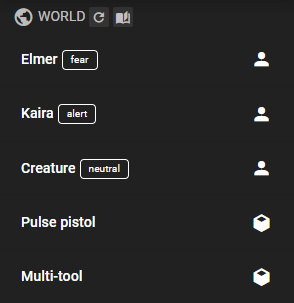
Characters are indicated by the icon, objects by the icon.
You can click on each entry to expand it and see more information.
Entity Highlights in scene messages
Alongside the snapshot panel, Talemate also highlights notable characters, items, and places directly inside the most recent scene message. Highlighted entities appear with a subtle dotted underline, marking them as clickable.
These highlights are produced by the same world state snapshot, so they refresh whenever the snapshot updates. Only the most recent part of the scene — the "current moment" — receives highlights; older messages are left as plain text.
Early in a scene the intro text can be part of the current moment too. When the scene has fewer messages than the moment holds, the intro fills a spare line: it is read for the snapshot and shows highlights like a message. For example, with the moment set to three lines, an intro that describes a lighthouse keeper and a reply that mentions the keeper both show the keeper highlighted. A time passage ends the moment, so after "Three days later" the intro no longer counts. The intro shows highlights, but it does not offer Add to world state; select the text in a message instead.
Examining an entity
Click a highlighted entity to open a small popover. The popover shows:
- The entity's name and its kind (character, item, or place).
- For characters, the current emotional state, when known.
- A short description of the entity as it stands in the current moment.
From the popover you can take two actions:
Look at asks the Narrator Agent for a fresh description of the entity, added to the scene as a context-investigation message.
Add Detail expands the short description shown in the popover into a longer, grounded passage, also added to the scene as a context-investigation message. This action is available for items, places, and background characters mentioned in the narrative. It is hidden for characters that already exist in the scene, since those have their own detail surfaces in the character editor.
Configure highlights opens the World State Agent settings where the highlight behavior is controlled.
Adding one yourself
The snapshot decides what to highlight, and it does not always pick the thing you care about. Select the text yourself to add it.
Drag across a span of text in a scene message — a character message, a narrator message, or a Look at / Add Detail message when Include Look at / Add Detail is on — and a small Add to world state action appears next to the selection. A shift-click selection works the same way. A double click still opens the message editor, as it always has, so use a drag when you want the action.
The action is offered only while the World State Agent can serve it. Turn the agent off, leave it without a client, or turn its Update world state action off, and no action appears.
Clicking it sends the selected text to the World State Agent, which resolves it into a single snapshot entry: a character, an item or a place, with the short description the popover shows. It is one request, it runs in the background like a manual refresh, and the cancel icon stops it.
The new entry appears in the snapshot, and the selected words become a highlight in the message, so the normal Look at and Add Detail actions work on it straight away.
A few things to know:
- Your selection is widened to whole words, and it can be at most 240 characters long. The action says so when a selection is too long.
- Select something the story names — a person, an object, a place. A selection that names no such thing is refused rather than turned into an entry, and Talemate tells you so.
- Select inside an existing highlight and the entity popover opens instead, where Add Detail expands the entry you already have.
- The message has to be part of the current moment to show an inline highlight. Add from an older message and the entry still joins the snapshot; Talemate tells you that it carries no highlight.
- An entry you add by hand is marked with a pin on its row in the World panel. It never ages out as a stale entry and the item limit never drops it, so it stays until the story drops it, a time jump cuts the scene, or you wipe the snapshot. It does keep its slot in Max items tracked, so pinning items leaves fewer slots for the ones a refresh finds. With Durable snapshot off, every refresh rebuilds the snapshot from scratch, so a manual entry lives until the next refresh like any other.
- The panel lists characters and items, so a place you add shows as a highlight and in its popover rather than as a row of its own.
- In a Character perspectives story the new entry is written for every audience in the same pass, like the entries a refresh produces, so it carries no reader detail into a character's view.
Controlling the highlights
Entity highlighting follows the world state snapshot, so it shares the snapshot's settings in the World State Agent configuration:
- Lines in the moment sets how many of the most recent messages count as the current moment and can therefore show highlights.
- Include Look at / Add Detail controls whether context-investigation messages (the results of the actions above) also count as part of the current moment and can receive their own highlights.
- Add Detail length controls how long an Add Detail result can be.
You can change the color of the highlights, or turn the inline styling off entirely, under Settings → Appearance → Messages → Entity Highlights. See Appearance settings.
Characters
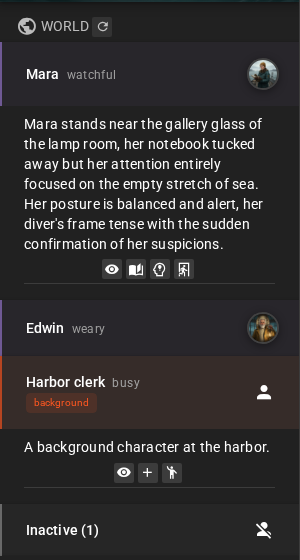
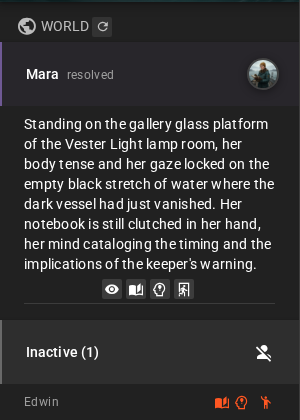
Every character that is active in the scene is listed here, whether or not the snapshot mentions them. Alongside them the snapshot lists the background characters it has picked up from the narrative — people the story refers to who are not characters in their own right yet.
Each entry displays the current emotional state next to the character's name.
Active character rows have a subtle accent in the current theme's primary color. Background rows use the theme's secondary color, and the Inactive section header has a muted accent.
Expand an entry to see what the character is currently doing.
A background row carries a small background label under the name. Real characters have no label; the row's accent already says they are in the scene. Hover over or focus the label to read its tooltip: "Picked up by the world state snapshot, not yet a character." When Make real is available on that row, the tooltip also says "Use Make real to promote."
Knowledge changes
A small dot beside a character marks new Learn or Never Learn rules, or an explicit disclosure. Several changes share one dot. Hover over it or focus it with the keyboard to see the affected entries, labelled Added or Revoked. Click it to open that character's Knowledge tab.
The dot fades after eight seconds; hovering or focusing pauses that timer. Inactive characters can have a dot beside their name in the Inactive section too. When that section is collapsed, its header shows a dot listing the affected characters; click it to expand the section. The Knowledge tab refreshes when new changes arrive.
Ordinary messages, snapshot refreshes, loading a scene and replay do not trigger the dot. Removing existing knowledge rules stays silent. These notifications add no AI requests.
Knowledge hub
Expand an active character and click the icon in its action row to open the knowledge hub, a menu that gathers what the system does for that character's knowledge. In the Inactive section, the same icon sits at the right edge of each character's row, beside the call-into-scene button. Character knowledge: flow reference shows what these settings do, with diagrams. Background characters have no hub, since they are not characters yet. The menu stays open while you click inside it; press Escape or click elsewhere to close it. It adds no AI requests: it reads the current state and writes settings.
The scene header's Knowledge effort chip opens the same hub for the scene rather than for one character. That version leaves out What the character knows; everything below it is the same.
What the character knows shows the newest Disclosures in a Character perspectives story or Entry access rules (Learn and Never Learn) in a Standard story, with a count. The list shows at most five entries. Open Knowledge tab opens the full list in the World Editor, where you establish knowledge or adjust rules.
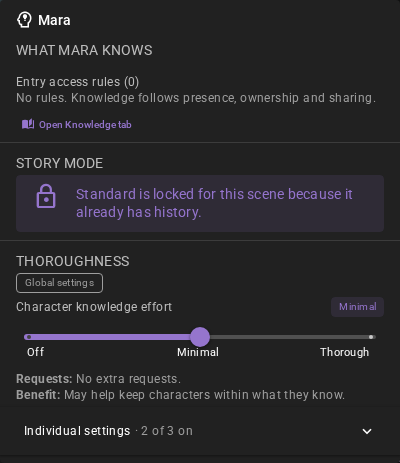
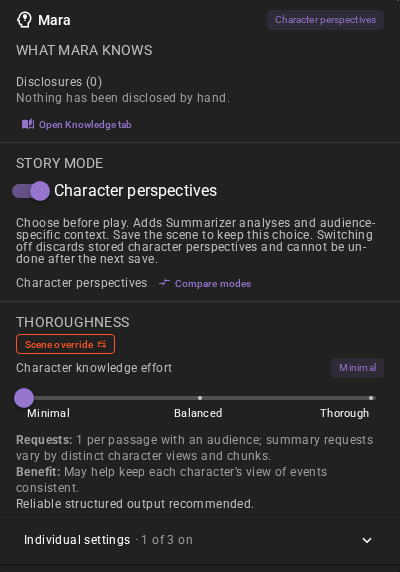
Story mode shows the Character perspectives switch while the scene has no history and no archived history, exactly as in Scene Settings. Save the scene to keep a change. Compare modes opens the two mode cards side by side in a popover over the panel, with the current chip on the mode the story runs in and Pros and Cons shown directly — the same comparison described in Choosing a mode. The popover leaves the menu open behind it; press Escape or click outside to close it. Once history exists, the switch and comparison are replaced by one note naming the current mode and explaining that it is locked for the scene.
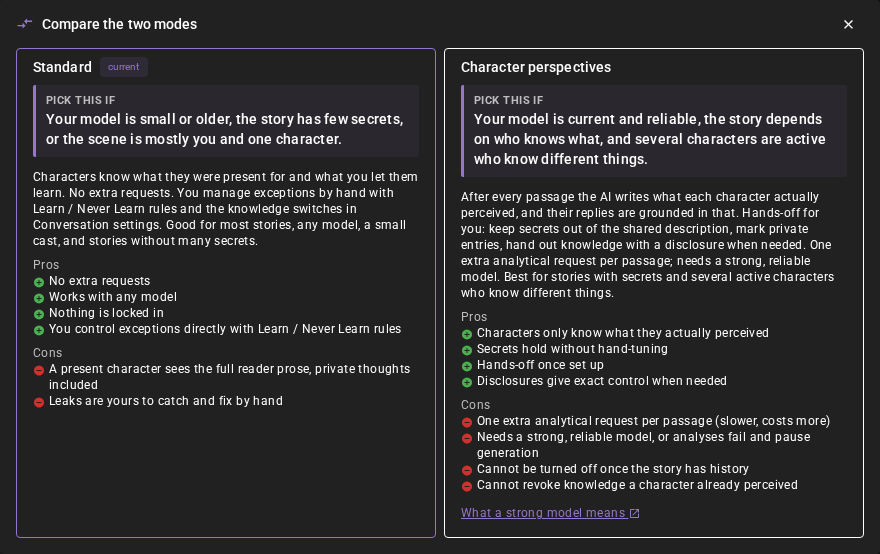
While the mode can still be changed, the menu header shows the story mode. Thoroughness starts with the Character knowledge effort slider (see Effort presets): one drag sets the settings in the pane below to a tuned stop, with the stop's extra requests and model expectation under it; a manual change shows whichever stop the settings then match, and Custom when they match none.
Then comes a summary line naming the options that add a request and are on ("No extra requests per line" when none is). Below it sits Individual settings, a pane that is closed when the application loads and counts the switches it holds, for example "2 of 3 on". The count is over every switch the pane draws, the group switches and the settings under them alike, and a setting under a group switch that is off counts as off. Opening the pane on one character leaves it open on the others until the page is reloaded. Open it for the settings that shape knowledge keeping, grouped by agent, with the same labels, descriptions and cost notes as the agent settings:
- Conversation → Character Knowledge: the group switch, Limit to character knowledge in Standard mode, and Refine memories with AI.
- Summarizer → Character Perspectives: Analyze player perspective (off by default) and Automatically repair analysis, in Character perspectives mode.
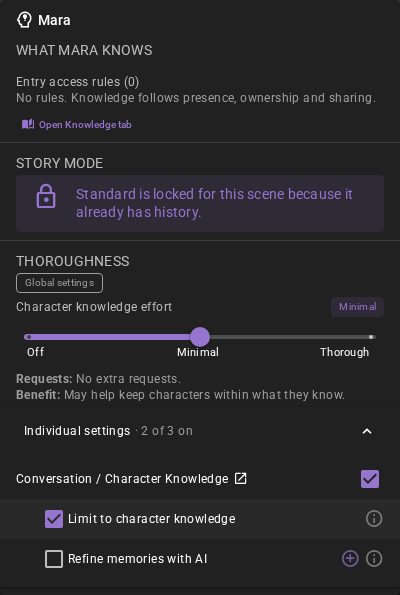
Group headers and toggles share one checkbox column; a group without a master checkbox keeps the space so its label lines up. A icon marks an option that adds a request; hover it to read the cost. An option under a group switch that is off costs nothing, so it carries no icon. The toggles write scene overrides for this scene, not the global agent settings, so the globals are left untouched; the overrides file is shared by the saves in one project, so a Save As copy or restore point linked to the same file reads the change too (Per-Scene Agent Overrides). Use the agent settings dialog to change the globals. A icon marks a scene override. The icon beside one setting restores only that setting's inherited global value, and the icon beside a group restores every hub-owned setting in that group. Above the effort slider, the clickable Scene override label and icon restore every knowledge setting the hub owns — including ones the current mode hides — while leaving unrelated overrides alone. Hover any reset control for its Use global settings tooltip. With no override, the label reads Global settings. When a scene has no save file, changing a hub setting opens Save Scene and continues the pending change after saving succeeds. Cancellation or a failed save preserves the change and entered name; see first-save continuation, retry and discard. Options that a Character perspectives story does not use are hidden, as they are in the agent settings. Click a group name to open its section in the agent settings.
Who is in the scene
An active character is one the story is happening to. It takes its turns, and it is aware of what happens around it. An inactive character still exists — it keeps its character sheet, its attributes and its tracked states — but it is out of the scene and hears none of it.
Taking a character out of the scene
Expand an active character and click the icon in its action row, beside Look at and Manage Character, to take that character out of the scene. It becomes an inactive character.
The Narrator Agent narrates the exit, and asks you first for optional instructions for that narration. Hold Ctrl (or Cmd on macOS) while you click to skip the narration.
Calling a character back into the scene
The inactive characters are collected in an Inactive section at the bottom of the character list, with their number in the heading. Expand it, then click the icon beside a name to make that character active again. Click Manage Character beside a name to open that character in the character editor; the character stays inactive.
The entry is narrated the way an exit is, and the same Ctrl or Cmd modifier skips it.
The creative tools menu and the character editor keep their own way of activating and deactivating characters.
Action shortcuts
Beneath the description there are additional shortcuts.
Look at Will cause the Narrator Agent to describe the character.
Manage Character will take you to the character editor for that character, where you can view and edit all of the character's details.
Knowledge opens the knowledge hub for that character.
Take out of the scene removes an active character from the scene, as described in Taking a character out of the scene.
Make real If the world state has picked up a background character that is not yet an interactive character, this will allow you to convert them into an interactive character.
The action is withheld when the entry's name overlaps the name of a character the scene already has, active or inactive — Ana's sister while Ana is on the roster, for example. Making that entry real would add a second character for what may be the same person, so the creative tools menu leaves such an entry out of its Introduce list too. If it really is somebody else, create them with Introduce new character (Directed).
Character State
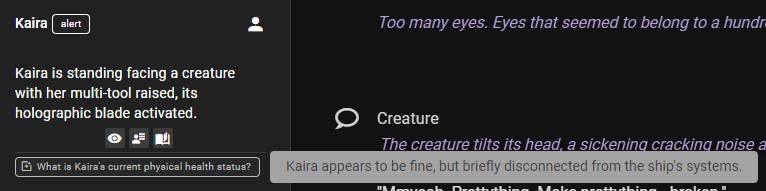
If the character has tracked states they will be displayed at the bottom of the expanded character entry.
Mouse over to show the current value of the state.
Objects
Objects currently do not have an active managed state in Talemate, however the snapshot will still show objects that have been mentioned in the scene.
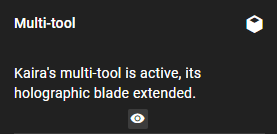
Like characters you can click on the object to expand it and see more information.
Action shortcuts
Beneath the description there are additional shortcuts.
Look at Will cause the Narrator Agent to describe the object.
Tracked world states
If there are tracked states in the scene, that track objects or other non-character entities, they will be displayed at the bottom of the world state snapshot in a separate section.

Refreshing the snapshot
While the World State Agent will automatically update the world state snapshot as the scene progresses, you can also refresh it on demand by clicking the refresh icon in the top right of the world state snapshot.
How the snapshot carries forward
By default the snapshot is durable: each refresh updates only what has changed and drops entities that are no longer relevant, rather than rebuilding the whole snapshot from scratch. This lets the snapshot build up over time, so details an entity has accumulated earlier in the scene are not lost on the next refresh.
To keep the snapshot from collecting stale entries, an entity that the agent leaves untouched for several refreshes in a row is automatically removed. Durability (and the related limits) can be turned off or tuned in the World State Agent settings.
When you move to a new point in time (a time jump), the snapshot is treated as a clean scene cut and rebuilt fresh, since the previous moment no longer applies.
Guiding a refresh and wiping the snapshot
Hold Ctrl (or Cmd on macOS) while clicking the refresh icon to open a dialog with two optional fields:
- an instructions box that guides this one refresh — for example "Focus on what the characters are carrying". The instructions apply only to the refresh you are starting; they are not remembered.
- a Wipe and start fresh checkbox that discards everything the snapshot has accumulated and regenerates it from scratch.
Leave both empty and press Continue for an ordinary refresh. A plain click (no modifier) still refreshes immediately without opening the dialog.
Cancelling a refresh
While a refresh is in progress a cancel icon is shown in place of the refresh icon. Click it to stop the generation. This is useful if a refresh is taking longer than you want or you started one by mistake.
Automatic refreshing and the scene input
The snapshot refreshes automatically every several character turns (each player or AI turn counts), on a cadence you can set in the World State Agent settings.
If the agent's text-generation client supports running more than one request at a time, the snapshot is generated quietly in the background and you can keep playing while it works. Otherwise, and always in Character perspectives mode, it runs in the foreground: in Character perspectives mode its character views are part of character knowledge, which is updated one request at a time. Either way, manual refreshes behave the same and can be cancelled mid-generation.
Pinning the snapshot to the scene
The world state snapshot can optionally be pinned into the prompts that drive dialogue, narration, and scene planning. When pinning is enabled, the snapshot's tracked characters, items, and places are shared with the Conversation Agent, the Narrator Agent, and scene analysis, so what the snapshot is tracking can inform what those agents produce.
This is off by default. You can enable it with the Pin to context setting in the World State Agent settings.
Regenerating the snapshot's source message
When you regenerate the message that a pinned snapshot was based on, Talemate restores a verified earlier snapshot before generating the replacement. If no suitable earlier snapshot is available, it clears the snapshot and shows a notice. Pin to context stays enabled, and the panel and inline highlights show the effective snapshot.
After successful regeneration, the earlier or empty snapshot stays in place until the next normal automatic refresh or a refresh you request. Regeneration does not make an extra snapshot request. If regeneration fails or is cancelled before replacing the message, the original message and snapshot are restored together.
Talemate retains only one previous snapshot, including across saves. Refreshing repeatedly at the same message preserves the earlier candidate. A snapshot based on an earlier, unaffected message stays in place; an unpinned snapshot is unchanged by regeneration. Wiping the snapshot also discards its retained revision.