OpenAI
The OpenAI backend provides image generation, editing, and analysis capabilities using OpenAI's image models. It supports text-to-image generation with DALL·E 3 and GPT-Image models, image editing with GPT-Image models, and AI-powered image analysis using vision-capable GPT models.
Prerequisites
Before configuring the OpenAI backend, you need to obtain an OpenAI API key:
- Go to OpenAI Platform
- Sign in with your OpenAI account
- Create a new API key or use an existing one
- Copy the API key
Then configure it in Talemate:
- Open Talemate Settings → Application → OpenAI API
- Paste your OpenAI API key in the "OpenAI API Key" field
- Save your changes
For additional instructions, see the OpenAI API setup guide.
Configuration
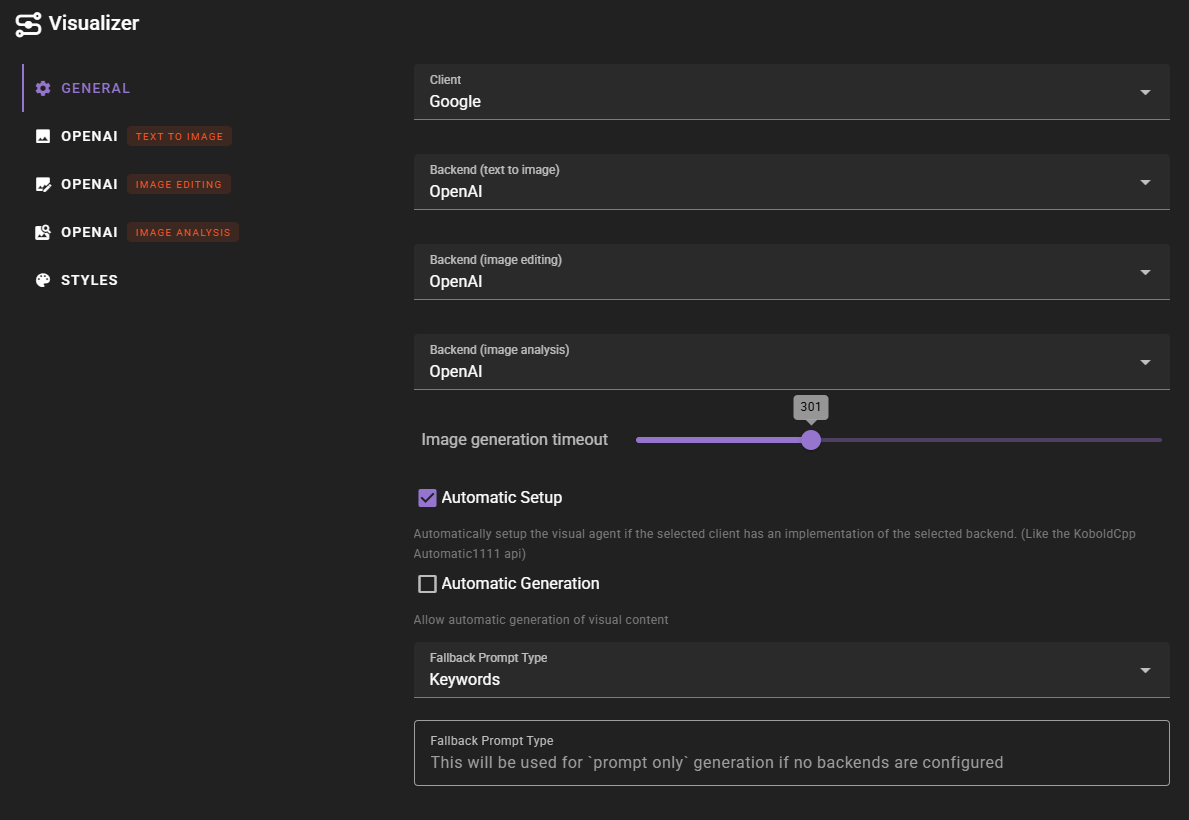
In the Visualizer agent settings, select OpenAI as your backend for text-to-image generation, image editing, image analysis, or any combination of these. Each operation can be configured separately.
Text-to-Image Configuration
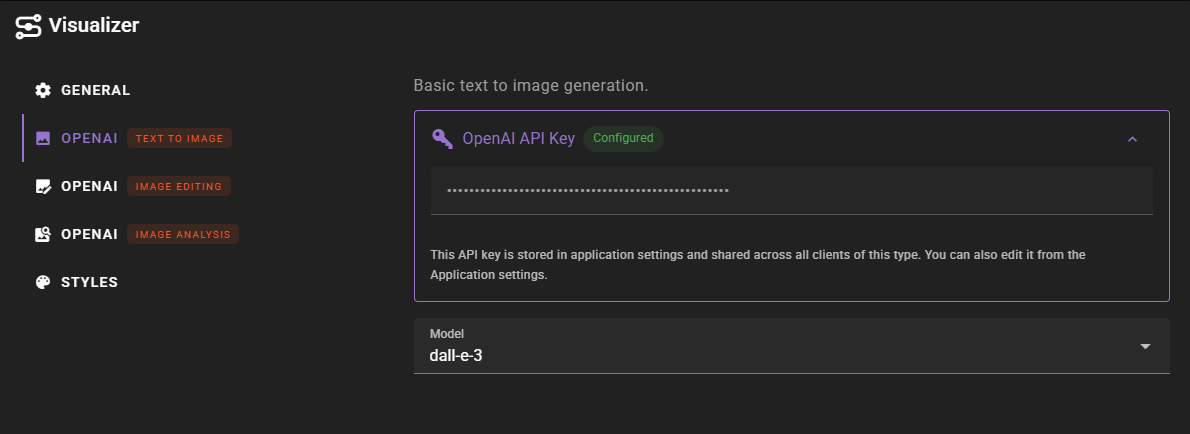
For text-to-image generation, configure the following settings:
- OpenAI API Key: Your OpenAI API key (configured globally in Talemate Settings)
- Model: Select the image generation model to use:
- dall-e-3: OpenAI's DALL·E 3 model (widely available)
- gpt-image-1: OpenAI's GPT-Image model (may require organization verification)
- gpt-image-1-mini: Smaller version of GPT-Image (may require organization verification)
Organization Verification
The gpt-image-1 and gpt-image-1-mini models may require your OpenAI organization to be verified before you can use them. If you encounter errors with these models, you may need to complete OpenAI's organization verification process.
Model Testing Status
Talemate's organization is not verified with OpenAI, and we have not tested the gpt-image-1 and gpt-image-1-mini models. We have confirmed that dall-e-3 works correctly. If you have access to the GPT-Image models and encounter issues, please report them so we can improve support for these models.
The OpenAI backend automatically sets resolution based on the format and model you select:
-
gpt-image-1 and gpt-image-1-mini:
- Landscape: 1536x1024
- Portrait: 1024x1536
- Square: 1024x1024
-
dall-e-3:
- Landscape: 1792x1024
- Portrait: 1024x1792
- Square: 1024x1024
Image Editing Configuration
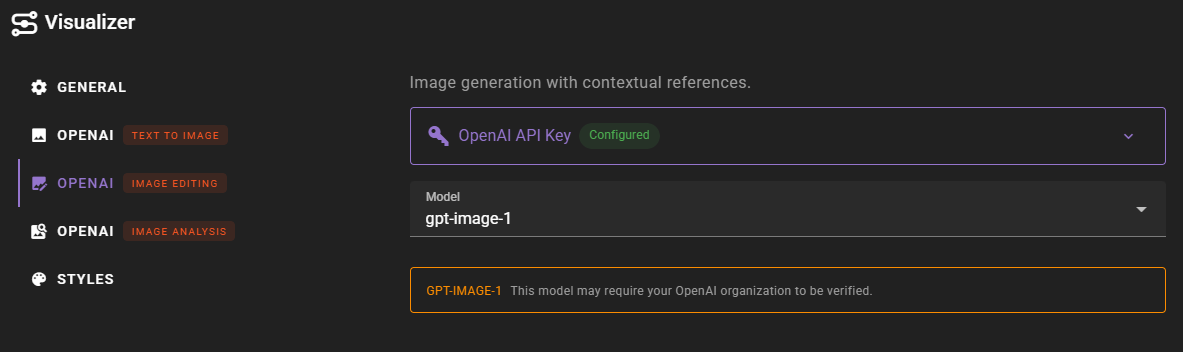
For image editing, configure similar settings but note that DALL·E 3 does not support image editing:
- OpenAI API Key: Your OpenAI API key
- Model: Select an image editing model:
- gpt-image-1: Full-featured image editing model (may require organization verification)
- gpt-image-1-mini: Smaller image editing model (may require organization verification)
DALL·E 3 Limitations
DALL·E 3 does not support image editing. If you select DALL·E 3 for image editing, you will receive an error. Use gpt-image-1 or gpt-image-1-mini for image editing instead.
Reference Images
OpenAI's image editing models support a single reference image. When editing an image, provide one reference image that will be used as the base for the edit.
Image Analysis Configuration
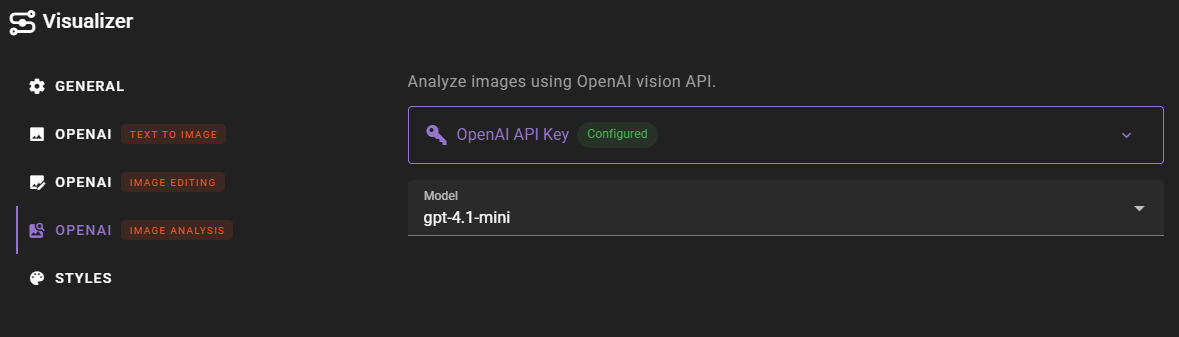
For image analysis, configure the following:
- OpenAI API Key: Your OpenAI API key
- Model: Select a vision-capable text model:
- gpt-4.1-mini: Fast analysis model with vision capabilities
- gpt-4o-mini: Alternative vision model option
Analysis Models
Image analysis uses text models that support vision capabilities, not the image generation models. These models can analyze images and provide detailed descriptions, answer questions about image content, and extract information from visual content.
Usage
Once configured, the OpenAI backend will appear in the Visualizer agent status with green indicators showing which capabilities are available.

The status indicators show:
- Text to Image: Available when text-to-image backend is configured
- Image Edit: Available when image editing backend is configured (shows "References 1" indicating single reference support)
- Image Analysis: Available when image analysis backend is configured
Model Recommendations
Text-to-Image
- dall-e-3: Most widely available option. Good for general use, though quality may vary.
- gpt-image-1: Higher quality option, but requires organization verification. Use if you have access and need better results.
- gpt-image-1-mini: Smaller version of GPT-Image, faster generation. Requires organization verification.
Image Editing
- gpt-image-1: Best quality for image editing. Requires organization verification.
- gpt-image-1-mini: Faster editing option. Requires organization verification.
Image Analysis
- gpt-4.1-mini: Recommended default for image analysis. Fast and accurate.
- gpt-4o-mini: Alternative option if you prefer this model.
Prompt Formatting
The OpenAI backend uses Descriptive prompt formatting by default. This means prompts are formatted as natural language descriptions rather than keyword lists. Provide detailed, natural language descriptions of what you want to create or edit.