Character Card Import
Talemate supports importing character cards in various formats (TavernAI and other compatible formats) to quickly create new scenes with characters, world state entries, and episodes.
Supported Formats
Talemate can import character cards in the following formats:
-
Chara Card V0 - Original character card format
-
Chara Card V1 - First standardized version
-
Chara Card V2 - Enhanced format with character books and alternate greetings
-
Chara Card V3 - Basic import support (V3-specific feature additions are not currently supported)
Character cards can be provided as:
-
Image files (PNG, JPG, JPEG, WebP) with embedded metadata
-
JSON files containing character card data
Starting an Import
Character card import is initiated from the Load Scene panel in the left sidebar on the home screen:

- Drag and drop a character card file (image or JSON), or click to browse
- If the file is detected as a character card, the Character Card Import Options dialog will automatically open
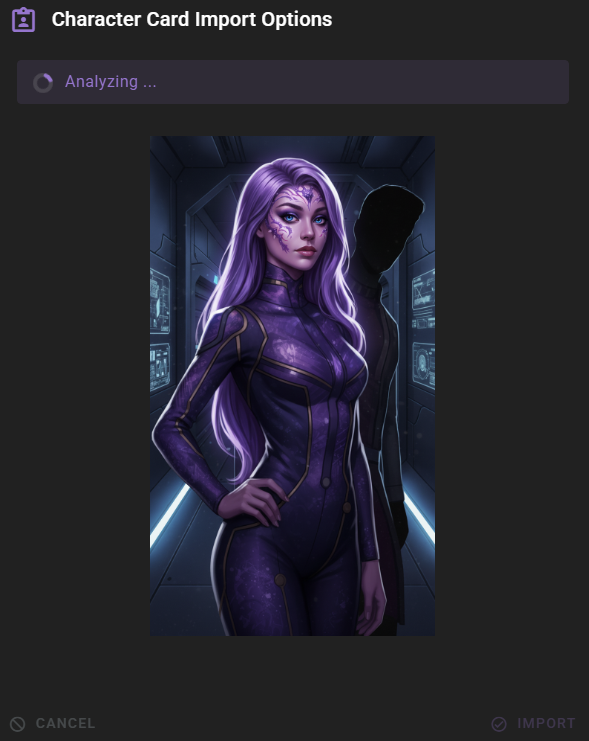
The import dialog will automatically analyze the character card and display detected information.
Import Dialog Overview
The character card import dialog is divided into several sections:
Analysis Information
At the top of the dialog, you'll see chips displaying:
-
Spec: The detected character card specification version
-
Character Book: Number of character book entries found
-
Alternate Greetings: Number of alternate greetings detected
If analysis fails or you want to re-analyze, click the Re-analyze button.
Character Card Preview
The left panel shows a preview of the character card image (for image files) or indicates a JSON character card file.
Selecting Characters to Import
The middle panel allows you to select which characters from the card should be imported.
Detected Characters
Talemate uses the Director Agent to analyze greeting texts and automatically detect multiple characters present in the character card. All detected characters are selected by default.

-
Use checkboxes to select/deselect characters
-
Click Select All to select all detected characters
-
Only selected characters will be imported into the scene
Adding Characters Manually
If Talemate missed a character that exists in the card, you can add it manually:
- Enter the character name in the Add Character Name field
- Click Add or press Enter
- The character will be added to the list and automatically selected
Manual Addition
Only add character names manually if you know they exist in the card but were missed by detection. The detection system analyzes greeting texts to find characters, so it may occasionally miss characters that don't appear in dialogue.
Import Options
The right panel contains various import configuration options:
Character Book Import
-
Import Character Book: If enabled, character book entries (lore books) will be imported into the world state as manual context entries. This is enabled by default if character book entries are detected.
-
Import Character Book Metadata: If enabled, character book metadata (keys, insertion order, priority, etc.) will be stored with world entries. Note that Talemate does not currently use this metadata, but it's preserved for future use.
Alternate Greetings
-
Import Alternate Greetings: If enabled, alternate greetings from the character card will be added as episodes to the scene. This is enabled by default if alternate greetings are detected.
-
Generate Episode Titles: If enabled, AI will automatically generate titles for each episode imported from alternate greetings. This is enabled by default.
Shared Context Setup
- Setup Shared Context (world.json): If enabled, creates a shared context file (
world.json) and marks imported characters and world entries as shared. This is useful when you want to reuse characters and world state across multiple scenes.
Default Behavior
This option defaults to true if alternate greetings are detected, as shared context is particularly useful when working with multiple episodes.
Writing Style Template
Select an optional writing style template to apply to the scene. This affects how the AI generates narrative text and dialogue.
Player Character Setup
The bottom section allows you to configure the player character for the scene. You have three options:
Use Default Character Template
Create a new player character using the default template configured in App Settings.
- Enter a Name for your player character (required)
- Optionally provide a Description
If this is your first time using this option and no default player character is configured, Talemate will save your entered values as the new default.
Use Detected Character

Select one of the detected characters from the card to use as your player character.
-
This option is only available if you have selected at least one character for import
-
Only characters selected for import are available in the dropdown
-
The selected character will be marked as the player character
Import from Another Scene
Import an existing player character from another Talemate scene.
- Use the Search Scenes autocomplete to find the source scene
- Select the character from the Select Character dropdown (populated after selecting a scene)
- The character will be transferred to the new scene with all their attributes and assets
Asset Transfer
When importing a character from another scene, their cover image and other assets will be automatically transferred after the scene is saved.
What Gets Imported
Characters
-
Character name, description, and greeting text
-
Character attributes (determined by AI analysis)
-
Dialogue examples (generated from character card data)
-
Character color (automatically assigned unique colors)
-
Character cover image (from the character card image file)
World State
-
Character book entries imported as manual context entries
-
Character book metadata (if enabled)
-
World state entries marked as shared (if shared context is enabled)
Episodes
-
Alternate greetings imported as episodes
-
AI-generated episode titles (if enabled)
Scene Metadata
-
Scene name (from character card name or first character name)
-
Scene description (from character card description)
-
Scene intro (from first greeting text)
-
Writing style template (if selected)
Tips and Best Practices
Character Detection
The character detection system analyzes greeting texts to find character names. For best results:
-
Ensure character names appear in dialogue format (e.g.,
Character Name: dialogue text) -
Multiple characters in greeting texts will be detected automatically
-
If detection misses a character, you can add them manually
Character Book Entries
Character book entries are imported as world state manual context entries:
-
They're marked with
source: importedin metadata -
They can be edited, deleted, or shared like any other world state entry
-
Character book metadata is preserved if the option is enabled
Shared Context
Setting up shared context is recommended when:
-
You plan to create multiple scenes with the same characters
-
You want to reuse world state entries across scenes
-
You're importing alternate greetings (enables consistent character behavior across episodes)
Player Character Selection
-
Template: Use when creating a new original character
-
Detected Character: Use when you want to play as one of the characters from the card
-
Import: Use when you have an existing character from another scene you want to reuse
Troubleshooting
Analysis Fails
If character card analysis fails:
- Check that the file is a valid character card format
- Try clicking Re-analyze to retry
- Verify the file isn't corrupted
- For JSON files, ensure they follow a supported character card specification
Characters Not Detected
If characters aren't automatically detected:
- Check that character names appear in greeting texts
- Verify the greeting text uses dialogue format (
Name: text) - Manually add missed characters using the Add Character Name field
Related Features
-
World State - Managing imported character book entries
-
Episodes - Working with imported alternate greetings
-
Character Editor - Editing imported characters
-
Shared Context - Understanding shared context files