Shared World & Episodes
The Shared World panel allows you to manage shared context and episodes, enabling you to create interconnected scenes and alternative storylines within your project.
Accessing Shared World
Navigate to World Editor Scene Shared World
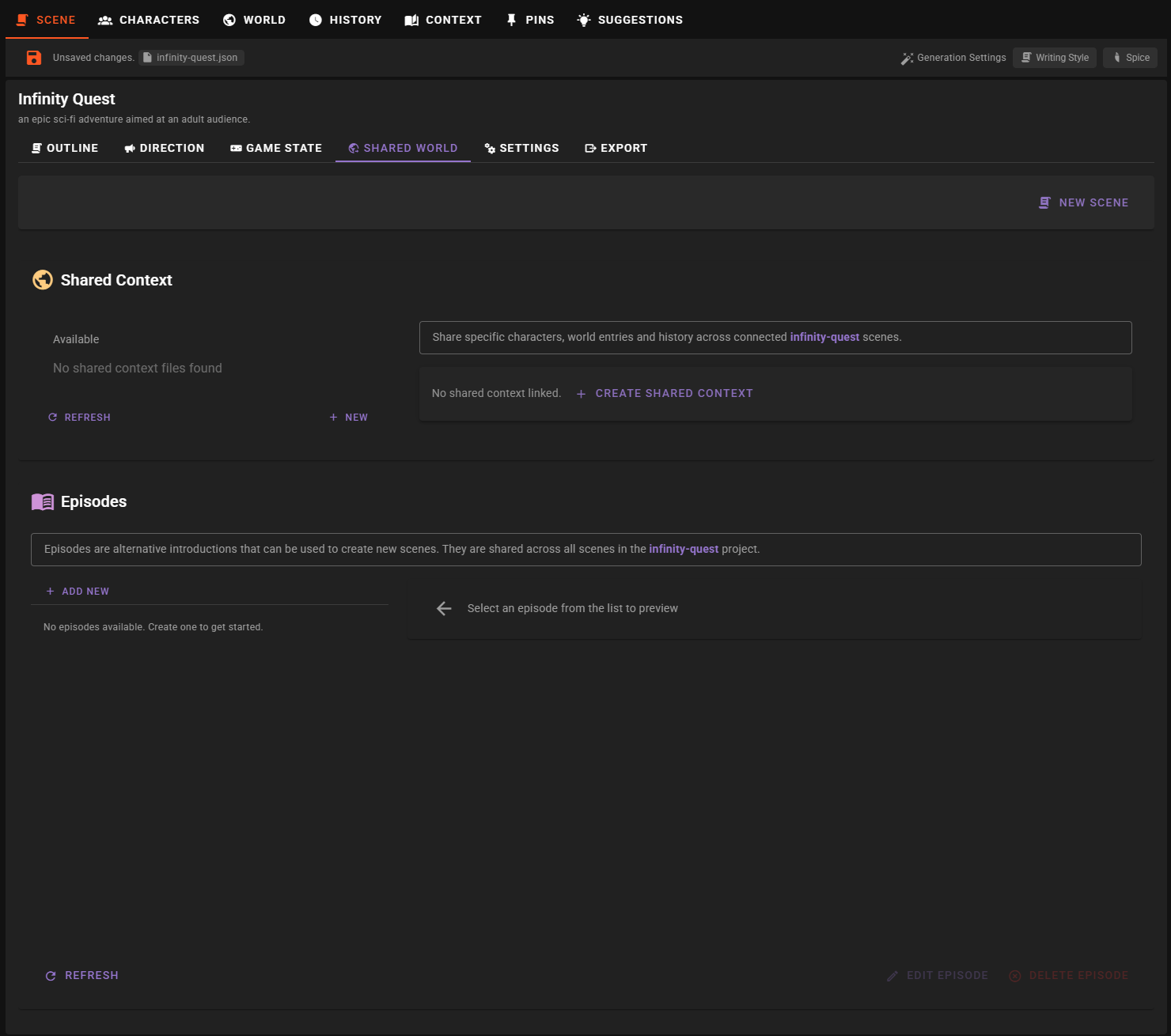
Shared Context
Shared Context allows you to share specific characters, world entries, and history across multiple scenes within the same project. This is useful for creating interconnected stories where certain elements remain consistent across different scenarios.
Creating a Shared Context
- Click the New button in the Shared Context section.

- Enter a filename for your shared context in the prompt dialog.
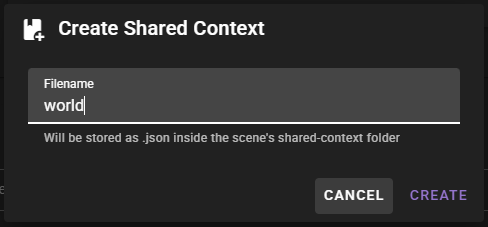
- The file will be saved as a
.jsonfile in the scene'sshared-contextfolder and will appear in the list.

Linking a Scene to Shared Context
- Select a shared context file from the list by clicking the checkbox.
- The selected shared context will appear as a chip at the top of the panel.
- Only one shared context can be active per scene.
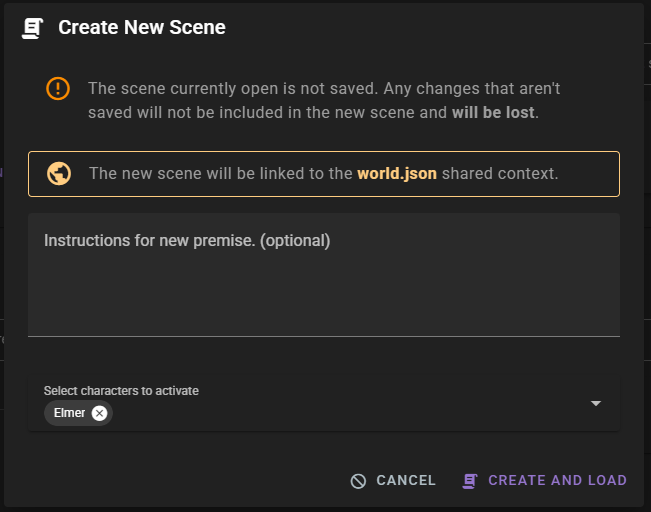
When a scene is linked to a shared context, you'll see the active context displayed in the "New Scene Section" at the top.
Bulk Sharing Elements
Once linked, you can quickly share or unshare all characters and world entries from the current scene to the shared context.
- Click on the Shared Characters or Shared World Entries chip.
- Select Share all... or Unshare all... from the menu.
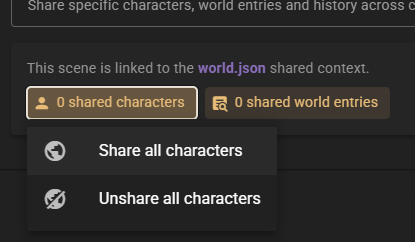
This is a convenient way to populate a new shared context with all the entities from your current scene.
Creating New Scenes with Shared Context
Once a scene is linked to a shared context, you can create new scenes that inherit the same shared elements:
- Click the New Scene button at the top of the panel.
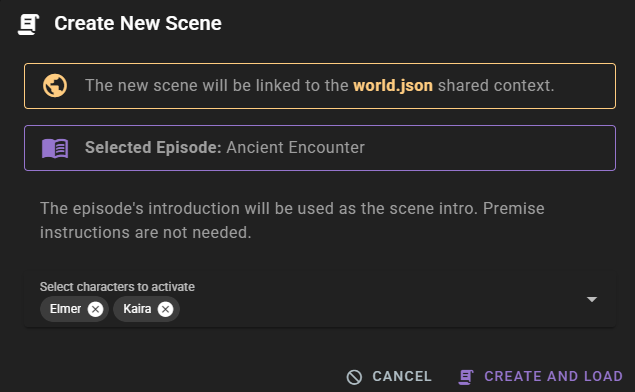
- The dialog will indicate that the new scene will be linked to the selected shared context.
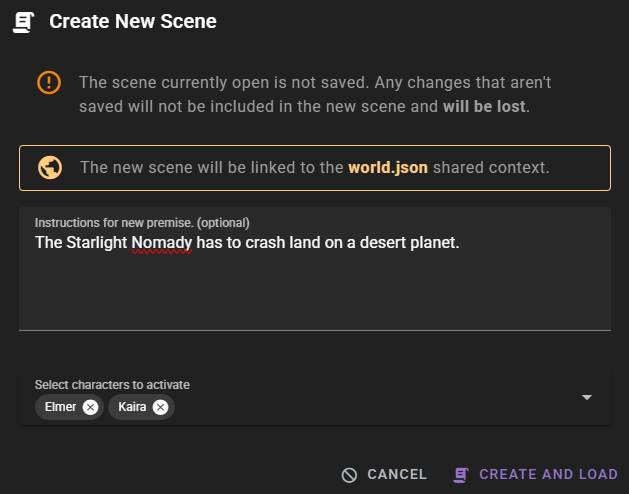
- Optionally provide instructions for generating a new premise.
- Select which shared characters to activate in the new scene.
- Click Create and load.
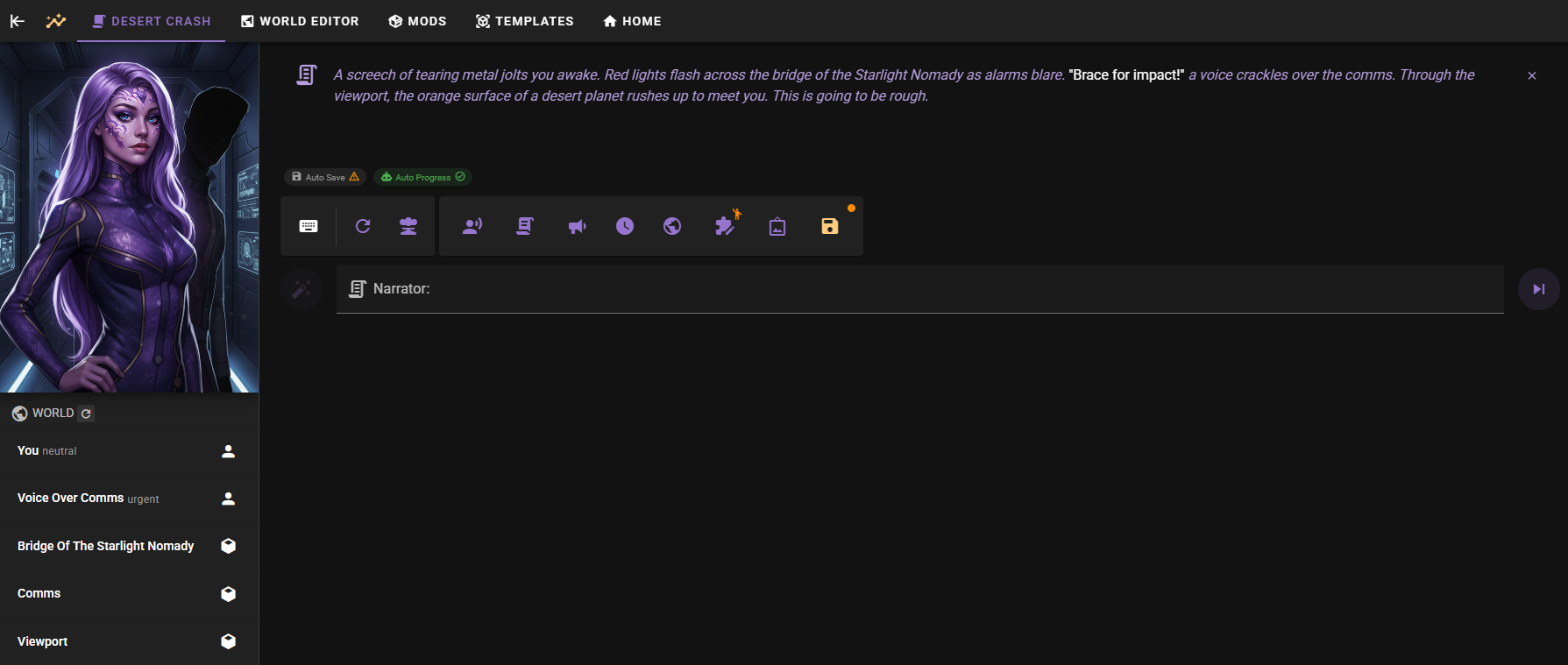
The new scene will:
- Be linked to the same shared context
- Start with the shared static history of that world, and with its clock at the time those entries imply rather than at zero
- Inherit the content classification settings
- Use the same agent persona templates
- Use the same writing style template
- Include selected shared characters
- Be part of the same project
Episodes
Episodes are alternative introductions that can be used to start new scenes. They are shared across all scenes in the project.
Managing Episodes
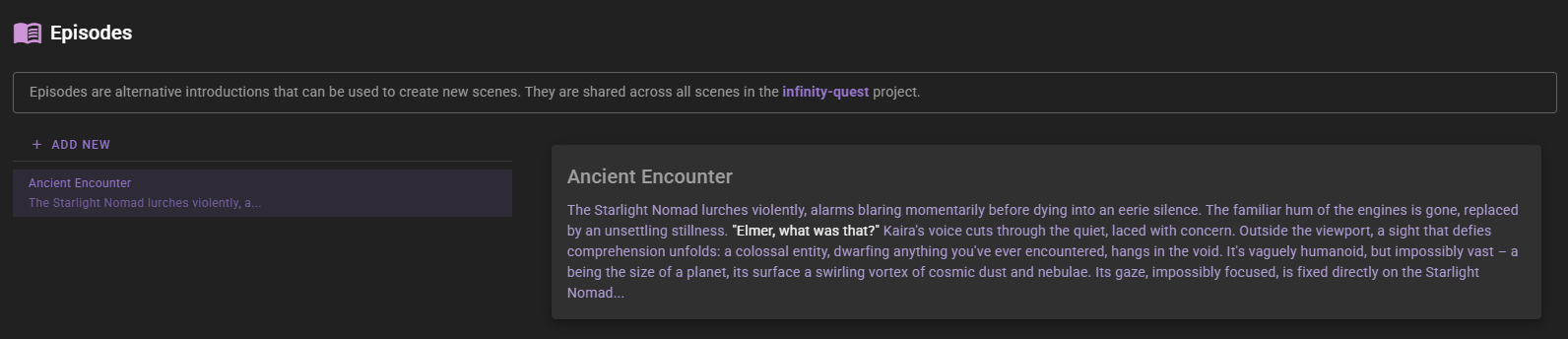
The Episodes section allows you to view and manage your episodes.
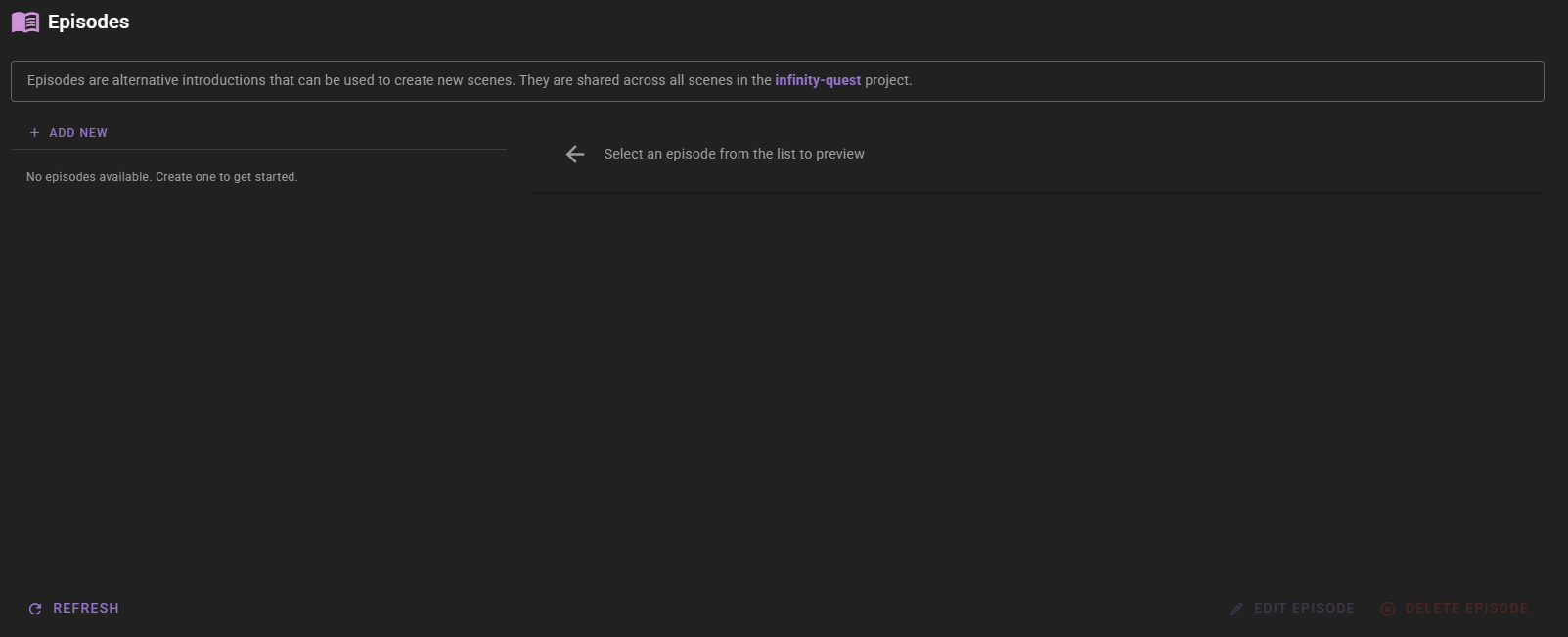
- Add New: Click the "Add New" button to create a new episode.
- Edit: Click the edit icon next to an episode to modify it.
- Delete: Click the delete icon to remove an episode.
Creating an Episode
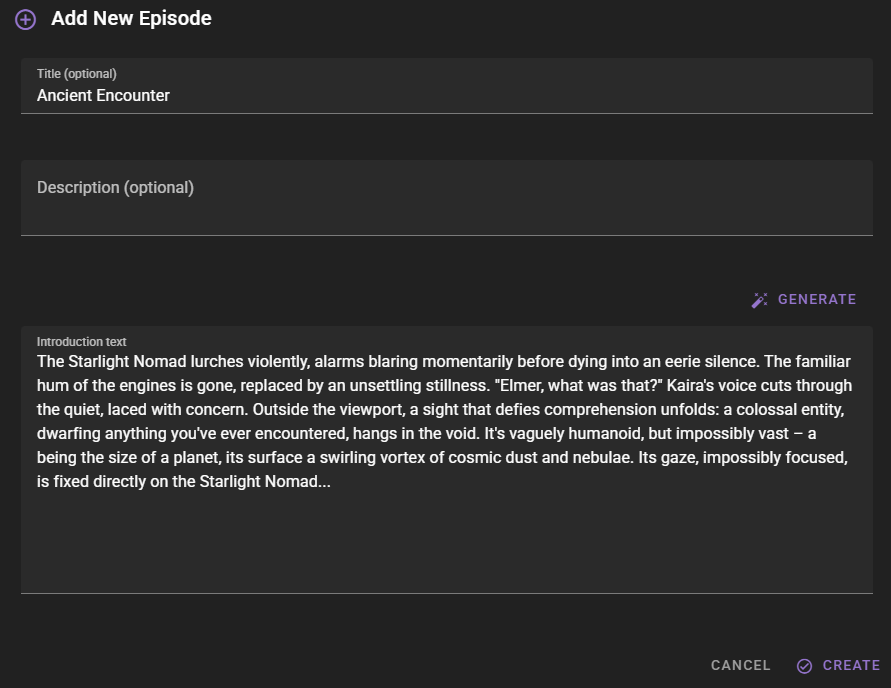
- Click the Add New button.
-
Provide a Title, Description, and Introduction for the episode.
-
Title: A name for the episode.
- Description: A short description of what happens in the episode.
- Introduction: The actual text that will start the scene.
- Click Save.
Creating a Scene from an Episode
You can use an episode to start a new scene:
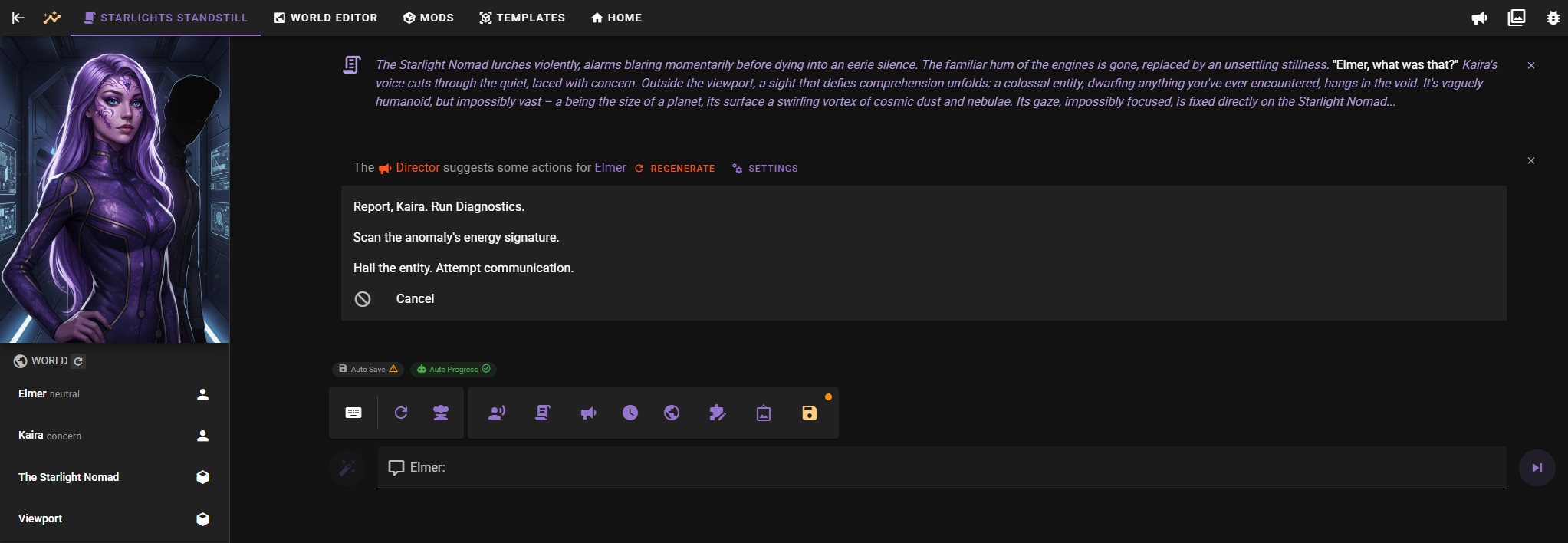
- Select an episode from the list by clicking on it.

- The selected episode will appear as a chip at the top of the panel.
- Click the New Scene button.
- The dialog will show the selected episode. Note that you do not need to provide premise instructions, as the episode's introduction will be used.
- Select any additional characters to activate (characters mentioned in the intro are auto-detected).
- Click Create and load.
Marking Elements as Shared
Once a scene is linked to a shared context, you can mark specific elements to be shared across all scenes using that context.
Sharing Characters
- Navigate to World Editor Characters
- Select a character from the list
- At the bottom of the character editor, check the Shared to World Context checkbox
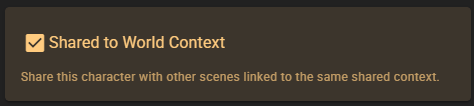
When shared, the character card will highlight in orange/amber to indicate its shared status.
Sharing Individual Attributes and Details
Once a character is marked as shared, you can control which specific attributes and details are shared:
For Attributes:
- Open the character and go to the Attributes tab
- Select an attribute from the list
- Click
 to add it to the shared context
 - Shared attributes are marked with a icon in the list
- Click
 to remove it from sharing
For Details:
- Open the character and go to the Details tab
- Select a detail from the list
- Click to add it to the shared context
- Shared details are marked with a icon in the list
- Click to remove it from sharing
This allows you to selectively share only relevant character information across scenes while keeping other aspects scene-specific.
Sharing World Entries
- Navigate to World Editor World
- Select or create a world entry
- Check the Shared to World Context checkbox in the entry editor

Shared world entries appear with an orange/amber highlight. These entries contain locations, lore, and world-building information that will be accessible across all linked scenes.
A linked scene takes the shared world entries each time it is loaded. The shared entry wins over what the scene saved:
- For example, the harbor scene shares an entry called "lighthouse", and the tavern scene already has its own, unshared "lighthouse" entry. The next time the tavern scene is loaded, its "lighthouse" entry is replaced by the shared one and becomes shared too. A shared entry replaces a private entry with the same ID in every linked scene.
- When any linked scene unshares or deletes a shared entry and saves, the entry leaves the shared world. Every other linked scene deletes its copy the next time it is loaded, also the scene that first shared it. For example, if the tavern scene unshares "lighthouse" to keep its own variant, the harbor scene loses its "lighthouse" entry at its next load. Unshare all world entries does this for every shared entry.
- Shared characters work differently. When a character leaves the shared world, the other linked scenes keep the character and only clear its shared flag.
Shared worlds from an earlier version
Earlier versions dropped the shared world entries when a linked scene was loaded, so the next save of that scene could take an entry out of the shared world, or write an older text back over an edit. To repair lost entries, a linked scene that is loaded while the shared world was last written by an earlier version puts its shared entries that the shared world lacks back into it. This stops at the first write of the shared world by this version: a save of a linked scene (an auto save counts, for example after the first message), a change to Share static history, or a load that puts an entry back.
The repair cannot tell a lost entry from one that a linked scene unshared or deleted on the earlier version. Such an entry also goes back into the shared world, and every linked scene takes it at its next load.
For example, you shared "promise" in the harbor scene and changed the text of "lighthouse" there, and the tavern scene's save then removed "promise" and wrote its older "lighthouse" text back. After the update, "promise" comes back if you load the harbor scene before this version writes the shared world. If you load and save the tavern scene first, "promise" stays lost. The edited "lighthouse" text does not come back in either case: the shared world keeps the older text, and every linked scene takes it at its next load. The edited text is still in the harbor scene's older revisions.
Sharing History
- Navigate to World Editor History
- If the sidebar isn't visible, click the icon in the upper left to open it
- Under Shared world context, check Share static history
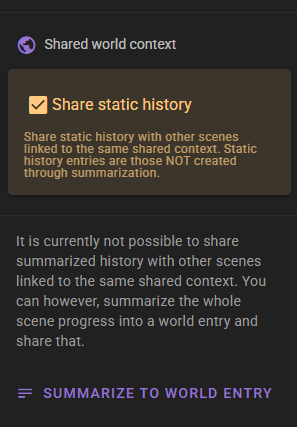
Static History Only
Only static history entries (manually created base entries) can be shared. Summarized history layers cannot be shared directly.
Each shared entry keeps its distance from the start of the scene. For example, one scene shares "The war ended" 10 years before its start. A second scene that uses the same shared context shows the entry 10 years before its own start. If a shared entry is older than everything in the second scene's history, the second scene's timeline moves back to make room for it, and its own entries keep their age.
Sharing Summarized Content
To share summarized scene progression, use the Summarize to World Entry button in the History tools menu. This creates a world entry from your scene's progress that can then be marked as shared.
What Gets Shared
- Characters - Complete character definitions, personalities, attributes, and details
- World Entries - Locations, lore, and world-building information
- Static History - Manually created history entries (not summarized layers)
These elements remain synchronized across all scenes linked to the same shared context.
A shared character's folder assignment is also synchronized — organizing a shared character into a folder in one scene places it in the same folder in every linked scene.