Pins
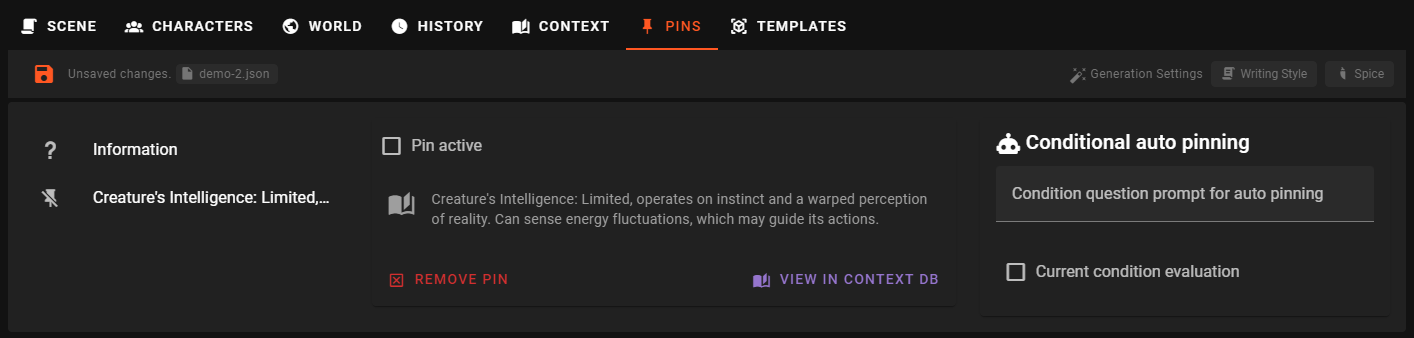
Pins allow you to permanently pin a context entry to the AI context. While a pin is active, the AI will always consider the pinned entry when generating text.
Warning
Pinning too many entries may use up your available context size, so use them wisely.
Remember there is also automatic insertion of context based on relevance to the current scene progress, which happens regardless of pins. Pins are just a way to ensure that a specific entry is always considered relevant.
Creating pins
There are two ways to create pins:
From the Context editor
Entries are pinned through the Context editor.
Find the entry you want to pin and click the Pin button.
From Character Details
You can also create pins directly from the Character Details editor. Select a detail and click the Add pin button to pin that specific character detail.
Set pin active or inactive
The pin can be set to active or inactive. Inactive pins will not be considered by the AI when generating text.
Select the pinned entry from the list and check or uncheck the Pin active checkbox.
Automatically pinning entries
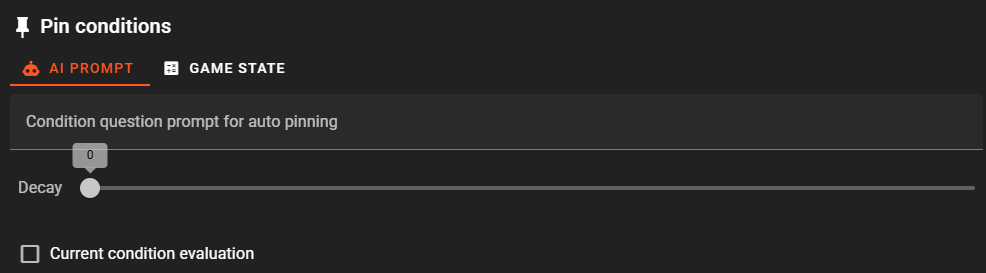
Talemate provides two ways to automatically control pins: AI Prompt conditions and Game State conditions. You can switch between these methods using the tabs in the pin editor.
AI Prompt conditions
AI Prompt conditions use the World State Agent to evaluate natural language questions every turn. If the condition is met, the entry will be pinned. If the condition is no longer met, the entry will be unpinned.
The conditions should be phrased as a question that can be evaluated as true or false (yes or no).
For example:
Is it raining?
Once a pin has an AI prompt condition set up, Talemate will query the condition every round and pin or unpin the entry based on the result.
Decay
The decay setting controls how many turns a pin stays active after being activated. Set to 0 for no decay (the pin stays active until the condition becomes false).
Current condition evaluation
This checkbox holds the current evaluation of the pin condition. You may also manually set this value to true or false.
Game State conditions
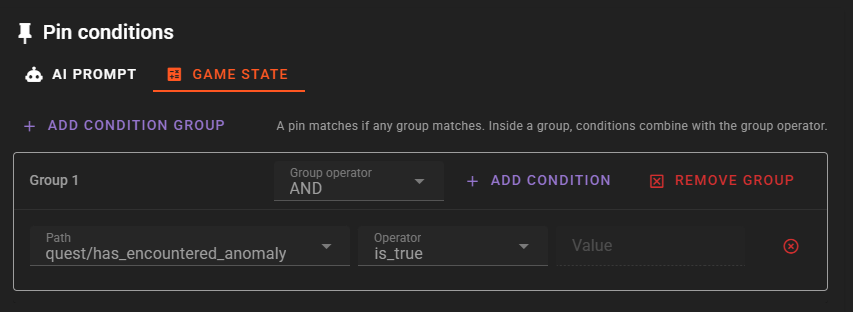
Game State conditions check game state variables directly instead of using AI to evaluate natural language questions. When game state conditions are set, the pin becomes fully automated and cannot be manually toggled. The pin will automatically activate or deactivate based on the current values of your game state variables.
When to use Game State conditions
Game State conditions are useful when:
- You have defined game state variables using the Node Editor or the Game State Editor
- You want precise, deterministic control over when pins activate
- You want instant updates without waiting for AI evaluation
Setting up Game State conditions
- Select a pin from the list
- Click the Game State tab
- Click Add condition group to create your first group
Understanding condition groups
Conditions are organized into groups. The logic works like this:
- Between groups: Groups are combined with OR - if any group matches, the pin becomes active
- Within a group: Conditions combine using the group's operator (AND or OR)
This structure allows you to create flexible rules. For example: "Activate this pin if (the quest is active AND the player is in the dungeon) OR (the boss is defeated)."
Creating conditions
Each condition has three parts:
- Path: The game state variable path to check (e.g.,
quest/stage,character/mood,flags/dungeon_unlocked) - Operator: How to compare the value
- Value: The value to compare against (not needed for some operators)
The Path field provides autocomplete suggestions based on existing game state variables in your scene.
Available operators
| Operator | Description | Requires value |
|---|---|---|
== |
Equals | Yes |
!= |
Not equals | Yes |
> |
Greater than | Yes |
< |
Less than | Yes |
>= |
Greater than or equal | Yes |
<= |
Less than or equal | Yes |
in |
Value is contained in the state | Yes |
not_in |
Value is not contained in the state | Yes |
is_true |
State value is true | No |
is_false |
State value is false | No |
is_null |
State value is null/undefined | No |
is_not_null |
State value exists and is not null | No |
Game state path format
Paths use forward slashes to navigate nested structures. For example, if your game state looks like:
{
  "quest": {
    "stage": 2,
    "name": "The Dark Tower"
  },
  "player": {
    "health": 85,
    "in_combat": true
  }
}
You would use paths like:
quest/stageto access the value2quest/nameto access"The Dark Tower"player/healthto access85player/in_combatto accesstrue
Example configurations
Pin activates when a quest reaches a specific stage:
- Path:
quest/stage - Operator:
>= - Value:
3
Pin activates when the player is in a specific location:
- Path:
location - Operator:
== - Value:
dungeon
Pin activates when a flag is true:
- Path:
flags/boss_defeated - Operator:
is_true
Pin activates when a character has low health (using multiple conditions in one group with AND):
- Group operator:
AND - Condition 1: Path:
combat/active, Operator:is_true - Condition 2: Path:
player/health, Operator:<, Value:25
Opening the Game State Editor
Click the Open Game State Editor button at the bottom of the Game State conditions panel to view and edit your scene's game state variables directly. The Game State Editor allows you to see all current variables and their values, which helps when setting up conditions.
Behavior differences from AI Prompt conditions
When Game State conditions are set:
- The pin cannot be manually toggled - it is fully controlled by the game state
- The decay setting is ignored - the pin stays active as long as conditions match
- Updates happen immediately when game state changes, rather than on each turn
- AI Prompt conditions are preserved but not evaluated while Game State conditions exist