Settings
Update World State
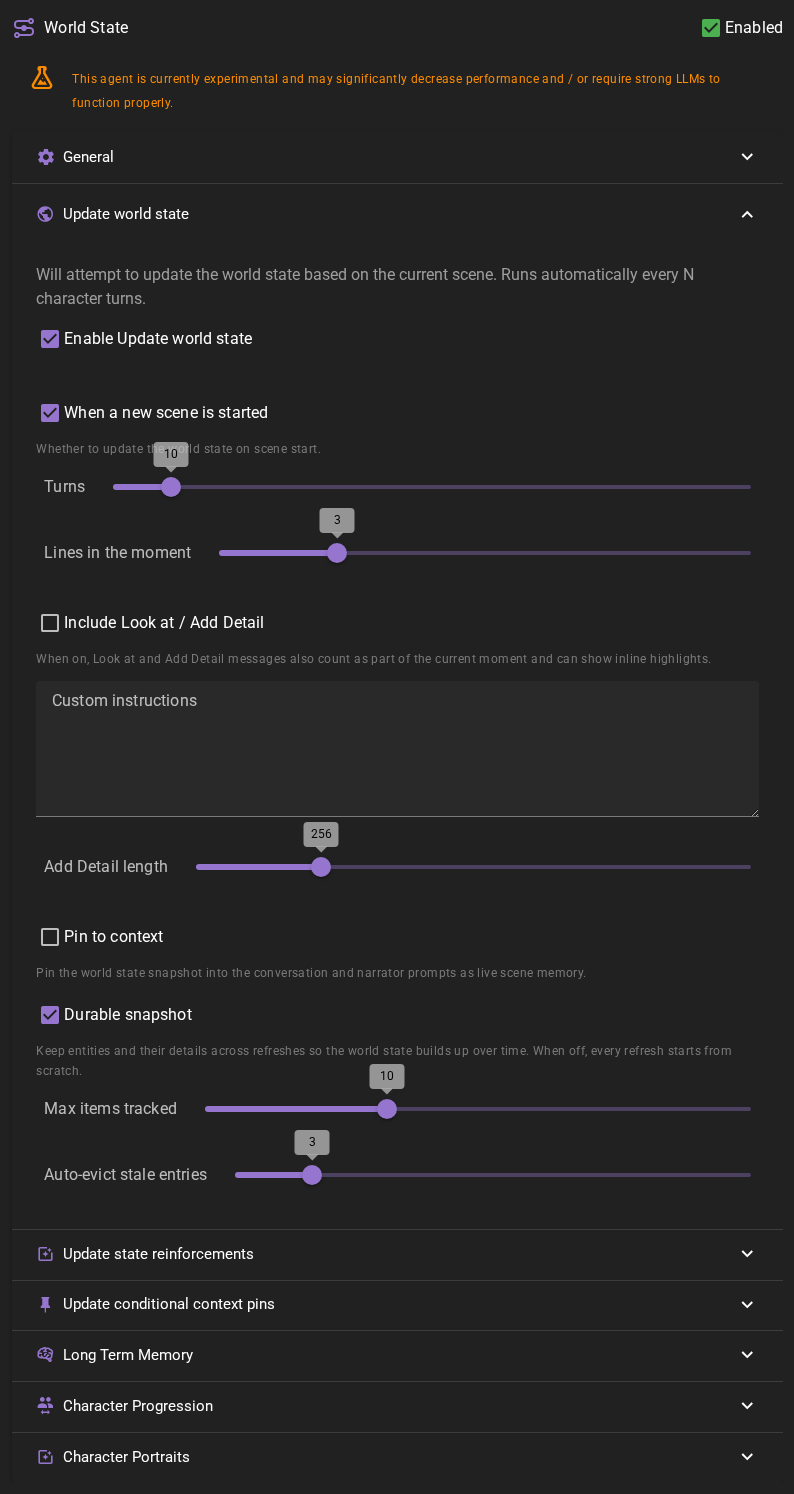
Update world state
Will attempt to update the world state snapshot based on the current scene. Runs automatically every N character turns.
When a new scene is started
Whether to generate an initial snapshot as soon as a scene is loaded. On by default.
Turns
How many character turns to wait before the snapshot is refreshed. Each player or AI turn counts (not full rounds), so on a scene with several characters the snapshot refreshes more often than the number alone might suggest. Defaults to 10.
Lines in the moment
How many of the most recent messages count as the "current moment". These are the lines the snapshot anchors to, and they are the messages that can show inline entity highlights. While the scene has fewer messages than this, the scene intro takes a spare line, unless a time passage lies between the intro and the newest messages. Keeping this small keeps the highlights tied to the active beat while the rest of the scene is still used as background context.
Include Look at / Add Detail
When on, Look at and Add Detail results also count as part of the current moment and can receive inline highlights. Off by default.
Use Decision Model for Snapshot Audiences
On by default. When a decision model is configured and character knowledge is enabled, the snapshot can recognize off-stage characters mentioned by pronoun, title or nickname. For example, "the innkeeper" can select Mara's perspective, while "I will go" need not select Will. On-stage characters are still included, and each character's knowledge limits still apply.
This adds one quick decision request per snapshot with off-stage characters to check, typically about 0.3–0.5 seconds depending on the provider. With many off-stage characters and tight input limits, the questions can go out as several requests. A snapshot with no off-stage characters sends none. Uncertain or failed decisions use the existing name match for each character. With the option off or no decision model, matching works as before. The editable policy is world_state.decision-snapshot-references in Prompts.
Custom instructions
Free-form instructions that steer what the snapshot focuses on. Use this to nudge the agent toward (or away from) certain kinds of detail. Empty by default.
Add Detail length
How long an Add Detail result can be. Shorter lengths keep the generated description tighter; longer lengths allow more elaboration.
Pin to context
When on, the snapshot is pinned into the conversation, narrator, and scene-analysis prompts as live scene notes, so the tracked entities can inform dialogue, narration, and planning. Off by default. See Pinning the snapshot to the scene.
The pinned snapshot may include outdated information until the next update. Enable Update world state and set Turns to 1 to refresh it every turn.
Durable snapshot
When on (the default), each refresh updates only what has changed and carries the rest of the snapshot forward, instead of rebuilding it from scratch every time. This lets the snapshot accumulate detail over the course of a scene. When off, every refresh starts fresh. See How the snapshot carries forward.
The two settings below only apply when Durable snapshot is on.
Max items tracked
The maximum number of items the snapshot can hold at once. When a refresh would exceed this, the stalest items are dropped first. Set to 0 for no limit.
An item you added by hand is never the one dropped, but it does keep its slot in the limit — pin ten items with the limit at ten and the snapshot has no room left for the items a refresh finds.
Auto-evict stale entries
Automatically drops a snapshot entry that the agent leaves unchanged for this many refreshes in a row. This guards against stale entries lingering when the agent fails to remove them on its own. Set to 0 to disable.
An entry you added by hand never ages out this way — the story dropping it, a time jump, or wiping the snapshot removes it.
Update state reinforcements
Will attempt to update any due tracked states
This is checked every turn and if there are any state reinforcements that are due, they will be updated.
What is a tracked state?
Tracked states occassionally re-inforce the state of the world or a character. This re-inforcement is kept in the context sent to the AI during generation, giving it a better understanding about the current truth of the world.
Some examples could be, tracking a characters physical state, time of day, or the current location of a character.
Use Decision Model
On by default. With a decision model configured, a due tracked state is checked before its usual LLM update. A confident "no change" keeps the answer and resets its interval. Other answers and failed decisions run the usual update once. Manual refreshes, forced updates and resets still run, as do states that have no answer yet.
The check sees the question, its instructions and previous answer, the character's description, active pins and the recent story: about two messages for each turn of the state's interval, plus three before them, up to about 4,000 tokens. When long messages make that too much, the oldest ones are left out and the check is told how many. It does not see memories or older history, which keeps it quick on a local decision model. The usual update still reads the full context.
An incorrect "no change" can leave an outdated answer until a later update. Turn this option off or refresh the state manually when needed. The editable policy is world_state.decision-reinforcement in Prompts.
Update conditional context pins
Will attempt to evaluate and update any due conditional context pins.
Turns
How many turns to wait before the conditional context pins are updated.
Use Decision Model
On by default. With a decision model configured, checks all due pin conditions together. Confident answers toggle their pins immediately; only uncertain conditions go to the usual LLM request. A failed decision uses that request once. Pin decay still runs as usual. With no decision model or this option off, pin checks work as before.
Yes/No Queries
Use Decision Model
On by default. The Evaluate Query node and yes/no script queries use the configured decision model first. A confident answer returns immediately; an uncertain or failed decision uses the usual LLM request once. With no decision model or this option off, they use the LLM as before.
Both options have their own editable policy template in Prompts (world_state.decision-pin-conditions and world_state.decision-query). The templates control the questions and confidence threshold. Decision Log shows the answers and whether the fallback ran. A confident answer can still be wrong; turn the option off if it misses a condition you expect to change.
When editing a decision policy for these features, finish it with resolve(answers): it checks the answers and sends every uncertain one to the usual request. See Decision policy overrides.
Character Progression
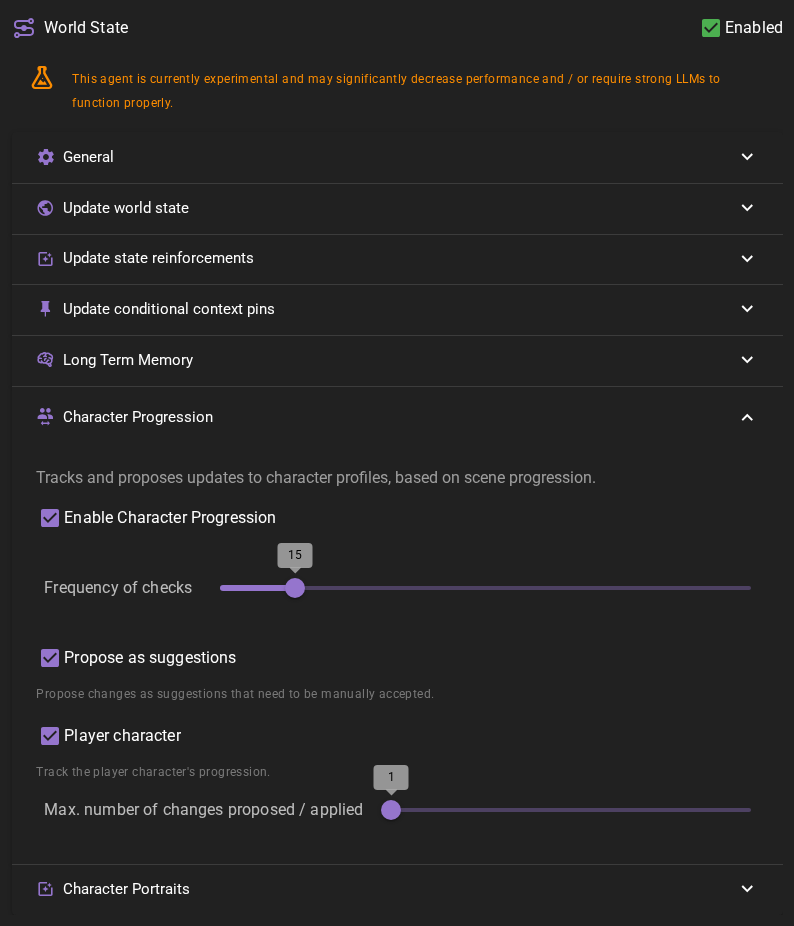
Frequency of checks
How often ot check for character progression.
This is in terms of full rounds, not individual turns.
Propose as suggestions
If enabled, the proposed changes will be presented as suggestions to the player.
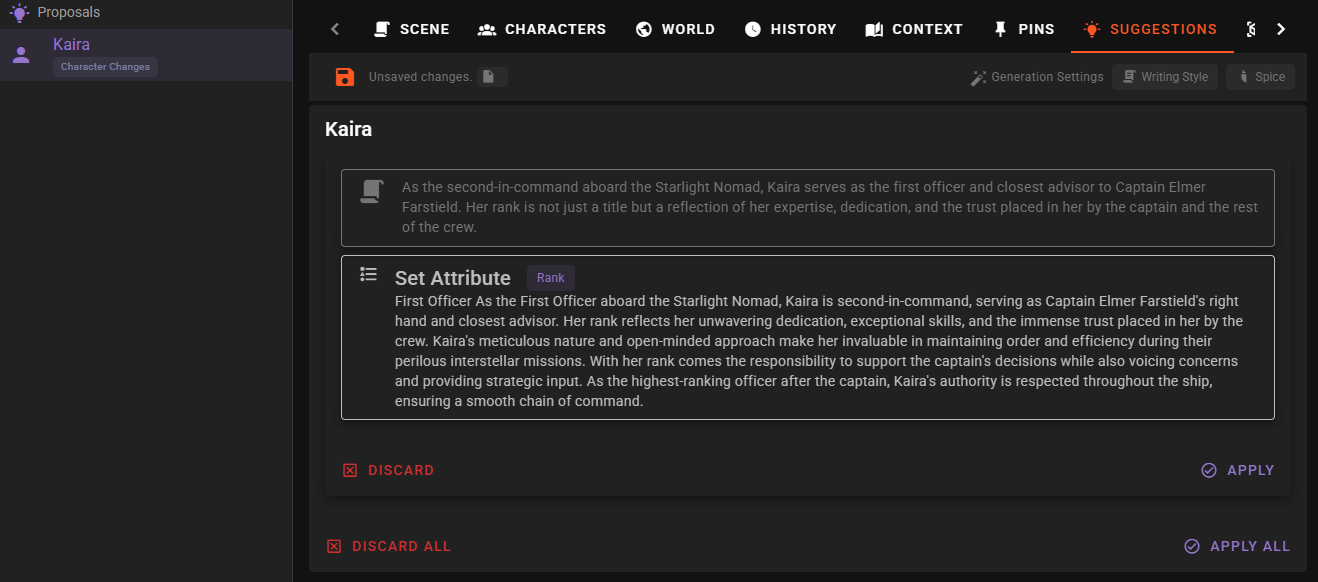
When a proposal has been generated it, if the character currently is acknowledged in the worldstate, a lightbulb will appear next to the character name.
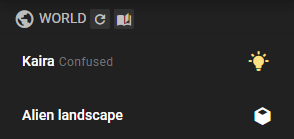
Click the name to expand the character entry and then click the to view the proposal.
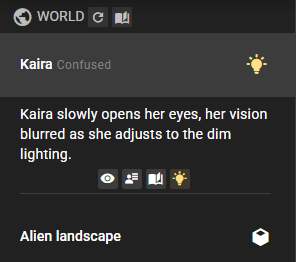
You will be taken to the world editor suggestions tab where you can view the proposal and accept or reject it.
Player character
Enable this to have the player character be included in the progression checks.
Max. number of changes proposed / applied
The maximum number of changes to propose or apply per character. Defaults to 1.
Character Portraits
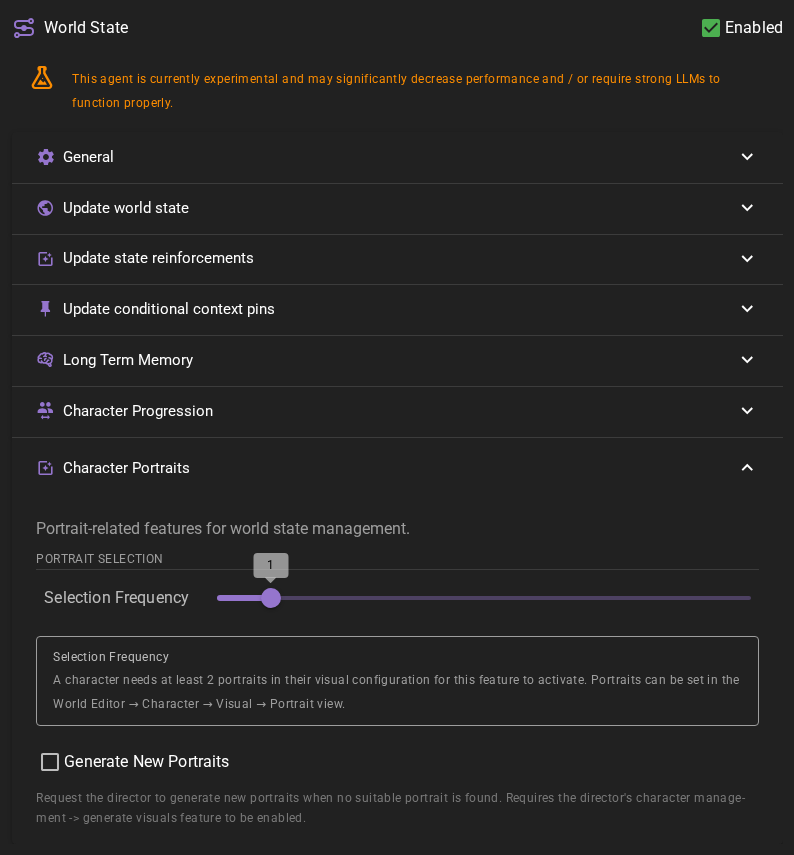
The Character Portraits settings control how character avatars are displayed alongside dialogue messages and whether they should change automatically based on the scene context.
Portrait Selection
Selection Frequency
Controls how often the World State Agent evaluates which portrait to use for a character based on the current scene context.
- 0: Never automatically select portraits (portraits must be changed manually)
- 1: Evaluate with every new message
- 2-10: Evaluate every N messages
When a message is generated, the agent examines the content and context of the scene, then compares it against the tags associated with each portrait to find the best match.
Minimum Portraits Required
A character needs at least 2 portraits in their visual configuration for automatic selection to activate. You can manage portraits in the World Editor under Character > Visuals > Portrait.
Tag Your Portraits
The selection algorithm relies on portrait tags to make decisions. Portraits without tags cannot be intelligently selected. Add descriptive tags like "happy", "sad", "angry", "combat", "formal" to each portrait using the Visual Library.
Use Decision Model
On by default. With a decision model configured, scheduled portrait selection can keep the current portrait or choose another existing portrait without the usual LLM request. If no existing portrait is a confident fit, or the decision fails, the existing selection and new-portrait generation path runs once. The selection frequency and generation permissions still apply.
An incorrect confident answer can miss a needed portrait change. Turn this option off to always use the usual request. The editable policy is world_state.decision-avatar in Prompts. Both portrait and tracked-state decisions appear in Decision Log with their outcome and fallback use.
Generate New Portraits
Generate New Portraits
When enabled, the World State Agent can request the Director to generate new portraits when no suitable portrait is found for the current scene context.
For example, if a character is described as wearing formal attire at a party but no existing portrait shows them in formal wear, the system can automatically commission a new portrait showing the appropriate appearance.
Prerequisites
This feature requires:
- The Director's Character Management > Generate Visuals setting to be enabled
- A Visual Agent with an image generation backend configured
- The Visualizer's Automatic Generation setting to be enabled. While it is off, the Character Portraits settings show a No new portraits note with a link to the Visualizer settings, and the agent only picks from existing portraits.
Generate new portrait and Auto-select portrait in a message's portrait menu are your own requests and work with Automatic Generation off.
When a new portrait is generated, it is automatically added to the character's portrait collection and tagged based on the scene context.
The scene tools visualizer menu has a quick Character portraits toggle for this setting.
Scene Backgrounds
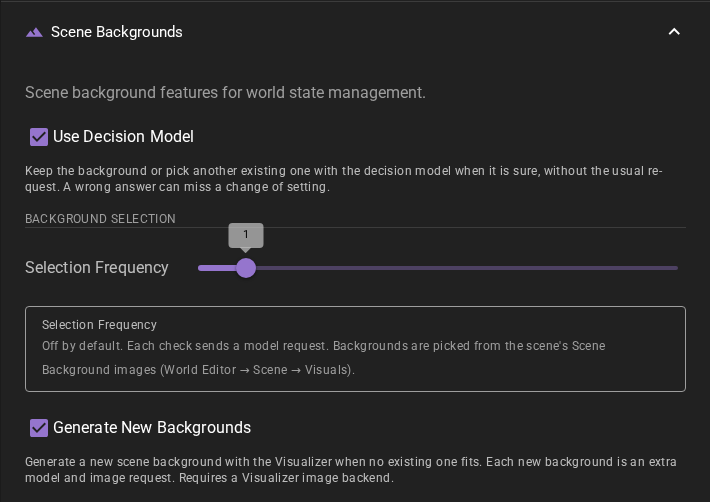
The Scene Backgrounds settings let the World State Agent keep the scene backdrop fitting the story while you play. When the story moves from the harbour at noon to a lantern-lit tavern at night, the agent can switch to a matching background you already have, or generate a new one.
Scene Backgrounds is off by default. Every check sends a model request, and a new background is also an image request.
Background Selection
Selection Frequency
Controls how often the World State Agent checks whether the current background still fits the story.
- 0: Never (the default; the feature is off)
- 1: Check with every new character or narrator message
- 2-10: Check every N messages
Player messages count, director notes and time passages do not. While a new background for the scene is still being generated, the agent skips the check, so the same place is not generated twice.
The agent picks from the scene's Scene Background images. You can add and tag them in the World Editor under Scene > Visuals or generate them with the Visualizer. Names and tags such as "harbour", "night" or "rain" help the agent choose.
Use Decision Model
On by default. With a decision model configured, the agent first asks it whether the current background still fits, and which existing background fits best. When the decision model is sure, that answer is used without the usual LLM request. When it is not sure, or the decision fails, the usual request runs once.
An incorrect confident answer can miss a change of setting. Turn this option off to always use the usual request. The editable policy is world_state.decision-background in Prompts, and its decisions appear in Decision Log.
Generate New Backgrounds
Generate New Backgrounds
Off by default. When enabled and no existing background fits, the agent describes the background the moment needs and the Visualizer generates it in the scene background style. If an existing background is a good starting point, for example the same harbour by day when the story needs it at night, the agent can name it as a reference, and an image editing backend creates a variation of it.
While the image is generated, a Generating background… entry appears in the scene. When the image is ready it becomes the backdrop and is saved to the scene's visuals.
The scene tools visualizer menu has a quick Backgrounds toggle for this setting.
Prerequisites
This feature requires a Visualizer with an image generation or image editing backend configured, and the Visualizer's Automatic Generation setting enabled. Without either, the Scene Backgrounds settings show a No new backgrounds note that names the cause, with a link to the Visualizer settings, and the agent only picks from existing backgrounds.
Backdrop changes in the scene
Every backdrop change, whether chosen by the agent, generated by you as a scene background, or set by you with Set as scene backdrop, adds a small Backdrop entry to the scene. Several changes in a row with no story in between share one entry. Click it to preview the image. While Immersive is off, the entry shows the image in the story instead, at the Scene Background display size from the Appearance settings; with its render cadence set to Never, the entry shows only its name, and clicking it previews the image. Replay uses these entries to show each passage with the backdrop it had. Removing an entry only removes the record; it does not change the current backdrop.
The Immersive toggle still decides whether the backdrop is shown at all.
Long Term Memory
When generating the world state snapshot, the agent pulls in relevant long-term memory so the snapshot can build on established lore and earlier scene history. Semantic recall is always used and is on by default.
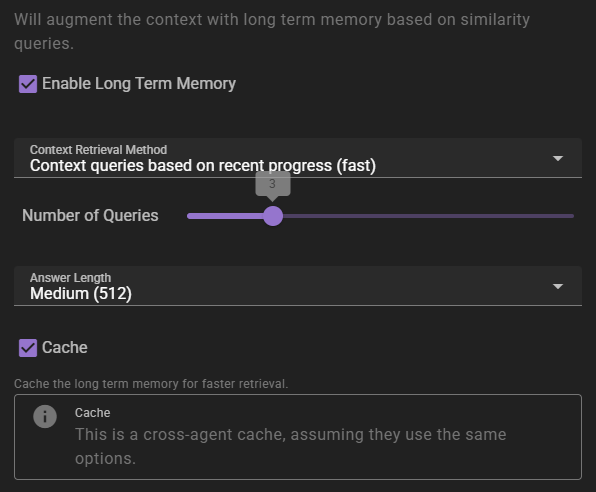
If enabled will inject relevant information into the context using relevancy through the Memory Agent.
Context Retrieval Method
What method to use for long term memory selection
Context queries based on recent context- will take the last 3 messages in the scene and select relevant context from them. This is the fastest method, but may not always be the most relevant.Context queries generated by AI- will generate a set of context queries based on the current scene and select relevant context from them. This is slower, but may be more relevant.AI compiled questions and answers- will use the AI to generate a set of questions and answers based on the current scene and select relevant context from them. This is the slowest, and not necessarily better than the other methods.
Number of queries
Only shown for the two AI-assisted retrieval methods. It means different things depending on the method.
- For
Context queries generated by AIthis is the number of queries to generate. - For
AI compiled questions and answersthis is the number of questions to generate.
The default is 5. None (Semantic similarity only) does not use it.
Answer length
The maximum response length of the generated answers.
Cache
Enables the agent-wide cache of long term memory retrieval. Agents that share the same long term memory settings share the cache. AI-assisted retrieval publishes a cached result; character-scoped retrieval in Character perspectives mode can also cache semantic-only results. Standard semantic-only retrieval remains uncached.
Regenerating a reply reuses a published result only when the story before that reply, the memory sources available to the retrieval, and its settings are unchanged. New or edited world entries, character details and archives refresh affected cached results, as do relevant knowledge visibility and memory-collection changes. When retrieval is limited to character knowledge, access rules tied to the reply being regenerated do not count as earlier sources. Without that limit, access rules do not affect retrieval. Changes to older retained access rules still refresh affected results. A retrieval already in progress can finish with its earlier context. A result built before one of those inputs changed is not reused after the change.