Game State
The Game State tab in the World Editor allows you to view and edit the game state variables for your scene. These variables persist with your scene save file and are commonly used by node modules to track game progress.
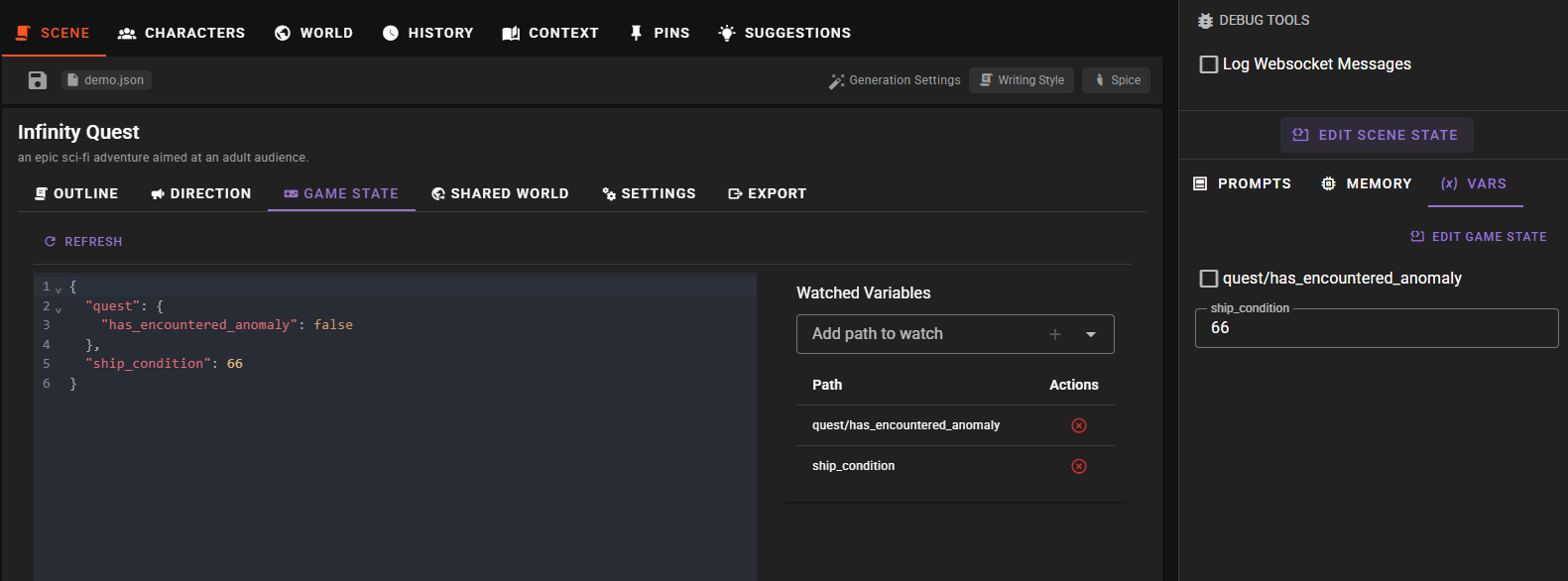
Overview
The Game State editor is split into two panels:
- Left panel: A JSON editor showing all current game state variables
- Right panel: The Watched Variables manager
JSON Editor
The JSON editor displays the complete game state as a JSON object. You can directly edit values here:
- Click in the editor to make changes
- Click outside the editor to save your changes
- If the JSON is invalid, an error message will appear and changes will not be saved
This is useful for:
- Adding new variables
- Editing complex nested objects or arrays
- Making bulk changes to multiple values
Watched Variables
The Watched Variables panel lets you select specific paths to monitor in the Debug Tools panel. Watched variables appear in the Debug Tools Vars tab where you can see their values update in real time and edit simple values directly.
Adding a Watch
- Use the dropdown to select from available paths in your game state
- Click the button or select a path to add it to your watch list
When you add a watched path, the Debug Tools panel will automatically open to show the Vars tab.
Removing a Watch
Click the button next to any watched path to remove it from monitoring.
Relationship to Node Modules
Game state variables correspond to the "game" scope in the node editor's state management system. When a node module uses SetState with scope=game, the value is stored in the game state and will appear in this editor.
See the State Management documentation for more information about state scopes.
Related
- Debug Tools - Monitor and edit watched variables in real time
- State Management - How to use state nodes in the node editor
- Context Pins - Use game state values to control pin activation