Debug Tools
Debug Tools provide a way to inspect and debug your scene during play or testing. You can access them by clicking the icon in the top toolbar.
The Debug Tools panel slides in from the right side of the screen and contains several tabs for different debugging purposes.
Tabs
The tabs carry their icons only, so the whole strip fits the sidebar without scroll arrows. Hover a tab to read its name.
Prompts
The Prompts tab shows a log of all AI prompts that have been sent during your session. Click on any prompt to inspect its full content. This is useful for understanding what information is being sent to the AI and debugging unexpected AI responses.
Requests appear immediately as Active, even if you open the viewer after generation starts. Available prompt text, agent/action and parameters can be inspected while the response is pending. The same entry becomes Completed, Failed or Cancelled when the logical request ends. Retries stay in that entry; ignoring a generation failure leaves it marked Failed.
Clear removes finished entries and keeps active requests. Dump to file exports the current list, including active entries with pending values. The Prompt Manager uses the same log and status indicators.
For headless captures or longer-running debug sessions, the same prompt records can also be streamed to a file — see Prompt Logging.
The prompt detail view also lets you force reasoning off for the specific agent action that produced a prompt, using the Reasoning: client default button next to the action. The full list of actions and their overrides lives in the Agent action overrides dialog — see Forcing Reasoning Off for Specific Actions.
Decisions
The Decisions tab shows each question a feature asked the decision model, the answer, and what the feature did next. The Prompt Manager's Recent sidebar has the same tab. Both tabs show the same entries, including requests made while both of them were closed.
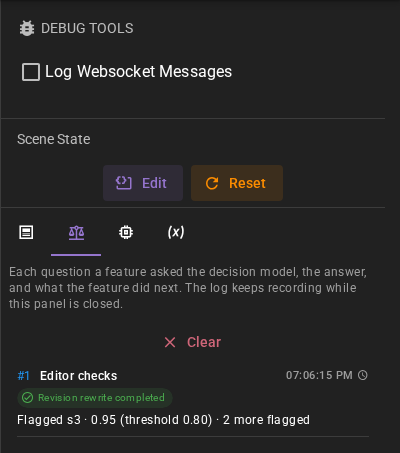
The drawer keeps a compact list: one row per decision request, however many questions it carried.
Each row shows the feature, for example Editor checks or Tracked state update, the time, an
outcome chip and a one-line result. The figure beside the time, such as 1.8k ,
is the number of tokens the request sent, so a large request stands out; hover it to see whether the
provider counted it or Talemate estimated it. A dash means the request stopped before Talemate counted it.
An Editor check might show Revision rewrite completed with
Flagged s1 · 0.91 (threshold 0.80): the flagged passage, its probability and the threshold it
reached. When nothing reached its threshold, the result starts with Nothing flagged. Open the
row to see the full report in a dialog.
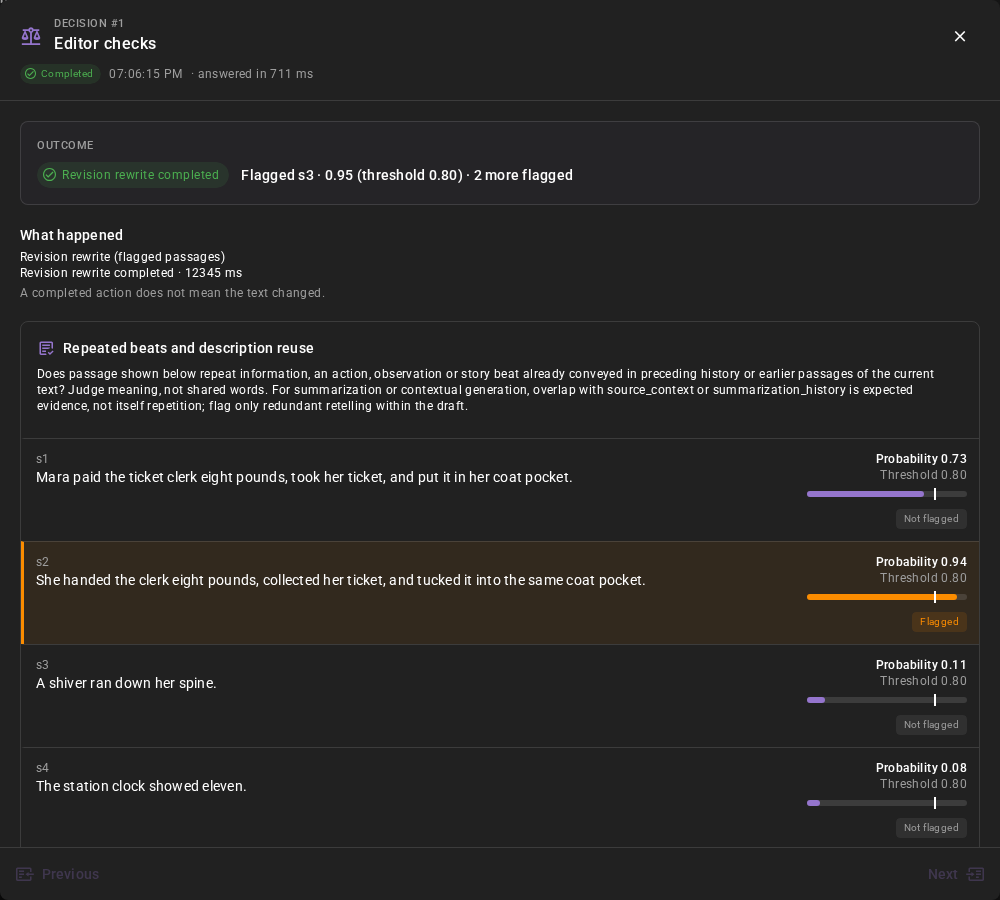
The report's title names the feature. Below it are the request status, the time and the request's
duration: answered in for a completed request, took for one that failed or was cancelled. The Outcome box repeats the outcome and the deciding value. What happened
lists the feature's explanation and the actions it took, each with its own status and duration.
A policy that supplies no explanation shows No action; reason unspecified. Talemate does not
read the policy to guess why a branch was not taken.
Context sent shows how much the request carried. Sent is the provider's own input count when it reports one, otherwise Talemate's estimate. State budget is the room the feature fitted its text to: No limit when the decision model declares no input limit, and Fixed when the feature sends its text as it is. State · Questions splits the count between the story text and the questions, and Parts says into how many requests the questions were split; each part carries the whole text again. A bar shows how much of its budget the text used.
For Editor checks, the report groups the questions into cards. Each shared question appears once, with the exact checked passage text beside its probability and threshold. The probability bar and threshold marker make the values easy to compare; Flagged marks the passage checks selected by the policy, while Not flagged marks the others after the policy has reported its result. The policy owns that selection, including any template override. A flag alone does not mean a rewrite ran: the minimum number of passages and the action settings still determine the outcome. A yes/no answer's probability expresses how likely the answer is yes, not severity or confidence. Requests without passage details show their questions and answers instead.
Show technical details opens the collapsed record: the request label, the policy template and its source group, the evaluated state, questions and criteria, presentation metadata, typed answers, provider response, template outcomes, any failure message, action arguments and results, and request/invocation identifiers. Previous and Next browse the other retained decisions without closing the dialog. The report follows live updates while a request or action is running and closes if its entry is cleared.
An action the policy ran without naming any of its requests is marked not linked to this request. An action that named another request of the same policy belongs to that row, not to this one.
A completed action says only that the call returned. It does not say that the text changed.
An Editor checks row with a warning line, such as No writing style set for this scene; decision
checks need one., means a revision ran without its checks because of the scene's writing style.
A failed or cancelled request stays visible with its own status. The row names the reason in plain words, for example "Talemate could not reach the provider". Open a failed row to read the failure and elapsed time. Request not sent means the request never reached a provider, for example because the decision model is off or not set up. Request failed means the request was sent and then failed. Questions without answers say Pending while the request runs or No answer returned when it has ended. Credentials and authorization headers never enter the log.
Clear removes finished entries and keeps active requests and pending actions. A request whose model answered, but whose action is still running, stays. The log keeps the 50 most recent finished entries plus everything that is still active. It lives only in the running session.
Loading a scene clears the log as well, the way the Prompts tab clears. Anything still running when the new scene arrives is kept, so work in flight never disappears from under you. A scene change cancels the outgoing scene's decision work, so such a row ends as Cancelled and stays until the next clear.
Memory
The Memory tab displays memory retrieval requests made by the Memory Agent. Use this to verify that relevant context is being retrieved during generation.
Vars
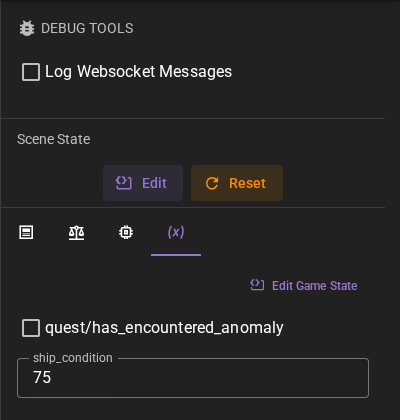
The Vars tab displays game state variables that you have chosen to watch. This allows you to monitor and edit variable values in real time without leaving your scene.
Game State Variables
Game state variables are persistent values stored with your scene that can be used by node modules to track game progress, flags, counters, and other dynamic data. The "game" scope in the node editor's state management corresponds to these variables.
Viewing Variables
When you have watched paths set up, the Vars tab displays their current values. If a watched path points to an object (dictionary), its keys are automatically expanded so you can see individual values.
Pinned paths can have an optional label. Debug Vars shows that label as the value control's title and keeps the full game state path underneath as a subtitle. When a labeled container expands into child controls, each title combines the label with the child key (for example, Hero / health). Without a label, the path remains the control title as before.
Paths that don't exist in the game state will show an error message indicating the path was not found.
Editing Variables
You can edit variable values directly in the Vars tab:
- String values: Appear as text fields. Type a new value and click away (or press Tab) to save. A path that carries a list of choices appears as a dropdown instead.
- Number values: Appear as number input fields. Enter a new value and click away to save. A path with a minimum, a maximum and a step can be shown as a slider instead, which saves when you release it.
- Boolean values: Appear as checkboxes. Click to toggle the value.
- Objects and arrays: Displayed as read-only. To edit these, use the Game State Editor.
- Paths marked read-only: Show their value as text with no control.
- Values of the wrong type for their settings: Show their value as text with a note saying so, rather than a control whose every write would be refused.
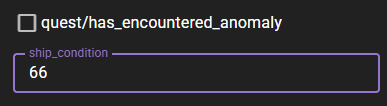
Changes are saved immediately when you finish editing.
Scene Toolbar Controls
Game state variables that act as gameplay controls can be pinned to a compact toolbar above the scene tools. The toolbar uses the same type-matched controls as Debug Vars, so strings, numbers, and booleans can be changed without opening the Debug Tools drawer.
The toolbar appears only while it has pinned paths. It is hidden during a replay, where the replay controls replace the normal scene tools.
A path's Debug Vars and Scene toolbar targets are independent. You can pin a variable to either location or to both. The control settings are shared by both targets: the toolbar uses the label instead of the path, while an unlabeled control continues to show its path. The order you set positions a control in the toolbar and in Debug Vars alike, and paths without an order come last in alphabetical order.

Setting Up Pinned Paths
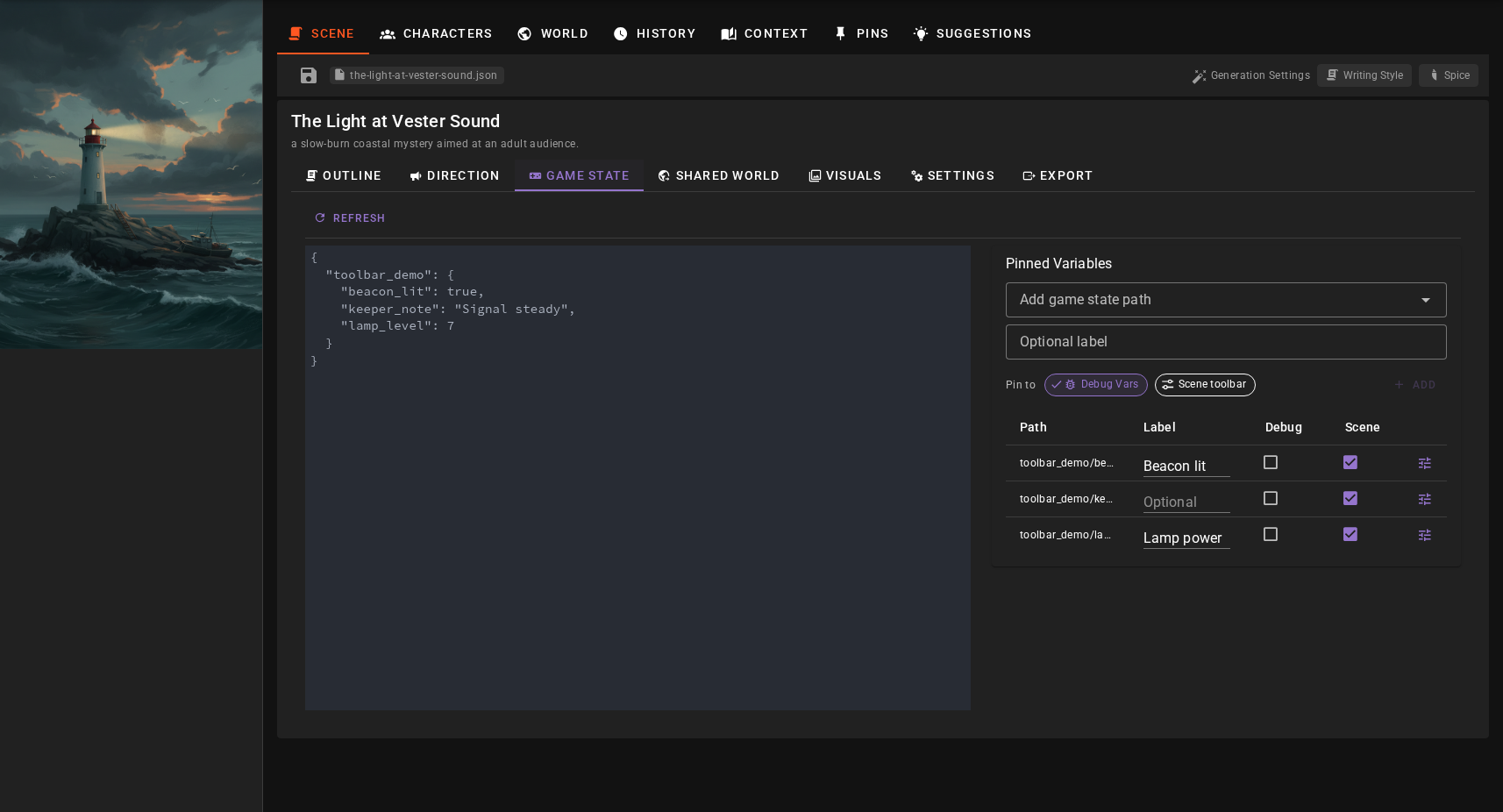
Add Debug Vars and scene-toolbar pins through the Game State Editor.
Accessing the Game State Editor
There are three ways to open the Game State Editor:
- From Debug Tools: Click the Edit Game State button in the Vars tab.
- From World Editor: Navigate to World Editor > Scene tab > Game State tab.
- From the scene toolbar: Click the button at the left end of the controls toolbar. (The button on a row of the Pinned Variables table is a different control — it opens that path's control settings.)
Adding Pinned Paths
The Game State Editor shows two panels:
- Left panel: A JSON editor displaying all game state variables
- Right panel: The Pinned Variables manager
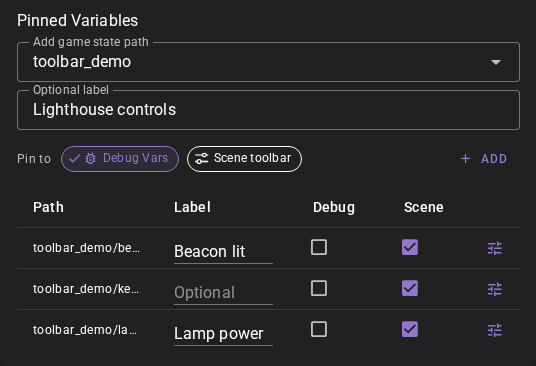
To pin a path:
- Select a path in the Pinned Variables panel.
- Optionally enter a short label for the control.
- Select Debug Vars, Scene toolbar, or both target chips.
- Click Add.
The dropdown automatically lists all paths found in your current game state, including both individual values and container paths (objects).
Path Format
Paths use forward slashes to separate nested keys. For example:
quest- A top-level variable named "quest"quest/active- The "active" key inside the "quest" objectplayer/stats/health- Deeply nested value
Changing or Removing Targets
Edit the optional label directly in the pinned-path table. Clearing it restores the path-only display. Use the checkboxes to turn each target on or off independently. A path and its settings are removed from the table when neither target is selected.
Control Settings
The button in a pinned path's row opens its control settings. See Game State in the World Editor documentation for what each setting does.
The minimum, maximum, step, read-only and choices settings are limits, not just decoration. Talemate applies them to every edit made in the toolbar and in Debug Vars: a number outside its range is clamped into it and snapped onto its step, a value outside the choices is refused, a value of the wrong type for the setting is refused, and a read-only path refuses the write. The JSON editor in the Game State Editor is not limited, so it stays available for setting a value the controls will not.
Editing the Full Game State
The JSON editor on the left allows you to directly edit the complete game state structure. This is useful for:
- Adding new variables that don't exist yet
- Editing complex objects or arrays
- Bulk changes to multiple values
After making changes in the JSON editor, click away from the editor to validate and save your changes. Invalid JSON will show an error message and won't be saved.
Edit Scene State
The Edit Scene State button at the top of the Debug Tools panel opens a separate editor for the complete scene state, which includes more than just game state variables. This is an advanced feature for debugging scene internals.