Autonomous Scene Direction
Autonomous Scene Direction allows the director agent to progress your scene automatically, using the same actions available through the Director Chat. Instead of manually requesting the director to take actions, the director will analyze the scene and decide what actions to take on its own.
Requirements
Strong LLM Recommended
A strong language model (100B+ parameters) with reasoning capabilities is highly recommended for meaningful autonomous scene direction. While you may have some success with smaller 32B reasoning models, larger models will produce significantly better results.
See Reasoning Model Support for information on enabling reasoning capabilities.
Scene Intentions
Autonomous Scene Direction relies on having both a story intention and a scene phase intention set. Without these, the director lacks the context needed to make meaningful decisions about scene progression.
Set these in the World Editor - Scene Direction section:
- Overall Intention: The big-picture goal and expectations for your story
- Current Phase Intention: The specific goal and context for the current scene
Enabling Scene Direction
Scene Direction is disabled by default. To enable it:
- Open the Director agent settings from the agents panel
- Find the Scene Direction section
- Toggle the feature On
Quick Toggle
Scene Direction has a quick toggle in the agent settings panel, making it easy to turn on and off during play.
How It Works
When Scene Direction is enabled, the director analyzes the scene after each turn and decides whether to take action. The director can:
- Instruct actors on what to do or say next
- Guide the narrator to progress the story
- Generate new content based on the scene's current state
- Prompt the user for information when needed
- Manage time progression in the story
- Create or modify world entries and characters
The director uses the same actions available in Director Chat, but makes autonomous decisions about when and how to use them based on:
- The overall story intention
- The current scene phase and intention
- The recent scene history
- The participation balance of characters and narrator
Turn Balance
When Maintain turn balance is enabled (the default), the director tracks how often each character and the narrator have participated in recent scene history. This helps ensure:
- No single character dominates the conversation
- The narrator provides enough scene-setting and descriptions
- Neglected characters get opportunities to participate
Prompting the User for Input
The director can prompt you for information during autonomous scene direction using the Prompt for text input action. This allows the director to request your input when it needs guidance or information to continue the story.
When the director uses this action, a text input dialog appears in your scene feed with a title and message explaining what information is needed. You can then type your response and submit it, or cancel the prompt if the input is optional.
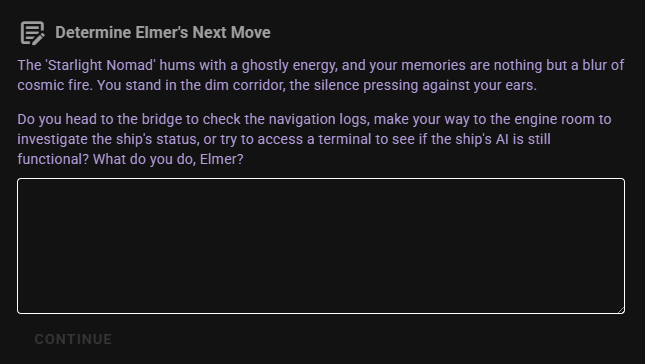
Common situations where the director might prompt you:
- Asking what you want to do next after a significant story event
- Requesting details for character creation when starting a new scene
- Seeking clarification on your intentions when the story could branch in multiple directions
The dialog includes:
- Title: A brief heading indicating the nature of the prompt
- Body: The full question or request from the director, which may be presented either in-character or out-of-character depending on the context
- Text Input: A field where you enter your response (single-line or multi-line depending on the prompt)
- Continue Button: Submit your response
- Cancel Button: Dismiss the prompt without responding (only available if the input is optional)
After you submit your response, the director receives your input and uses it to inform its next actions in the scene.
This action can be enabled or disabled through the Actions menu if you prefer the director not to prompt you directly. See Actions Menu for details on managing available actions.
Settings
General Settings
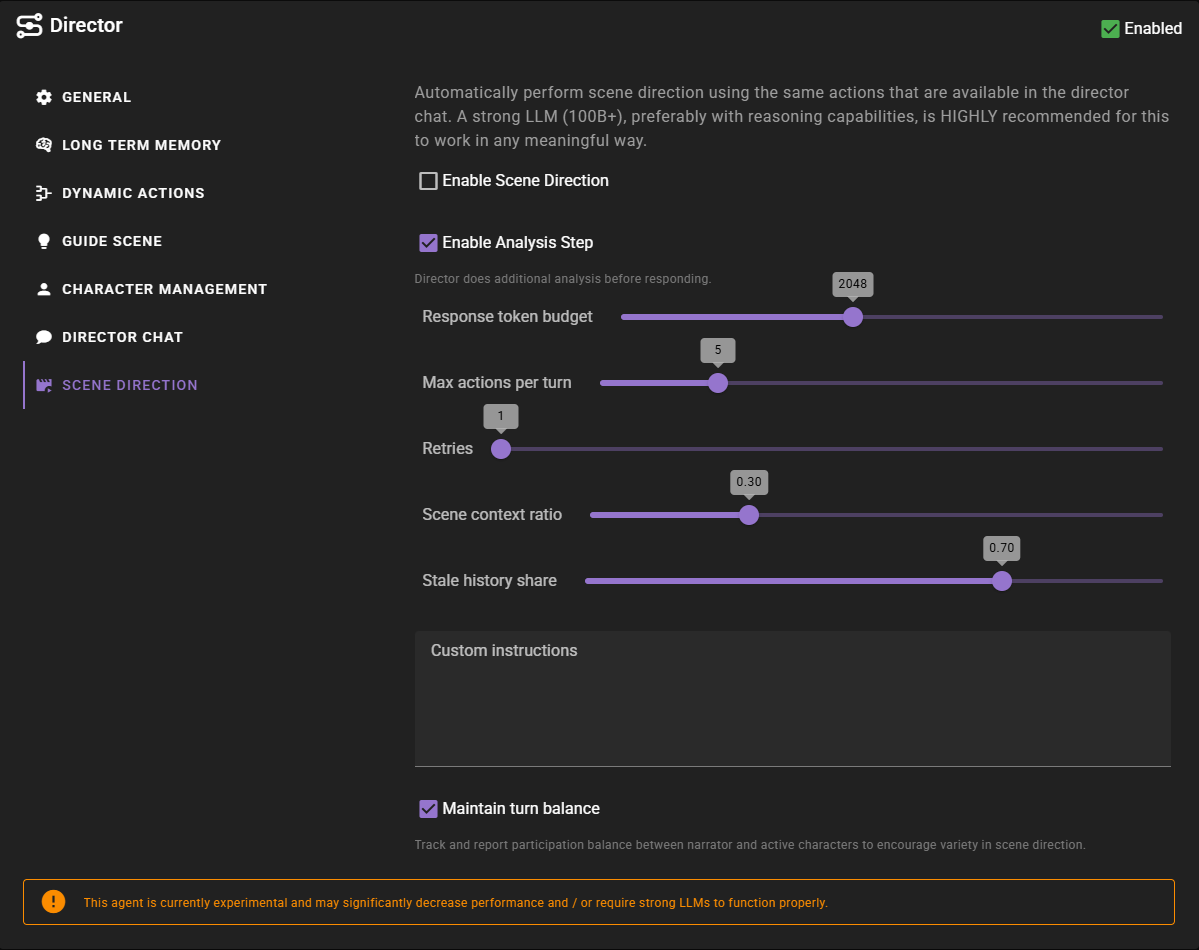
Enable Analysis Step
When enabled, the director performs an internal analysis step before deciding on actions. This helps the director think through complex situations and plan more carefully.
Recommendation: Keep this enabled for more thoughtful scene direction.
Response Token Budget
Controls the maximum tokens the director can use for reasoning and response generation. Higher values allow for more detailed analysis. Default is 2048.
Max Actions Per Turn
The maximum number of actions the director can execute in a single turn. This prevents runaway action chains. Default is 5.
Retries
How many times to retry if the director produces a malformed response. Default is 1.
Context Settings
Scene Context Ratio
Controls how the director's context budget is divided between scene context and direction history.
- Lower values (e.g., 0.30): 30% for scene context, 70% for direction history
- Higher values (e.g., 0.70): 70% for scene context, 30% for direction history
Default is 0.30.
Stale History Share
When the direction history needs to be compacted (summarized to save tokens), this controls what fraction is treated as "stale" and summarized versus kept verbatim.
- Higher values: Summarize more, keep less verbatim
- Lower values: Summarize less, keep more recent messages
Default is 0.70.
Turn Balance Settings
Maintain Turn Balance
When enabled, the director tracks participation of characters and narrator to encourage variety in scene direction.
Custom Instructions
Add global instructions that will be included in all scene direction prompts across all scenes. Use this for preferences that should apply universally to how the director behaves, regardless of which scene is loaded.
Scene-Specific Instructions
For instructions tailored to a specific story or scene, use the Director Instructions field in the World Editor - Scene Direction section instead. Those instructions are stored with the scene and are ideal for genre-specific guidance, story-specific rules, or scene-specific constraints.
Director Persona
The director persona selected in the agent settings applies to scene direction as well as director chat. Choosing a different persona can significantly affect the director's tone, decision-making style, and how it approaches scene progression.
See Director Personas for more information on available personas and how to customize them.
The Direction Tab
When a scene is loaded, you can view the director's autonomous actions in the Director Console. Click the Direction tab (bullhorn icon) to see:
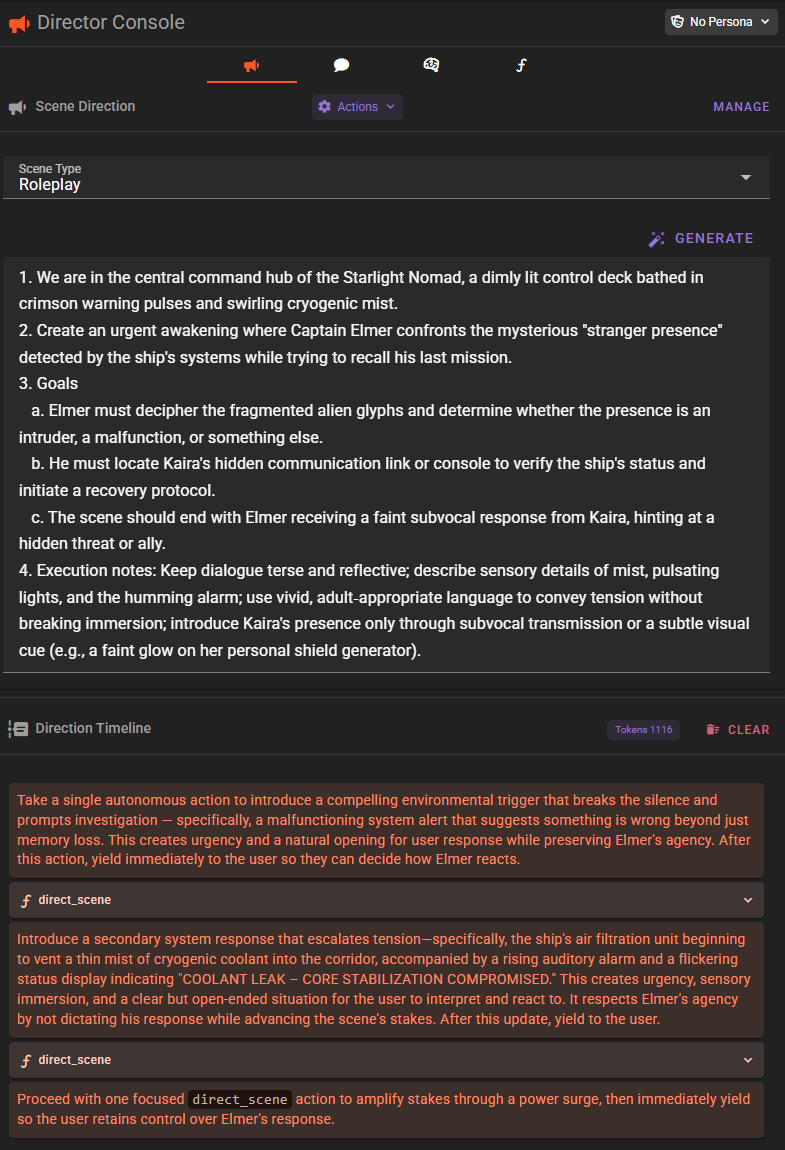
Scene Type and Intention
At the top of the Direction tab, you can view and modify the current scene type and phase intention. Changes here affect how the director approaches scene progression.
Direction Timeline
Below the scene settings is the Direction Timeline, which shows:
- The director's reasoning and analysis (if analysis step is enabled)
- Actions taken by the director
- Results of those actions
This provides full transparency into what the director is doing and why.
Clearing Direction History
You can clear the direction history using the Clear button. This will make the director "forget" previous actions taken during autonomous direction, but will not affect the scene history itself.
Actions Menu
The Actions dropdown lets you enable or disable specific actions the director can use during scene direction. This gives you fine-grained control over what the director is allowed to do autonomously.
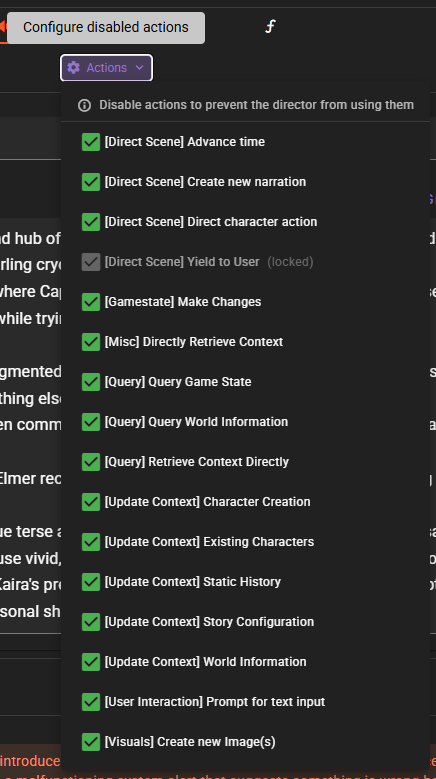
Some actions may be marked as "locked" and cannot be disabled - these are core actions required for scene direction to function.
For a complete list of available actions and their categories, see Enabling and Disabling Actions in the Director Chat documentation. The same actions are available for both Director Chat and Scene Direction, and your toggle settings are saved separately for each mode.
Creating Custom Director Actions
Advanced users can create custom director actions using the Node Editor. This allows you to extend what the director can do during autonomous scene direction.
Director Action Nodes
To create a custom action:
- Open the Node Editor for your scene or module
- Create a new Director Chat Action node
- Define the action's:
- Name: The identifier for the action
- Description: What the action does (shown to the LLM)
-
Instructions: Detailed instructions for how to use the action
-
Connect Director Chat Sub Action nodes to define specific behaviors within your action
- Use Director Chat Action Argument nodes to define parameters the LLM can pass to your action
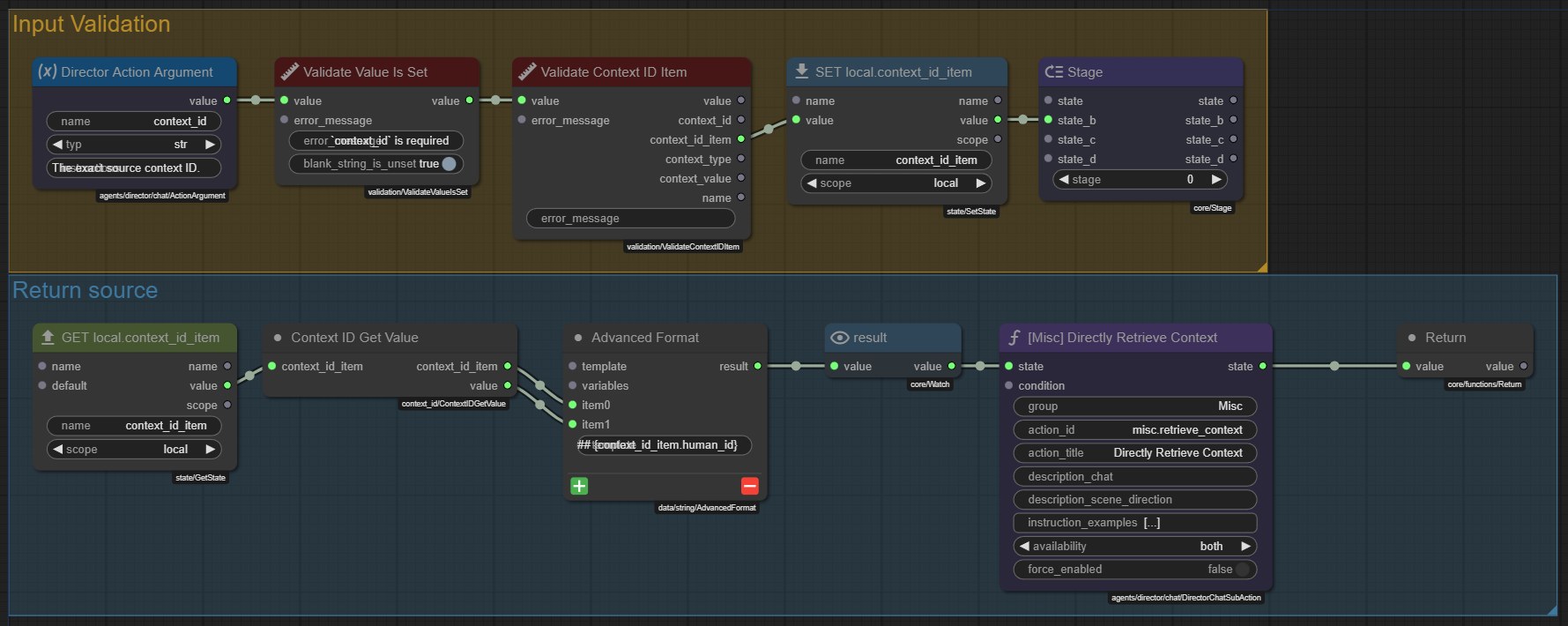
Sub-actions can be configured for:
- Both chat and scene direction modes
- Chat only - only available when chatting with the director
- Scene Direction only - only available during autonomous direction
Sub-Action Properties
When creating a sub-action, you can configure:
- Group: Organizational group name for the action
- Action Title: Display name shown to users
- Action ID: Unique identifier
- Description (Chat): Description shown when used in chat mode
- Description (Scene Direction): Description shown when used in autonomous mode
- Availability: Which modes the action is available in
- Force Enabled: If true, prevents users from disabling this action
Troubleshooting
Director Takes No Actions
- Verify both story intention and scene phase intention are set
- Check that Scene Direction is enabled in agent settings
- Ensure Auto Progress is enabled if using the default game loop
Actions Seem Random or Unhelpful
- Consider using a stronger reasoning model
- Review and refine your scene intentions
- Check if the wrong actions are enabled - disable those you do not want
Director Keeps Using Same Character
- Enable Maintain turn balance
- Check if other characters are properly set up in the scene
- Review character availability settings
Performance Is Slow
- Reduce Max actions per turn
- Lower Response token budget
- Consider a faster model or API endpoint