Reasoning Model Support
Talemate supports reasoning models that can perform step-by-step thinking before generating their final response. This feature allows models to work through complex problems internally before providing an answer.
Enabling Reasoning Support
To enable reasoning support for a client:
- Open the Settings tab in the top navigation — it opens on Connections → Clients
- Select the client you want to configure
- Open the Reasoning section of the client editor
- Check the Enable Reasoning checkbox
Configuring Reasoning Tokens
The llama.cpp client lets you choose between an effort level and a token budget with Reasoning Mode. Effort is the default; both are sent only with API handles prompt template on.
The OpenAI, OpenAI Compatible, OpenRouter and Mistral.ai clients offer Reasoning Effort to control thinking depth. Their token field is called Extra Completion Tokens: it adds headroom to the total completion limit, rather than setting a separate thinking budget. Existing saved token values are preserved. Compatible servers also need a Reasoning Effort Format selection before an effort is sent. The OpenAI and OpenAI Compatible clients offer a Completion Token Parameter choice: native OpenAI defaults to max_completion_tokens, while OpenAI Compatible defaults to max_tokens. The native OpenAI client locks Reasoning on for model names starting with gpt-5 or gpt-6, including during per-action overrides. For other models, and for OpenAI Compatible and OpenRouter clients, the effort and the allowance follow your Reasoning setting: with Reasoning off, neither is sent. On OpenRouter, the default effort only asks the model to think ({"enabled": true}), so the model uses its own default effort. Saved token and effort values are preserved.
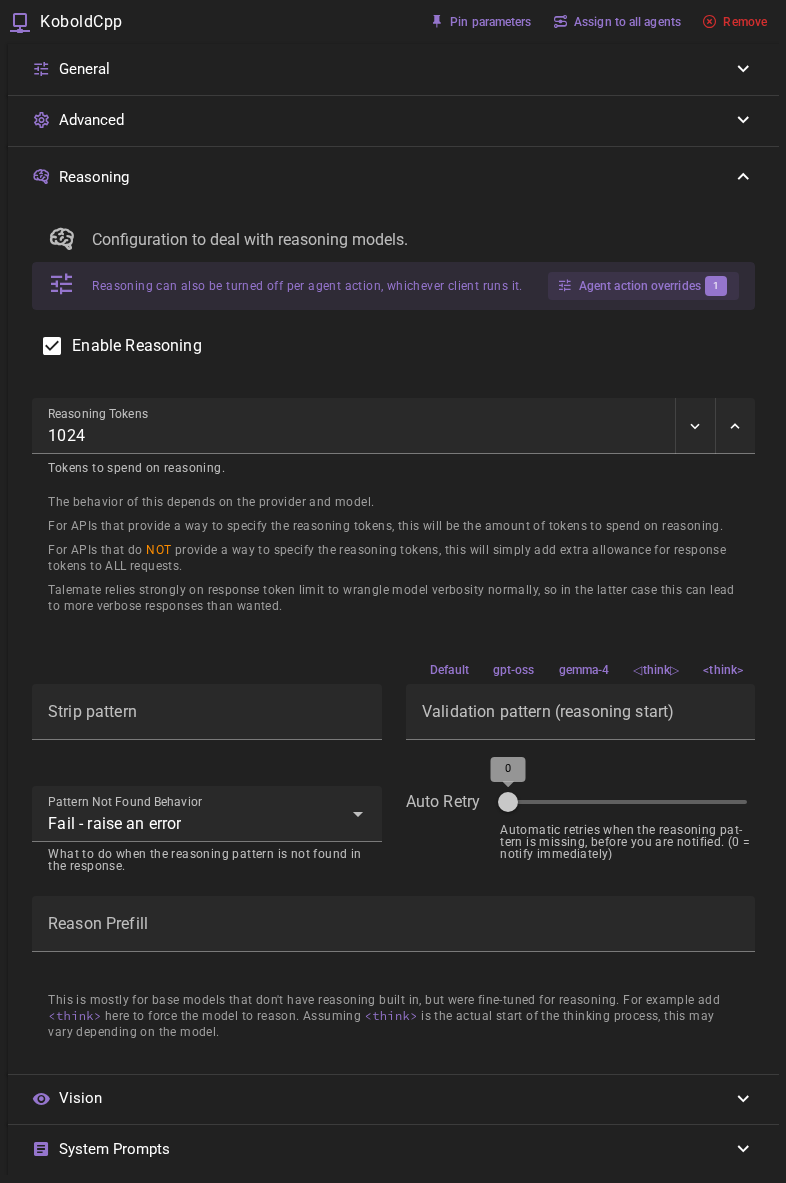
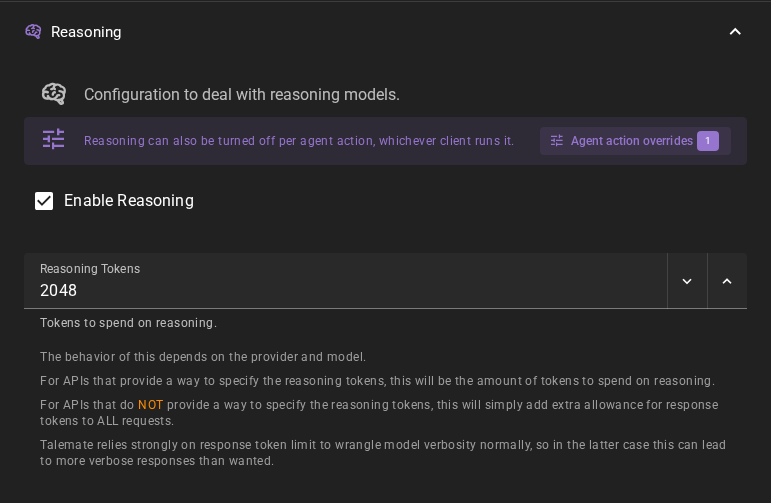
Turning reasoning on gives a budget of 1024 tokens if the client had none; new clients start with 1024. Once reasoning is enabled, you can set Reasoning Tokens (or Extra Completion Tokens on clients with Reasoning Effort) in its number field:
Reasoning on the client card
The client's card in the client list has one row for its budgets. The first field is the context token budget. While reasoning is on, the second field is the reasoning token budget, or a dropdown of effort levels for clients that use an effort level. Type an exact value, such as 32768, or use the arrows beside the field; the card saves the change after a short pause. If you leave a field empty, below its minimum (1024 for the context budget) or above 10,000,000, it goes back to the saved value. The arrows stop at the minimum. The button on the card turns reasoning on and off.
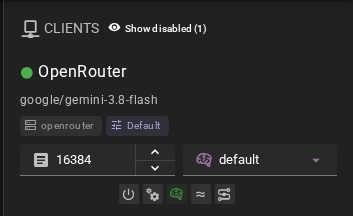
The picture shows an OpenRouter client, which uses an effort level. On a client with a reasoning token budget, the second field is a number field instead.
When you turn reasoning off, the reasoning field is replaced by a Reasoning Disabled chip in the same row, so you can see the state at a glance. When you turn reasoning back on, the field returns in that row. A client that always reasons, such as an OpenAI gpt-5 model, never shows the chip: its brain button is locked on.
Recommended Token Amounts
For local reasoning models: Use a high token allocation (recommended: 4096 tokens) to give the model sufficient space for complex reasoning.
For remote APIs: Start with lower amounts (512-1024 tokens) and adjust based on your needs and token costs.
Token Allocation Behavior
The behavior of the reasoning tokens setting depends on your API provider:
For APIs that support direct reasoning token specification:
- The specified tokens will be allocated specifically for reasoning
- The model will use these tokens for internal thinking before generating the response
For APIs that do NOT support reasoning token specification:
- The tokens are added as extra allowance to the response token limit for ALL requests
- This may lead to more verbose responses than usual since Talemate normally uses response token limits to control verbosity
Increased Verbosity
For providers without direct reasoning token support, enabling reasoning may result in more verbose responses since the extra tokens are added to all requests.
Response Pattern Configuration
When reasoning is enabled, you may need to configure a Strip pattern to remove the thinking process from the final output.
Default Patterns
Talemate provides quick-access buttons that fill in the Strip pattern and the Validation pattern for common reasoning formats:
- Default - Clears both fields, falling back to the pattern provided by the model's prompt template (or
.*?</think>) - gpt-oss - For the harmony channel format used by gpt-oss models
- gemma-4 - For the channel format used by gemma-4 models
- ◁think▷ - For models using arrow-style thinking delimiters
- <think> - For models using XML-style think tags
Empty fields inherit from the current model’s prompt template. The placeholder and Template default indicator show that inherited value; it is not saved as a custom override. Changing models updates inherited patterns together. A custom value remains yours until you clear it, including through scene loading and unrelated settings saves. In-flight responses keep the patterns of the template that rendered their request.
Custom Patterns
You can also specify a custom regular expression pattern that matches your model's reasoning format. This pattern will be used to strip the thinking tokens from the response before displaying it to the user.
Validation Pattern (reasoning start)
Optional. A pattern that matches the start of the reasoning tokens. If it is set and is not found in the response (and the response was not prefilled), the model never reasoned and the response is returned as-is instead of failing.
Pattern Not Found Behavior
When the configured reasoning pattern is not found in a response, you can control how Talemate handles this situation using the Pattern Not Found Behavior setting:
- Fail (default) - Raises an error, causing the request to fail. Use this when you expect the model to always include reasoning tokens and want to be alerted if it doesn't.
- Ignore - Returns the response as-is without stripping anything. Use this when the model may sometimes respond without reasoning tokens (e.g., for simple queries).
When set to Fail, the Auto Retry slider next to it lets the client automatically retry a number of times before you are notified. See Auto Retry.
Reason Prefill
Mostly for base models that do not have reasoning built in, but were fine-tuned for reasoning. Whatever you put here is prefilled into the response to force the model to reason — for example <think>, assuming that is the actual start of the thinking process for your model.
Forcing Reasoning Off for Specific Actions
The Enable Reasoning checkbox is a global setting for a client — when it's on, every prompt that client handles uses reasoning. Sometimes that isn't what you want. A reasoning model might do an excellent job writing dialogue but waste time (and tokens) "thinking" before simple, mechanical tasks like summarization or world-state updates.
Agent action overrides let you turn reasoning off for individual agent actions without touching the client's global setting. The client keeps reasoning on everywhere else; only the actions you single out skip it. An override is stored against the action, so it follows the action to whichever client runs it.
The Agent action overrides dialog
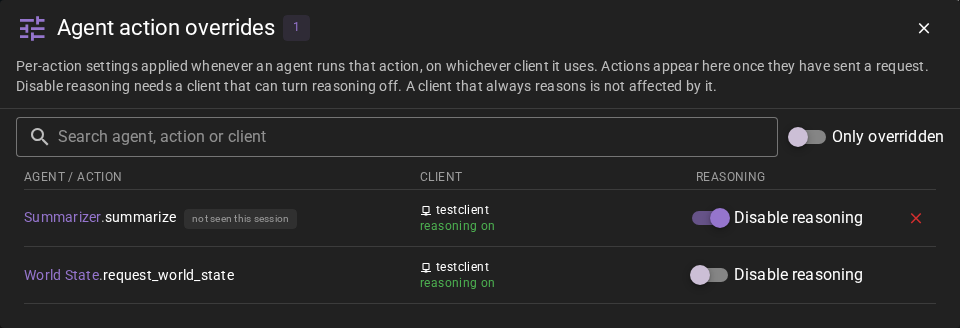
The dialog lists every agent action Talemate has seen send a request since the backend started, together with every override you have already saved. You do not need to know an action's name in advance: run the scene for a bit and the actions that actually talk to the LLM show up here on their own. Each row shows:
- Agent / action — the agent and the action, plus a one-line description where the action has one.
- Client — the client the agent currently runs on, and whether that client would honour the override: reasoning on, reasoning off — override has no effect, or always reasons — override ignored. An action that hands its request to another agent — the Director asking the Creator to write a character, say — also names the agent that last sent the request and shows its client, with its own hint, because that is the client the override reaches.
- Disable reasoning — the switch that creates or clears the override for that action. Once an action is overridden, a button removes the override entirely. An override that has not been seen sending a request since the backend started carries a not seen this session chip — it is kept, but the action may have been renamed or removed.
Use the search field to find an action, and Only overridden to hide everything else. When nothing has been captured yet, the dialog says so and offers to open the prompt log.
Opening the dialog
The dialog is reachable from wherever you happen to be thinking about reasoning or about an agent:
- Agents panel — the Agent action overrides button next to the Agents heading in the right-hand panel. It is always there; the chip on it counts the saved overrides.
-
Client settings — open Settings → Connections → Clients, select the client and expand its Reasoning section. The Agent action overrides button sits right under the section's introduction.
-
Agent settings — open Settings → Connections → Agents and select an agent. The Agent action overrides button in the agent's header opens the dialog filtered to that agent's actions.

Overrides are applied immediately, while the settings pages save explicitly. So while the settings page has unsaved edits, the dialog's switches and remove buttons are disabled and it says so, and so is the Reasoning button in the prompt log — save or discard first, otherwise a later save of the page would overwrite the override.
- Prompt detail view — every prompt in the prompt log carries a Reasoning: client default button next to its action. Click it to force reasoning off for that action; it turns red and reads Reasoning: off for
agent.action. Click it again to remove the override. This is a shortcut for the action you are looking at; the dialog is where you see them all.
How It Relates to the Global Setting
- Overrides only ever turn reasoning off. They cannot turn reasoning on for a client that has it disabled.
- They are saved with your application configuration and persist across restarts. They apply to whichever client happens to run that action.
- An override on an action also covers the nested actions it calls — a summarization override reaches the individual summary steps inside it.
- If a model always reasons and cannot be told to stop (for example certain Gemini and OpenAI reasoning models), the override is ignored for that client — those models reason no matter what. The dialog says so on the row.
Providers that reject a prefilled response
With reasoning off, Talemate may prefill the start of the response to steer the model (see Coercion below). Some providers refuse such requests — Google models reached through OpenRouter answer with HTTP 400 "Requests ending with a model turn are not supported". If an overridden action starts failing like that, remove the override for that client's actions.
Test Changes ignores overrides
The Test Changes button in the prompt detail view always runs with the client's default reasoning setting, so you can compare a one-off result against your normal configuration. The per-action override is not applied during a test run.
Model Compatibility
Not all models support reasoning. This feature works best with:
- Models specifically trained for chain-of-thought reasoning
- Models that support structured thinking patterns
- APIs that provide reasoning token specification
Important Notes
- Coercion Disabled: When reasoning is enabled, LLM coercion (pre-filling responses) is automatically disabled since reasoning models need to generate their complete thought process
- Response Time: Reasoning models may take longer to respond as they work through their thinking process
Troubleshooting
Pattern Not Working
If the reasoning pattern isn't properly stripping the thinking process:
- Check your model's actual reasoning output format
- Adjust the regular expression pattern to match your model's specific format
- Test with the default pattern first to see if it works