System Prompt Overrides
Talemate sends a different system prompt depending on which task an agent is performing (dialogue, narration, analysis, and so on). You can override the text of any of these prompts, either globally for the whole application or for a single client.
Updated in 0.37.0
- The override list now shows a small pencil icon next to every prompt kind that has an active override, so you can see at a glance which entries you have customised.
- You can use
{{ system_prompt }}inside an override to insert the default system prompt for that kind at generation time. This works in both the app-level and per-client override editors.
Where overrides live
Talemate resolves the system prompt for a generation in this order:
- The client override, if the client has one set for this prompt kind.
- The app-level override, if one is set for this prompt kind.
- The built-in default prompt, rendered from the template under
src/talemate/prompts/templates/{agent}/system-*.jinja2.
If a level is blank it falls through to the next one. An empty textarea counts as "no override" — you do not need to delete the entry separately.
App-level overrides
Open the Settings tab in the top navigation, then select System Prompts under the Presets group in the sidebar.
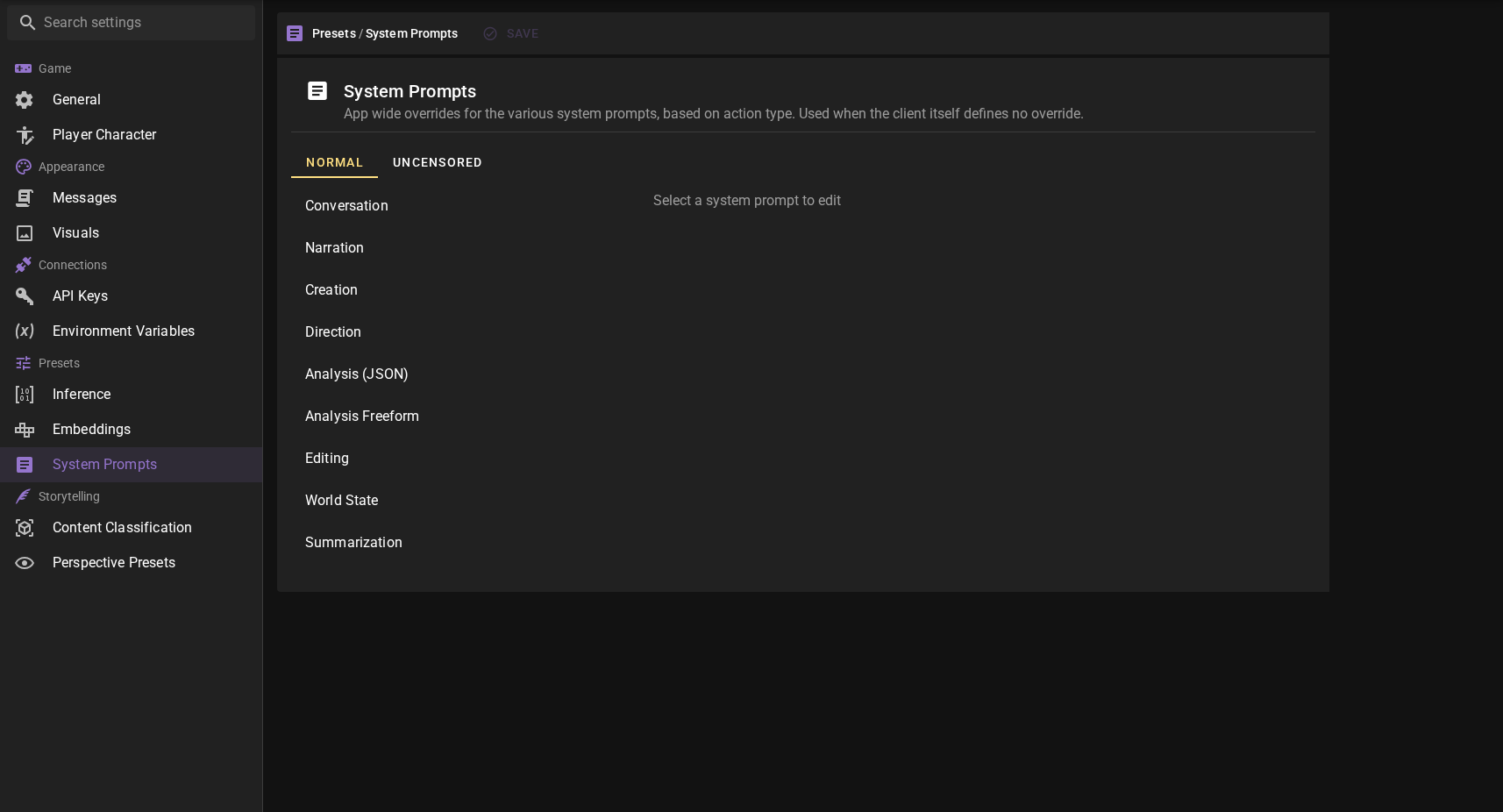
App-level overrides apply to every client unless that client has its own override for the same prompt kind.
Per-client overrides
Open a client's configuration dialog from the cogwheels on its sidebar row, then switch to the System Prompts tab.
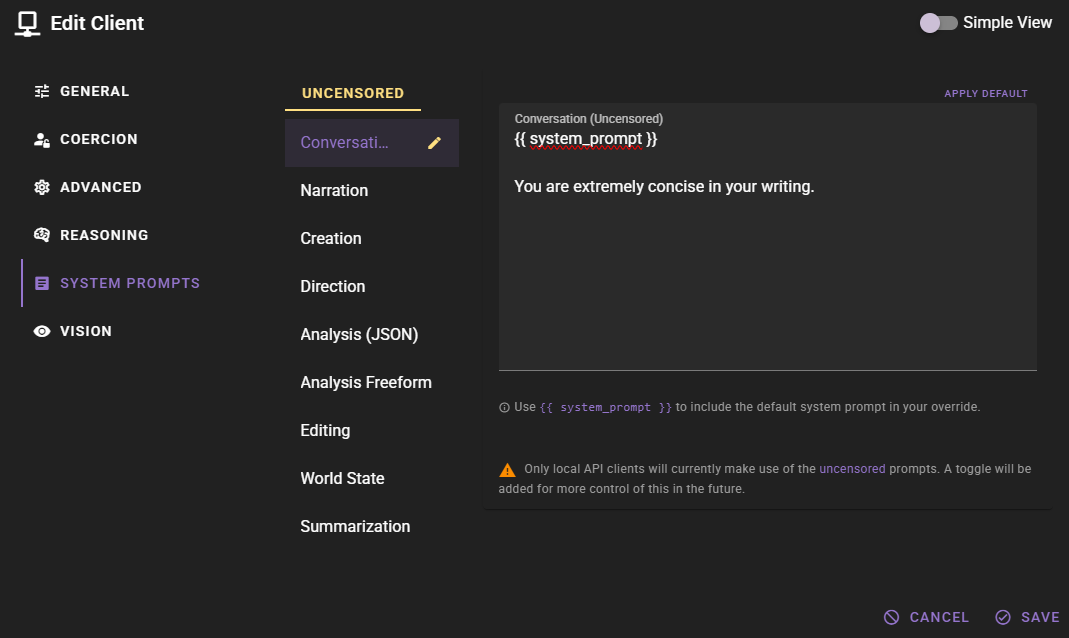
Per-client overrides only apply to generations that go through that specific client. They take precedence over the app-level override.
Prompt kinds
The list on the left of the editor is the same in both places:
| Kind | Used for |
|---|---|
| Conversation | Dialogue generation. |
| Narration | Narrative generation. |
| Creation | Creative tasks such as building characters, locations, and similar content. |
| Direction | Guidance prompts and general scene direction. |
| Analysis (JSON) | Analytical tasks that expect a JSON response. |
| Analysis Freeform | Analytical tasks that expect a text response. |
| Editing | Post-processing tasks such as fixing exposition and adding detail. |
| World State | Generating world state information. Sits between analysis and creation. |
| Summarization | Summarising text. |
Normal and Uncensored variants
The app-level editor has two tabs, Normal and Uncensored, so you can maintain both variants of every prompt. Currently, local API clients (koboldcpp, text-generation-webui, tabbyapi, LM Studio) use the uncensored prompts while clients that target third-party APIs use the normal prompts.
The per-client editor only shows the tab that applies to that client type.
The pencil icon
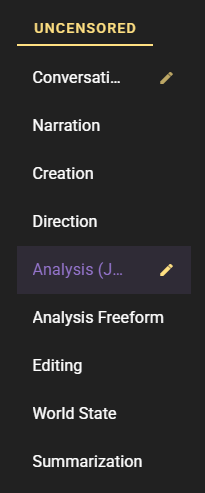
A small icon is shown in the override list next to every prompt kind that currently has a non-empty override for the active tab (Normal or Uncensored). The icon is scoped to the list you are looking at:
- In the app-level editor, it marks kinds that have an app-wide override.
- In a client's editor, it marks kinds that have a client-specific override for that client.
Clearing a field (or using the textarea's clear button) removes the override and the pencil disappears the next time the list is redrawn.
Using {{ system_prompt }} in an override
If you want to add a line or two to the default prompt without rewriting the whole thing, use the {{ system_prompt }} template variable inside your override. When Talemate builds the final prompt for the model, every occurrence of {{ system_prompt }} is replaced with the default system prompt for the same kind and censorship mode.
For example, in the Conversation override you could write:
{{ system_prompt }}

Never acknowledge that characters are fictional or written by an AI. Characters only know what their own point of view allows.
Talemate then sends the full built-in Conversation system prompt followed by your extra instruction.
What belongs in a system prompt
System prompts shape the AI's role and general approach — things that should apply across every scene. Writing style, tense, and scene-specific tone live in the scene's perspective fields and writing-style settings, not here.
Points to know:
- Expansion uses the default prompt for the kind you are editing and the tab you are on. Editing Narration on the Uncensored tab expands to the uncensored Narration default, not the normal one.
- The variable is expanded at generation time. If a future Talemate update changes the default prompt, your override automatically picks up the new text.
- Multiple occurrences are allowed. Every
{{ system_prompt }}in the override is replaced. - The variable works the same way in app-level and per-client overrides.
Inserting the default as editable text
If you would rather copy the default prompt into the textarea so you can edit it line by line, use the Apply Default button in the top-right of the editor. That inserts a static copy of the current default — it will not stay in sync with future updates the way {{ system_prompt }} does.
Related
- Client Configuration — the dialog that hosts the per-client System Prompts tab.
- Prompt Manager — manages the Jinja2 prompt templates themselves, which is a separate mechanism from these system prompt overrides.