OpenRouter
The OpenRouter backend provides access to image generation, editing, and analysis capabilities through OpenRouter's unified API. OpenRouter allows you to access multiple AI providers through a single API, giving you flexibility to choose from various models and providers.
Prerequisites
Before configuring the OpenRouter backend, you need to obtain an OpenRouter API key:
- Go to OpenRouter Keys
- Sign in with your account
- Create a new API key or use an existing one
- Copy the API key
Then configure it in Talemate:
- Open Talemate Settings → Connections → API Keys → OpenRouter
- Paste your OpenRouter API key in the "OpenRouter API Key" field
- Save your changes
For additional instructions, see the OpenRouter API setup guide.
Configuration
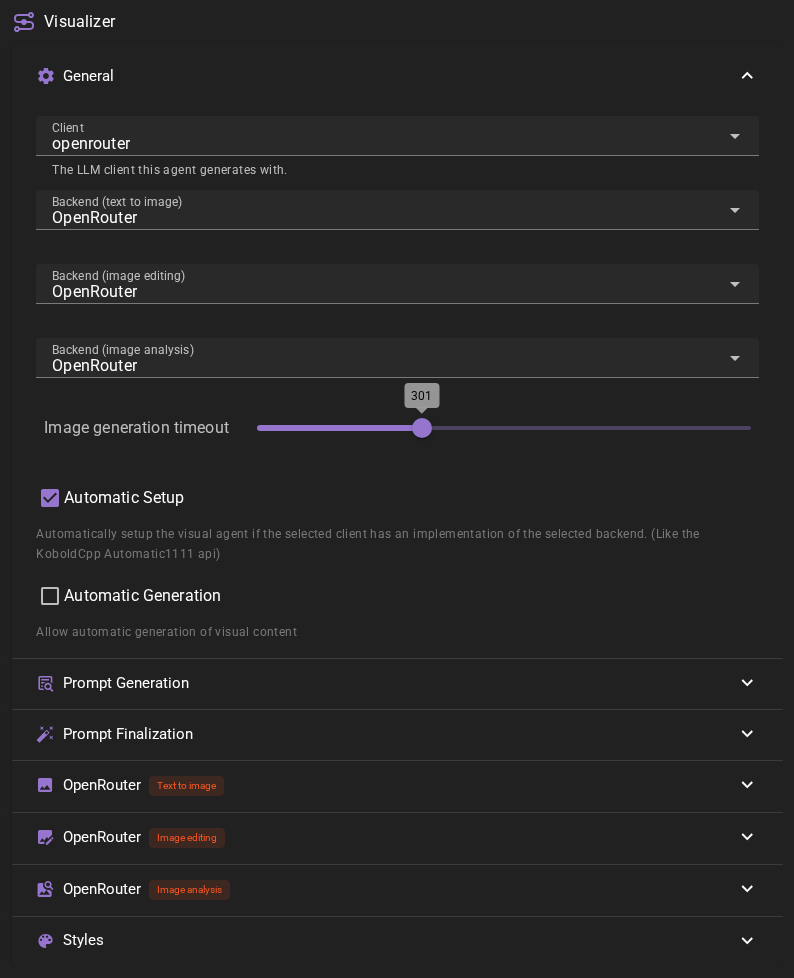
In the Visualizer agent settings, select OpenRouter as your backend for text-to-image generation, image editing, image analysis, or any combination of these. Each operation can be configured separately.
Text-to-Image Configuration
For text-to-image generation, configure the following settings:
- OpenRouter API Key: Your OpenRouter API key (configured globally in Talemate Settings)
- Model: The image generation model. Pick one from the list, or type the id of any OpenRouter model, for example one that OpenRouter released after Talemate started.
- Only use these providers: Optionally filter to specific providers (e.g., only use Google or OpenAI)
- Ignore these providers: Optionally exclude specific providers from consideration
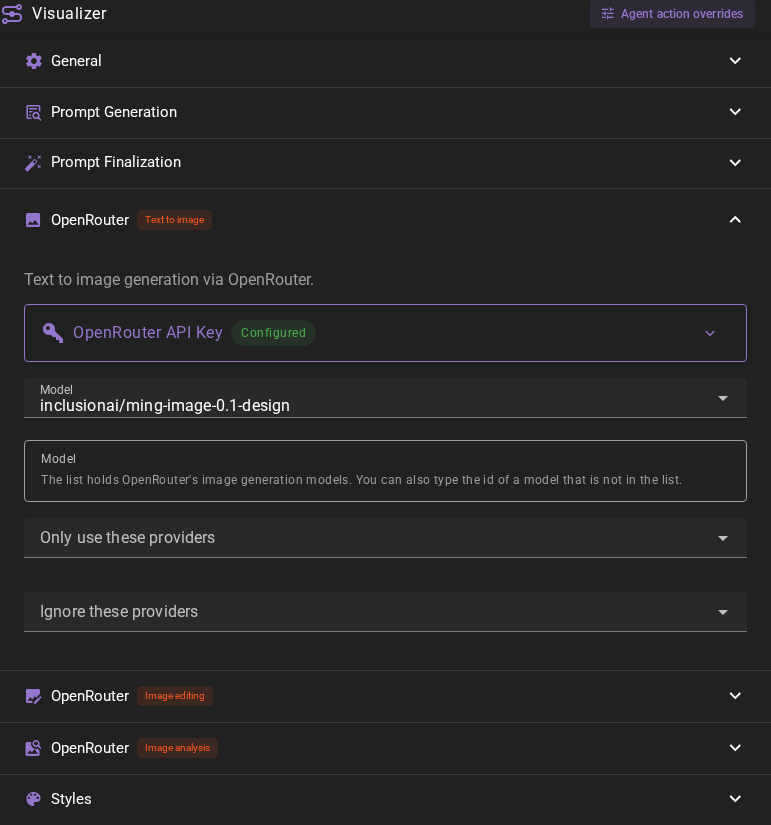
The model list holds the image generation models that OpenRouter offers and that can make an image from a prompt alone. Talemate loads the list when it starts and again when you save a different OpenRouter API key. Two kinds of models are on it:
- Models that make images only, such as FLUX.2, Seedream, GPT Image, Muse Image or Ming Image. Talemate sends these to OpenRouter's image endpoint.
- Models that write text and make images, such as the Gemini image models or GPT-5 Image. Talemate sends these as a chat request, the same as before.
For example, you pick Ming Image 0.1 Design from the list, or you type inclusionai/ming-image-0.1-design. When you generate an image, Talemate sends the prompt to OpenRouter's image endpoint and stores the result in the scene like any other image.
Some models are not on this list:
- Models that need a reference image, such as Recraft V4 Styles. They are on the image editing list only.
- Vector models that only make SVG files, such as Recraft V4 Vector. Talemate stores images as PNG, so it cannot use them. If you type the id of one, Talemate refuses the request and says why.
When you type a model id that is not on the list, Talemate loads the list again before it sends the request, so it also finds a model that OpenRouter added after Talemate started. A model that is still not on the list is sent as a chat request.
When an image request fails, the error notification at the top of the window names the reason, for example the message that OpenRouter sent back.
The OpenRouter backend automatically handles aspect ratios based on the format you select:
- Landscape: 16:9 aspect ratio
- Portrait: 9:16 aspect ratio
- Square: 1:1 aspect ratio
Some models that make images only accept a short list of aspect ratios. When the list does not hold the ratio of your format, Talemate asks for the closest ratio on it: GPT Image 1, for example, makes 3:2 images for Landscape. A model that lists no aspect ratio, such as Muse Image or Ming Image, picks its own size.
Image Editing Configuration
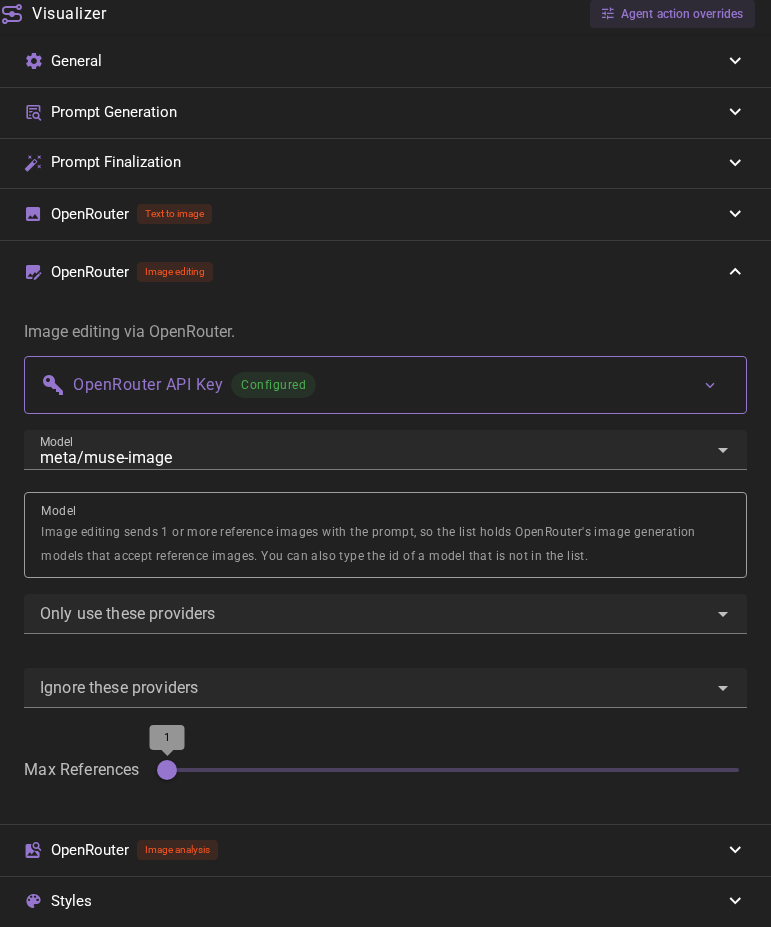
For image editing, configure similar settings with an additional option:
- OpenRouter API Key: Your OpenRouter API key
- Model: The image editing model. The list holds the image models that accept reference images, and you can type a model id too.
- Max References: Configure the maximum number of reference images (1-3). This determines how many reference images you can provide when editing an image.
- Provider filtering: Optionally filter providers (same as text-to-image)
Model Selection
Image editing sends 1 or more reference images with the prompt, and not every image model accepts them. Ming Image 0.1 Design, for example, makes images from text only, so it is not on the image editing list. If you type its id there, Talemate refuses the edit and the error notification says why. Some models accept fewer reference images than Max References; Talemate then offers and sends only as many as the model accepts. The model's page on OpenRouter says which inputs it accepts.
Image Analysis Configuration
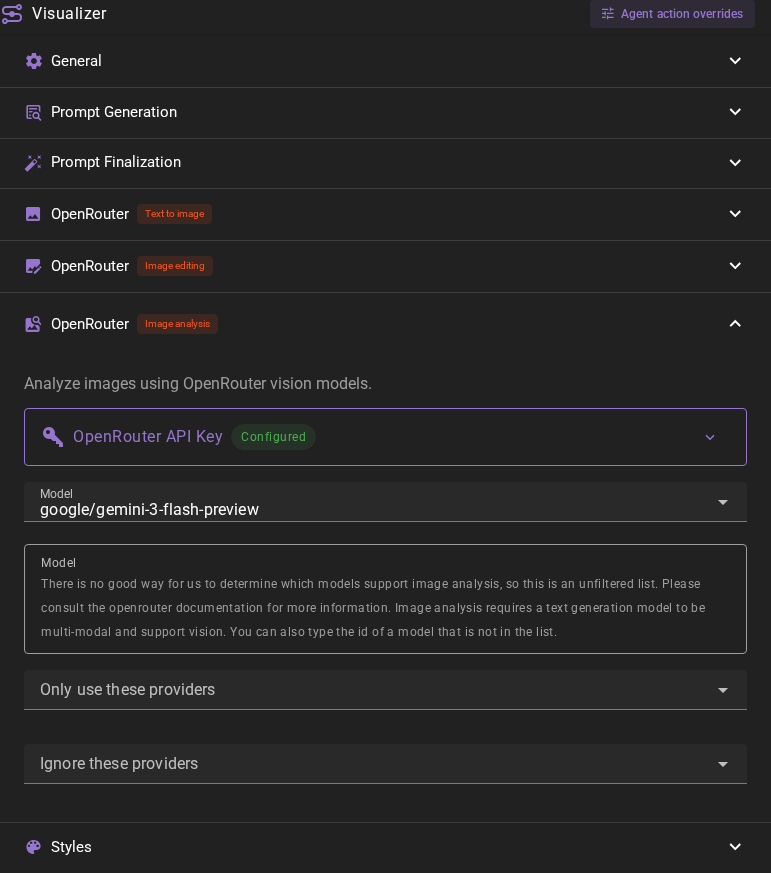
For image analysis, configure the following:
- OpenRouter API Key: Your OpenRouter API key
- Model: Select a vision-capable text model from OpenRouter, or type its id
- Provider filtering: Optionally filter providers
Model Selection
There is no reliable way for Talemate to determine which models support image analysis, so the model list is unfiltered. Image analysis requires a text generation model that is multi-modal and supports vision capabilities. Please consult the OpenRouter documentation to verify that your selected model supports vision before using it.
Usage
Once configured, the OpenRouter backend will appear in the Visualizer agent status with green indicators showing which capabilities are available.

The status indicators show:
- Text to Image: Available when text-to-image backend is configured
- Image Edit: Available when image editing backend is configured (shows max references if configured)
- Image Analysis: Available when image analysis backend is configured
Model Recommendations
OpenRouter provides access to many models from different providers. Here are some general recommendations:
Text-to-Image and Image Editing
- google/gemini-2.5-flash-image: Fast image generation with good quality
- google/gemini-3-pro-image-preview: Higher quality option (if available)
- meta/muse-image: A model that makes images only and accepts reference images, so it can also edit
Image Analysis
- google/gemini-2.5-flash: Fast analysis with good accuracy
- google/gemini-2.5-pro: Higher quality analysis
- google/gemini-3-pro-preview: Latest capabilities (if available)
Provider Filtering
OpenRouter allows you to filter which providers are used for a specific model. This can be useful if:
- You want to use a specific provider for cost or quality reasons
- You want to avoid certain providers
- You want to test different providers for the same model
You can configure provider filtering in each backend's settings:
- Only use these providers: Limits requests to only the selected providers
- Ignore these providers: Excludes the selected providers from consideration
If both are configured, "Only use these providers" takes precedence.
Prompt Formatting
The OpenRouter backend uses Descriptive prompt formatting by default. This means prompts are formatted as natural language descriptions rather than keyword lists. Provide detailed, natural language descriptions of what you want to create or edit.