Inline Visuals
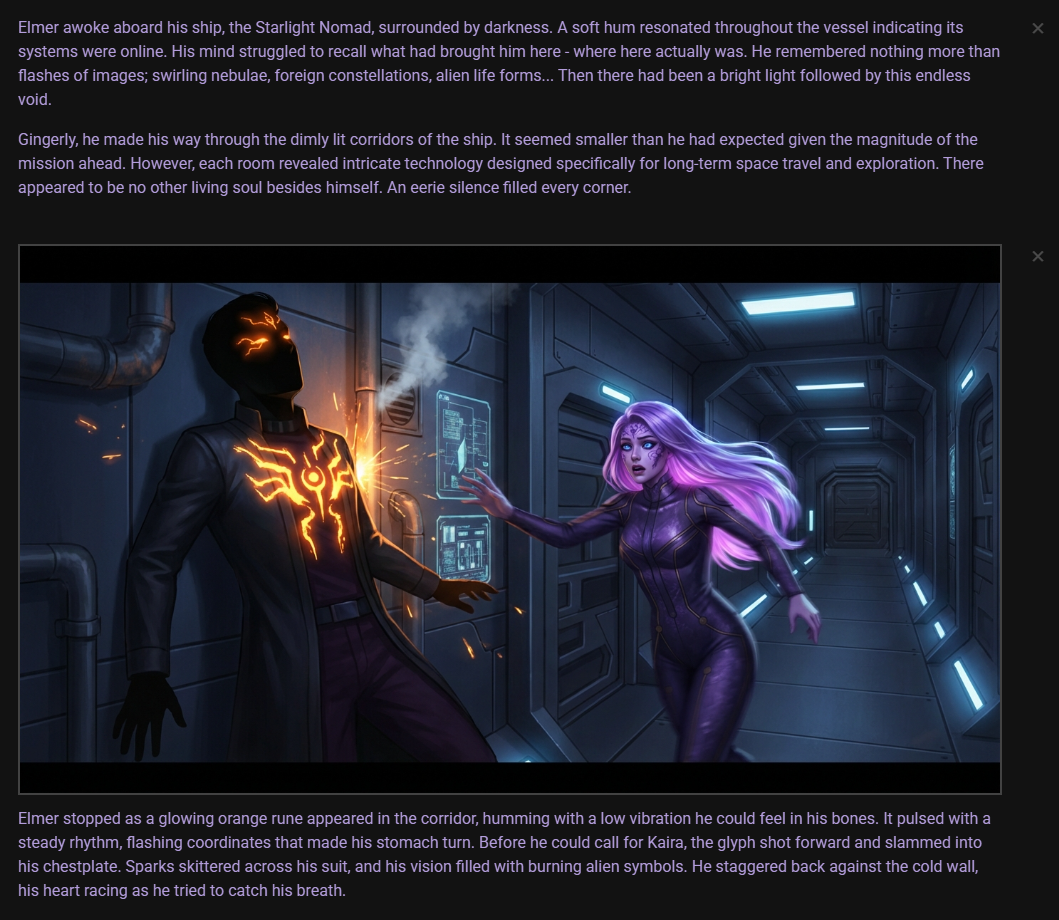
Inline visuals is a feature introduced in version 0.35.0 that displays generated images directly within your scene feed. When you create images through the scene tools or director actions, they can now appear alongside the messages in your story, providing a more immersive visual experience.
How It Works
When you generate an image using Talemate's visualization features, the image can be automatically attached to messages in your scene feed. The type of image and where it appears depends on how it was generated:
- Scene illustrations appear with narrator messages or the most recent relevant message
- Character portraits appear alongside character dialogue
- Character cards can be attached to messages featuring that character
The images are displayed inline with the message text, or above the message for larger scene illustrations.
Generating Inline Visuals
There are several ways to generate images that appear in your scene feed:
Scene Tools
The quickest way to generate inline visuals is through the scene tools visualizer menu.
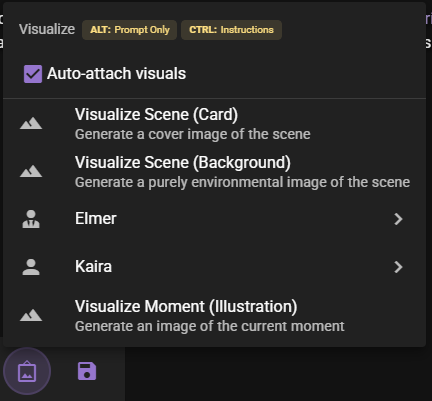
From this menu you can:
- Visualize Scene (Card): Generate a cover image of the current scene
- Visualize Scene (Background): Generate a purely environmental image; it becomes the scene backdrop
- [Character] submenu (one per character in the scene):
- Card: Generate a cover image portrait of that character
- Portrait: Generate a face-focused portrait of that character
- Visualize Moment (Illustration): Generate an image of the current moment in the story
Per-character submenus (0.37.0)
As of version 0.37.0, each character in the scene is grouped into its own submenu instead of appearing as separate top-level entries. Hover a character's name to open their submenu and pick Card or Portrait. See Scene Tools — Visualizer for the full menu reference.
Keyboard Modifiers
- Hold ALT to generate only the prompt without creating an image
- Hold CTRL to open a dialog where you can provide custom instructions
When you generate an image and the Auto-attach visuals option is enabled, the resulting image will automatically appear in your scene feed attached to the most relevant message. A scene background becomes the scene backdrop instead.
Director Chat
You can also ask the Director to generate images through the director chat interface. Simply describe what you want to visualize, and if the Director has visual generation capabilities enabled, it will create the image and attach it to the conversation.
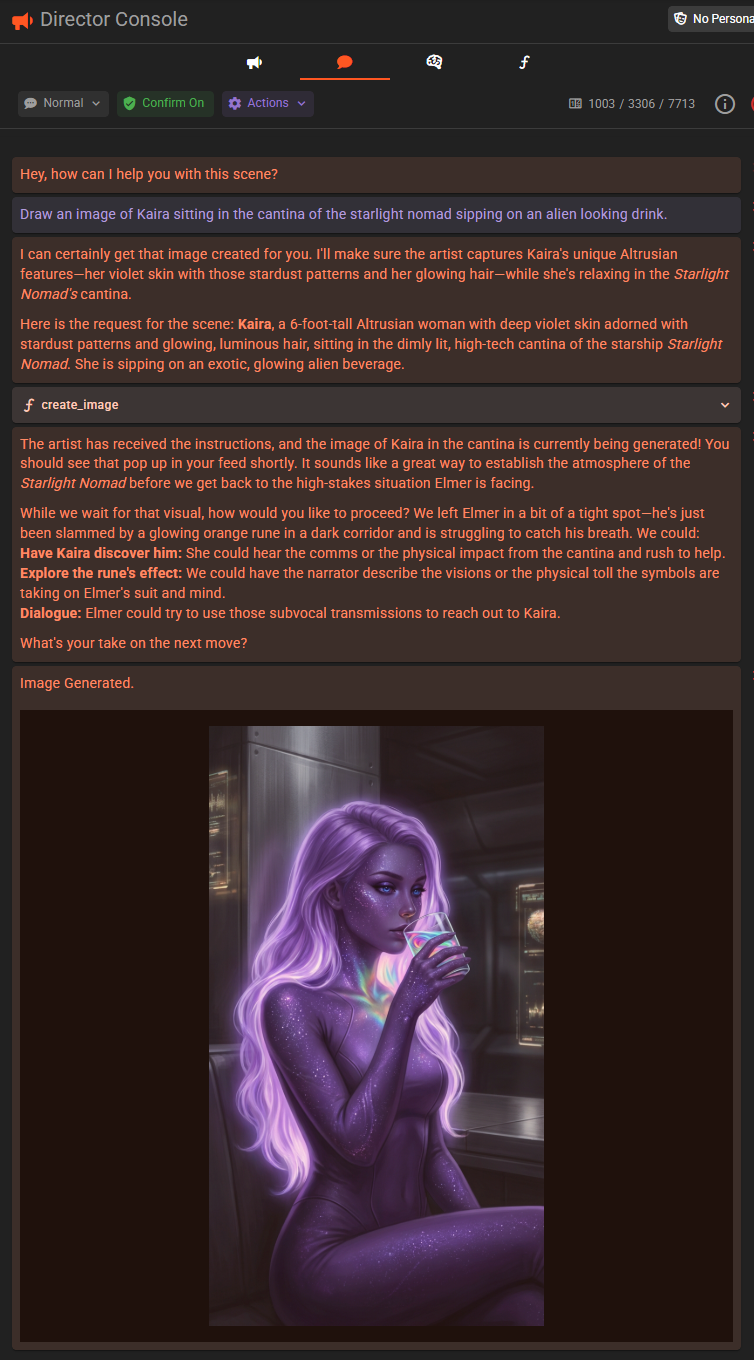
For more information on using the Director chat, see the Director Chat documentation.
Autonomous Scene Direction
When using the autonomous scene direction feature, the Director can automatically generate images at appropriate moments during scene progression. These images appear in the scene feed just like manually generated ones.
Context Investigation Messages
Context investigation messages are the short, descriptive results that appear in your scene feed when you take a closer look at something. They are produced by actions such as:
- Look at Scene — a visually focused description of the current moment (from the scene tools narrator menu)
- Look at (Character) — a description of a character's appearance and current action (from the scene tools narrator menu or the World State sidebar)
- Add Detail — an expanded "closer look" at an entity (character, place, or item) you have selected in the scene
When you hover over one of these messages, a Visualize action appears in the message toolbar. Clicking it generates an image directly into that message, matched to whatever the investigation was about.
How the image is matched to the subject
Talemate looks at what the investigation was about and chooses the most fitting image type automatically. You don't need to pick one yourself:
| Investigation | Image generated |
|---|---|
| Look at Scene | Scene illustration of the current moment |
| Look at (Character) | Character card portrait of that character |
| Add Detail on a character in the scene | Character card portrait of that character |
| Add Detail on a character not in the scene | Scene illustration |
| Add Detail on a place | Scene background |
| Add Detail on an item | Object illustration |
The text of the investigation message is used to guide the generated image, so the result reflects the specific details described in that message.
A scene background for a place is not attached to the message. It becomes a Backdrop entry right after the message instead, see Scene Backdrop.
Query results are not visualizable
A plain Query (asking the narrator a free-form question) does not show a Visualize action, because there is no single visual subject to match it to.
Once an image has been generated, the Visualize action disappears for that message. From that point on you can regenerate, replace, or remove the image using the inline visual actions described below, just like any other attached image. A place keeps its Visualize action, since its background goes to a Backdrop entry rather than onto the message.
Interacting with Inline Visuals
Once an image appears in your scene feed, you can interact with it in several ways.
Viewing and Managing
Click on any inline visual to open a context menu with options:
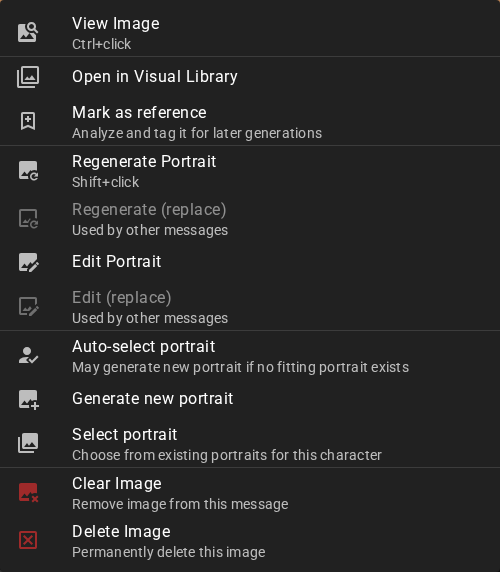
- View Image: Open a full-size view of the image (also available with Ctrl+click)
- Open in Visual Library: View and manage the image in the Visual Library
- Mark as reference: Prepare the image as a reference for later generations — see Mark as reference
- Regenerate Illustration (Regenerate Portrait on a portrait): Create a new version of the image for this message (Shift+click shortcut)
- Regenerate (replace): Generate a new image that takes the original's place (Alt+click shortcut). The original is deleted, unless something else still shows it — see Replacing an image
- Edit Illustration (Edit Portrait on a portrait): Regenerate with custom editing instructions
- Edit (replace): Regenerate with custom editing instructions; the new image takes the original's place, as with Regenerate (replace)
- Select illustration: Choose from existing scene illustrations
- Select background: On a Backdrop entry, choose from the scene's existing backgrounds. The entry swaps its image, and if it set the current backdrop, the scene backdrop changes with it without a new Backdrop entry
- Set as scene backdrop: Render this image behind the scene text — see Scene Backdrop
- Clear Image: Remove the image from this message (keeps the image in your library)
- Delete Image: Permanently remove the image
Mark as reference
Most image generation uses only the images marked as references for it: a new background looks for images marked for backgrounds, a new scene illustration for images marked for scene illustrations, and so on. New portraits also fall back to the character's existing portraits, but prefer marked ones. Images the story generated are not marked. Mark as reference in an image's menu (and the button on a Backdrop entry, shown when you hover over it) prepares the image in one step:
- If a vision backend is set up for image analysis and the image has no analysis yet, the image is analyzed.
- Tags are added from the analysis.
- The image is marked as a reference for the kinds of images it can help with, keeping any reference types it already had.
Which kinds those are follows the image's own type. A reference informs character likeness first, then environment, then style, so an image is only marked where what it shows is useful — a portrait never becomes a reference for backgrounds:
| Image type | Marked as a reference for |
|---|---|
| Character portrait | character portraits, character cards, scene cards, scene illustrations |
| Character card | character portraits, character cards, scene cards, scene illustrations |
| Scene background | scene backgrounds, scene illustrations, character cards |
| Scene illustration | scene illustrations, scene cards |
| Scene card | scene cards, scene illustrations |
| Object illustration | object illustrations, scene illustrations |
| Unspecified | not offered — give the image a type in the Visual Library first (the Backdrop entry's button stays greyed out and says so) |
An image without an analysis is usually analyzed and tagged in one request; an image that already has one needs one request for its tags. If the response carries no usable keywords, tagging takes one more request, so this can take a moment. While it runs, a Backdrop entry shows each step on its row; an image in a message shows a small spinner in its corner (hover it for the step), or next to the marker when that image is the current backdrop. When it is done, a Backdrop entry keeps a marker, an image in a message shows it for a moment, and the menu entry is disabled; to unmark the image, use the Reference tab in the Visual Library. If a step fails, the image is still marked with what already worked, and the marker turns amber and stays: its tooltip, and the menu entry, name the step that failed. If marking itself fails, a button lets you try again. Loading another scene before the action finishes stops it without marking the image. Without a vision backend, an image with no analysis is only marked.
Quick Actions
For faster workflow, inline visuals support several keyboard shortcuts when clicking:
| Action | Shortcut |
|---|---|
| View full image | Ctrl+click |
| Regenerate | Shift+click |
| Regenerate (replace) | Alt+click |
The shortcuts work on illustrations, cards, portraits and Backdrop entry images. The new image replaces the one on the message you clicked, even when that message is further back in the story.
Replacing an image
Regenerate (replace) and Edit (replace) never leave a gap anywhere else in the scene. Once the new image is ready, the original is deleted only if nothing else uses it. The original stays, and a notification names where it is still used, when any of these still uses it:
- another message, a character's avatar or cover, the scene cover or the scene backdrop
- the reference search, because it is marked as a reference
- another image that was generated with it as a reference (the new image a replace makes does not count)
- another save of the same scene, such as a fork or a Save As copy, which shares the scene's images. A locked save's own file counts too, and so does a save that cannot be read
If the generation fails or is cancelled, the original stays where it was.
A portrait is usually shared: by the character's default and current avatar and by many messages. On a portrait, the two (replace) entries are only available when this message is the portrait's only use. Otherwise they are greyed out and say why, for example Used by other messages or Character's current avatar. Say Edwin's portrait on one reply looks off: if no other message shows it and it is not his avatar, Regenerate (replace) swaps it for a new one and deletes the old. If his other replies show it too, use Regenerate Portrait, which puts the new portrait on this message only and keeps the old one for the others. Illustrations and cards are not greyed out: replacing a shared one puts the new image on this message and keeps the original for the others.
Regenerating a scene background that an older story attached to a message does not replace it on the message: the message keeps its image. With Auto-attach visuals on, the new background becomes the scene backdrop through a new Backdrop entry at the end of the story; with it off, the new background only goes to the Visual Library. For such a background, the two (replace) entries are greyed out, and Alt+click works like Regenerate.
Managing Portraits
For character portraits (avatars), you have additional options:
- Regenerate Portrait and Edit Portrait, with their (replace) variants: see Replacing an image
- Auto-select portrait: Let the AI determine the best portrait for this message
- Generate new portrait: Create a new portrait based on the current scene context
- Select portrait: Choose from existing portraits for this character
Scene Backdrop
Any scene illustration can be promoted to the scene backdrop — instead of rendering inline, the image fills the whole scene view behind the messages. Message text sits on translucent panels with a drop shadow to stay legible; both the panel opacity and the text shadow are configurable.
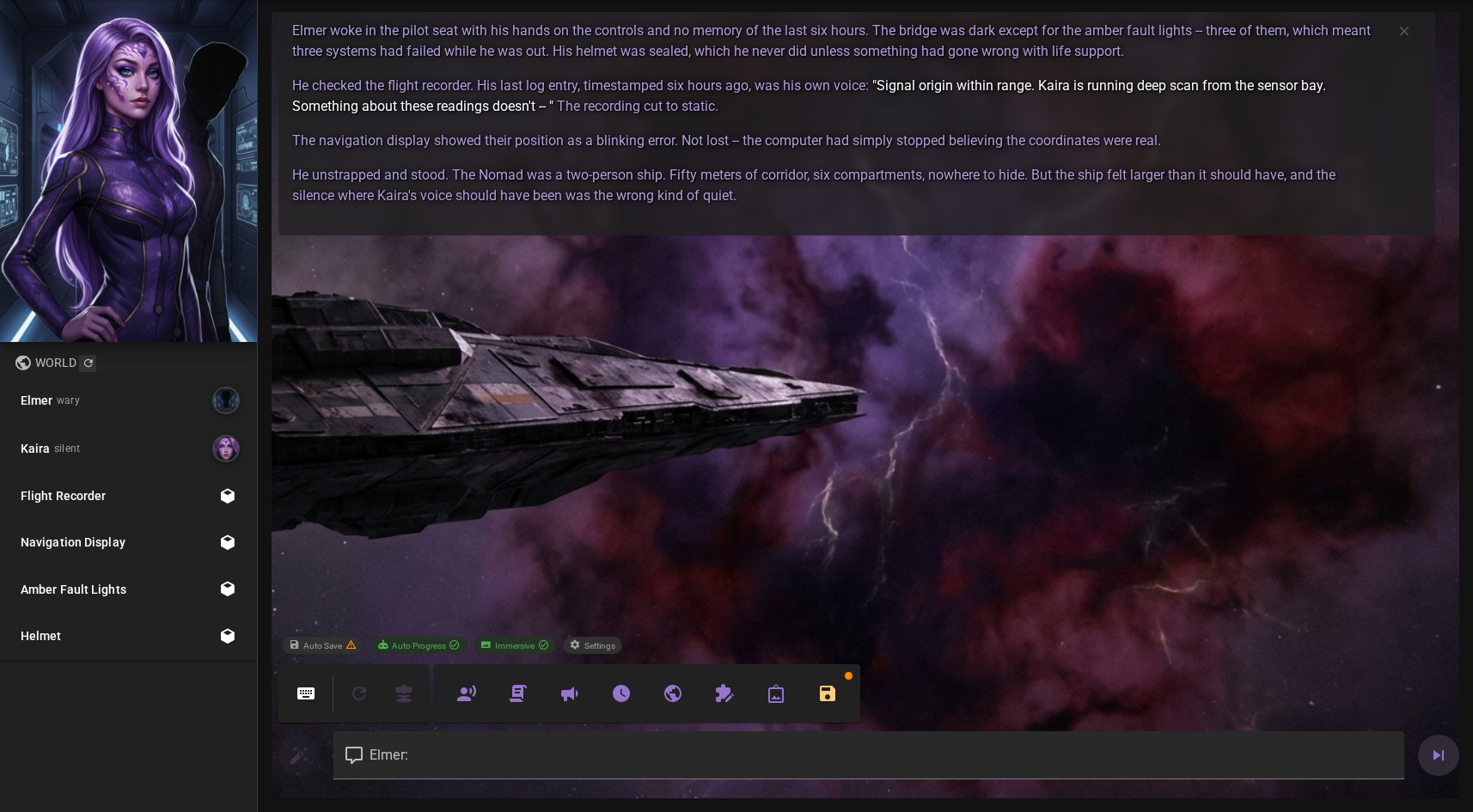
The backdrop belongs to the scene and is saved with it, so it survives reloads and history edits. Each change is also recorded in the scene as a small Backdrop entry; Replay uses these entries to show each passage with the backdrop it had. While Immersive is off, these entries show their image in the story, sized by the Scene Background display settings. With its render cadence set to Never, the entry shows only its name; click it to preview the image.
Setting a backdrop
There are several ways to set the backdrop:
- From a message — click an inline scene illustration and choose Set as scene backdrop from its image menu
- From the Visual Library — select an asset in the Scene Assets tab and click Set backdrop
- From the world editor — use the per-image actions in the Scene Visual Manager (World Editor → Scene → Visuals), which is also the place to fully unset the backdrop (the image stays in the scene assets)
- By generating a background — Visualize Scene (Background) in the scene tools, Visualize on an Add Detail message about a place, or a Director Chat request for a scene background, while Auto-attach visuals is on. A Generating background… entry appears right away and becomes the backdrop when the image is ready; if the generation fails or is cancelled, the entry goes away
- Automatically — enable Auto Backdrop for Scene Illustrations in the Appearance Settings; newly generated illustrations then become the backdrop as they arrive
- As the story moves — enable Scene Backgrounds in the World State agent settings; the agent picks or generates a background that fits the current place and time of day
Backdrop entries
Click the image of a Backdrop entry (the preview in Immersive mode, or the image in the story while Immersive is off) to open its image menu. It offers the actions that make sense for a background:
- View Image (also Ctrl+click) and Open in Visual Library
- Regenerate Background and Edit Background: the new image is always made as a scene background, even when the entry shows a scene illustration, and arrives as a new Backdrop entry at the end of the story
- Regenerate (replace) (also Alt+click) and Edit (replace): the new background takes this entry's place. Every other Backdrop entry that showed the same image, for example a return to the harbour you picked with Select background, and the scene backdrop switch to the new image too. The original is then deleted, unless something else, such as the scene cover or an image on a message, still uses it (see Replacing an image). If the generation fails or is cancelled, the entry keeps its image
- Select background: choose another of the scene's backgrounds for this entry. The entry shows the chosen image from then on. When it set the current backdrop, the scene backdrop changes too, without a new Backdrop entry. An entry whose image was deleted reads Image removed; hover it and click to pick a background for it
- Set as scene backdrop: makes an older entry's image the backdrop again
- Mark as reference: also a button on the entry itself — see Mark as reference
- Clear Image: removes the backdrop change, the same as the entry's button
- Delete Image: permanently removes the image
Removing the entry that set the current backdrop winds the backdrop back. Say the harbour scene changed to a stormy night and you remove that entry: the backdrop returns to the harbour at dusk from the entry before it, or to no backdrop when there was none. If that earlier image was deleted from the Visual Library, the backdrop goes back to the last earlier image that still exists. Removing an older entry leaves the current backdrop alone.
The Immersive toggle
Once a backdrop is set (or a generated background is available to become one), an Immersive chip appears in the scene tools quick settings. It toggles the backdrop rendering on and off without forgetting the chosen image.
Finding the backdrop's message
A small marker icon appears next to the message whose illustration is the current backdrop. Click it to open that image's menu. Because the illustration no longer renders inline while it is the backdrop, the image menu also stays reachable via an Illustration chip on the message's hover toolbar.
Configuring Display Settings
You can customize how inline visuals appear through the Appearance Settings.
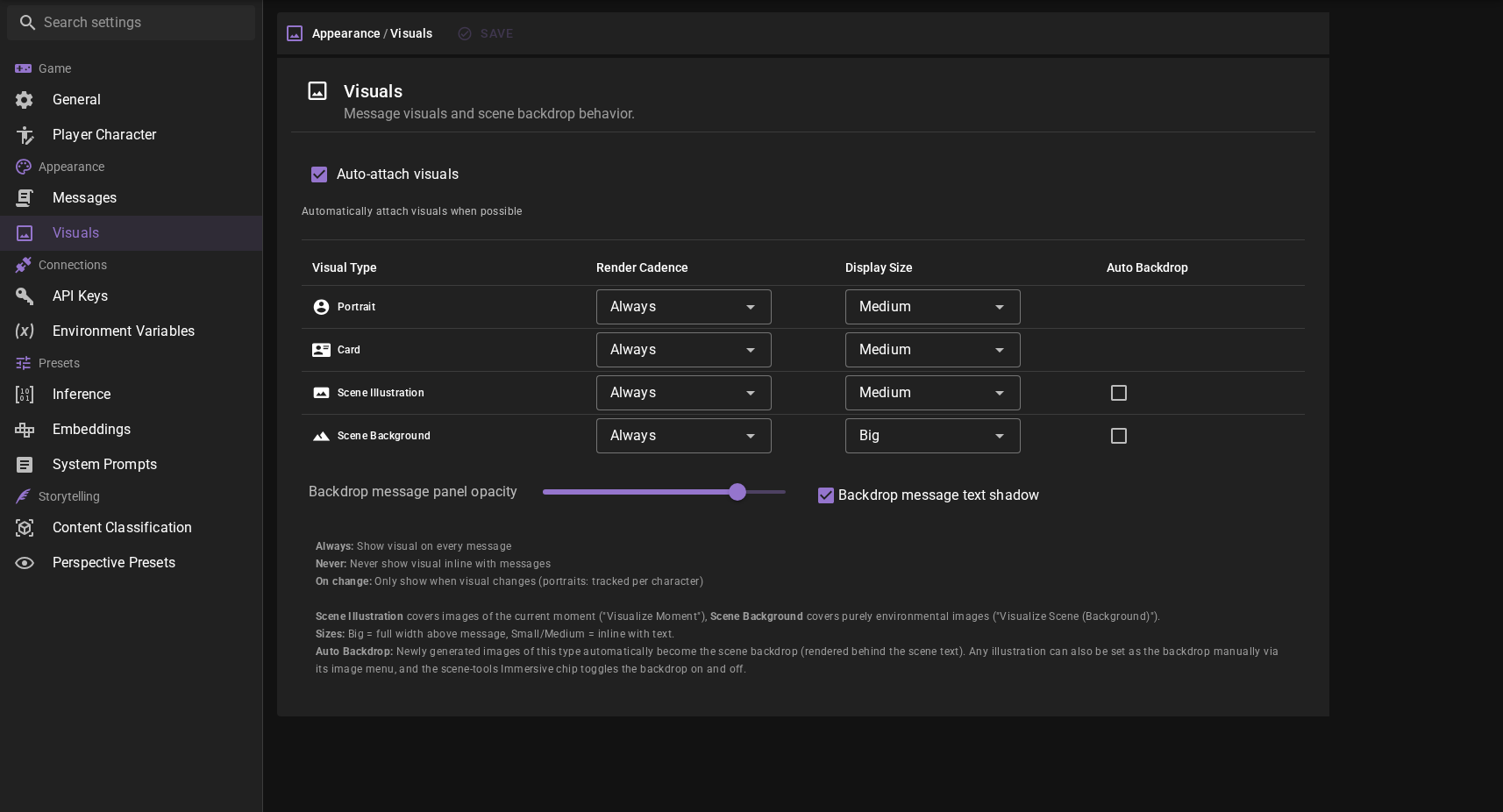
Visual Types
Configure settings independently for each type of visual:
- Portrait: Character face images
- Card: Character or scene cards
- Scene Illustration: Images of the current moment ("Visualize Moment")
- Scene Background: Purely environmental images ("Visualize Scene (Background)"); also sets how Backdrop entries show their image while Immersive is off
Render Cadence
Control when visuals are displayed:
| Setting | Behavior |
|---|---|
| Always | Show on every message that has a visual attached |
| Never | Never show visuals inline (images still saved in Visual Library) |
| On change | Only show when the visual differs from the previous one (portraits only) |
On Change Tracking
The "On change" cadence tracks portraits per character. So if character A speaks twice with the same portrait, only the first message shows the portrait. But character B speaking between them would show B's portrait normally.
Display Size
Control how large visuals appear:
| Size | Description |
|---|---|
| Small | Compact display, minimal space usage |
| Medium | Balanced size (default) |
| Big | Large display; scene illustrations appear above messages |
Auto Backdrop
Scene Illustrations additionally have an Auto Backdrop checkbox. When enabled, newly generated illustrations automatically become the scene backdrop instead of only rendering inline. Scene backgrounds generated for the story always become the backdrop, so they have no checkbox.
Auto-attach Visuals
The Auto-attach visuals toggle controls whether newly generated images are automatically attached to messages. When disabled, images go to the Visual Library but don't appear in the scene feed unless you manually attach them. This includes scene backgrounds: they do not become the backdrop.
You can also toggle this setting quickly from the scene tools visualizer menu without opening the full settings panel.
Visual Types Explained
Understanding the different visual types helps you choose the right one for your needs:
Scene Illustration
Best for capturing a specific moment in the story. These images typically show the environment and characters together, depicting what's happening at a particular point in the narrative. Scene illustrations work well for important story beats or visually striking moments.
Scene Background
Environmental images without characters. Use these when you want to establish the setting or atmosphere without focusing on any particular character.
Scene Card
A portrait-oriented cover image for the scene. Good for establishing shots or title cards.
Character Card
Full-body or half-body portrait of a character in the current scene context. These are larger, more detailed character images.
Character Portrait
Face-focused images of characters. These are ideal for showing expressions and emotions during dialogue.
Requirements
To use inline visuals, you need:
- A configured Visualizer Agent with a working image generation backend
- A scene loaded with at least some content
The feature works with any of the supported image generation backends, including Google, ComfyUI, OpenAI, and others. See the Visualizer Agent documentation for setup instructions.
Related Features
- Visual Library - Managing and organizing your generated images
- Visualizer Agent - Configuring image generation
- Director Chat - Generating images through conversation
- Appearance Settings - Customizing display options