Inference Configuration
Work in progress
Letting users manipulate the inference parameters for text generation is currently a work in progress and expect changes to this system in the future.
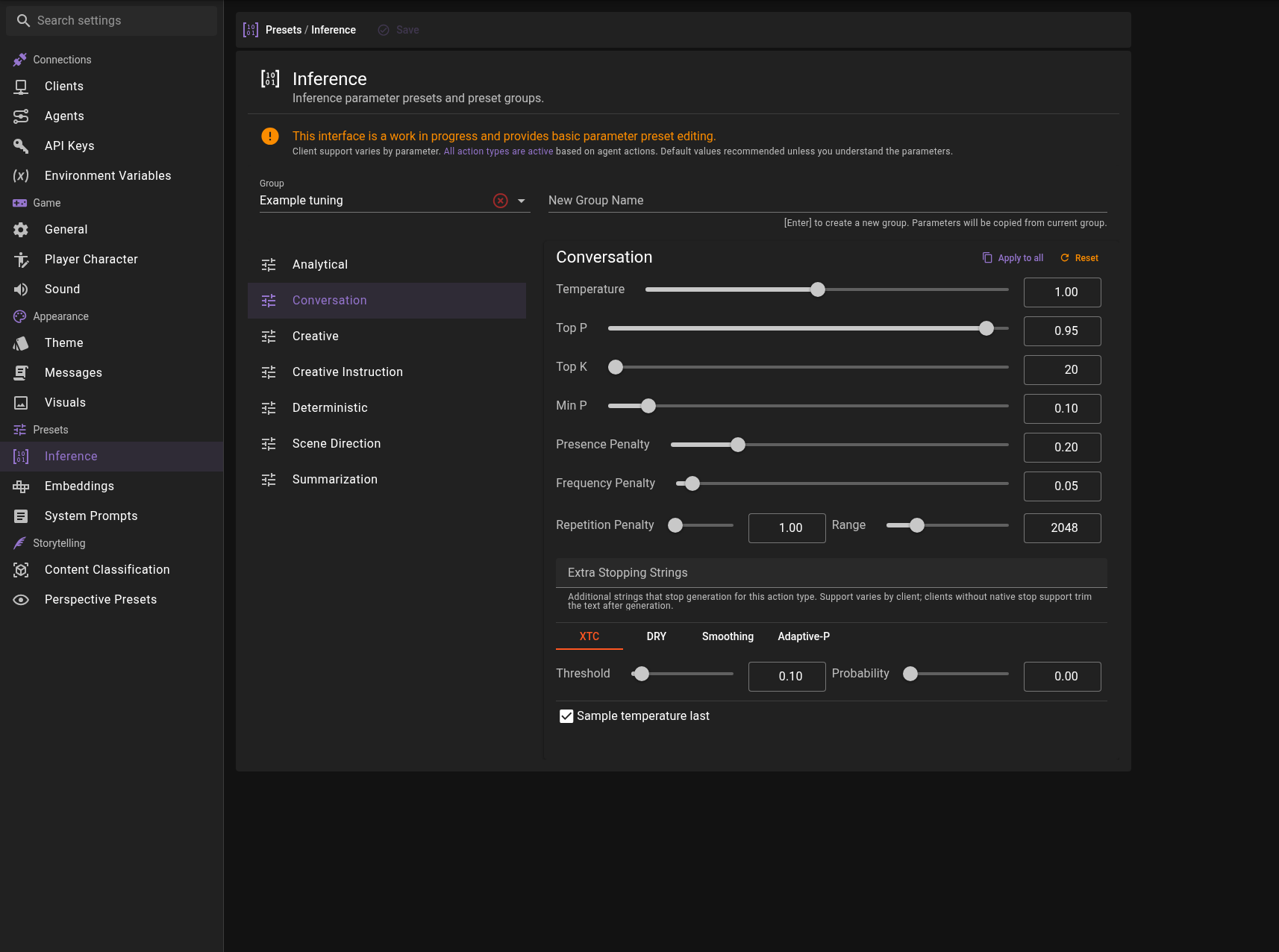
If you wish to alter the inference parameters sent with the generation requests for text-generation you can do in the settings interface.
Open the Settings tab in the top navigation, then select Inference under the Presets group in the sidebar.
Warning
Not all clients support all parameters, and generally it is assumed that the client implementation handles the parameters in a sane way, especially if values are passed for all of them. All action types are used and will be selected depending on the action the agent is performing. If you don't know what these mean, it is recommended to leave them as they are.
All action types are used
Each preset in a group belongs to one action type, such as Conversation or Creative. It's important to understand that all action types are used, depending on which action is performed by an agent.
Work in progress
This is currently transitioning to a better system. Main goal was to expose the parameters to the user, and make it somewhat understandable.
We've tried to categorize them in a sensible way, but there is probably still work that needs to be done in this area. A lot of them can probably be merged into a single category.
Categories
Analytical
Used when the agent is performing some kind of analysis, that requires accurate and truthful information.
Conversation
Used for generating actor responses in a conversation.
Creative
Used for content generation (Generating characters, details etc.) and narration.
Creative instruction
Similar to Creative but will be used when the agent is expected to follow the instruction very closely. This is one of the areas that needs more work and can probably be merged with one of the other categories.
Deterministic
Used when the agent is expected to follow the instruction very closely and we want to ensure that the output is deterministic.
Scene Direction
Used mostly for the director when directing the scene flow. Need to be creative but also follow the instruction closely.
Summarization
Used for summarizing the scene progress into narrative text.
Available Parameters
The inference preset editor provides access to the following generation parameters. Not all parameters are supported by all clients.
Basic Parameters
| Parameter | Range | Description |
|---|---|---|
| Temperature | 0.1 - 2.0 | Controls randomness in generation. Lower values produce more focused, deterministic output; higher values produce more varied, creative output. |
| Top-P | 0.1 - 1.0 | Nucleus sampling. Considers only the smallest set of tokens whose cumulative probability exceeds this value. |
| Top-K | 0 - 1024 | Limits sampling to the K most likely tokens. Set to 0 to disable. |
| Min-P | 0 - 1.0 | Filters out tokens with probability below this threshold relative to the most likely token. Helps prevent low-quality token choices. |
| Presence Penalty | 0 - 1.0 | Penalizes tokens that have already appeared in the generated text, encouraging discussion of new topics. |
| Frequency Penalty | 0 - 1.0 | Penalizes tokens based on how frequently they appear, reducing word repetition. |
| Repetition Penalty | 1.0 - 1.2 | Applies a multiplicative penalty to repeated tokens. |
| Repetition Penalty Range | 0 - 8192 | Number of tokens to look back when calculating repetition penalty. |
Extra Stopping Strings
A list of custom strings that end generation early for any request that uses the action type. Type a string into the field and press Enter to add it; remove its chip to delete it again.
How the strings take effect depends on the client. Clients with native stop support (llama.cpp while Send stop is on, Ollama, Text-Generation-WebUI, KoboldCpp (United API), LM Studio) send them with the request, so generation halts as soon as one is produced. All other clients let the generation finish and then trim the response at the earliest occurrence of any of the strings.
Some backends cap the number of stop sequences per request (LM Studio 4, KoboldCpp 16). When the combined list exceeds the cap, the excess strings are dropped from the request and noted in Talemate's log — the dropped strings still apply through the post-generation cut.
Advanced Parameters
These parameters are organized into tabs in the preset editor and provide finer control over sampling behavior.
XTC (Exclude Top Choices)
Removes the highest-probability tokens from consideration to encourage more creative, unexpected outputs.
| Parameter | Description |
|---|---|
| Threshold | Probability threshold above which tokens may be excluded. |
| Probability | Chance that qualifying tokens are actually excluded. |
DRY (Don't Repeat Yourself)
An advanced repetition penalty that specifically targets repeated sequences of tokens rather than individual tokens.
| Parameter | Description |
|---|---|
| Multiplier | Strength of the DRY penalty. Set to 0 to disable. |
| Base | Base value for the exponential penalty calculation. |
| Allowed Length | Minimum sequence length before DRY activates. |
| Sequence Breakers | Characters that reset the sequence tracking. |
Smoothing
Applies smoothing to the token probability distribution.
| Parameter | Description |
|---|---|
| Factor | Strength of the smoothing effect. Set to 0 to disable. |
| Curve | Controls the shape of the smoothing curve. |
Adaptive-P
Dynamically adjusts the sampling threshold based on the probability distribution of tokens.
| Parameter | Description |
|---|---|
| Target | Target entropy level. Negative values disable adaptive sampling. |
| Decay | Controls how quickly the adaptive threshold adjusts. |
Client Support
Different clients support different subsets of these parameters:
- KoboldCpp (United API): Supports all parameters listed above.
- KoboldCpp (OpenAI mode): Limited to temperature, top_p, presence_penalty, and max_tokens.
- Remote APIs (OpenAI, Anthropic, etc.): Typically support temperature, top_p, and penalty parameters. Advanced parameters like XTC, DRY, and Adaptive-P are generally not available.
- Other local APIs: Parameter support varies by implementation.
- Extra Stopping Strings: llama.cpp (while Send stop is on), Ollama, Text-Generation-WebUI, KoboldCpp (United API) and LM Studio receive the strings natively and halt generation early, subject to the per-backend caps described under Extra Stopping Strings. Every other client trims the response after generation instead.
Editing an action type
Select an action type from the list on the left to load its parameters into the editor on the right. Adjust the sliders, tabs and checkbox to change the values for that action type.
The editor provides exact numeric entry and actions for copying or resetting the selected action type.
Exact numeric entry
Every numeric parameter in application settings has a slider and a number field, including the advanced sampling tabs. Both edit the same value. Type an exact value, such as Top K 20 or Top P 0.95, then press Enter or leave the field. Empty, out-of-range and off-step values show an error and do not change the saved parameter; Escape restores the last valid value. Save application settings as usual.
The pinned panel uses compact number fields only. Valid entries save automatically after Enter or leaving the field, using the same ranges and precision as settings.
Apply to all
The Apply to all action copies the values of the currently selected action type to every other action type in the same group. This is useful when you have tuned one action type (for example Conversation) and want all the other action types to start from the same values.
Because this overwrites the values of all the other action types in the group, you will be asked to confirm before it happens.
Reset
The Reset action restores the currently selected action type back to its default values. As of version 0.38.0 this action also asks for confirmation before resetting, so an accidental click no longer discards your changes.
Both actions only change the values in the editor. Remember to save the settings with the Save button in the settings toolbar for them to take effect.
Preset Groups
Initially there is a Default group in which the presets are edited, but if you want you can create additional groups to create - for example - model / client specific presets.
To add a new group, type the title in to the New Group Name field in the upper right and press Enter.
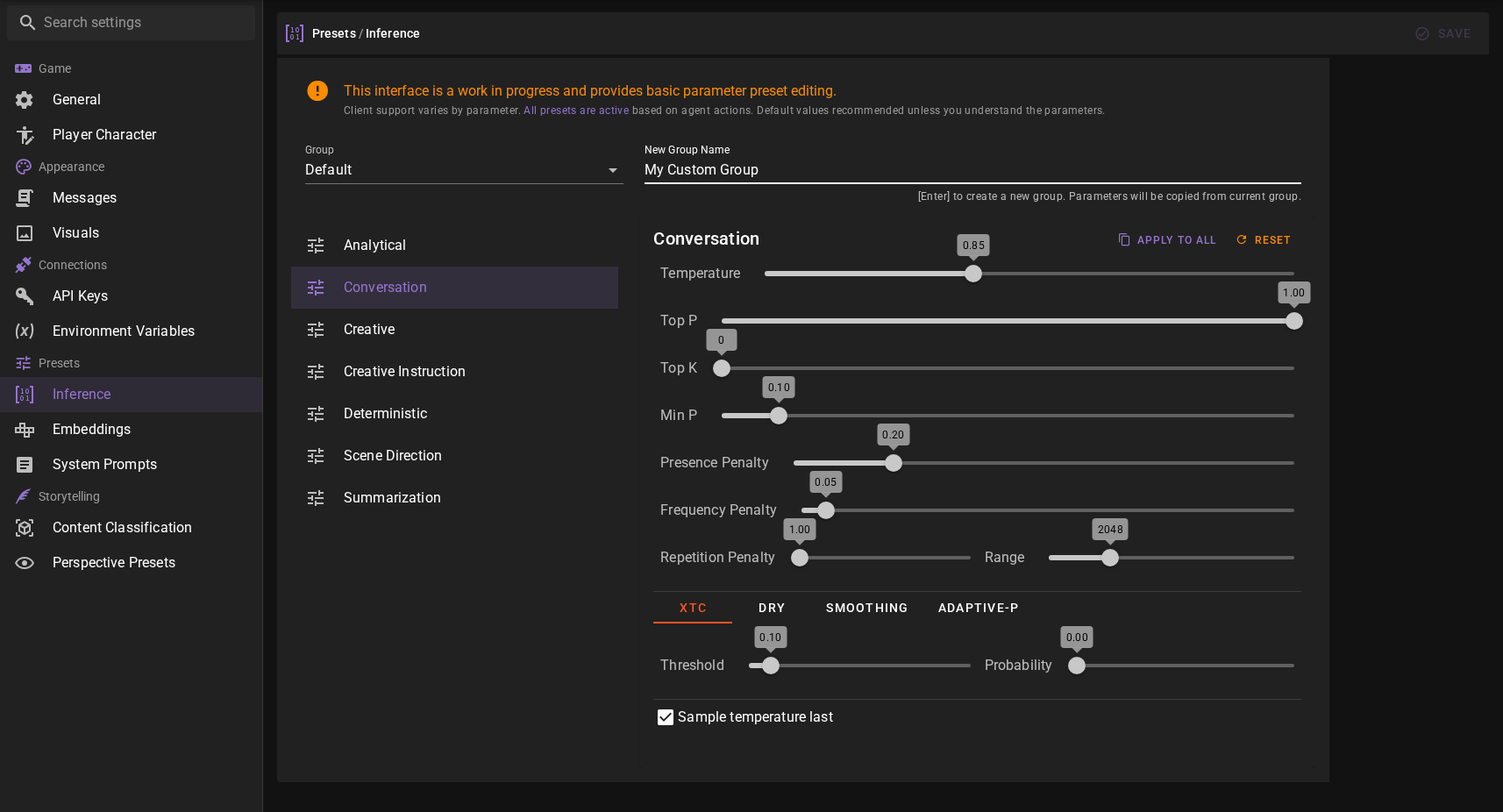
The new group will be added and automatically selected for editing.
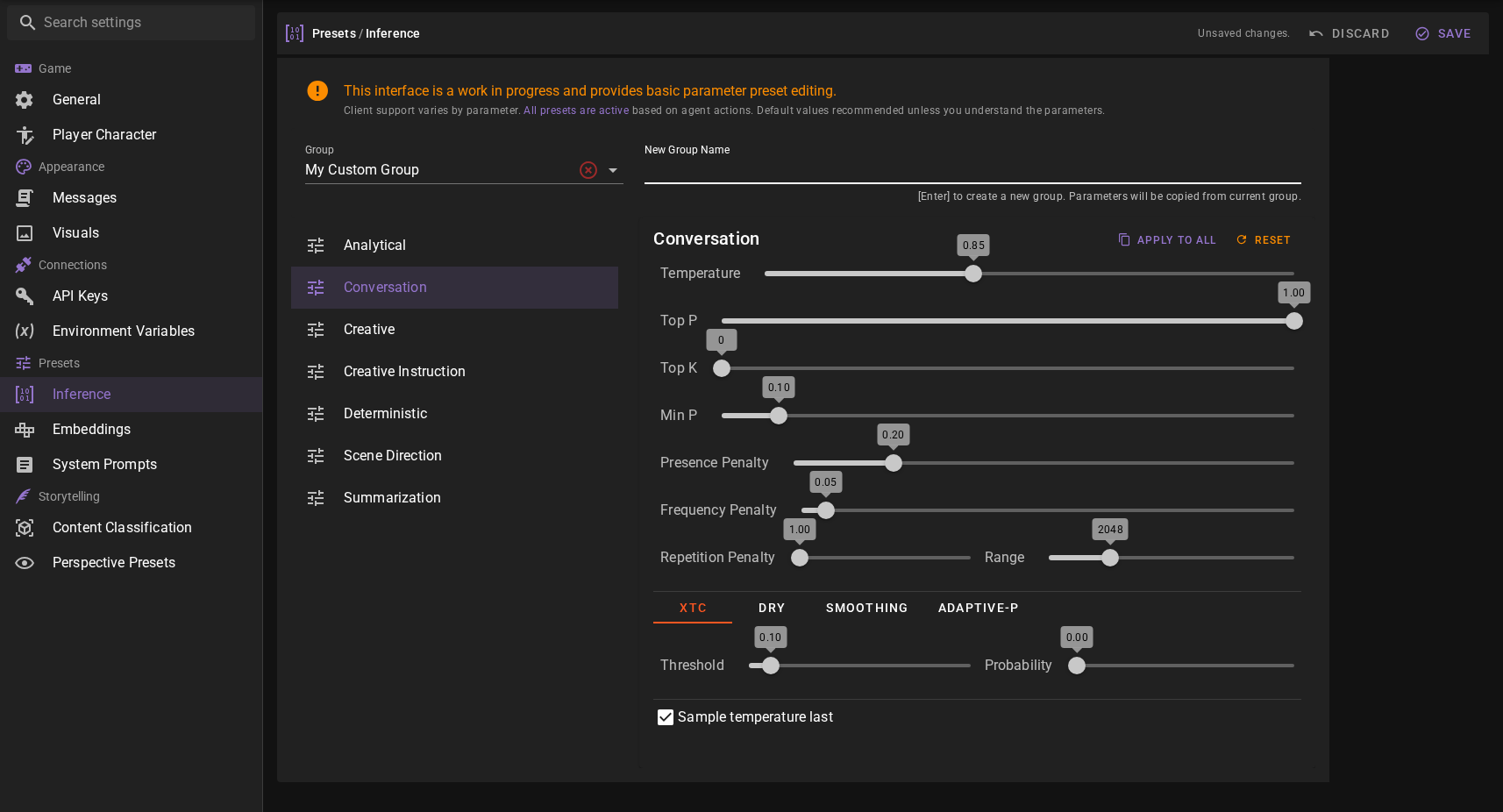
Once you have adjusted the presets to your liking you can save the group by clicking the Save button.
Setting the group for the client
In the client listing find the chip that names the group the client uses and click it. The menu it opens carries the group actions for that client.
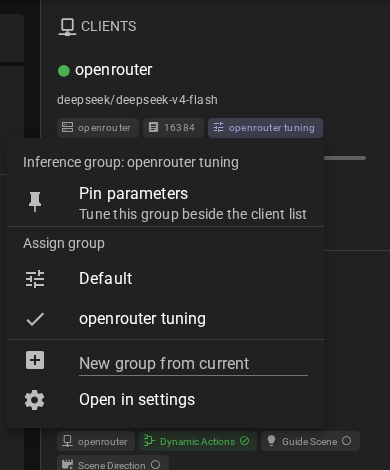
- Assign group lists every group. A check marks the one the client uses. Click another one to assign it.
- New group from current creates a group from the parameters the client uses right now and assigns it to the client. Type the name and press
Enter. - Open in settings opens the group in the inference preset editor described above.
You can also pick the preset group from the Inference Presets dropdown in the Advanced section of the client editor.
The inference parameter panel
The preset editor in the settings is the full workbench. For tuning while you play, a client's parameters can be pinned to a panel that sits beside the client list, so a value is changed without leaving the scene.
Open the client listing, click the client's chip and choose Pin parameters. The panel appears next to the list.
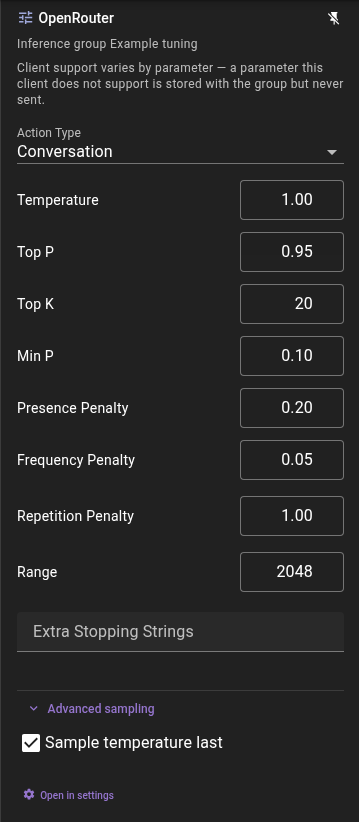
The settings page pins the same panel. Open the Settings tab, select Clients under Connections, select the client and click Pin parameters. This one applies when you save, the way the rest of the page does. Both controls pin and unpin the same client, so each shows what the other did — while the settings page holds unsaved edits it keeps showing its own copy, and saving it writes the pin that copy carries.

The panel edits one action type of the client's group at a time — pick it in the Action Type selector. It offers the same parameters as the settings editor, with the advanced samplers behind Advanced sampling. Every change is saved by itself a moment after you make it; there is no save button.
Because the panel belongs to one client, the note under its title matters here: a parameter the pinned client does not support is stored with the group and never sent. Client Support lists which client sends what.
One client at a time
Only one client's parameters are pinned. Pinning another client replaces the current one, and in the panel's header unpins it. The pinned client is remembered, so the panel comes back where you left it.
The Default group is not edited here
A client without a group uses the Default parameters, which every other client without a group uses as well. Rather than change those for everyone, the panel asks for a group name and creates a group from the Default parameters for this client.