Saving
How saves work
Scenes are saved as .json files inside the scene's project directory. All saves for a scene are grouped together in this directory, so a single scene project might contain several save files representing different states or branches.
When you save a scene, Talemate also records a snapshot in Scene revisions. This means you can preview any previous revision and fork it into a new save at any time.
Saves can also serve as restore points. By designating one save file as the restoration source in the scene settings, you can quickly reset a scene back to that state whenever needed — useful for testing or creating repeatable starting points.
Leaving a scene with unsaved progress
Talemate asks your browser to warn before closing the tab, reloading, or navigating away when the active scene has unsaved changes. Saving successfully clears the warning until the next edit. Clean scenes and explicit scene changes inside Talemate do not trigger it.
The browser supplies the warning text and requires that you have interacted with the page first. It may not show a warning when a mobile browser discards a tab, the browser crashes, or the process is killed. Closing the tab still disconnects and unloads the scene if you choose to leave; reopening loads only what you saved. This warning does not keep a scene running in memory, save it automatically, or protect against backend shutdown. Save regularly.
Browser restrictions are described in MDN's beforeunload documentation.
Saving from the scene
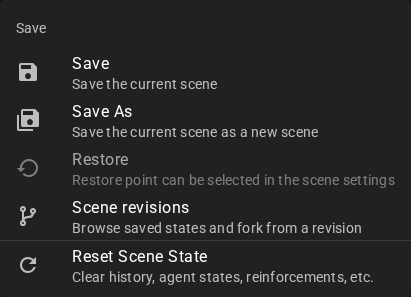
To save while looking at the scene, click the Save button on the right of the Scene tools toolbar.
Saving from the world editor
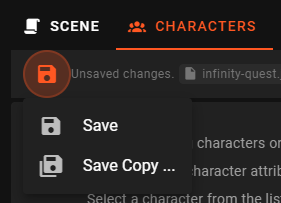
In the World Editor, click the Save button in the top center of the screen to write the whole current scene, including story progress, to the loaded file. This intentionally works on locked files too, including shipped scenes, and writes the current Locked save file setting to disk. Use this Save after changing the lock so it survives reload. To preserve a shipped starting state, create a Save As copy before playing and make your changes in that copy. Save As still follows the destination protections below.
Auto save
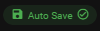
To disable / enable auto save, click the the auto save shortcut above the scene tools toolbar.

I can't toggle auto save
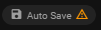
Some scenes start out with a locked save file. This prevents autosave and Scene tools saves from overwriting that starting state. To enable autosave for your progress, use Save As to create a writable copy. After that, the autosave toggle will be available.
Info
Alternatively you can also unlock the save file through the Scene editor found in World Editor Scene Settings.
Save As
When you use Save As, a save file is created in the same project directory. The new save keeps your current revisions. Choosing an existing writable checkpoint replaces its separate revision chain; revisions still used by other saves remain available. This is useful for creating checkpoints you can return to later — for example, saving an initial state before experimenting with different story directions.
Save As refuses any read-only destination, including protected restore points and the original stock file when saving from a writable copy. For the currently loaded file, the read-only setting in Scene Settings applies immediately. Enter a filename without folder paths; .json is added if needed. The dialog stays open with an error and your entered name after a refusal; correct the name and select Continue to retry. While the save runs, Continue, Cancel, Esc and clicking outside are disabled until the result arrives. These Save As rules apply from both the Scene tools and World Editor. The World Editor’s plain Save is the authoring exception described above.
These additional save files can be set as restore points so you can always return to a known good state.
If another Talemate instance has saved the same file, Save As can keep your local turns under a new name while your starting revision remains in that save's revisions. The other instance's later turns stay in its save. Once Save As starts recording, it finishes writing the destination even if your browser disconnects.
Forking a copy of a scene
Click Fork underneath a recorded message to continue from its saved scene state. Save first if the message is unrecorded; use Save As for a read-only scene.
This opens the Scene revisions positioned at that message's revision, where you can preview the scene state and fork it to a new save.
Before a scene has a save filename, the message toolbar instead offers Copy from here. This copies messages through the selected point using the current world state and character details.
Replay forks use the same saved revisions.