Game
Application settings open in the main view via the Settings tab in the top navigation (or the cogwheel icon on the right side of the top bar). Navigation lives in the left sidebar, grouped by topic, with a search field at the top that finds any setting by name and jumps straight to it.
The sidebar leads with the Connections group — Clients, Agents, API Keys and Environment Variables — followed by Game, Appearance, Presets and Storytelling. Settings opens on the Clients page and stays on whichever page you last visited.
Changes are collected as you edit — an Unsaved changes indicator with Save and Discard actions appears in the toolbar, which stays pinned at the top while the page scrolls, whenever your edits differ from the stored configuration. Nothing is applied until you save. Switching to another main tab while edits are pending opens a You have unsaved settings prompt with three actions: Ignore leaves the tab with your edits still pending, Save saves them and then leaves, and Discard Changes reverts them and then leaves. Moving between pages inside Settings never prompts. Ignored edits survive switching to another main tab and back, and while they are pending the Settings tab in the top navigation shows a warning badge, so the state stays visible even after you switch to another tab.
If the configuration is changed elsewhere while you have unsaved edits — from another window, or by the help agent — a Changed outside this view — saving overwrites warning appears in the toolbar instead of your edits being silently overwritten (or silently overwriting the other change). Discard loads the latest stored configuration; Save overwrites the outside change with your edits.


The Game group holds general game behavior, the default player character, and the sound playback settings.
General

Auto save
If enabled the scene will save everytime the game loop completes. This can also be toggled on or off directly from the main screen.
If a scene is set to be immutable, this setting will be disabled.
Auto progress
If enabled the game will automatically progress to the next character after your turn. This can also be toggled on or off directly from the main screen.
Max backscroll
The maximum number of messages that will be displayed in the backscroll. This is a display only setting and does not affect the game in any way. (If you find your interface feels sluggish, try reducing this number.)
Show agent activity bar
When enabled, a horizontal bar appears above the scene tools showing which agents are currently working. Each active agent is displayed as a small chip with the agent's name and its current action. This provides visibility into background processing without needing to check the system bar at the top of the screen.
This setting is enabled by default.
Scene header

Show scene header keeps the scene title and your chosen information items at the top of the scene; see Scene Header. The header's own close button turns this setting off as well, so this is where you turn the header back on.
Left of the title and Right of the title choose which items each side of the header shows. Pick any number of items per side, or none. The available items are History stats (messages and summary layers), Summarizer (dialogue tokens gathered against the summarizer's threshold, with a marker when a summary is due), Active characters (portraits of the characters in the scene), Knowledge effort (a chip that opens the scene's knowledge settings), Knowledge mode (Standard or Perspectives), Writing style and Visual style (the scene's style templates, with a menu to pick another one). The item menus on the two sides of the header change the same choice, and a change there shows here too. Your choices are kept while the header is hidden.
The header is enabled by default, with History stats and Active characters on the left and Summarizer and Writing style on the right. The other items are off until you pick them for a side.
Release GPU cache on scene load
When enabled, idle GPU memory reserved by local CUDA embeddings or TTS is handed back to the driver when switching scenes, so it doesn't pile up and eventually leave too little VRAM to load another scene. Disable only if you have VRAM to spare and would rather keep it reserved.
Player Character

Lets you manage a basic default character.
This character is used when a scene is loaded that does not define a player character. Mostly relevant when you load character-cards that aren't in the talemate scene format (e.g., ST character cards).
Add default character to blank talemate scenes
When creating a new scene, add the default player character to the scene.
Sound
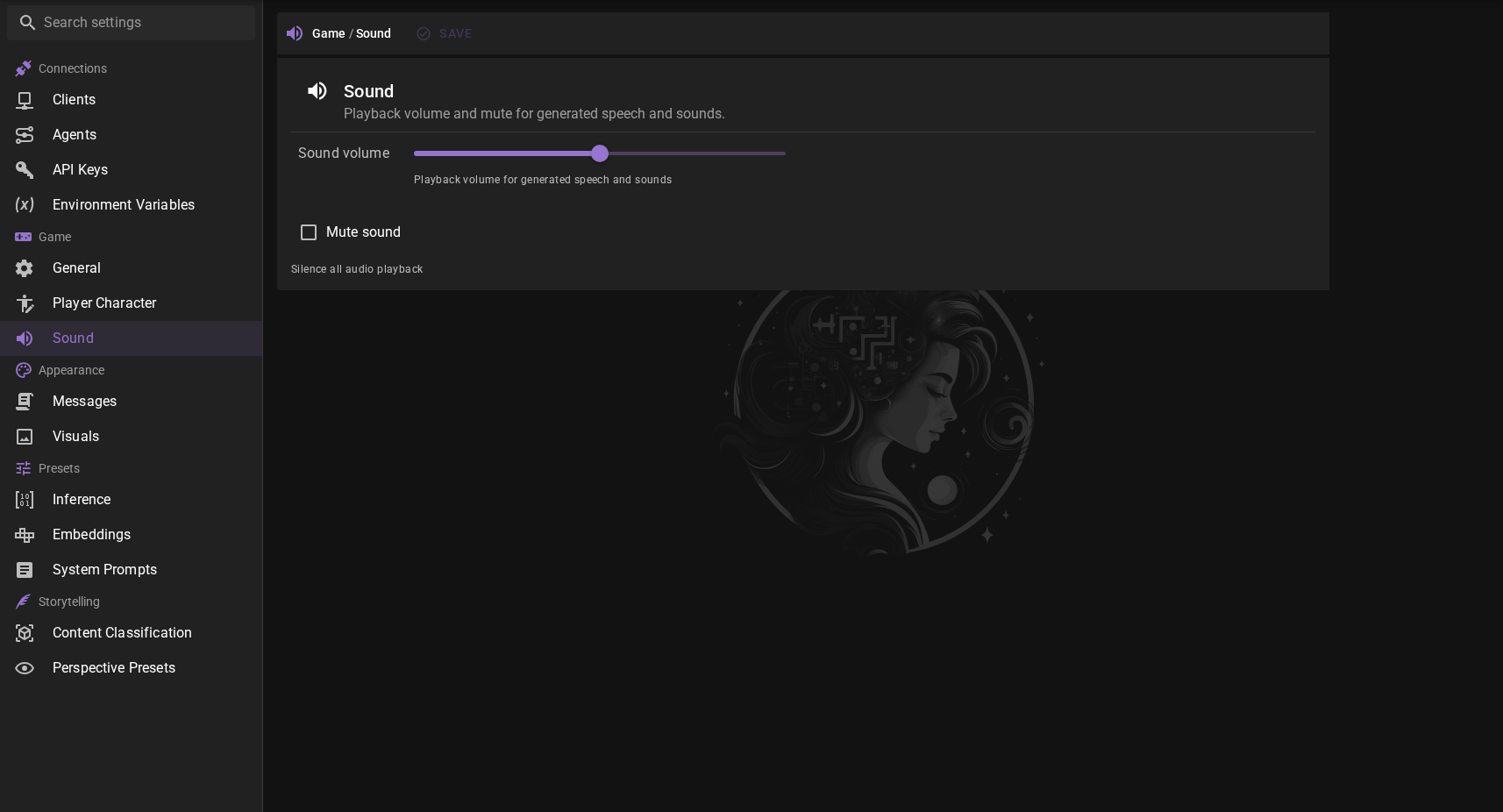
Playback volume and mute for generated speech and sounds. Both settings persist in the application configuration, so they survive a reload.
The same controls live in the status bar next to the audio playback buttons — a compact volume slider and a mute toggle. Changes there apply immediately and are saved for you; changes on this page apply when you save your settings.
Sound volume
Playback volume for generated speech and sounds, from 0% to 100%.
Mute sound
Silences all audio playback. The volume setting is kept, so unmuting returns to the previous volume.