Folders
The character list in the World Editor can optionally be organized into collapsible folders. Folders are a sidebar-only organization tool — they do not affect how characters behave in the scene, only how they are grouped in the list.
Characters that are not assigned to a folder stay at the top of the list as a flat, ungrouped section. Folders appear below the ungrouped characters, sorted alphabetically.
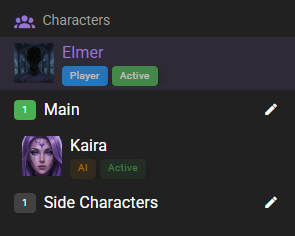
Each folder header shows a count chip with the number of members it contains. The chip turns green when at least one character in the folder is currently active in the scene.
Assigning a character to a folder
Folders are assigned from the character editor, not from the sidebar.
- Open the World Editor and navigate to the Characters tab.
- Select the character you want to organize.
- At the top of the character editor, next to the character's name and color chip, use the folder input (the text field with a icon).
- Start typing a folder name. Existing folder names from the scene will be offered as suggestions in a dropdown.
- Pick an existing folder to move the character into it, or press Enter (or click the Create "..." option) to put the character into a brand-new folder.
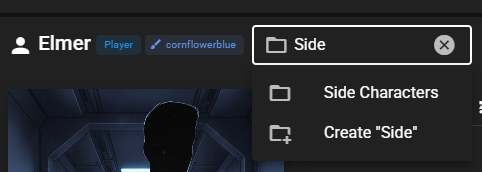
The field is capped at 29 characters. Leading and trailing whitespace is trimmed automatically.
The folder assignment saves immediately — you don't need to confirm it.
Removing a character from a folder
To unassign a character, open the character in the editor and clear the folder input (click the clear icon inside the field, or delete the text and press Enter). The character moves back into the ungrouped section at the top of the list.
Renaming a folder
Folders are renamed from the sidebar, not from the character editor.
- In the character list, locate the folder you want to rename.
- Click the pencil icon on the right side of the folder header.
- In the Rename folder dialog, edit the folder name and click Rename.
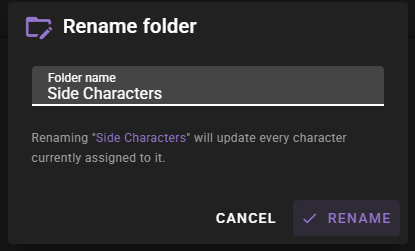
Renaming a folder updates every character currently assigned to it in one step. Characters in other folders are left alone.
Expanding and collapsing folders
Click a folder header to expand or collapse it. The open/closed state of each folder is remembered per scene across page reloads.
When a character is moved into a folder (for example, from the character editor), that folder is automatically expanded so you can see where the character landed.
How folders sync across scenes
Folder assignments are part of a character's shared world context, and behave the same way as shared attributes and details:
- If a character is marked as shared (the Shared to World Context checkbox in the character editor is on), their folder assignment is stored in the shared context file and applied to every scene that is linked to the same shared context.
- If a character is not shared, their folder is a per-scene setting and is not copied anywhere else.
In practice this means that once you organize a shared character into a folder in one scene, opening any other scene linked to the same shared context will show that character in the same folder. Clearing a shared character's folder also propagates — the character becomes ungrouped across all linked scenes.
Scene-local folders
Folders themselves are not a shared-context object. A folder "exists" wherever at least one character points at it. That means a folder name that only contains non-shared characters is scene-local, and will not appear in other scenes.
Related
- Shared World & Episodes — how shared world context works and how to link scenes.
- Character editor overview — the Characters tab and the rest of the character editor.