Time Passage Management
Time passage messages mark the flow of time within your scene. They appear as clock-themed markers between scene messages and influence how the AI understands the temporal context of your story.
Inserting Time Passages
From the Scene Tools Menu
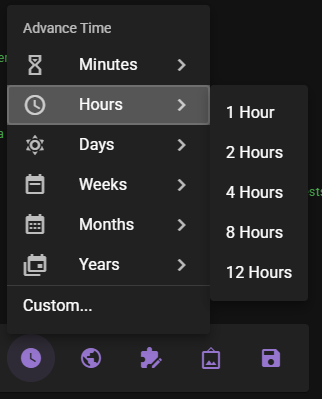
The primary way to advance time is through the Advance Time button in the Scene Tools tool bar. It opens a menu of grouped duration presets (Minutes, Hours, Days, Weeks, Months, Years) plus a Custom... option for arbitrary durations. By default, the Narrator Agent will narrate the time jump.
From the Scene View
You can insert time passage markers at any point in the scene history, not just at the end.
To insert a time passage after a specific message:
- Hover over the message in the scene view after which you want time to pass
- Click the Time passage button that appears underneath the message
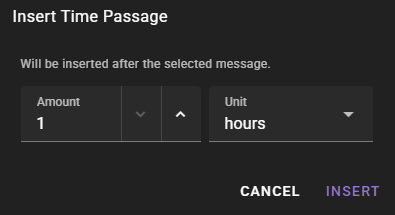
- Specify the duration (amount and unit)
- Optionally give it a chapter title
Available time units: minutes, hours, days, weeks, months, years.
The chapter title is optional and names the stretch of scene the passage opens. It is shown on the time passage marker and is what the chapter menu in Replay lists; without one, a chapter is listed by its duration instead.
Months and Years
Scene time is tracked as elapsed seconds, so months and years use fixed lengths: a month is 30 days and a year is 365 days. This applies both to advancing time and to how elapsed time is displayed.
Editing Time Passages
In the Scene View
Time passage markers in the scene view can be edited by double-clicking them. This opens inline editing controls where you can change the duration amount and unit. If the time passage is not the most recent entry in the scene history, a notice under the controls reminds you that later messages, summaries and world state can go out of step with the change (see Edit and delete messages).

- Double-click the time passage message to enter edit mode
- Adjust the Amount (numeric value) and Unit (minutes, hours, days, etc.)
- Add or change the Chapter title, or clear it to remove the title
- Click Save to apply the changes, or Cancel to discard them
In the World State Manager
The World State Manager's history view also displays time passage entries with editable duration and chapter title fields. This provides an alternative interface for managing time passages, especially useful when reviewing the full history timeline — and it is the only one that reaches a passage inserted before a summarized entry, which sits too far back for the scene view to show.

To edit a time passage in the World State Manager:
- Open the World State Manager from the scene tools
- Navigate to the History view
- Locate the time passage entry
- Double-click the entry to open inline editing
- Adjust the amount, unit and chapter title, then click Save
Deleting Time Passages
From the Scene View
Each time passage marker in the scene view has a close button (visible on hover) that allows you to delete it. Click the close button, then click Delete in the confirmation to remove the time passage from the history. Cancel keeps it. The confirmation is the same one that other messages use (see Deleting a message).
From the World State Manager
In the World State Manager history view, hover over a time passage entry to reveal a delete button. Click it and confirm the deletion.
Effect on Timestamps
Deleting or editing a time passage automatically recalculates all timestamps in the scene history that follow the changed entry. This ensures temporal consistency throughout the scene. Text that was already written is not rewritten: later messages, summaries and world state that mention the old time keep it.
How Time Passages Affect AI Context
Time passage messages serve several purposes in the AI context:
- They provide temporal context so the AI understands how much time has elapsed between events
- They influence the Summarizer Agent -- events before a time jump are summarized separately
- They clear actor directions, ensuring directions given in one time period do not carry over
Related Documentation
- Scene Tools -- Advance Time -- the main interface for advancing time
- Narrator Agent Settings -- configuring time passage narration
- World Editor History -- managing scene history
- Scene Context History Review -- reviewing how history is assembled into context