OpenRouter Client
If you want to add an OpenRouter client, go to Settings → Connections → Clients, click Add client and pick OpenRouter from the client type menu.
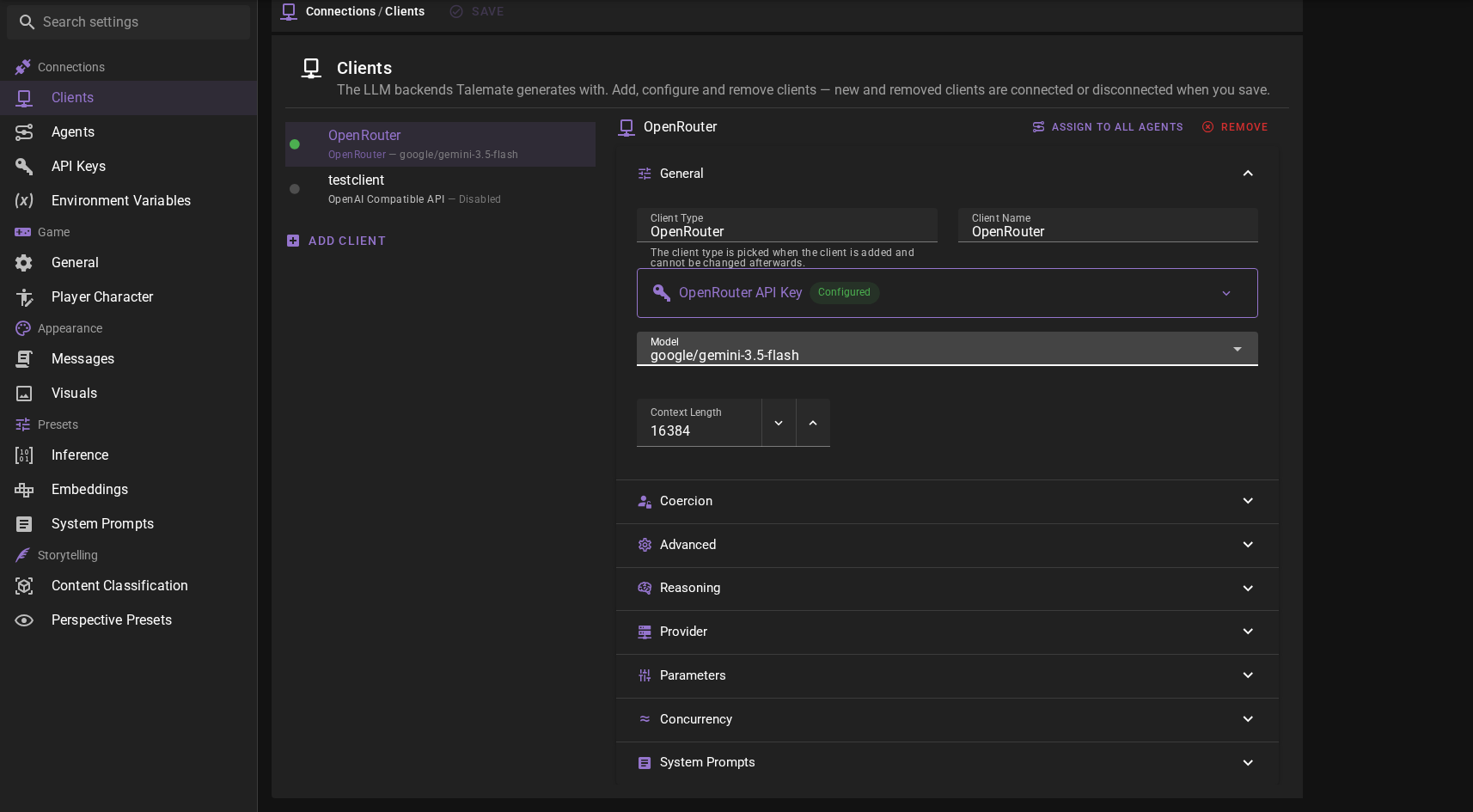
Click Save in the toolbar to add the client.
OpenRouter API Key
The client should appear in the clients list. If you haven't set up OpenRouter before, you will see a warning that the API key is missing.
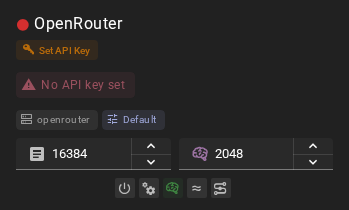
Click the SET API KEY button. This will open the application settings on the API Keys page where you can add your OpenRouter API key.
For additional instructions on obtaining and setting your OpenRouter API key, see OpenRouter API instructions.

The API key is in the client editor too
The OpenRouter API Key card sits in the General section of the client editor, so you can paste your key there instead of going to the API Keys page. It is the same key either way.
Click Save and after a moment the client should have a red dot next to it, saying that there is no model loaded.
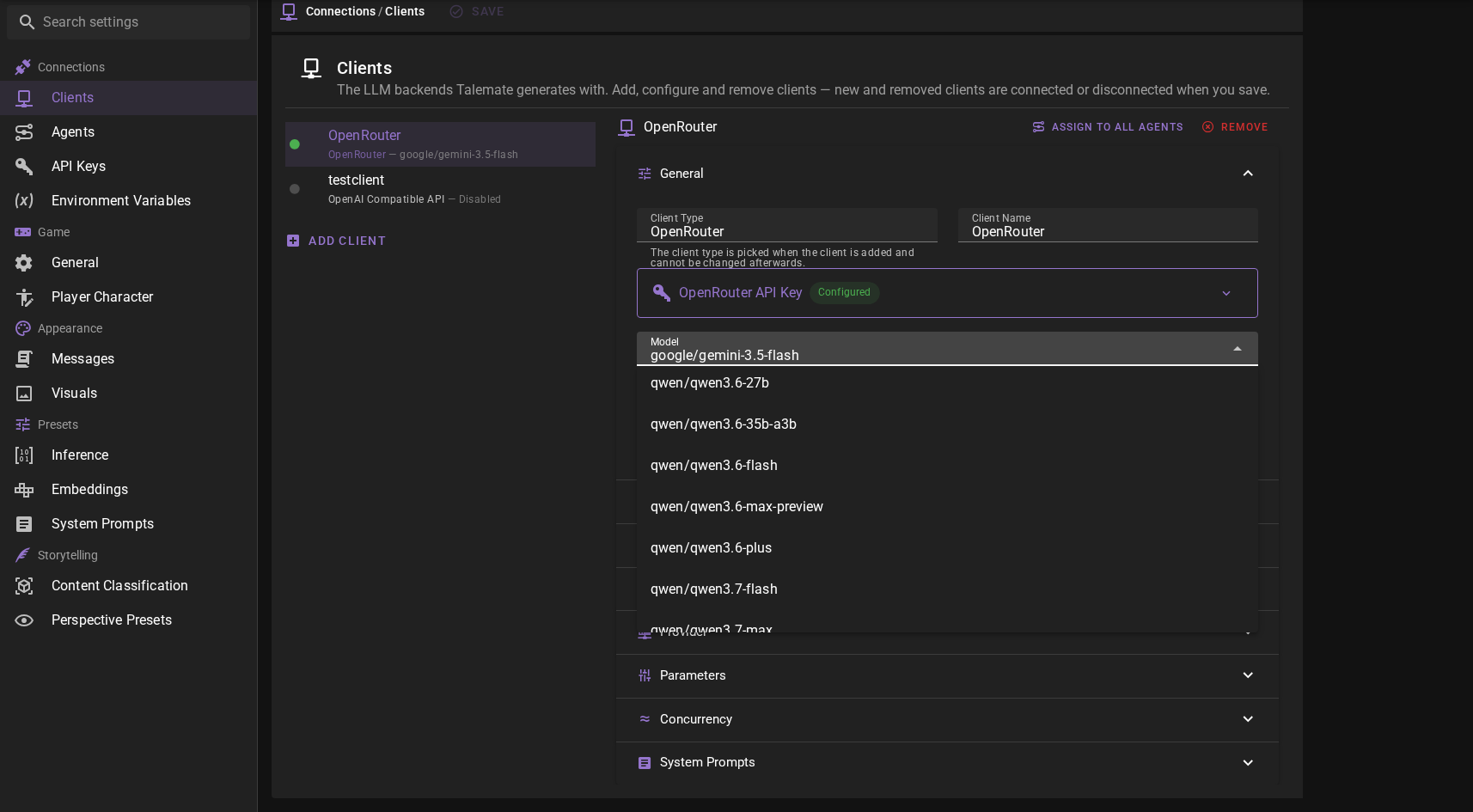
Click the icon to go to the client's editor on the Clients settings page and select a model.
 .
.
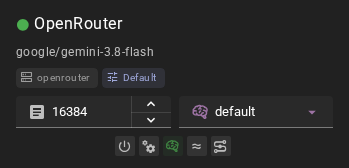
Click save and the client should have a green dot next to it, indicating that it is ready to go.
Ready to use
Settings
Client Name
A unique name for the client that makes sense to you.
Model
Choose any model available via your OpenRouter account. Talemate dynamically fetches the list of models associated with your API key so new models will show up automatically.
Context Length
Maximum context length (in tokens) that OpenRouter should consider. If you are not sure leave the default value.
Concurrent Inference
Found in the Concurrency section of the client editor. When enabled, batch operations that need several queries can send multiple requests to OpenRouter in parallel instead of one at a time, which can speed those operations up.
This is on by default. See the Concurrent Requests page for more detail.
Available models are fetched automatically
Talemate fetches the list of available OpenRouter models when you save the configuration (if a valid API key is present). If you add or remove models to your account later, simply click Save in the application settings again to refresh the list.
Reasoning
New OpenRouter clients start with reasoning on, Reasoning Effort default and 2048 Extra Completion Tokens. A client you saved before keeps its own reasoning setting. Turn Reasoning on or off in the Reasoning section of the client editor, or with the button on the client card.
With reasoning on, Talemate asks OpenRouter to let the model think first:
- Reasoning Effort sets how much the model thinks. Choose
low,mediumorhigh, or another level that OpenRouter defines (none,minimal,xhighormax). Talemate sends your choice as the reasoning effort for any model. - With
default, Talemate only asks the model to think, and the model uses its own default effort. OpenRouter lists that default for each model; for Gemini 3.8 Flash it ismedium. - Extra Completion Tokens adds room for the thinking and the answer when you limit the response length with a token cap. It is not a thinking budget. With the default Adaptive response length, reasoning sends no token cap, and this number has no effect on the request.
When reasoning is on, the client card shows the effort in a dropdown next to the context token budget, where you can change it quickly.
For example, a story uses Gemini 3.8 Flash to decide what each character saw. With effort medium, the model thinks through the scene before it answers. With effort low, it often answers at once without thinking.
OpenRouter usually accepts a level that your model does not list. One exception: a model that must always think refuses none, and Talemate shows the error from OpenRouter. Choose another level, or turn Reasoning off.
With reasoning off, Talemate sends no reasoning request at all, and the card shows a Reasoning Disabled chip. A model that thinks only when asked, such as Claude Haiku 4.5, then answers straight away. A model that always thinks, such as Gemini 3.8 Flash, still thinks by its own default.
You can keep reasoning on when you pick a model that cannot think. OpenRouter ignores the reasoning request for such a model, and the model answers as usual.
Getting empty responses?
If you use a response length mode with a token cap, the thinking can use up the whole cap before the model writes its answer. Increase Extra Completion Tokens, choose a lower effort, or use the Adaptive response length.
Reasoning Tokens is now Extra Completion Tokens
Talemate 0.39 sent Reasoning Tokens to OpenRouter as a thinking budget. OpenRouter does not accept a budget together with an effort, and a small budget can stop a model such as Gemini 3.8 Flash from thinking at all. So Talemate now sends the effort instead. Your saved number stays, as Extra Completion Tokens.
Keep reasoning on for Google models
With reasoning off, Talemate may pre-fill the start of the answer to steer the model. Google models on OpenRouter refuse such requests with an error, so keep reasoning on for them.
Changed in 0.40.0
Before 0.40.0, Talemate sent the reasoning budget even with reasoning off, so a model such as Claude still thought. If you liked those answers, turn reasoning on.
Parameters
The Parameters section of the client editor lets you control which sampler parameters are sent with each request. Some model providers on OpenRouter reject requests that include parameters they don't support for the selected model, returning an error instead of a generation. If you run into this, you can turn the offending parameter off so it is left out of the request entirely.
Each parameter has its own toggle:
- Send temperature
- Send top_p
- Send top_k
- Send min_p
- Send frequency_penalty
- Send presence_penalty
- Send repetition_penalty
All of them are enabled by default. Turning a toggle off omits that parameter from the request completely (it is not sent as a zero value). Leave them enabled unless the provider serving your model errors when it receives one of them — for example, some providers only accept a frequency_penalty or presence_penalty of exactly 0 for certain models.
Response Length Enforcement
Controls whether token limits and/or human-readable response length instructions are sent with prompts. Defaults to Limit tokens and send instructions.
See Response Length Enforcement for details.