LLM Prompt Templates
New in 0.37.0
The LLM Prompt Templates tab lets you view, create, edit, and delete base chat-format templates from within the Prompt Manager. User templates are stored separately from the built-ins and are preserved across updates.
The LLM Prompt Templates tab manages the base chat-format templates used for local LLM inference -- the per-model wrappers like ChatML, Llama3, Mistral, or Gemma4 that decide how system, user, and assistant turns are tokenized before being sent to the model.
These are different from the Jinja2 agent templates covered in the Prompt Manager. Agent templates build the content of a prompt; LLM prompt templates wrap that content in the format a specific model expects.
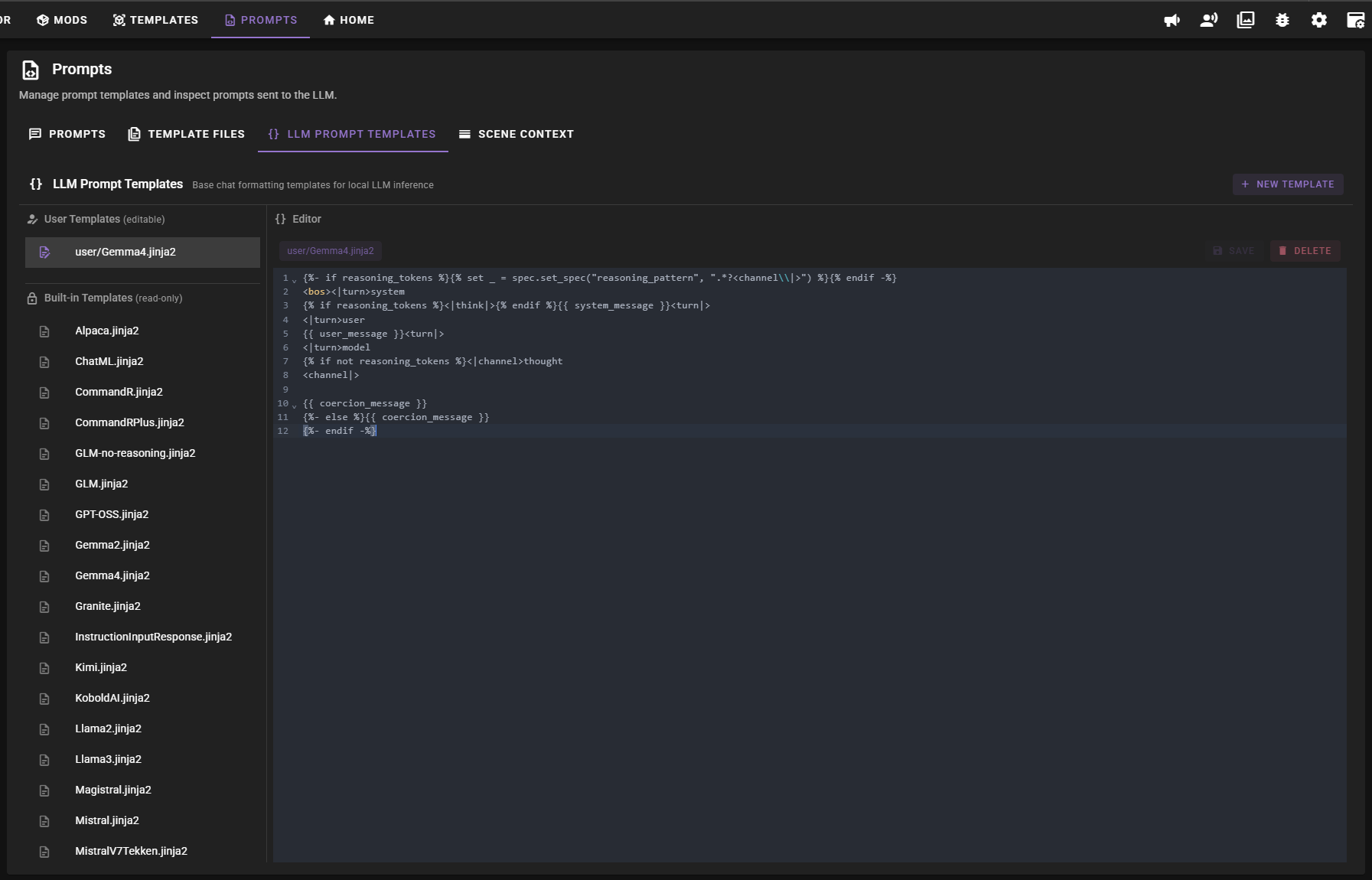
Accessing the Tab
Open the Prompts view from the main toolbar and select the LLM Prompt Templates tab.

The tab is split into two panels:
- List panel (left) -- shows your User Templates (editable) on top and Built-in Templates (read-only) below.
- Editor panel (right) -- previews the selected template, or opens it for editing when you select a user template.
Built-in vs User Templates
| Source | Location | Editable | Notes |
|---|---|---|---|
| Built-in | templates/llm-prompt/std/ |
No | Ship with Talemate. Updated with each release. |
| User | templates/llm-prompt/std/user/ |
Yes | Your templates. Gitignored, never overwritten by updates. |
When a client looks up a prompt template by model name, both built-in and user templates are searched. User templates are listed in the model picker with a user/ prefix (for example user/MyModel).
Creating a New User Template
Click New Template in the tab header to open the create dialog.
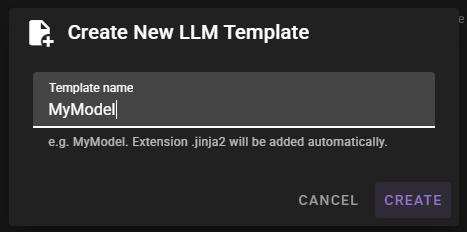
- Enter a name (the
.jinja2extension is added automatically). - Click Create.
The new template is saved to templates/llm-prompt/std/user/ with a minimal starter body and is opened in the editor so you can fill it in.
Names are sanitized: they cannot contain slashes, backslashes, or any of the characters < > : " | ? *.
Copying a Built-in Template
Built-in templates cannot be edited directly. To customize one, copy it into your user templates:
- Select the built-in template in the list.
- Click Copy to User Templates in the editor header.
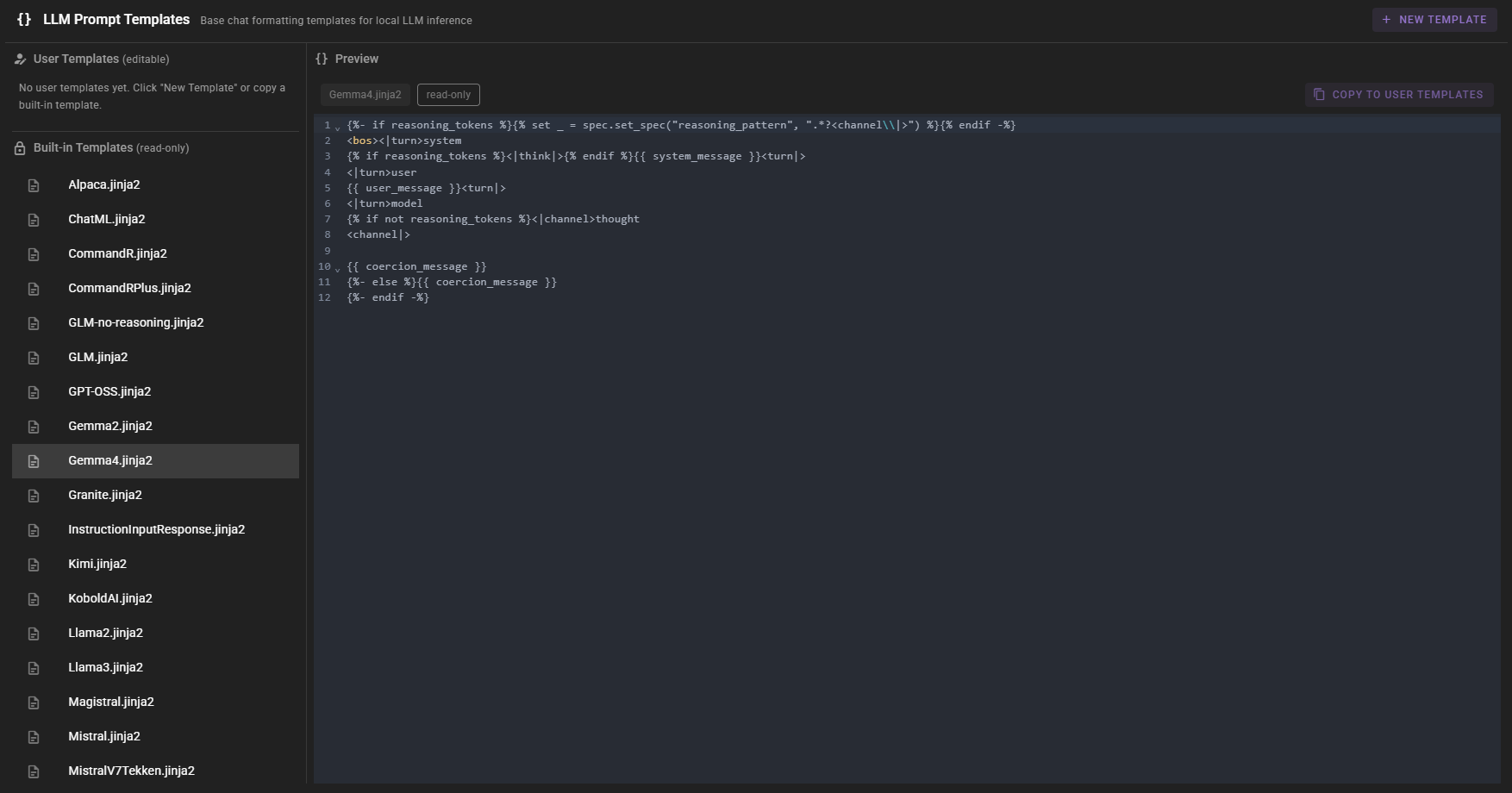
A new user template with the same filename is created in std/user/ and automatically selected for editing. If a user template with that name already exists, you will see a warning and need to delete or rename the existing copy first.
Editing a User Template
Select a user template from the list. The editor opens with the full Jinja2 source.

- An unsaved chip appears in the header as soon as the content differs from the saved file.
- Click Save to write the changes back to disk.
- Click Delete to permanently remove the template. A confirmation prompt is shown.
Using GGUF / llama.cpp Chat Templates
Chat templates pulled from a GGUF model's tokenizer_config.json (or the matching chat_template.jinja2 on a Hugging Face model repo) can be pasted directly into a user template. The following variables used by those templates are provided by Talemate when rendering:
| Variable | Description |
|---|---|
messages |
List of {role, content} dicts (roles: system, user, assistant). |
bos_token, eos_token |
Empty strings -- Talemate does not add BOS/EOS itself; if the model requires them, include the literal tokens in the template. |
add_generation_prompt |
Always True. |
enable_thinking |
True when reasoning tokens are enabled on the client, otherwise False. |
thinking_budget |
The client's reasoning token count, or 0. |
strftime_now(fmt) |
Helper that returns the current time formatted with strftime. |
raise_exception(msg) |
Helper compatible with GGUF templates that emit errors. |
Talemate's native variables (system_message, user_message, coercion_message, reasoning_tokens, spec) remain available in the same template, so you can mix a GGUF template with Talemate-specific features if needed.
Assigning a Template to a Client
Adding or editing a template here only makes it available -- it does not automatically assign it to any client. To use a template with a specific model:
- Open Clients from the main toolbar and edit the client.
- Pick the template from the Prompt Template dropdown. User templates appear prefixed with
user/.
See Prompt Templates for how clients resolve templates from a model name and Template Locking for locking a client to a specific template.
Outdated Override Warning on the Prompts Tab
The top-level Prompts tab in the main navigation shows a small warning icon when any of your active Jinja2 template overrides (managed from the Prompt Manager) are older than the built-in default they override. This happens most often after an update that ships improvements to default templates.

The icon is an alert, not a tab count. Open the Prompt Manager and check the Active tab to see which templates are flagged as outdated, then review or delete those overrides as needed.
This warning tracks Jinja2 agent template overrides only. It is not related to the LLM prompt templates described on this page -- user LLM prompt templates are not compared against built-ins and therefore never show as outdated.