Events
Documentation is a work in progress
Documentation is an ongoing effort and some parts are more complete than others, with some missing entirely. Thanks for your patience, its being worked on!
See the Node Editor - Crash Course tutorial for an extensive introduction to the node editor.
The Event module base type allows the creation of node modules that listen to specfic events and run when they are emitted.
Event reference
You can find a listing of available events in the reference.
They are created like any other node module, through the Create module menu and selecting Event.
In the event module itself you can get access to the event emission object via the Event node.
Some agents provide typed convenience nodes for their emissions — the voice agent's Unpack Generation Emission and Set Chunk Text nodes, for example, read and rewrite the text of a TTS chunk (see Text Manipulation). For every other event you will need to use the Get and Set nodes to get and set properties on the event object.
You can find the various event payloads in the reference.
Activating an event module
There are two ways to make an event module start listening for its event.
Add it to the scene loop
Once your event module is saved, add its node to the scene loop of your scene.
Once added to the scene loop you must also specify the event_name.
This places the module on the scene loop graph, where you can see it, wire additional inputs to it, and disable it again by removing it.
Auto-register
Instead of placing the module on the scene loop graph, you can have it subscribe to its event automatically as soon as it is registered with the scene.
To do this, open the module's Properties panel and:
- Set
event_nameto the event you want to listen for. - Enable
auto_register.
Both values are saved on the module definition itself, so they must be set inside the module (not on a placed instance). When the scene loads, every registered event module with auto_register enabled and a non-empty event_name is connected to the event bus automatically — you do not need to add it to the scene loop.
Auto-register requires a saved event_name
Because auto-registration reads the persisted properties of the module, an auto-registered module that has no event_name set is skipped. Make sure both auto_register and event_name are set and the module is saved.
This works the same way command modules are loaded automatically when a scene loads, and is the recommended approach for event modules that should always be active and that do not need any inputs wired in from the scene loop graph.
Practical Example
The following example demonstrates how to use events node modules.
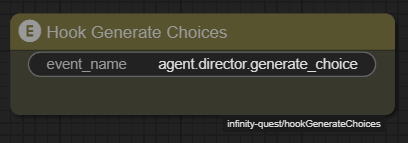
We will create a new event node module called Hook Generate Choices that will be used to add a custom instruction to the director agent's generate choices prompt.
First find the Create module menu and select Event.
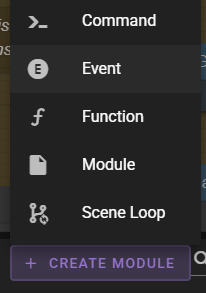
Create the module and name it Hook Generate Choices.
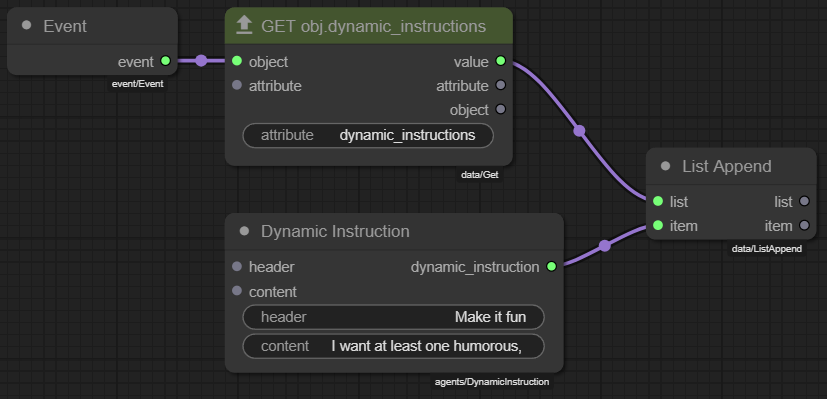
In the node graph add these nodes:
EventGetDynamic InstructionList Append
Set them up
Get
| Property | Value |
|---|---|
| attribute | dynamic_instructions |
Dynamic Instruction
| Property | Value |
|---|---|
| header | Make it fun |
| content | I want at least one humorous choice! |
Then connect them:
<Event>.event<Get>.object<Get>.value<List Append>.list<Dynamic Instruction>.dynamic_instruction<List Append>.item
Save!
Save the module.
In order to activate the event node module, we need to add it to the scene loop.
So load the scene loop and add the Hook Generate Choices node.
Set the event_name to agent.director.generate_choices.inject_instructions. (Again see the reference for the full list of events.)