Scene revisions and restore points
Use Scene revisions to browse saved scene states and continue from an earlier point in a new save. A configured restore point instead resets the scene to a chosen baseline file.
Scene revisions
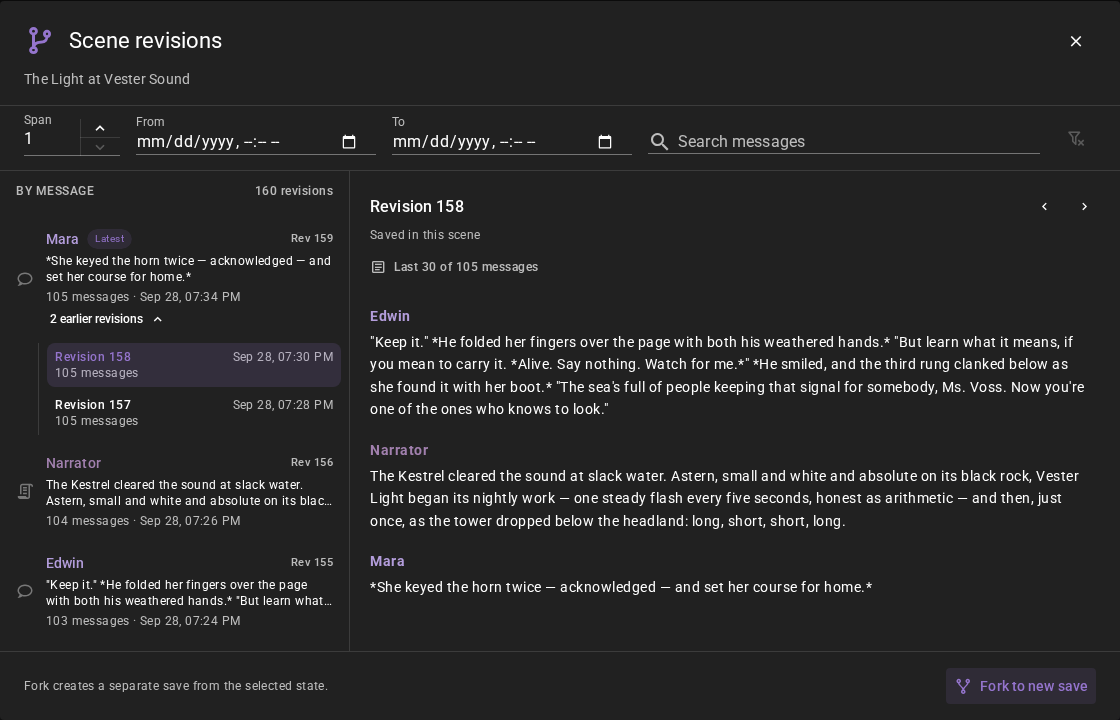
Each save records a snapshot of the scene, including its messages, characters and world state. The list shows one row for each story message, newest first: who speaks, the start of the message, the revision number, the message count and the save time. Select a row to preview the messages at that point. The newest revision is marked Latest; inherited rows name their original save, and Fork point marks where a branch began.
Story messages are character and narrator messages. Saves that add no story message, such as an autosave after a world state update or a director message, fold under the row they belong to. Click earlier revisions under a row to show them; you can preview and fork each one.
Finding a revision
The toolbar above the list narrows it down:
- Span — how many story messages share one row. With 1, every story message has its own row. With 5, the first row covers story messages 1–5, the next one 6–10, and so on.
- From and To — show only revisions saved in that time.
- Search messages — show only rows whose story messages contain the text. The search looks at what is said, not at the speaker's name. Upper and lower case do not matter.
- Clear filters — go back to the full list.
The list loads 50 rows at a time. Click Load more at the end of the list for older rows. If nothing fits the filters, the list says No revisions match.
A row stays with one version of the story. Suppose Mara asks Edwin about the lamp and you regenerate his answer twice, with a save after each answer: the list shows three rows, one for each answer, and you can fork from the one you liked best. The same happens when you delete or edit a message: the earlier version keeps its own row.
Opening Scene revisions
- While playing — open Save in the Scene tools and choose Scene revisions.
- From a message — click Fork to open the message's saved revision. An unrecorded message asks you to save first; in a read-only scene, use Save As.
- From Quick load or Scene Library — open the save's three-dot menu and choose Scene revisions.
Forking a revision
Select a row or one of its earlier revisions, review its preview, then choose Fork to new save and enter a name. Talemate opens the new save through its normal scene loader. Existing saves remain untouched. If the name is already taken, choose another in the same dialog.
A fork keeps all revisions up to the selected point. You can browse those inherited revisions even after deleting the source save. Continuing the fork adds revisions of its own.
A replay uses the same saved state for its current message. Several messages saved together share one revision, so a fork may include more than the selected message.
World state and shared context
The selected revision restores every recorded scene section, including world snapshots, pins, reinforcements and character data. A scene connected to a shared world context keeps that connection. Shared world files retain their current state; they are not rewound with the scene.
Empty or damaged revisions
No revisions yet means the save has no recorded snapshots. Save the scene to record its first revision.
A row whose message cannot be read shows Message unavailable.
If a revision contains missing or damaged content, its preview explains the problem and forking is unavailable. Choose another revision or restore a project backup. Revisions that do not use the damaged content can still open. A damaged older revision does not prevent saving new play or working with other saves in the project.
Upgrading from 0.39.0
Your current save becomes the first revision when you first load or save it. Restore-point files are not seeded, and bundled read-only scenes start recording when you save a writable copy. Earlier changelog files are not converted. Talemate ignores the old <project>/changelog/ directory and leaves it untouched; you can delete it by hand. New revisions live in data.db.
Restore from restore point
If you've configured a restore point in the scene settings, you can reset the scene to that baseline state using the Restore Scene button. This is useful for scenes you want to replay from a fixed starting point, such as testing a scene during development.
Saving after a restore starts a fresh revision chain. Restore points use a specific save file you've chosen as the baseline. See the restoration settings documentation for setup details.