Settings
The Settings tab allows you to configure various settings for the scene.
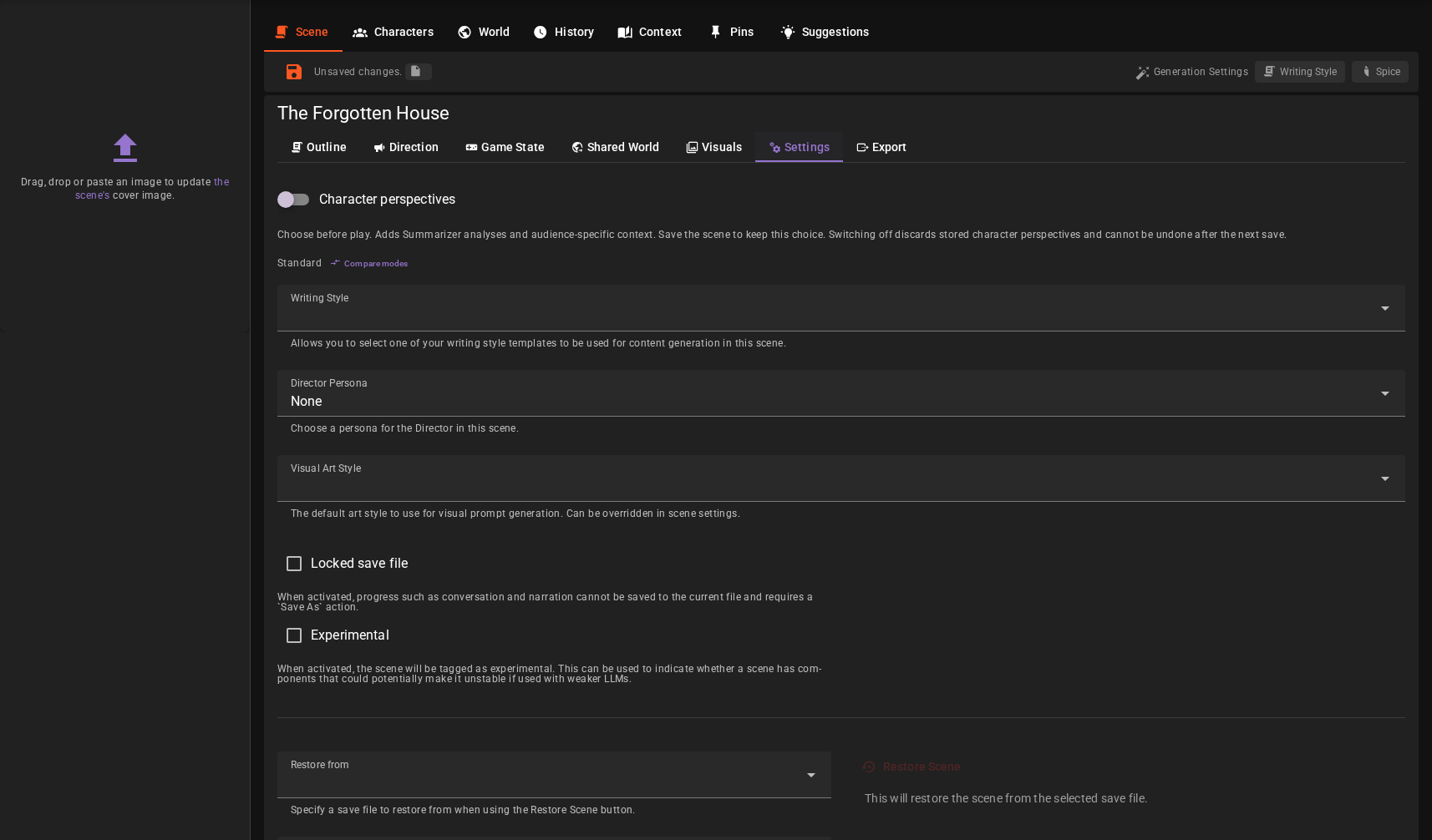
Character perspectives
Turn Character perspectives on or off while the scene has no history or archived history, then save the scene. An intro and configured characters do not prevent the change. Once history exists, the switch is disabled and the current mode remains visible. One line under the switch names the current mode and offers Compare modes, which opens the same pros-and-cons comparison as the Create New Story dialog in a popover; see Choosing a mode. Turning this off clears stored character perspectives and disclosures; turning it on again does not restore them. See Knowledge for analysis costs and recovery.
Writing Style
If you have any writing style templates set up, you can select one here. Some agents may use this to influence their output.
Locked save file
A locked save file is protected from autosave and Scene tools → Save while playing or testing. Save progress to a different, writable destination with Save As.
After changing Locked save file, use the World Editor’s own Save to persist it. This authoring action intentionally writes the loaded file even when locked, including a shipped scene, and retains the lock on disk. It writes the whole current scene, including story progress. To preserve a shipped starting state, create a Save As copy before playing and make your changes in that copy. Turning the lock off and using World Editor Save unlocks the file. Save As still refuses a locked destination, even from the World Editor.
Experimental
This is simply a tag that lets the user know that this scene is experimental, and may take a strong LLM to perform well.
Restoration Settings
A restore point lets you designate another save file from the same project directory as a baseline state. Once configured, you can use the Restore Scene button to reset the scene back to that state at any time.
Typical workflow
- Save an initial state — set up your scene the way you want the starting point to be, then use Save As to create a dedicated save file (e.g., a new
baseline.json) - Set it as the restore point — in the Restoration Settings, select that save file as the restoration source
- Play and experiment — make progress, test different paths, or let users play through the scene
- Restore when needed — click the Restore Scene button to return to the baseline
An imported scene may already have a read-only initial.json restore point. Save As refuses that protected name; choose a new name such as baseline.json for your own baseline.
Restoring creates a new, unsaved scene based on the restore point. Your current save file and the restore point file both remain unchanged, so you can restore as many times as you want without losing anything.
Tip
This is especially useful for scene creators who want to test their scenes repeatedly, or for creating replayable scenarios where players always start from the same point. To protect your baseline during play, turn on Locked save file and use World Editor Save to write that lock before testing.
See also: Restoring Scenes for previewing and forking any previous revision from the automatic version history.
Agent settings file
This setting controls how the scene uses per-scene agent overrides — agent settings that apply to this scene only, without changing your global configuration.
Overrides are stored in a JSON file inside an agent-settings/ folder in the scene's project directory. The Agent settings file dropdown decides which file (if any) the scene is linked to:
- Auto-link (default) — the scene automatically uses
agent-settings/agent-settings.jsonif it exists in the project folder. This is the normal behavior. If you haven't set any overrides yet, the first one you save on the Agents settings page will create this file. - None (opt out) — disable per-scene overrides for this scene. It uses your global agent configuration only and will not auto-link to a default file.
- A specific file — link the scene to a particular overrides file in the project's
agent-settings/folder. Any additional override files in that folder appear in the list, letting a project keep more than one set of overrides and switch between them.
Once a file is linked, you edit the actual overrides on the Agents settings page (Settings → Connections → Agents) in Scene mode. See Per-Scene Agent Overrides for the full workflow.
Note
Overrides are project-level, so every save file in the same project — including Save As copies and restore points — shares the same agent-settings/ folder. Scene exports include this folder, so overrides travel with the scene when shared.