Pocket TTS
Updated in 0.37.0
Pocket TTS now ships on top of pocket-tts v2. The "Variant" text field has been replaced with a Language / Model dropdown, and a new Quantize (int8) toggle is available for faster CPU inference. Existing configurations are migrated automatically — see Upgrading from v1.
Pocket TTS is a local CPU-based text-to-speech model from Kyutai that supports voice cloning from audio files. Unlike other local TTS options that require a GPU, Pocket TTS runs efficiently on your CPU, making it accessible on a wider range of hardware.
Key Features
- CPU-only - No GPU required, runs on standard computer hardware
- Voice cloning - Clone voices from short audio samples (.wav files)
- Low resource usage - Small ~100M parameter model, runs on a couple of CPU cores
- Built-in voices - Includes several ready-to-use voice samples
- Multiple languages - English (fast distilled model) plus French, German, Italian, Portuguese, and Spanish (full 24-layer models). In practice most Talemate scenes are English, so the default is the distilled English model.
First-Time Setup
The first time you generate audio with Pocket TTS, it will automatically download the model weights. This is a one-time download.
Voice Cloning Access
Voice cloning requires accepting the model terms on Hugging Face. If voice cloning downloads are blocked:
- Visit the Pocket TTS model page and accept the terms
- Create a Hugging Face access token (a read token is sufficient)
- Add the token to Talemate (see HuggingFace Token below)
- Try generating again
Configuration
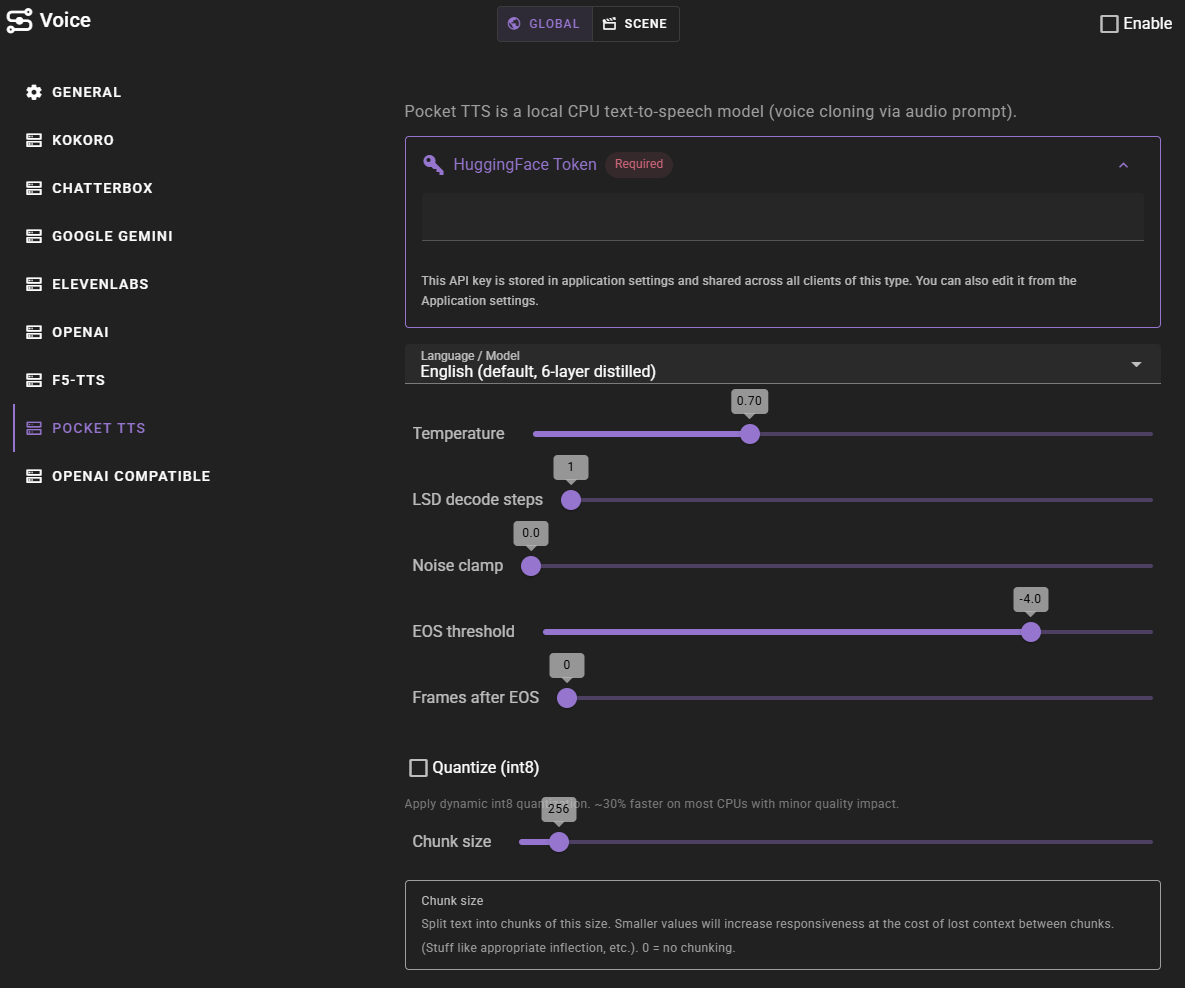
HuggingFace Token
Added in 0.38.0
Optional. Only needed if the voice-cloning model download is gated by Hugging Face. Paste a Hugging Face access token here and Talemate will use it when downloading the model weights.
This is the same setting as the token on the HuggingFace application settings page — set it in either place. A read token is sufficient, and you still need to accept the model terms on Hugging Face with the same account (see First-Time Setup).
Language / Model
Selects which Pocket TTS model to load. English uses a fast 6-layer distilled model; the other languages use full 24-layer models for higher quality at the cost of slower generation. All models run locally on CPU (or GPU if available).
| Value | Description |
|---|---|
| English (default, 6-layer distilled) | Fastest. Alias for the latest English release. Recommended for most users. |
| English 2026-04 | The current dated English release the default points at. |
| English 2026-01 | Earlier English release. |
| French / German / Italian / Portuguese / Spanish | Standard models for those languages. |
| French / German / Italian / Portuguese / Spanish (24-layer) | Higher-quality 24-layer variants. Slower but better fidelity. |
Changing the language reloads the model on the next generation and clears any cached voice clone embeddings, since they are tied to the underlying model.
Temperature
Controls voice variation during generation. Higher values (e.g., 1.0) produce more varied but potentially less stable output. Lower values (e.g., 0.5) produce more consistent results. Default is 0.7.
LSD Decode Steps
Number of decoding steps. Higher values can improve quality but increase generation time. Default is 1.
Noise Clamp
When set above 0, limits noise sampling to prevent extreme values. 0 disables clamping. Default is 0.
EOS Threshold
End-of-sequence detection threshold. Controls when the model stops generating audio. Default is -4.0.
Frames After EOS
Number of additional audio frames to generate after detecting the end of speech. 0 uses automatic detection. Default is 0.
Quantize (int8)
Applies dynamic int8 quantization to the model. Roughly 30% faster on most CPUs at the cost of a minor quality drop. Toggling this reloads the model on the next generation. Default is off.
Chunk Size
Text is split into chunks of this size for processing. Smaller values increase responsiveness but may affect natural flow between chunks. 0 disables chunking. Default is 256.
Upgrading from v1
If you used Pocket TTS in earlier Talemate versions, your existing configuration is migrated automatically the next time the agent loads — there is nothing to do manually:
- The old default variant
b6369a24is mapped to English (the current default and recommended model). Pocket TTS v2 stores its weights under a different path than v1, so a fresh model download is unavoidable on first launch regardless of which English variant you end up on. - Any other unrecognised variant value also falls back to English with a warning in the log.
The first generation after upgrading will download the new English model weights. Subsequent generations use the cached weights as before.
Built-in Voices
Talemate includes several ready-to-use Pocket TTS voices. These are available immediately without any additional setup:
| Voice | Description |
|---|---|
| Eva | Female, calm, mature, thoughtful |
| Lisa | Female, energetic, young |
| Adam | Male, calm, mature, thoughtful, deep |
| Bradford | Male, calm, mature, thoughtful, deep |
| Julia | Female, calm, mature |
| Zoe | Female |
| William | Male, young |
These voices use audio samples located in the tts/voice/pocket_tts/ folder within your Talemate installation.
Adding Custom Voices
Voice Requirements
Pocket TTS voices use audio files as reference prompts for voice cloning:
- Audio file in .wav format
- Clear speech with minimal background noise
- Single speaker throughout the sample
Creating a Voice
- Open the Voice Library
- Click New
- Select "Pocket TTS" as the provider
- Configure the voice:
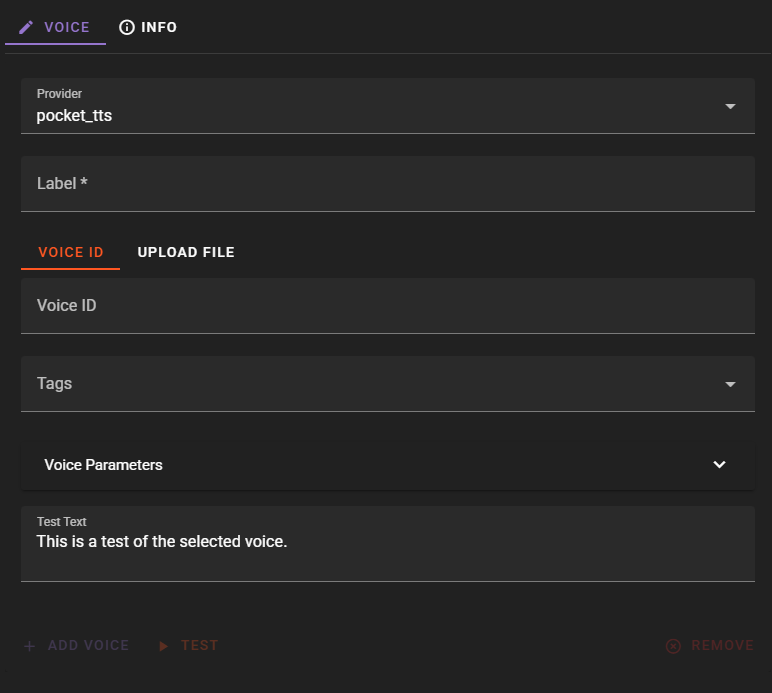
Label: A descriptive name for the voice (e.g., "Sarah - Warm Female")
Voice ID / Upload File: You have two options:
- Upload a .wav file containing the voice sample - the uploaded file becomes the voice ID
- Enter a path to a local .wav file (relative to Talemate workspace or absolute path)
- Enter a Hugging Face URL in the format
hf://kyutai/tts-voices/...
Tags: Add descriptive tags (gender, age, style) for organization and filtering
Extra Voice Parameters
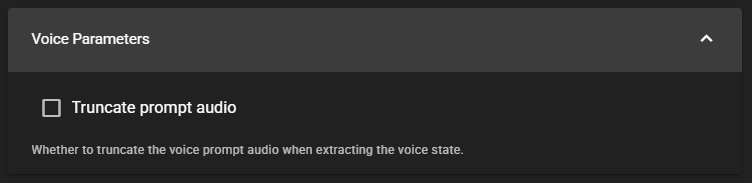
Truncate Prompt Audio
When enabled, truncates the voice prompt audio to 30 seconds when extracting the voice characteristics. This can help prevent memory issues with very long audio samples.
Using Hugging Face Voice Catalog
Kyutai provides a catalog of voices on Hugging Face that you can use directly with Pocket TTS. To use a voice from the catalog:
- Visit the Kyutai voice catalog
- Find a voice you want to use
- Copy the voice path
- In Talemate, create a new Pocket TTS voice and enter the path as the Voice ID in the format:
hf://kyutai/tts-voices/voice-name/file.wav
Troubleshooting
Model Download Issues
If the model fails to download:
- Check your internet connection
- Verify you have accepted the terms on Hugging Face
- Make sure your HuggingFace Token is set correctly, then generate again — no restart is needed; the download is retried on the next generation
- While the voice-cloning model is unavailable, the Voice agent card shows a "Voice cloning unavailable" warning
Voice Cloning Not Working
If you can use built-in voices but voice cloning fails:
- Voice cloning requires accepting additional terms on Hugging Face
- Follow the First-Time Setup instructions above to configure your Hugging Face token
Generation Quality Issues
If the generated audio sounds unusual:
- Try adjusting the Temperature setting - lower values produce more consistent results
- Ensure your voice reference audio is clear with minimal background noise
- Try using a shorter audio sample (5-15 seconds often works well)