Command Modules
You can register scene commands via the Command module type.
A registered command can be run by prefixing a message you send to the scene with a ! followed by the command name.
Arguments are placed after a : in the message. Individual arguments are delimited by a ;.
For example:
!instruct_actor:alice;Stay alert, the enemy is near.
• instruct_actor – command name
• alice – arg_0
• Stay alert, the enemy is near. – arg_1
The parser always turns the positional fields into arg_0, arg_1, …
Creating a Command Module
- In the Module Library (bottom of the editor) click Create Module and choose Command. In the dialog that pops up enter a title and set the registry path (you can use
$Nas a placeholder for an auto-generated name). - Expand the Properties panel in the upper left of the editor and enter a name for the command.
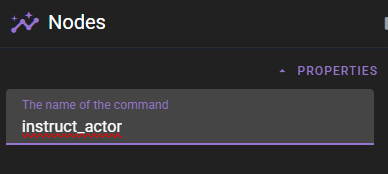
That name is what players will type after ! to invoke the command.
The same panel carries two more properties:
- icon – the icon the command gets in the scene tools menu. Click one of the common icons or type any Material Design Icon name; the field previews the icon as soon as the name matches an icon that actually exists. Defaults to
mdi-console-line. - menu – the menu id that puts the command into the scene tools menu. Empty (the default) keeps the command typed-only. See Adding a command to the scene tools menu.
Building the command logic
Command modules are specialised Function modules. Internally they work exactly like the functions described in the Functions guide – you define one or more Argument nodes, process them, then connect the last node to Define Function (or simply rely on the module wrapper).
Recommended pattern
- Argument nodes – Add one for each parameter you want to accept (
arg_0,arg_1, …). Give them meaningful titles so the canvas is readable. - Processing nodes – Do whatever the command should do (get characters, move the camera, push history, etc.).
Command modules are automatically loaded
You do not need to load the command module into the scene graph as a node. It is automatically loaded when the scene is loaded making it available to use in the scene.
Saving the module in the node editor takes effect right away as well — no scene reload and no manual sync needed.
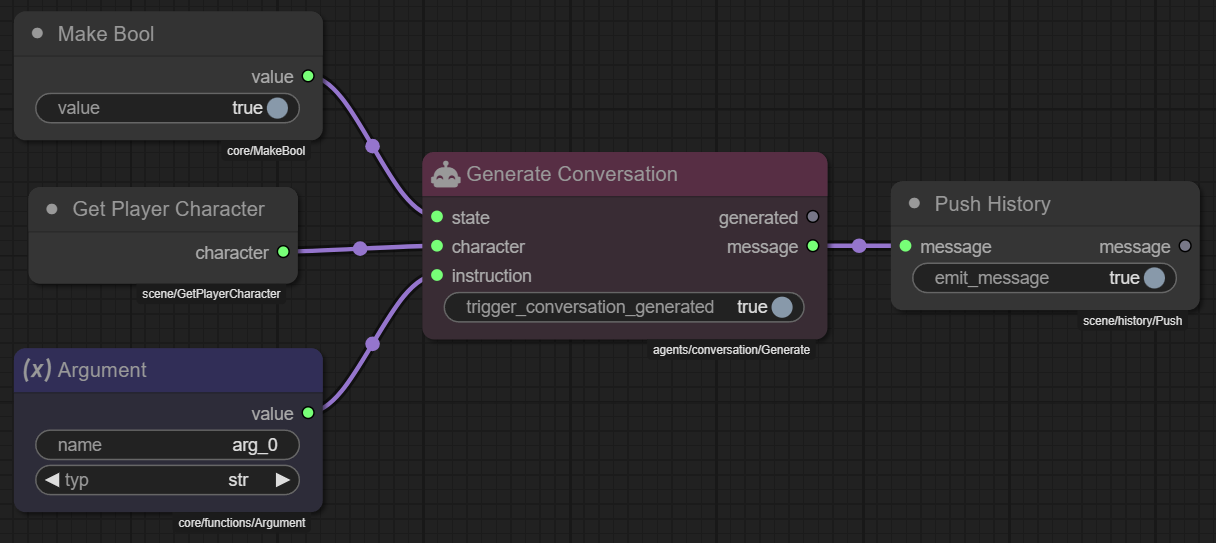
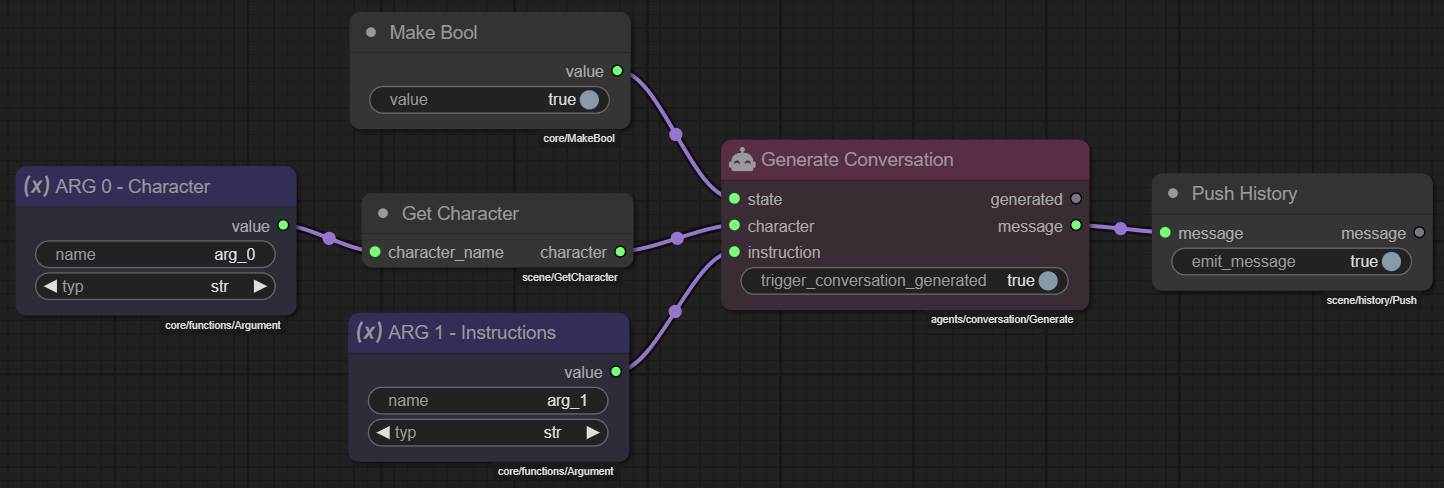
Example – !instruct_actor
The series of screenshots below show a command that tells a character to follow new instructions and generates a short AI response:



Key points:
arg_0– character name. Goes into Get Character, which retrieves the Character object.arg_1– free-text instructions. Passed to Generate Conversation so the agent produces a reply.- Make Bool simply activates the
statesocket of Generate Conversation (any truthy value works). - The generated
messageflows into Push History to add it to the scene log for players to read.
Now players (or tests) can type:
!instruct_actor:alice;Patrol the northern wall and report back at dusk.
The graph runs, the AI generates a response as Alice, and the message appears in the scene.
Adding a command to the scene tools menu
Every command can be typed with !. Give the module a menu id and it also appears in the custom commands menu in the scene tools.
- Commands that share a menu id are grouped into one sub menu, labelled with that id.
- The entry shows the module's icon and uses the module's title as its label.
- An empty menu keeps the command typed-only.
The custom commands menu is only shown while the loaded scene has at least one command with a menu id.
Prompting for arguments
If the module defines Argument nodes, clicking the entry opens a dialog that asks for them before the command runs. The input depends on the argument's type:
| Argument type | Input |
|---|---|
bool |
Checkbox |
int, float |
Number field |
list |
Multi-line text area — one list item per line |
| anything else | Text field |
A field left blank is omitted from the call entirely, so the argument arrives unset and whatever the module does for a missing argument applies — it is not turned into an empty string or a 0.
Argument names
The dialog labels each field with the argument's name and passes the values under those names, while typed invocation always fills arg_0, arg_1, … in order. Keep the positional names if the command should be usable both ways.
Tips
- Keep argument order consistent; users cannot skip positions.
- Use Error Handler inside the module to gracefully handle bad input.
Functions
Command modules rely on the same function mechanics described in the Functions guide