Settings

The Visualizer agent settings are organized into four main sections: General, Prompt Generation, Styles, and Prompt Finalization. Additionally, each backend may have its own configuration options, including resolution presets for local image generation backends.
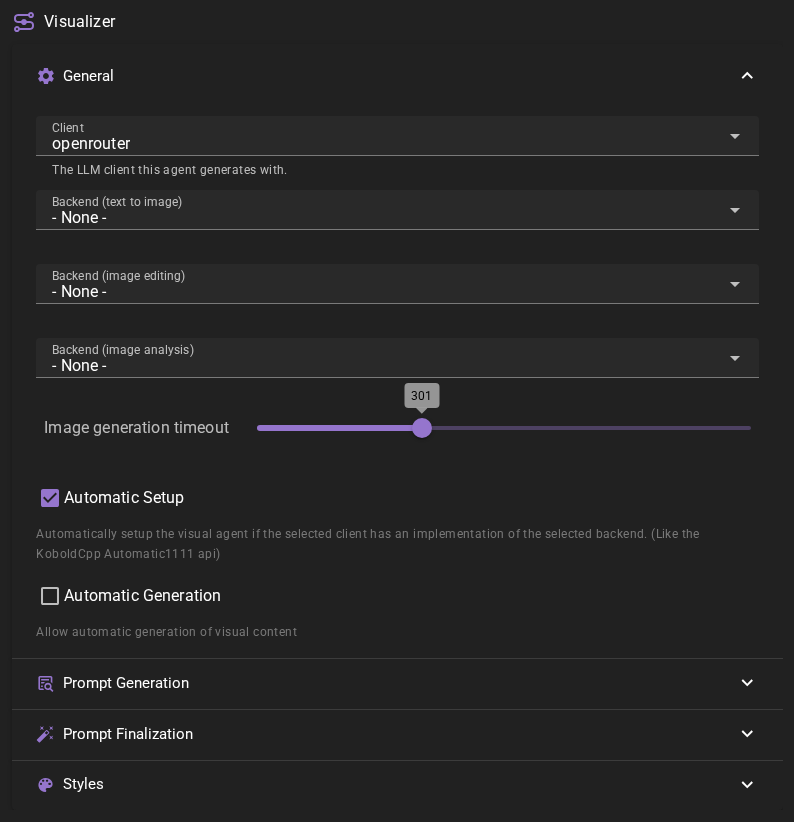
General Settings
Client
The text-generation client used for the agent's text generations, such as image prompt generation.
Backend Configuration
The Visualizer agent supports separate backends for different types of operations. You can configure each independently:
- Backend (text to image): The backend to use for basic text-to-image generation. This is the primary backend used when generating new images from prompts.
- Backend (image editing): The backend to use for contextual image editing. This allows you to modify existing images using reference images.
- Backend (image analysis): The backend to use for image analysis. This enables AI-powered analysis of images to extract information.
Backend Selection
Not all backends support all three operations. The dropdown menus will only show backends that support the specific operation. You can use different backends for different operations if needed.
Image Generation Timeout
Controls how long the agent will wait for an image generation request to complete before considering it failed. The default is 300 seconds (5 minutes), and can be adjusted from 1 to 900 seconds (15 minutes).
If a backend doesn't generate an image within this time limit, the generation will be marked as failed and you'll be notified.
Automatic Setup
When enabled, the Visualizer agent will automatically configure backends if your selected client has built-in support for them. For example, some clients like KoboldCpp provide an Automatic1111 API that can be automatically detected and configured.
This setting is enabled by default and helps streamline the setup process when using compatible clients.
Automatic Generation
Decides whether images can be generated without you asking for them. It is off by default, so no image is generated unless you ask for it.
These features generate images on their own and only do so while Automatic Generation is on:
- World State Character Portraits → Generate New Portraits: a new portrait when none of the character's portraits fits the moment
- World State Scene Backgrounds → Generate New Backgrounds: a new background when none of the scene's backgrounds fits
- Director Character Management → Generate Visuals: a cover image for a character the Director persists
- The Director's Create new Image(s) action during Scene Direction
- The portrait for a character the Simulation Suite adds when you ask the computer for one
While it is off, the portrait and background features still pick from the images you already have, and the Director is not offered image creation during Scene Direction. The World State settings show a No new portraits or No new backgrounds note with a link back to this setting.
Images you ask for are never affected: Visualize, Regenerate, the Visual Library, the message menu's portrait options, and images you ask the Director for in Director Chat.
Automatic Generation can be overridden per scene.
You can also switch it with the Automatic Generation chip on the Visualizer in the agent panel, or from the scene tools visualizer menu. The menu also switches new portraits and new backgrounds on and off.
Prompt Generation
The Prompt Generation section contains settings that control how image prompts are created and refined before being sent to the image generation backend.
Fallback Prompt Type
Determines the format used for prompt-only generation when no backends are configured. This setting only affects the output format when generating prompts without actually creating images.
Available options:
- Keywords: Generates prompts using keyword-based formatting
- Descriptive: Generates prompts using descriptive text formatting (default)
Max. Prompt Generation Length
Controls the maximum token length for AI-generated image prompts. When you use Instruct mode or any feature that asks the AI to create a prompt for your image, this setting limits how long that generated prompt can be.
The default is 1024 tokens, and can be adjusted from 512 to 4096 tokens.
Both keyword-style and descriptive prompts are always generated together, so this limit must accommodate both formats.
Automatic Analysis of References
When enabled, reference images that lack analysis data will be automatically analyzed before being used in prompt generation. This ensures that the AI has detailed information about your reference images when creating prompts, which can lead to better results when generating variations or editing images.
How It Works
Normally, you analyze images manually using the Analyze button in the Visual Library. The analysis text captures details about the image content, which can then be used during prompt generation to help the AI understand what your reference images contain.
With Automatic Analysis of References enabled, any reference images that don't already have analysis data will be analyzed on-the-fly when you start a generation. This is particularly useful when:
- You have uploaded images that haven't been analyzed yet
- You're using newly saved images as references before analyzing them
- You want to ensure all references have analysis data without manually analyzing each one
The analysis results are saved to the asset metadata, so each image only needs to be analyzed once. Future generations using the same reference will use the cached analysis.
Interaction with Prompt Revision
This setting works in conjunction with Perform Extra Revision of Editing Prompts (below). When both settings are enabled and you're generating with references:
- First, any unanalyzed references are automatically analyzed
- Then, the prompt revision step uses this analysis data to refine your prompt
If you only enable prompt revision without automatic analysis, the revision step will still work but may have less information about unanalyzed references to work with.
Like the revision, the automatic analysis only runs when the image backend that makes the image uses the Descriptive prompting type. With Keywords, an unanalyzed reference stays unanalyzed until a Descriptive generation uses it, you mark it as a reference, or you press Analyze in the Visual Library.
Additional AI Queries
Enabling this option adds one AI query per unanalyzed reference image. You must have an image analysis backend configured for this feature to work.
This setting is disabled by default.
Perform Extra Revision of Editing Prompts
When enabled, the AI will refine and simplify image editing prompts based on the provided reference images. This additional processing step can improve generation results by better aligning the prompt with your selected references.
This revision step analyzes the reference images (using their analysis data or tags) and adjusts the prompt to:
- Reference characters or elements by their image number instead of re-describing them
- Preserve the scene composition and setting from your original prompt
- Maintain important context like actions, positioning, and mood
- Only describe differences from the reference images when needed
For example, instead of generating a prompt like "Elena, a tall woman with red hair and green eyes wearing a blue dress, stands in a dimly lit tavern," the revised prompt might become "Elena (IMAGE 1) stands in a dimly lit tavern, looking worried" - letting the reference image provide the character's appearance while your prompt defines the scene.
With exactly one reference image there is no image number. The revised prompt names the reference in plain words instead — "Elena, as in the reference image, stands in a dimly lit tavern, looking worried". Image editing models generally expect a numbered tag only when two or more images are attached, and a single one is referred to naturally.
The revision rewrites the descriptive prompt only. When the image backend that makes the image uses the Keywords prompting type, the revision is skipped and the backend gets the generated keywords.
Additional AI Query
This adds an extra AI query to the prompt generation process when reference images are provided and the backend uses Descriptive prompts.
This setting is enabled by default.
Styles Configuration
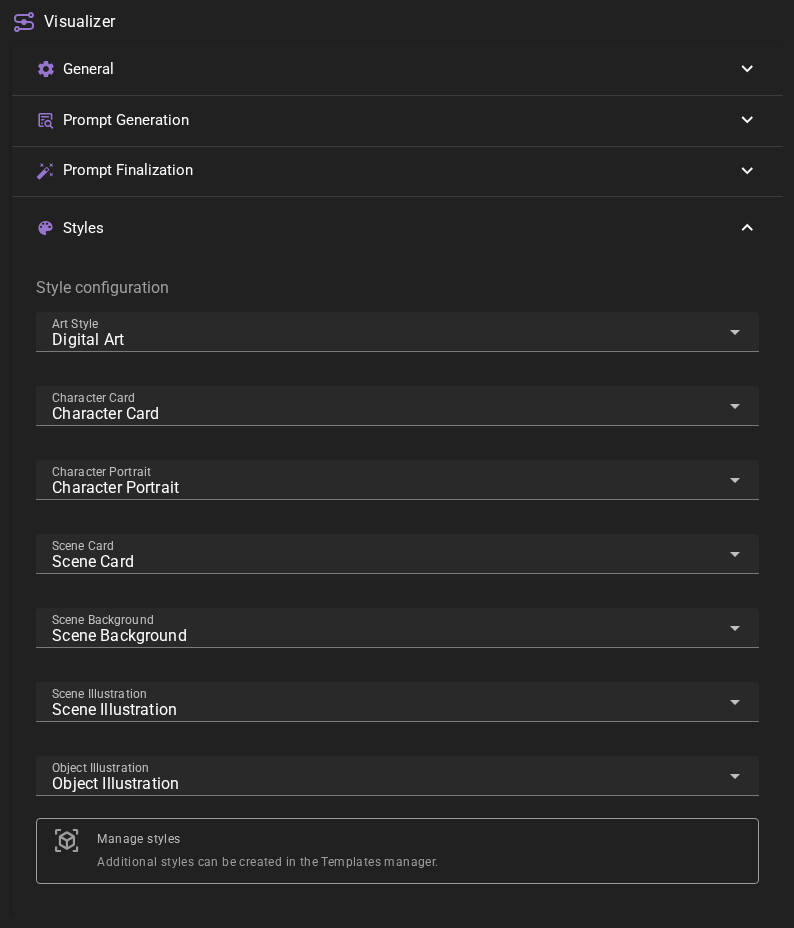
The Styles section allows you to configure visual styles for different types of content. Each style is a template that defines how prompts are formatted and what visual characteristics are applied.
Style Options
- Art Style: The default art style to use for visual prompt generation. This can be overridden in scene settings.
- Character Card: The style to use for character card visual prompt generation
- Character Portrait: The style to use for character portrait visual prompt generation
- Scene Card: The style to use for scene card visual prompt generation
- Scene Background: The style to use for scene background visual prompt generation
- Scene Illustration: The style to use for scene illustration visual prompt generation
- Object Illustration: The style to use for object illustration visual prompt generation
Managing Styles
Additional styles can be created and managed in the Templates manager. Styles are reusable templates that define visual characteristics, keywords, and instructions for different types of visual content.
Each style template can include:
- Positive keywords (things to include)
- Negative keywords (things to avoid)
- Descriptive text (detailed descriptions)
- Instructions (specific generation instructions)
These styles are applied automatically when generating images based on the visual type you select.
Prompt Finalization
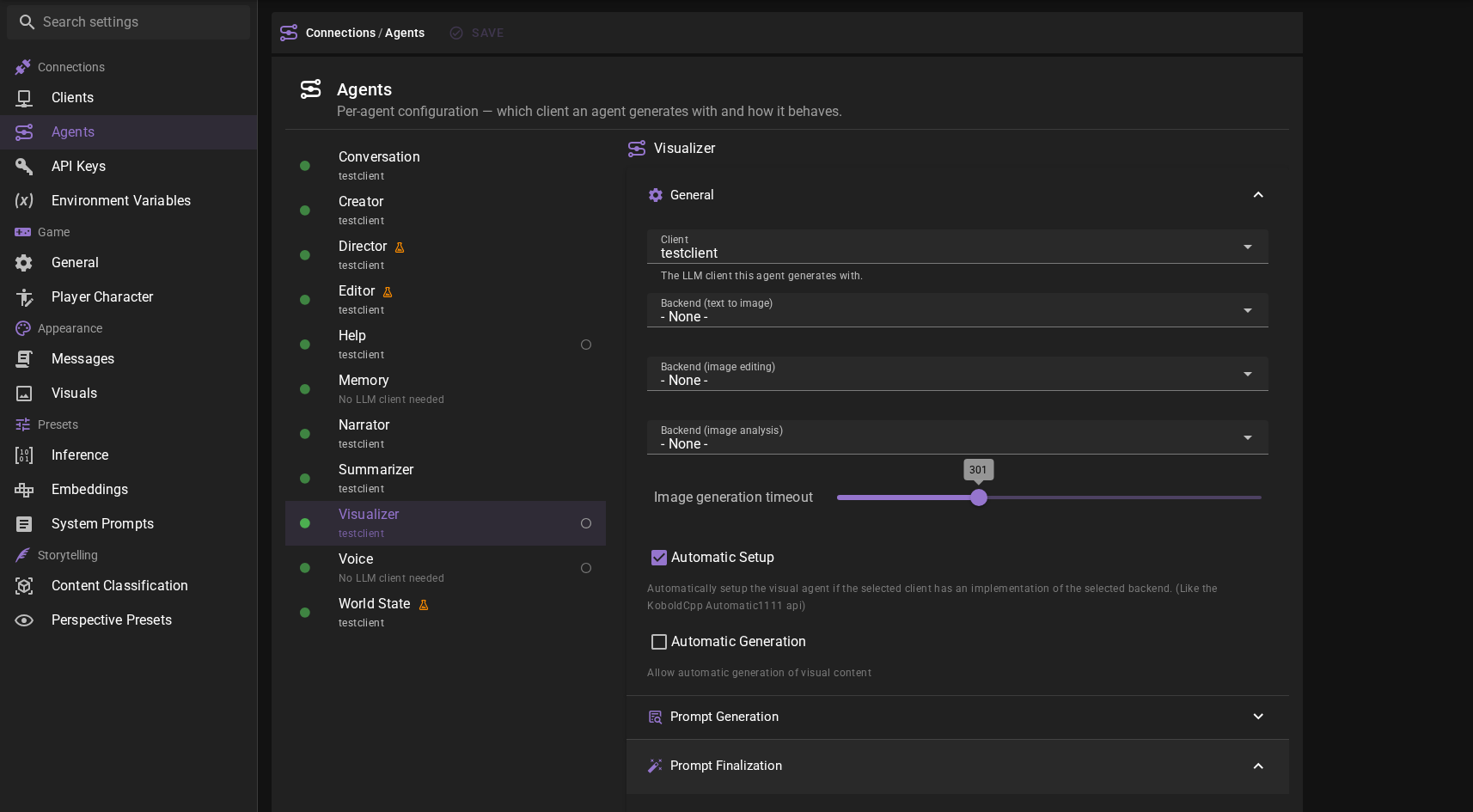
The Prompt Finalization section defines a chain of post-processing actions applied to the final prompt strings right before they are sent to the image generation backend. Use it to clean up recurring unwanted keywords, enforce specific phrasing, or transform the whole prompt with an AI instruction. The same finalization is applied to prompt only generation output, and custom node graphs can invoke it through the Finalize Prompt node.
All settings in this section can be overridden per scene through the Agents settings page's Scene mode.
Presets
The Preset picker below the actions table inserts the actions of a Visual prompt finalizer template into the table as editable copies. You can insert as many presets as you like; inserted rows behave like any other action — reorder, edit, or remove them freely. Because rows are copied, later changes to the template do not affect actions that were already inserted.
Presets are reusable sets of post-processing actions managed in the Templates manager. Talemate ships two:
- Ideogram JSON converts the positive prompt into an Ideogram 4.0 structured JSON prompt.
- Qwen 2.1 Image references rewrites the reference image labels of the positive prompt into the tag form that model expects, so
IMAGE 1becomes<image1>. Qwen 2.1 Image requires those tags whenever two or more reference images are attached. The action matches capitals only, so ordinary prose such asa mirror image 2 metres awayis left alone.
Post-processing Actions
A table of actions, executed from top to bottom. Each row has:
- Enabled: Toggle the action without deleting it.
- Mode: How the action transforms the prompt:
- Exact match: Substring search and replace. Case insensitive unless the Case sensitive flag is set.
- Fuzzy match: Compares each comma-separated prompt segment against the match string using fuzzy similarity (always case insensitive) and replaces the whole segment when it scores at or above the fuzzy match threshold.
- Regex: Regular expression search and replace with group passthrough (
\1,\g<name>). Case insensitive unless the Case sensitive flag is set; the Dot all and Multiline flags map to the corresponding regex flags. - AI: Sends the prompt to the AI together with the instruction from the Instruct field and replaces the prompt with the result.
- Match: The search string (exact, fuzzy) or pattern (regex). Hidden for AI, which only uses the instruction.
- Replace / Instruct: The replacement text, or — in AI mode, where the field is labeled Instruct — the instruction for AI processing. Leaving the replacement empty removes the match (fuzzy mode removes the whole matching segment).
- Flags (exact and regex modes only): Case sensitivity and regex behavior flags.
- Target: Whether the action applies to the positive prompt (default), the negative prompt, or both.
- Types: Restrict the action to specific visual types (character portrait, scene background, ...). Empty applies to all.
AI actions add queries
Each enabled AI action adds one extra AI query per targeted prompt — an action targeting Both adds two queries when a negative prompt is set.
Character-level actions
Characters can define their own post-processing actions under World Editor → Characters → Visuals → Prompt Finalization. These run after the agent's actions whenever the generated image involves that character.
Regex group references
In regex mode, parentheses in the match pattern capture text you can reuse in the replacement:
\1,\2, ... — numbered groups, in order of opening parenthesis\g<name>— a named group, defined in the pattern as(?P<name>...)\g<0>— the entire matched text
| Match | Replace | Effect |
|---|---|---|
(\d+)mm lens |
85mm lens (was \1mm) |
Reuses the captured number |
(red\|blue\|green) hair |
dark \1 hair |
Keeps the matched color, prefixes it |
(?P<adj>\w+) lighting |
dramatic \g<adj> lighting |
Named group reference |
\b(\w+), \1\b |
\1 |
Deduplicates an immediately repeated segment |
Every non-overlapping occurrence of the pattern is replaced, not just the first. A capture group preserves the casing that was actually in the prompt, so with the default case-insensitive matching there is no need to spell out casing variants.
Some notes:
- Use
\g<1>instead of\1when the reference is immediately followed by a digit (\g<1>0—\10would be read as group 10). - Backslash escapes in the replacement are interpreted, so a literal backslash needs doubling (
\\). - An invalid pattern or group reference never breaks generation — the action is skipped and the prompt passes through unchanged.
Fuzzy Match Threshold
The similarity score (0-100) a prompt segment must reach to be considered a fuzzy match. The default is 85; lower values match more loosely.
Resolution Presets
Local image generation backends (ComfyUI, SD.Next, and AUTOMATIC1111) include a resolution preset picker that lets you quickly select appropriate image dimensions for your generated images. This feature appears in each backend's configuration section.
How It Works
The resolution preset picker provides settings for three aspect ratios that match the format options available during image generation:
- Square: Used for character portraits and icons (e.g.,
CHARACTER_PORTRAITvisual type) - Portrait: Used for tall images like character cards (e.g.,
CHARACTER_CARD,SCENE_CARDvisual types) - Landscape: Used for wide images like scene backgrounds (e.g.,
SCENE_BACKGROUND,SCENE_ILLUSTRATIONvisual types)
Each resolution setting displays two number fields for width and height, along with a dropdown menu button that reveals available presets.
Available Presets
The preset picker includes resolution options optimized for different model types:
| Preset | Square | Portrait | Landscape |
|---|---|---|---|
| SD 1.5 | 512 x 512 | 512 x 768 | 768 x 512 |
| SDXL | 1024 x 1024 | 832 x 1216 | 1216 x 832 |
| Qwen Image | 1328 x 1328 | 928 x 1664 | 1664 x 928 |
| Z-Image Turbo | 2048 x 2048 | 1088 x 1920 | 1920 x 1088 |
Below them sits a second series, named after the pixel budget rather than a model. Pick from this series when you care about generation time and video memory more than about a model's native size — the pixel count roughly sets both.
| Preset | Square | Portrait | Landscape |
|---|---|---|---|
| 0.4 MP | 640 x 640 | 512 x 768 | 768 x 512 |
| 0.8 MP | 896 x 896 | 736 x 1088 | 1088 x 736 |
| 1 MP | 1024 x 1024 | 832 x 1216 | 1216 x 832 |
| 1.4 MP | 1184 x 1184 | 960 x 1440 | 1440 x 960 |
| 2 MP | 1408 x 1408 | 1152 x 1728 | 1728 x 1152 |
The square entries are 1:1 and the portrait and landscape entries are about 2:3. Every width and height is a multiple of 32, which the SD, Flux and Qwen model families all accept. The label names the class, so the exact pixel count is a few percent away from it.
Which step to pick
The shipped model presets tell you where your model sits: SD 1.5 portrait is near 0.4 MP and its square is smaller still at 0.26 MP, SDXL is 1 MP, Qwen Image is near 1.5 MP and Z-Image Turbo landscape is near 2 MP. Start at your model's class and step down when generation is too slow or runs out of video memory.
Selecting a Preset
To select a resolution preset:
- Open the Visualizer agent settings
- Expand the backend configuration section (ComfyUI, SD.Next, or AUTOMATIC1111)
- Find the Resolutions section
- Click the dropdown menu button next to the resolution you want to change
- Select the appropriate preset for your model
You can also manually enter custom width and height values by typing directly into the number fields.
Backend-Specific Settings
Resolution presets are configured separately for text-to-image and image editing operations if you're using a backend that supports both (like ComfyUI or SD.Next). This allows you to use different resolutions for each type of generation.
Cloud Backends
Cloud-based backends (Google, OpenAI, OpenRouter) do not have resolution presets because they use fixed or automatically determined resolutions based on the model's capabilities.