Interacting with the scene
There two main ways to interact with the scene, through dialogue and through scene actions.
Your turn!
Whenever the input element at the bottom of the screen is available, it means it is your turn to do something.
By default the main player character will be selected, but you can act as any active character or even the narrator. See the section on acting as another character.

Write a message and hit enter to send it to the scene.
Separate actions and dialogue
When writing out your character's actions, spoken words should go into " and actions should be written in *. Talemate will automatically supply the other if you supply one.
That means if you enter Elmer enters the room. "Hello everyone!", Talemate will automatically convert it to *Elmer enters the room.* "Hello everyone!".
Likewise if you enter *Elmer enters the room.* Hello everyone!, Talemate will automatically convert it to *Elmer enters the room.* "Hello everyone!" as well.
If no markers are provided, Talemate will assume the text is spoken.
Linebreaks are ok!
You can use linebreaks in your messages, to do so press shift+enter to create a new line.
Acting as another character
Version 0.26 introduces a new act-as feature, which allows you to act as another character in the scene. This can be done by hitting the tab key while the input is focused. It will cycle through all active characters and finally the narrator before returning to the main player character.


Quick action
If you start a message with the @ character you can have the AI generate the response based on what action you are taking. This is useful if you want to quickly generate a response without having to type out the full action and narration yourself.


This functionality was added in version 0.28.0
Player direction (# / ##)
New in 0.37.0
When Autonomous Scene Direction is enabled, you can steer the director straight from the main input box by prefixing your input:
#text— actively steer the scene without interacting with it. Your direction is your turn.##text— passively steer the scene while still getting your turn. Your direction is a side hint; the input box re-opens so you can take your turn normally.
See Nudging the director from the main input for the full behaviour, examples, and the Scene Direction requirement.
Autocomplete
When typing out your action / dialogue, you can hit the ctrl+enter key combination to generate an autocompletion of your current text.
This works best if the client is in control of the prompt template
Success rate on this feature when the text generation api controls the prompt template is reduced, as Talemate cannot prefix the partial text.
See Prompt Templates for more information.
Generation length
The amount of text generated can be configured through the Creator Agent Settings
Auto progress
By default Talemate will give the next turn to the AI after you have sent a message, automatically progressing the scene.
You can turn this off by disabling the auto progress setting, either in the game settings or with the shortcut by the interaction input.
Scene Actions

A set of tools to help you interact with the scenario. Find out more about the various actions in the Scene Tools section of the user guide.
Edit and delete messages
Changed in 0.40.0
You can change the story after it happened: double-click a message to edit its text, or hover over it and click the button at its top right to delete it. Both work on messages anywhere in the scene, not only the most recent one. Director notes cannot be edited, and some of them cannot be deleted either.
Talemate does not rewrite what came after the change. Later messages, summaries and the world state were built from the old version of the story, and they keep what they learned from it. Say Edwin gave Mara a brass key three messages ago, and you delete that message. Mara can still mention the key in the next message, because the messages after it and the summary of that part of the story still include it.
Editing a message
When you open an earlier message for editing, a notice appears under the text field:

The notice is a reminder only. Edit the text and press enter to save it, or press escape (or click anywhere else) to cancel. The notice disappears when you leave edit mode.
The most recent message in the scene history gets no notice: nothing has been built on it yet. Like the delete confirmation below, this goes by the scene history, not by the last message on screen.
An earlier time passage shows the same notice while you edit it. It has its own Save and Cancel buttons instead of the keys.
Deleting a message
Talemate asks before it deletes a message. What it asks depends on where the message is in the scene history.
An earlier message (any message before the last one in the scene history) gets a warning about what can go out of step:
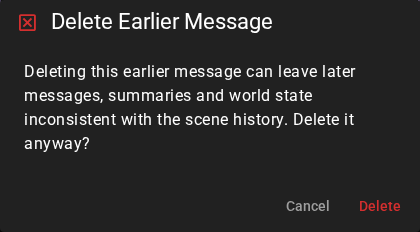
The most recent message gets a short question, to catch a click by accident:
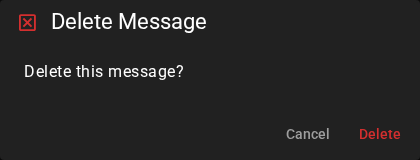
Click Delete to remove the message, or Cancel to keep it. Cancel leaves the scene exactly as it was.
The last message in the history, not the last one on screen
The scene history can hold entries that the story view does not show, such as hidden director notes and tracked state updates. If such an entry comes after the last message you can see, that message is an earlier message, and you get the longer warning.
Message revision history
New in 0.38.0
Character and narrator messages (and context investigation results) keep a history of their previous versions. When a message has more than one version, a small paginator appears just above the message body so you can browse through them.
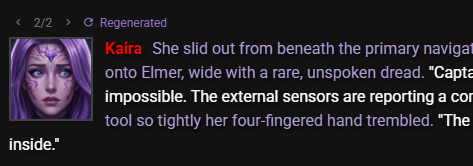
The paginator shows:
- Left / right arrows to step between versions.
- Analyze perceptions in a Character perspectives story when the selected text needs new character views. It analyzes this one passage; what was built on it stays out of sync until you choose Repair (see When perspectives go out of sync). A regenerated or continued reply is analyzed with your next line instead. Update knowledge retries pending memory-index work when the views are already current; sending your next line runs it automatically.
- A counter (for example
2/3) telling you which version you are viewing and how many exist in total. - A tag describing where the version you are currently looking at came from:
- Original -- the message as it was first generated.
- Regenerated -- a version produced by regenerating the message.
- Revised -- a version that the Editor agent automatically rewrote.
- Continued -- a version created by continuing the message (see below).
Browsing changes the active text immediately without running analysis or saving the scene. The selection is saved with your next scene save, or after Analyze perceptions or Update knowledge succeeds with auto save enabled. Until then the scene is marked unsaved. The arrows wait for the server to acknowledge each selection before the displayed text changes, so delayed replies cannot leave the counter and text on different versions. In the World Editor's History tab, the history entry that contains a changed passage shows a chip with the same label while that passage's perspectives are out of sync; click the chip to run the update from there. Selecting a regenerated or continued version is analyzed with your next line; selecting the original text again counts as an edit and waits for Analyze perceptions or Repair. Reading, scrolling, moving keyboard focus and changing tabs do not start a request.
Double-clicking a message, editing its text and pressing Enter saves the edit without starting analysis. In a Character perspectives story the edited passage and what was built on it are flagged as out of sync; Analyze perceptions or Repair updates them, and the story keeps using the last perspectives until then. Unchanged edits and canceled edits require no new analysis.
Your submitted character or narrator line appears immediately. The next response first analyzes new passages. If that fails or is cancelled, your line stays in history and the response does not start; a cancelled analysis is retried with the next send, a failed one waits for Repair. The scene counts as unsaved until it is saved; with auto-save disabled, save the scene yourself before closing it.
Character perspectives analyzes a generated message when the next generation starts, after automatic revision has finished. It analyzes the final accepted text once and marks that version ready; sending your next line does not repeat successful analysis of that unchanged version. A failed analysis leaves the action available, and Repair retries it as well.
In Character perspectives, Analyze perceptions analyzes the chosen passage; the summaries and later perspectives built on it stay out of sync until Repair. Standard mode settles affected summary cleanup without a knowledge request. Returning to the baseline restores evidence still owned by the revision transaction. If the memory index needs repair, Update knowledge or your next send retries it without repeating current analysis. Index work remains pending when unavailable, while the story can continue.
Revision controls appear on the most recent supported message. The arrows and counter appear once it has more than one version; Analyze perceptions also appears after an in-place edit with only one version when analysis is required.
The version you view is the one that sticks
Whichever version you have selected in the paginator becomes the message's active text. That is the version saved with the scene, and the version the AI builds on when it continues the scene. Browsing to an earlier version and leaving it selected effectively rolls the message back to that version.
How new versions are created
You don't add versions manually -- they accumulate as you work with a message:
- Regenerating the most recent AI message (see Regenerate AI response) keeps the message in place and adds the new result as a version instead of replacing the old text. The previous version is still there to navigate back to. If the Editor agent automatically revises the regenerated text, both the raw Regenerated version and the Revised version are kept so you can pick either one.
- Continuing a message adds a Continued version that contains the original text plus the newly generated continuation. The version you continued from stays available, so you can step back if you don't like how the continuation turned out.
Continuing a message
The most recent character or narrator message offers a Continue action on its hover toolbar.
Clicking Continue generates more text and appends it to the message, recording the result as a new Continued version in the revision history. Narrator messages support the Continue action as well as character messages.
View a character's perspective
In a Character perspectives story, the View Perspective chip above the scene tools splits the scene in two and shows, beside each message, what one character noticed of it. Double-click a perspective to change it. See View a character's perspective.
Cancel Generation
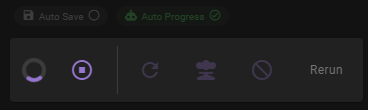
Sometimes Talemate will be generating a response (or go through a chain of generations) and you want to cancel it. You can do this by hitting the button that will appear in the scene tools bar.
Info
While the generation is cancelled immediately, the current inference request will still be processed by the LLM backend. The Talemate UI will be responsive but the LLM api may require some time to finish the request.