Game State
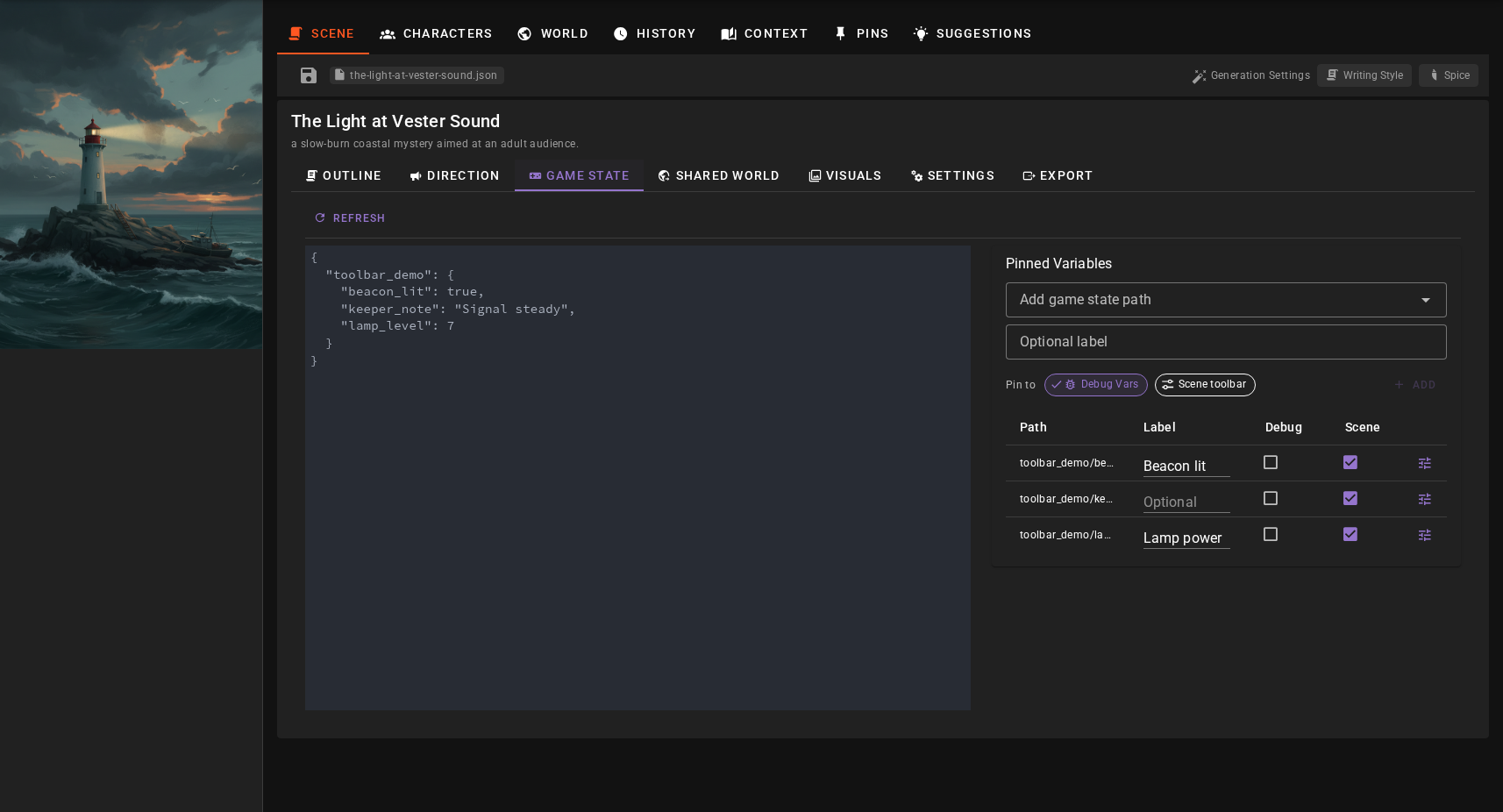
The Game State tab in the World Editor allows you to view and edit the game state variables for your scene. These variables persist with your scene save file and are commonly used by node modules to track game progress.
Overview
The Game State editor is split into two panels:
- Left panel: A JSON editor showing all current game state variables
- Right panel: The Pinned Variables manager
JSON Editor
The JSON editor displays the complete game state as a JSON object. You can directly edit values here:
- Click in the editor to make changes
- Click outside the editor to save your changes
- If the JSON is invalid, an error message will appear and changes will not be saved
The editor follows the game state while it is open: when the Director, a node graph or the decision model changes a variable, the new value appears without switching tabs. If you have unsaved edits at that moment, they stay as they are and a Changed outside this view note appears next to Refresh. Click Refresh to load the latest state, or keep editing and save to overwrite it.
This is useful for:
- Adding new variables
- Editing complex nested objects or arrays
- Making bulk changes to multiple values
Pinned Variables
The Pinned Variables panel lets you expose selected game state paths in Debug Tools Vars, the scene toolbar, or both. Each target is independent:
- Debug Vars shows the path in the Debug Tools drawer for monitoring and editing.
- Scene toolbar adds a compact, type-matched control above the normal scene tools.
Each pinned path can also have an optional label. The scene toolbar uses the label instead of the path. Debug Vars uses the label as the control title and shows the path underneath as a subtitle. When a labeled container expands into child controls, each title combines the label with the child key (for example, Hero / health). Leaving the label blank preserves the path-only display.
Beyond the label, a pinned path carries control settings that decide how it is drawn and what it accepts. See Control Settings below.
The scene toolbar appears only while it has pinned paths and is hidden during a replay.
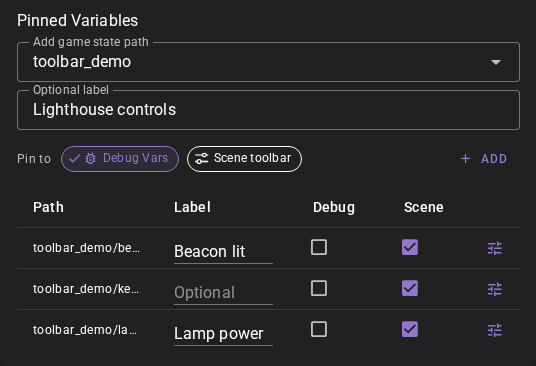
Adding a Pinned Path
- Select a path from the game state dropdown.
- Optionally enter a short label.
- Select the Debug Vars, Scene toolbar, or both target chips.
- Click Add.
Adding a new Debug Vars target automatically opens the Debug Tools drawer to its Vars tab.
Changing or Removing Targets
Edit a path's optional label directly in its table row; clear the field to return to the path-only display. Use the two checkboxes beside a pinned path to change where it appears. Turning off both Debug Vars and Scene toolbar removes the path and its settings from the table.

Control Settings
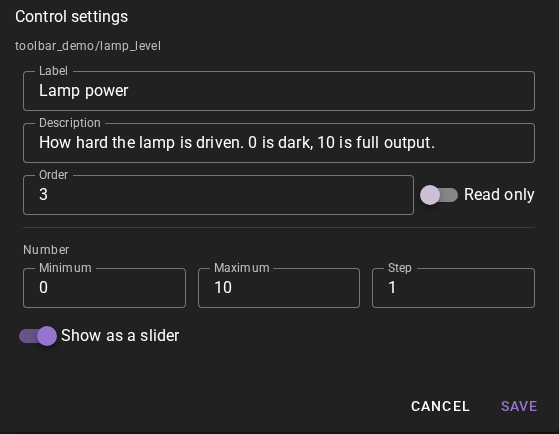
The button in a pinned path's row opens the control settings for that path.
| Setting | Applies to | What it does |
|---|---|---|
| Label | any value | Replaces the path in the toolbar, and titles the control in Debug Vars. |
| Description | any value | Shown as a tooltip on the control. A pinned container passes its description to each of its children as written. |
| Order | any value | Positions the control in the toolbar and in Debug Vars. Lower comes first. Paths without an order come last, in alphabetical order. |
| Read only | any value | Shows the value as text with no control, and refuses every write to the path. |
| Minimum, Maximum | numbers | Bound the value. A number outside the range is clamped into it. |
| Step | numbers | The increment the value moves in. Values are snapped onto that grid, which starts at the minimum. Required for a slider. |
| Show as a slider | numbers | Draws a slider instead of a number field. Available once a minimum, a maximum and a step are set, so the points it can land on are ones you chose; without all three the number field is used. |
| Choices | strings | Draws a dropdown of these values instead of a text field. A value outside the list is refused. |
The minimum, maximum, step, read-only and choices settings are limits rather than decoration. Talemate applies them to every edit made through the scene toolbar and through Debug Vars, which share one set of settings per path. A write of the wrong type for the setting is refused: text where a bounded number is expected, anything but text where choices are set. When a path already holds a value of the wrong type for its settings — a number on a path given choices, say — the control shows the value and says so instead of offering an edit that would be refused. The JSON editor on the left is deliberately not limited: it is how you set a value the controls will not, and how you reach a variable you have not pinned.
Node modules writing game state through SetState are not limited either. The settings describe the controls the player is given, not the values the story may set.
When a pinned container expands into one control per child, each child inherits the container's label, description, order and read-only setting. It does not inherit the minimum, maximum, step, slider or choices, since a range that suits player/health is wrong for player/name. To bound one child, pin that child as well and give it its own settings.
Relationship to Node Modules
Game state variables correspond to the "game" scope in the node editor's state management system. When a node module uses SetState with scope=game, the value is stored in the game state and will appear in this editor.
See the State Management documentation for more information about state scopes.
Related
- Debug Tools - Monitor Debug Vars and use pinned scene-toolbar controls
- State Management - How to use state nodes in the node editor
- Context Pins - Use game state values to control pin activation