Settings
General
General summarization settings.
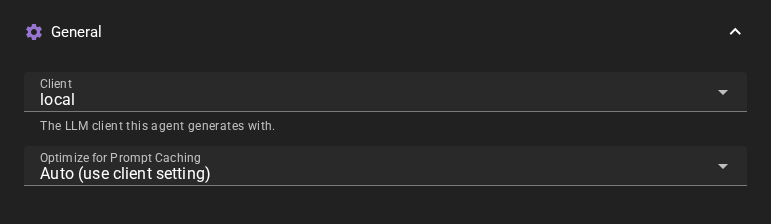
Client
The text-generation client to use for summarization.
Optimize for Prompt Caching
Places volatile context (long term memory, dynamic notes) after the scene history so that the stable part of the prompt can be cached by API backends. May confuse weaker models. Auto defers to the client setting.
Summarization
Automatically summarize scene dialogue when the number of tokens in the history exceeds a threshold. This helps keep the context history from growing too large.
A summary entry also ends early, regardless of the threshold, when a time passage occurs or when the active character list changes (a character is activated or deactivated). Every entry then records one set of present characters; see History -- Presence.
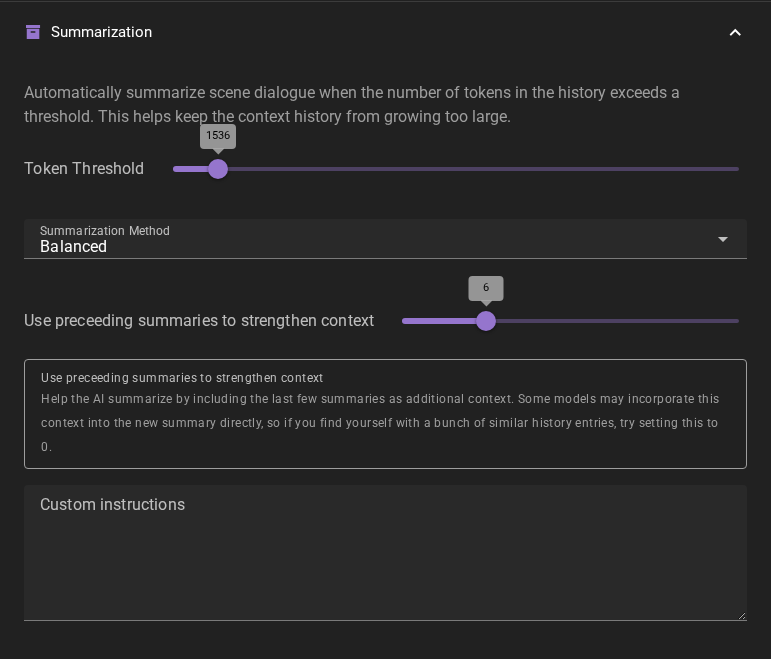
Token Threshold
The number of tokens in the history that will trigger the summarization process.
Summarization Method
The method used to summarize the scene dialogue.
Balanced- medium length summaryShort & Concise- short summaryLengthy & Detailed- long summaryFactual list- numbered list of events that transpired
Use preceeding summaries to strengthen context
Help the AI summarize by including the last few summaries as additional context. Some models may incorporate this context into the new summary directly, so if you find yourself with a bunch of similar history entries, try setting this to 0.
Custom instructions
Custom instructions for the summarization agent. These instructions are included in the summarization prompt to guide how summaries are generated. Use this to customize the summarization style, focus areas, or format for your specific needs.
Writing style instructions are also included during summarization to maintain consistency with your scene's chosen writing style.
Character Perspectives
The Character Perspectives section is visible with any scene or with no scene loaded. Its settings only affect scenes using character perspectives. Perception analysis uses tracked character states even when their last recorded answer has left the recent conversation. A tracked blindfold or sleeping state therefore continues to inform what the character can perceive. A time prefix shows the time since the state was last set or confirmed, including a refresh that confirms the same answer. Changing only its configuration preserves that age. The state remains tracked until you remove it. If you edit a character or another analysis input while perceptions are being generated, a warning explains that Talemate is regenerating the analysis. It keeps trying until the inputs stop changing or you cancel, then continues the turn after a successful analysis. Automatic repair can add one Summarizer request when a view is missing or invalid. The same toggle and cost note are available in the World State knowledge hub. Character knowledge: flow reference shows the analysis, repair and Retry flow.
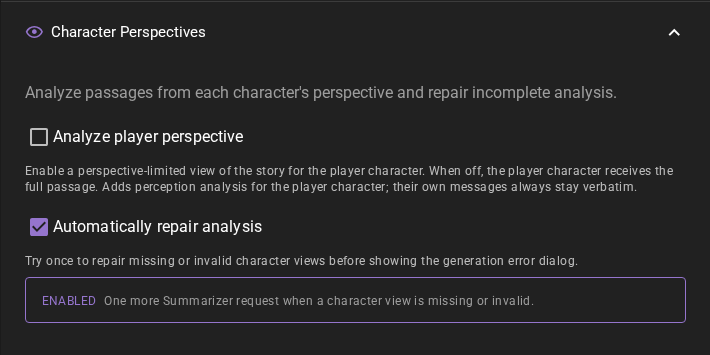
Analyze player perspective
Off by default. Turn Analyze player perspective on under Settings → Agents → Summarizer → Character Perspectives to give the player character a perspective-limited view of new passages. This adds the player to perception analysis independently of knowledge effort or the model's reasoning setting. You can also override it for one scene in the knowledge hub, under Thoroughness → Individual settings. With it off, the player receives the full passage in their stored view. That view also feeds their memories, summaries, and prompts when the AI writes their next line. The main story column always shows the full story.
A character always takes their own character message verbatim, including thoughts and any narrator aside in it. This also applies to the player with the setting on. In a scene with one player and one NPC, an NPC line therefore needs no perception request with the setting off; a narrator passage analyzes only the NPC. Other present NPCs still get analysis. Existing valid views, including hand edits, stay as they are when you change the setting.
Automatically repair analysis
When a character’s view is missing or invalid, make one extra request to repair it before showing the generation error dialog. Valid views are kept. On by default; turn off to use manual retries only. This setting applies to stories using Character perspectives. Self-citations and correctly typed unoffered IDs do not trigger repair. Missing or non-array citation fields and wrongly typed IDs require repair. With automatic repair off, an unreadable citation field stops the passage and shows the generation error dialog.
Rewrite hidden acts as observable traces
Off by default. Enable this under Settings → Agents → Summarizer → Character Perspectives to keep the sensory effect of an otherwise hidden action. If Alice moves an object behind Bob and it makes a clink, Bob's view can keep the sound without revealing the object or what Alice did. Touch, smell, vibration and visible side effects work the same way. An act with no perceptible effect stays hidden. The wording keeps the passage's voice and tense; an apparent condition, such as sleep, stays uncertain.
This uses the same analysis request, but can increase reasoning, output tokens and response time. Automatically repair analysis can still add a request for an invalid view. The setting affects subsequent analysis; existing valid views and hand edits stay as they are. Turning it off restores the usual deletion instructions for hidden acts. In both modes, sentences affected by an exclusion and their immediate neighbours may be rewritten for grammatical prose while preserving facts, voice and tense; other sentences stay verbatim. The AI decides which sensory effects are supported, so inspect a character's view if a detail seems wrong.
Layered History
Settings for the layered history summarization.
Talemate 0.28.0 introduces a new feature called layered history summarization. This feature allows the AI to summarize the scene dialogue in layers, with each layer providing a different level of detail.
Not only does this allow to keep more context in the history, albeit with earlier layers containing less detail, but it also allows us to do history investgations to extract relevant information from the history during conversation and narration prompts.
Right now this is considered an experimental feature, and whether or not its feasible in the long term will depend on how well it works in practice.
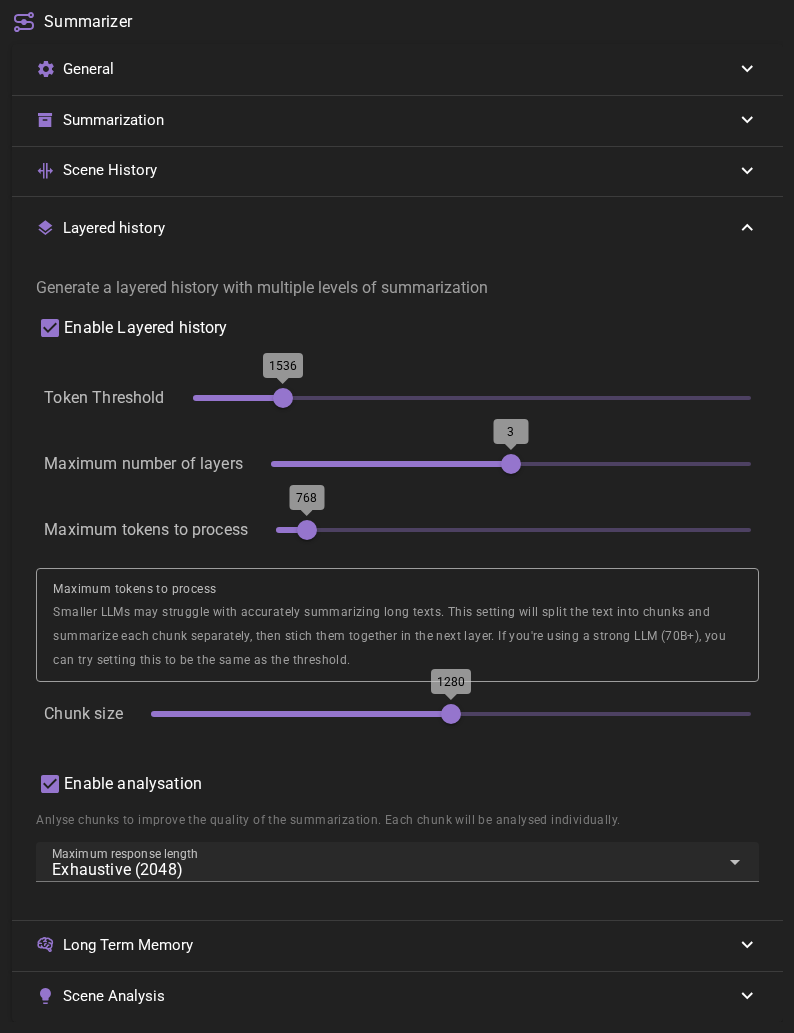
Enable Layered history
Allows you to enable or disable the layered history summarization.
Enabling this on big scenes
If you enable this on a big established scene, the next time the summarization agent runs, it will take a while to process the entire history and generate the layers.
Token Threshold
The number of tokens in the layer that will trigger the summarization process to the next layer.
Maximum number of layers
The maximum number of layers that can be created. Raising this limit past 3 is likely to have dimishing returns. We have observed that usually by layer 3 you are down to single sentences for individual events, making it difficult to summarize further in a meaningful way.
Maximum tokens to process
Smaller LLMs may struggle with accurately summarizing long texts. This setting will split the text into chunks and summarize each chunk separately, then stitch them together in the next layer. If you're using a strong LLM (70B+), you can try setting this to be the same as the threshold.
Setting this higher than the token threshold does nothing.
Chunk size
During the summarization itself, the text will be furhter split into chunks where each chunk is summarized separately. This setting controls the size of those chunks. This is a character length setting, NOT token length.
Enable analysation
Analyses the chunks and their relationship to each other before summarization. This can greatly improve the quality of the summarization, but will also result in a bigger size requirement of the output.
Maximum response length
The maximum length of the response that the summarizer agent will generate.
Analyzation requires a bigger length
If you enable analyzation, you should set this to be high enough so the response has room for both the analysis and the summary of all the chunks.
Long term memory
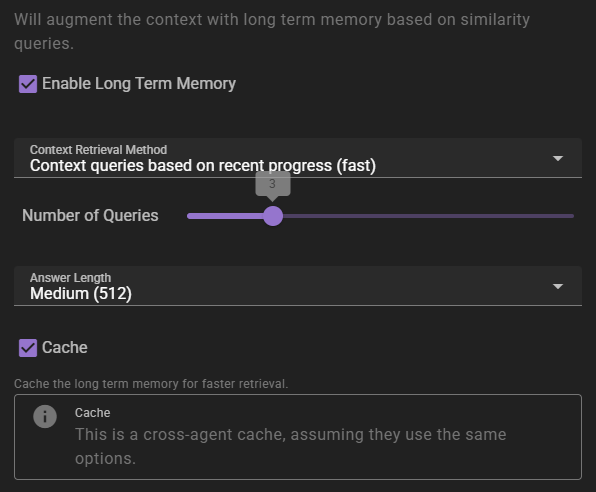
If enabled will inject relevant information into the context using relevancy through the Memory Agent.
Context Retrieval Method
What method to use for long term memory selection
Context queries based on recent context- will take the last 3 messages in the scene and select relevant context from them. This is the fastest method, but may not always be the most relevant.Context queries generated by AI- will generate a set of context queries based on the current scene and select relevant context from them. This is slower, but may be more relevant.AI compiled questions and answers- will use the AI to generate a set of questions and answers based on the current scene and select relevant context from them. This is the slowest, and not necessarily better than the other methods.
Number of queries
Only shown for the two AI-assisted retrieval methods. It means different things depending on the method.
- For
Context queries generated by AIthis is the number of queries to generate. - For
AI compiled questions and answersthis is the number of questions to generate.
The default is 5. None (Semantic similarity only) does not use it.
Answer length
The maximum response length of the generated answers.
Cache
Enables the agent-wide cache of long term memory retrieval. Agents that share the same long term memory settings share the cache. AI-assisted retrieval publishes a cached result; character-scoped retrieval in Character perspectives mode can also cache semantic-only results. Standard semantic-only retrieval remains uncached.
Regenerating a reply reuses a published result only when the story before that reply, the memory sources available to the retrieval, and its settings are unchanged. New or edited world entries, character details and archives refresh affected cached results, as do relevant knowledge visibility and memory-collection changes. When retrieval is limited to character knowledge, access rules tied to the reply being regenerated do not count as earlier sources. Without that limit, access rules do not affect retrieval. Changes to older retained access rules still refresh affected results. A retrieval already in progress can finish with its earlier context. A result built before one of those inputs changed is not reused after the change.
Scene Analysis
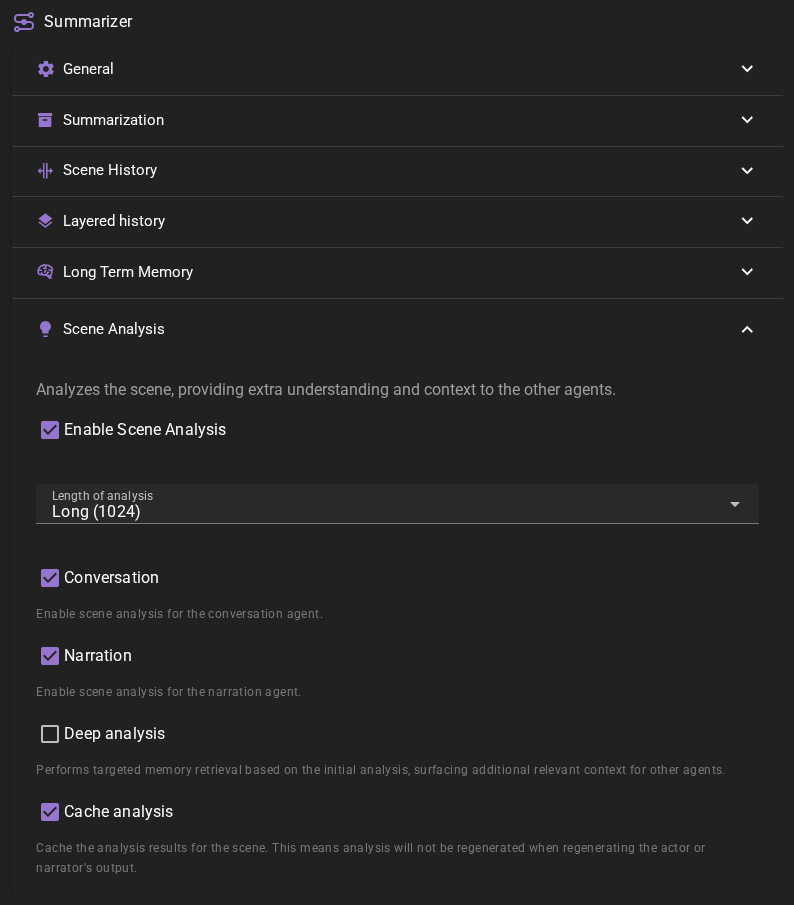
When enabled scene analysis will be performed during conversation and narration tasks. This analysis will be used to provide additional context to other agents, which should hopefully improve the quality of the generated content.
In Character Perspectives mode, character knowledge is updated in one step before each generation: character perspectives of new passages, character summaries of new archive entries and the memory index. Edits are not analyzed again on their own: the perspectives and summaries they affect are flagged as out of sync and keep their last text until you choose Repair; see When perspectives go out of sync. Scene analysis, Scene Direction and the director chat read the knowledge as that step left it; nothing updates knowledge in the background, and the world state snapshot runs before the generation instead of alongside it. Pressing Stop during that step or the snapshot ends the turn. When a request fails, Cancel in the error dialog ends the turn, and so does Ignore for a perspective analysis. When a character summary fails, Cancel or Ignore in the follow-up dialog keeps that summary out of sync and the turn goes on. A snapshot can come due after a character has replied; that reply stays.
If something changes those inputs while a generation runs, such as editing a message or a character's knowledge, the generation continues with what it read and the change applies from the next generation. Loading another scene stops it.
Length of analysis
The maximum number of tokens for the response. (e.g., how long should the analysis be).
Conversation
Enable scene analysis for conversation tasks.
Narration
Enable scene analysis for narration tasks.
Deep analysis
Performs targeted memory retrieval based on the initial analysis, surfacing additional relevant context for the other agents.
Cache analysis
Reuse the analysis when you regenerate the most recent output, including directed regeneration or choosing a different version of that reply.
A completed analysis is also kept if a later step stops the turn. With caching enabled, retrying reuses it as long as its inputs are still current. If Deep analysis was interrupted, retry repeats its unfinished memory retrieval using the saved investigation, without requesting the initial analysis again. This retrieval can make its usual memory requests; an interrupted attempt does not count as completed context.
Info
This cache is anchored to the last message in the scene (excluding the current message). Editing that message will invalidate the cache.
In Character perspectives mode, a new player line, an earlier passage edit, a disclosure, or a change to the character's supplied evidence, intention or analysis context budget refreshes the analysis; browsing the reply and routine memory indexing do not.
Scene History
Controls how scene history is split between actual dialogue and summarized content when generating context for AI prompts. The same controls apply to the reader-facing Scene view and to each character's stored views in Character perspectives mode. You can also change these settings, and override them for one scene, in the Scene Context tab of the Prompt Manager, next to a preview of the result.
Format
The format of the scene progression as the AI sees it. It applies to the scene context of every agent: character dialogue, narration, direction and the other prompts that include the scene history. It does not change how the scene looks to you.
Screenplay-- traditional screenplay-style dialogue formatting (default)Chat (legacy)-- simple chat-style formattingNarrative-- dialogue is woven into narrative proseAI Aware-- characters are aware they are AI personas conversing with the user
AI Aware mode
In the AI Aware mode, characters know they are AI personas. They acknowledge their artificial nature when they talk to you, which suits experimental scenarios or conversations about their own nature more than scene progression.
Like every agent setting, the format can be set for one scene only with a scene override. The Scene Context tab in the Prompt Manager has the same selector.
Moved from the Conversation agent
Earlier versions set the format in the Conversation agent's Generation section. A value set there is not carried over: set the format again here if you used a format other than Screenplay.
Max. Budget
Cap the context budget for scene history in tokens. Set to 0 to use the full available budget dictated by prompt type and client context limits.
- Range: 0 -- 262144
- Default: 8192
- Step: 512
Best Fit Mode
Automatically distribute budget across layers to cover the full timeline with a detail gradient -- compressed at the start, detailed at the end. When enabled, the dialogue ratio and summary detail ratio sliders are replaced by automatic optimization.
- Default: On
When best fit mode is enabled, two additional controls become available:
Min. Dialogue Messages
Minimum number of recent eligible messages guaranteed in best-fit mode, regardless of budget. In Character perspectives mode, these are stored character views: the scan crosses summary boundaries when needed and skips passages the character did not witness or cannot read. The guaranteed window may exceed the token budget. Set to 0 to disable.
- Range: 0 -- 15
- Default: 5
Max. Dialogue Messages
Maximum number of raw messages selected in best-fit mode, including messages exposed by later detail expansion. This is a cap, not a requested amount of detail; summaries still cover older history when possible. An effective maximum lower than Min. Dialogue is raised to the minimum.
- Range: 10 -- 500
- Default: 250
When best fit mode is disabled, you have direct control over the budget distribution:
Dialogue Ratio
Percentage of context budget allocated to actual scene dialogue when Best Fit Mode is off. Higher values preserve more recent conversation at the expense of summarized history. Character perspectives applies the same allocation to stored message views.
- Range: 10% -- 90%
- Default: 50%
Summary Detail Ratio
Percentage of remaining budget allocated to each successive summary layer when Best Fit Mode is off. Higher values give more budget to recent, detailed summaries, including stored audience summaries in Character perspectives mode.
- Range: 10% -- 90%
- Default: 50%
Enforce Summary Boundary
When enabled, dialogue will not expand into content that has already been summarized, producing the most compact context rendering at the cost of detail. When disabled, older messages may reappear in full as dialogue expands into previously summarized content.
- Default: Off
Character evidence in perception scenes
In opted-in perception scenes, actor guidance and conversation analysis use the character’s stored evidence and last-known context. Cached advice is reused only for the same audience and unchanged evidence. Reader planning remains available, but its advice must not assume that characters know private reader information. Actor prompts use only the character evidence described above. Talemate selects the evidence and checks that it is current; whether the generated advice keeps to it depends on the model. See Author responsibilities for what stays shared with every character. Legacy scenes retain the settings behavior described above.