Prompt Templates
For clients that are in complete control of the prompt generation, such as the KoboldCpp or the Text-Generation-WebUI client, it is important to understand the concept of prompt templates.
Clients that support prompt templates
- KoboldCpp
- llama.cpp
- Text-Generation-WebUI
- LMStudio
- TabbyAPI
Am i using the correct prompt template?
For good results it is vital that the correct prompt template is specified for whichever model you have loaded.
Talemate does come with a set of pre-defined templates for some popular models, and has recently implemented automatic detection of the template via Huggingface's model metadata. However this does not always work, so understanding and specifying the correct prompt template is something you should familiarize yourself with.
If a client shows a yellow triangle next to it, it means that the prompt template is not set, and it is currently using the default Alpaca style prompt template.
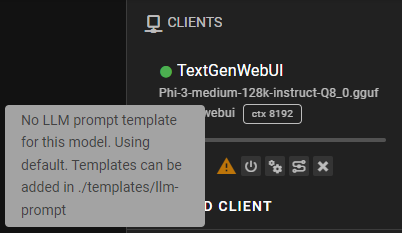
Click the two cogwheels to the right of the triangle to open the client settings.
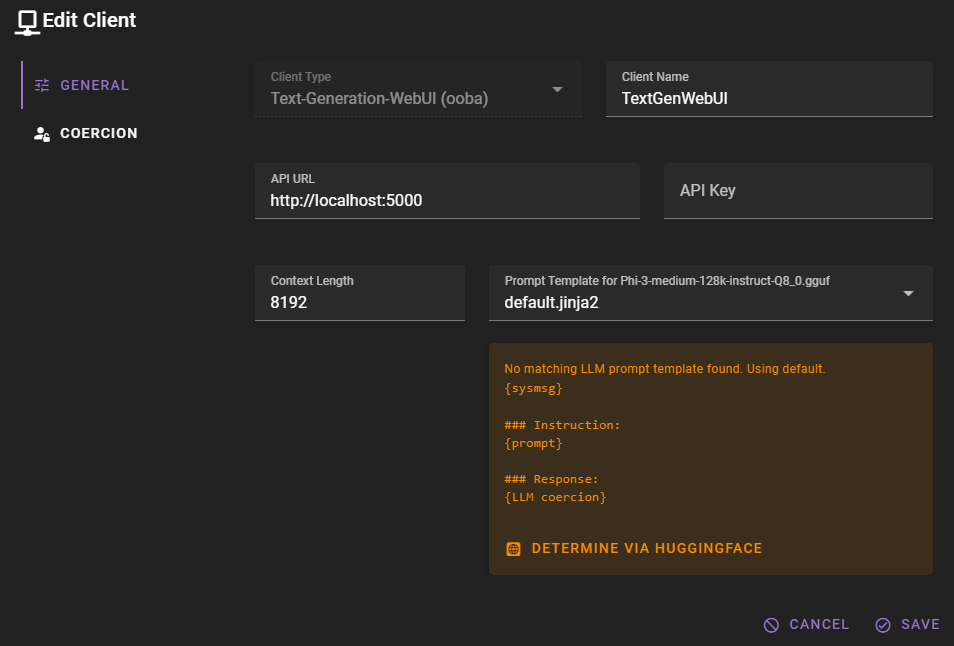
You can first try by clicking the DETERMINE VIA HUGGINGFACE button. This doesn't always work, it requires either the model's README.md to contain an example or for the template to be set in the tokenizer_config.json file.
If that doesn't work, you can manually select the prompt template from the dropdown.
In the case for Phi-3-medium-128k-instruct-Q8_0 that is Phi3 - select it from the dropdown and click Save.
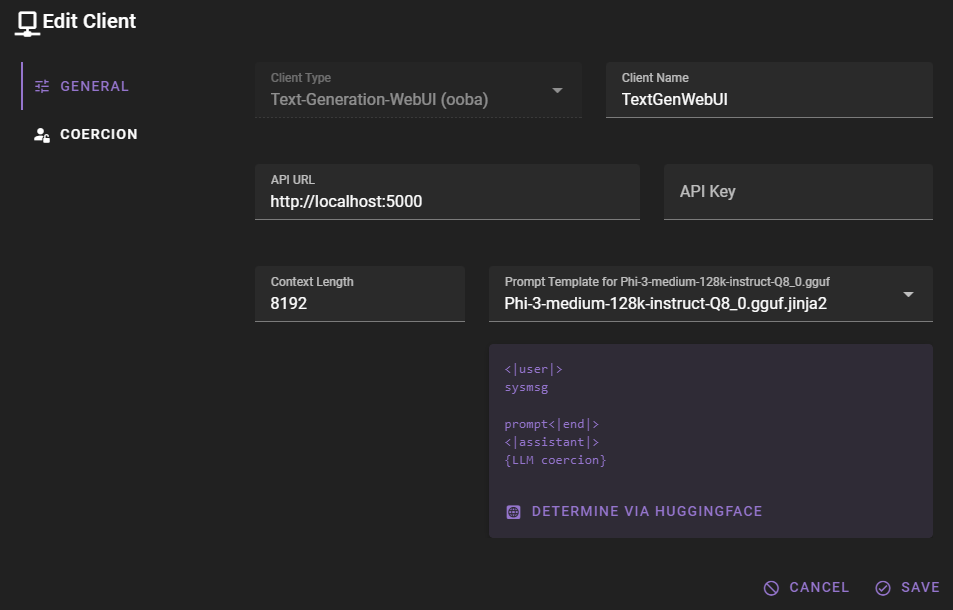
Adding a new prompt template
The easiest way to add or edit prompt templates is from the Prompts view in the main toolbar. Open the LLM Prompt Templates tab to create new user templates, copy built-in templates as starting points, or paste a GGUF/llama.cpp chat template directly. See LLM Prompt Templates for details.
User templates are stored in ./templates/llm-prompt/std/user/ and are gitignored, so they are preserved across Talemate updates. Built-in templates live in ./templates/llm-prompt/std/ and are read-only.
User templates appear in the client's Prompt Template dropdown with a user/ prefix and are matched against model names the same way built-in templates are.