Google Client
If you want to add an Google client, go to Settings → Connections → Clients, click Add client and pick Google from the client type menu.
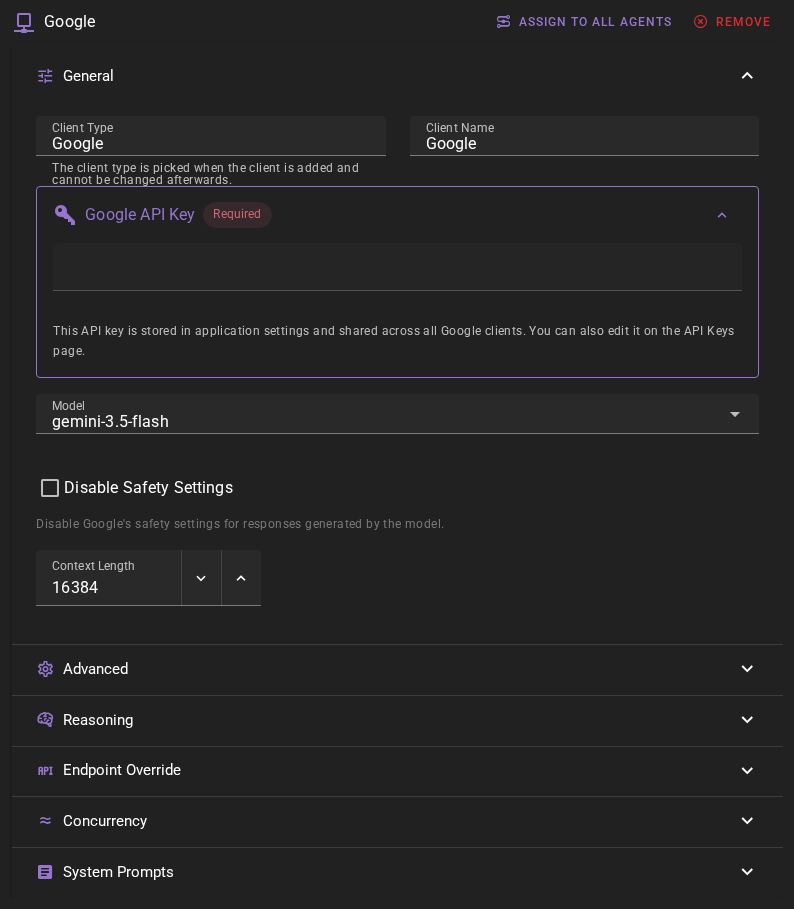
Click Save in the toolbar to add the client.
Google Cloud Credentials
The client should appear in the clients list. If you haven't setup Google before, you will see a warning that the API credentials are missing.
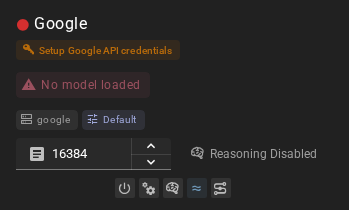
Click the SETUP GOOGLE API CREDENTIALS button. This will open the application settings on the API Keys page where you can add your Google API credentials.
For additional instructions on obtaining and setting your Google API credentials, see Google API instructions.
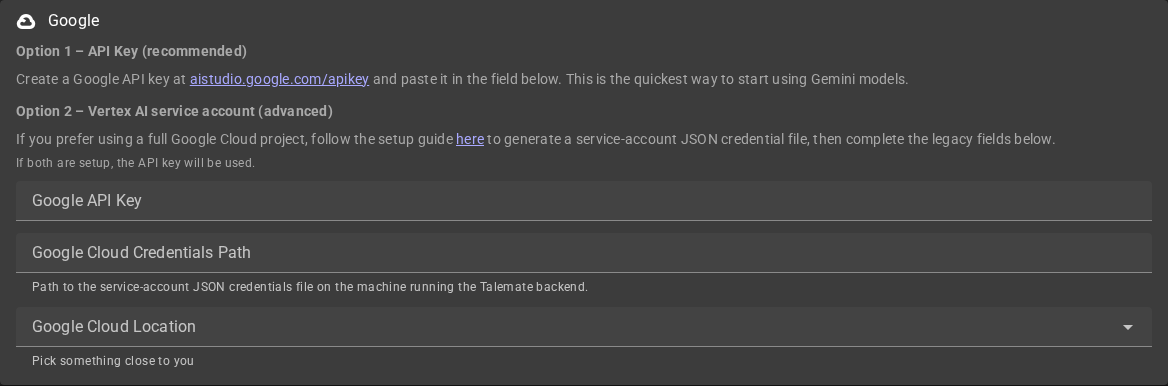
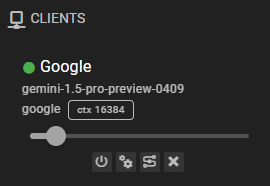
Click Save and after a moment the client should have a green dot next to it, indicating that it is ready to go.
Ready to use
Settings
Client Name
A unique name for the client that makes sense to you.
Model
Which model to use. Currently defaults to gemini-3.8-flash.
Talemate lags behind Google
When Google adds a new model, it may take a Talemate update to add it to the list of available models. However, you can always manually enter any model name in the model field if you know the exact model identifier.
Context Length
Maximum context length (in tokens) for generations sent to Google. If you are not sure, leave the default value.
Concurrent Inference
Found in the Concurrency section of the client editor. When enabled, batch operations that need several queries can send multiple requests to the Google API in parallel instead of one at a time, which can speed those operations up.
This is on by default. See the Concurrent Requests page for more detail.
Disable Safety Settings
Will turn off the google reponse validation for what they consider harmful content. Use at your own risk.
Response Length Enforcement
Controls whether token limits and/or human-readable response length instructions are sent with prompts. Defaults to Limit tokens and send instructions.
See Response Length Enforcement for details.