OpenAI Client
If you want to add an OpenAI client, go to Settings → Connections → Clients, click Add client and pick OpenAI from the client type menu.
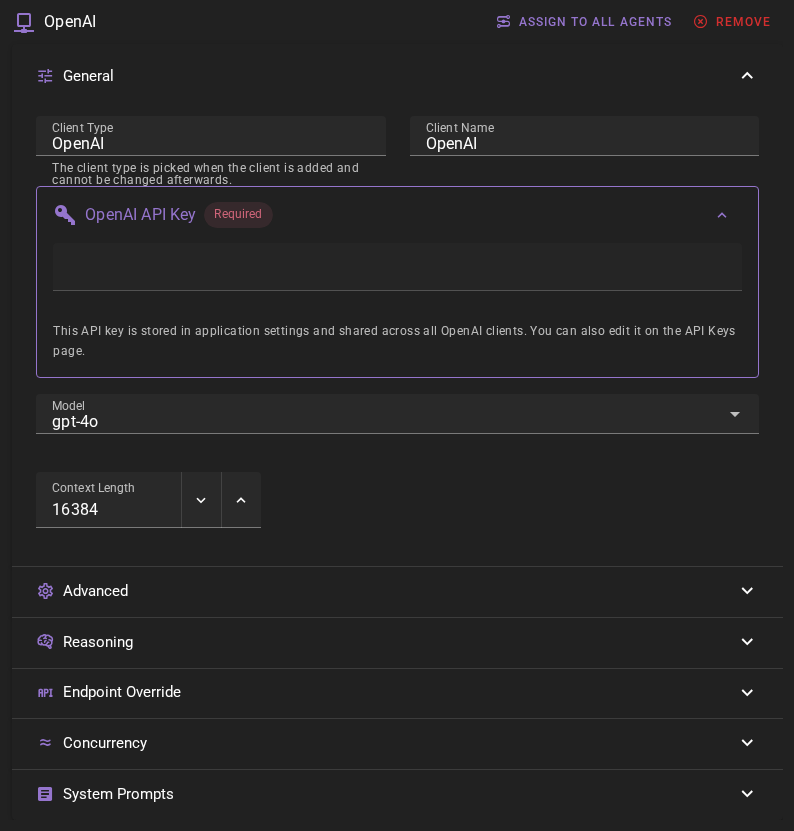
Click Save in the toolbar to add the client.
OpenAI API Key
The client should appear in the clients list. If you haven't setup OpenAI before, you will see a warning that the API key is missing.
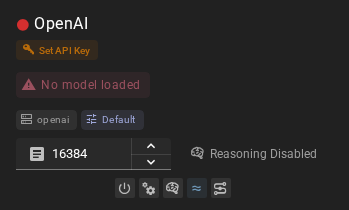
Click the SET API KEY button. This will open the application settings on the API Keys page where you can add your OpenAI API key.
For additional instructions on obtaining and setting your OpenAI API key, see OpenAI API instructions.

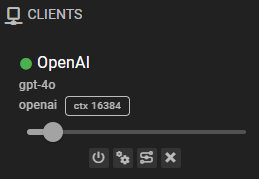
Click Save and after a moment the client should have a green dot next to it, indicating that it is ready to go.
Ready to use
Settings
Client Name
A unique name for the client that makes sense to you.
Model
Which model to use. Currently defaults to gpt-4o.
Talemate lags behind OpenAI
The model dropdown is a static list of Chat Completions suggestions, refreshed with Talemate releases. It does not fetch models from your account. You can always enter an exact model identifier manually, including a dated snapshot. Removing a suggestion does not change an existing saved client or prevent that identifier from loading.
Token counts are estimates. If the local tokenizer does not recognize a model name, Talemate uses a fallback estimate.
Context Length
Maximum context length (in tokens) for generations sent to OpenAI. If you are not sure, leave the default value.
Concurrent Inference
Found in the Concurrency section of the client editor. When enabled, batch operations that need several queries can send multiple requests to the OpenAI API in parallel instead of one at a time, which can speed those operations up.
This is on by default. See the Concurrent Requests page for more detail.
Reasoning Effort
Open the client's Reasoning section to adjust these settings:
- Reasoning Effort controls how much effort the model spends thinking. Choose
low,medium, orhigh, or another level your model supports (none,minimal,xhigh, ormax). With Reasoning on, Talemate sends your choice asreasoning_effortfor any model name, including a name entered manually. The initialdefaultchoice leaves this field out so the provider chooses its default. If the model does not accept the selected setting, its server error is shown; choosedefaultto omit it. - Extra Completion Tokens adds room to the total completion limit for thinking and the answer when you enable Reasoning. It is not a separate reasoning budget. For example, a response limit of 512 with 2048 extra tokens allows at most 2560 tokens in total when the response token cap is enabled.
- Completion Token Parameter selects the field used for that total limit. Keep the default
max_completion_tokensfor OpenAI. If you use Override Base URL, selectmax_tokenswhen your server requires it.
Existing saved Reasoning Tokens values are retained as Extra Completion Tokens. Changing effort does not change that allowance. Prompt templates continue to receive the allowance as reasoning_tokens.
New OpenAI clients start with Reasoning enabled and 1024 Extra Completion Tokens. With the default Adaptive response length setting, Reasoning uses length instructions without a token cap. If you enable a response token cap, the allowance is added to it.
For model names starting with gpt-5 or gpt-6, Talemate keeps Reasoning enabled and locks its toggle on the card and in the editor. Agent-action overrides cannot disable it. This is a maintained prefix rule, not server capability discovery; it applies only to the reasoning lock. Other models, including the o-series, follow your Reasoning setting. A quick change on any client card saves Reasoning on for locked clients. After switching to a model outside these prefixes, Reasoning stays on until you turn it off. Saved token and effort values are retained.
Upgrading from 0.39
For a saved gpt-5 or gpt-6 client, Reasoning is now locked on. For an o-series client, enable Reasoning if it is off. With Reasoning on, Adaptive leaves the token cap out; an explicitly enabled cap includes Extra Completion Tokens to leave room for thinking. The three sampler toggles now default off, including for saved clients that have no toggle values; leave them off for models that reject these parameters. To use preset temperature, top_p or presence_penalty values on a model that accepts them, turn the corresponding toggle on. For o1-mini or o1-preview, turn Send System Message off. If your organization cannot stream the selected model, turn Stream off. For an override server that requires the older token-limit field, choose Completion Token Parameter → max_tokens. Save your changes.
When Reasoning is enabled, the client card shows the selected effort in a dropdown next to the context token budget, where you can change it quickly. Turning Reasoning off replaces the dropdown with a Reasoning Disabled chip. Your selected effort is kept, and you can still change it in the client's Reasoning settings section.
Reasoning controls both the effort and the extra completion allowance. With Reasoning off, Talemate sends neither: a client set to high effort with Reasoning off sends no reasoning_effort at all. The server then uses its own default, so a model that always thinks can still think. Status updates retain your token and effort values; locked clients report Reasoning on as described above.
For an unlocked client, when an agent action turns Talemate reasoning off, both effort and padding are omitted in the same way; the card keeps showing the client's configured state.
Parameters
The Parameters section offers Send temperature, Send top_p, and Send presence_penalty. All default off, leaving the server's defaults in effect. Turn a toggle on to send that parameter's normal preset value when your model supports it. If OpenAI rejects a parameter or its value, turn it off again. For example, some reasoning models only accept the default temperature of 1; disabling Send temperature omits the field entirely. Explicit saved toggle values are preserved.
Send System Message is on by default. Turn it off for a model or server that rejects the system role, such as o1-mini or o1-preview. Only the user message is sent when this setting is off.
Stream is on by default. Turn it off if your organization or server does not allow streaming for your chosen model; the client then waits for the complete response. The choice applies to every model.
Sampler, system-message, streaming and completion-token parameters follow your settings, independently of model names. The gpt-5/gpt-6 prefix rule above is limited to the reasoning lock. Talemate does not silently retry with different settings.
Getting empty responses?
Internal reasoning can consume the total completion limit before an answer is produced. Try increasing Extra Completion Tokens or selecting a lower supported effort. See Reasoning Model Support and OpenAI's reasoning guide.
Response Length Enforcement
Controls whether token limits and/or human-readable response length instructions are sent with prompts. Defaults to Limit tokens and send instructions.
See Response Length Enforcement for details.