Connect a client
First time setup?
If this is your first time launching Talemate, the Setup Wizard will guide you through adding your first client and configuring essential settings. This page covers manual client configuration for adding additional clients or if you skipped the wizard.
Once Talemate is up and running and you are connected, the Home screen shows a warning at the top while no client is configured, reminding you that all enabled clients and agents need to be configured before you can load scenes.
Talemate uses client(s) to connect to local or remote AI text generation APIs like koboldcpp, text-generation-webui or OpenAI.
Which model?
Talemate expects a current reasoning model with reliable structured output and 16k or more context. See Model expectations for the bar, known good examples and what still works with an older model.
Add a new client
On the right hand side click the ADD CLIENT button.
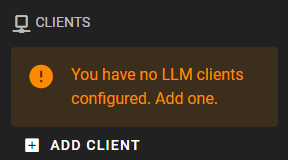
No button?
If there is no button, you may need to toggle the client options by clicking this button

This takes you to Settings → Connections → Clients with the Client type menu open. Pick the type of client you want to add and it is created right away, with its editor next to the list.
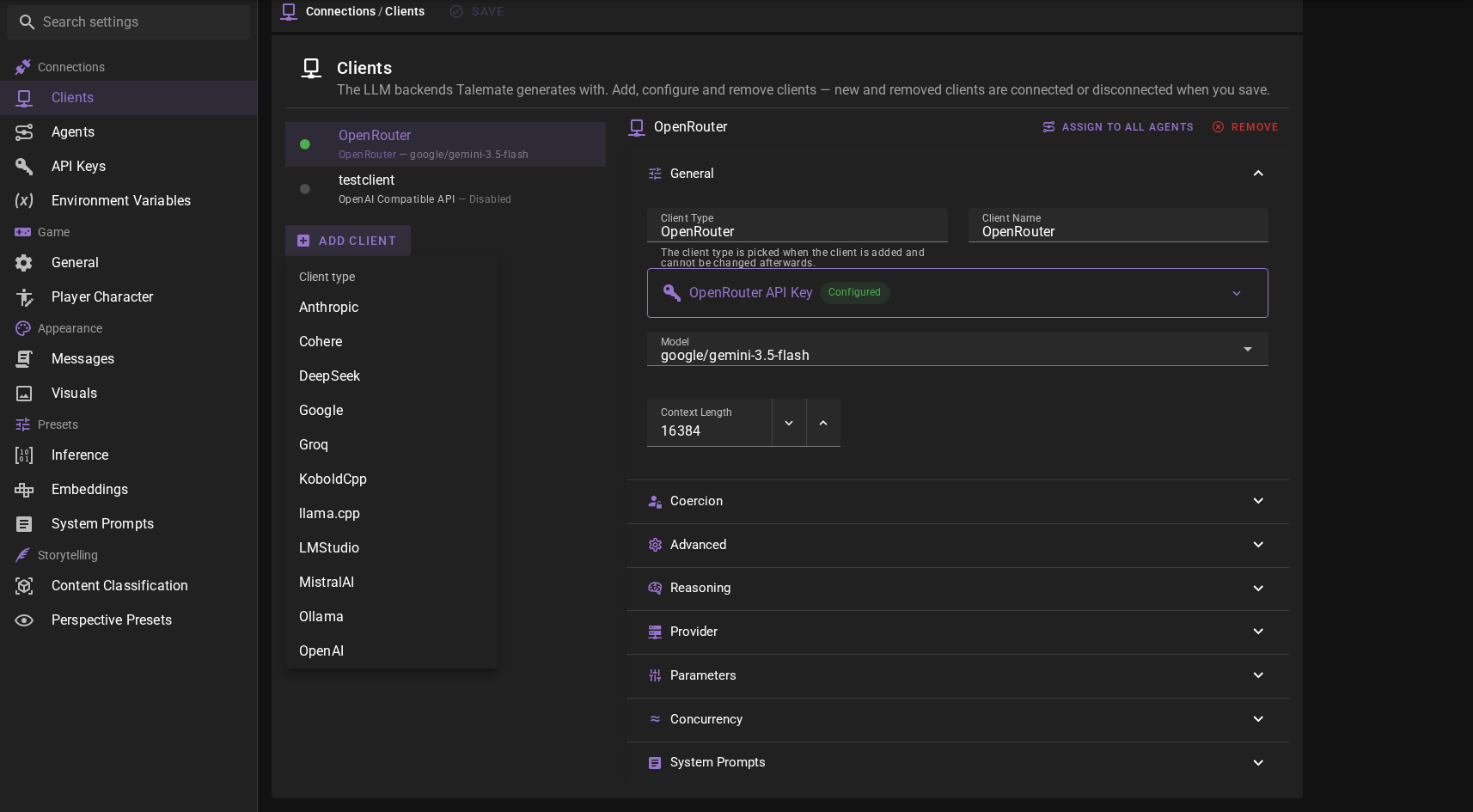
Fill in the client's settings and click Save in the toolbar at the top to apply them. Nothing is connected until you save.
Choose an API / Client Type
We have support for multiple local and remote APIs. You can choose to use one or more of them.
Local vs remote
A local API runs on your machine, while a remote API runs on a server somewhere else.
Select the API you want to use and click through to follow the instructions to configure a client for it:
Remote APIs
- OpenAI
- Anthropic
- mistral.ai
- Cohere
- DeepSeek
- Groq
- Google Gemini
- OpenRouter
- Pi Bridge — any provider reachable through a local pi coding agent install
Local APIs
Unofficial OpenAI API implementations
Assign the client to the agents
Whenever you add your first client, Talemate will automatically assign it to all agents. Once the client is configured and assigned, all agents should have a green dot next to them. (Or grey if the agent is currently disabled)
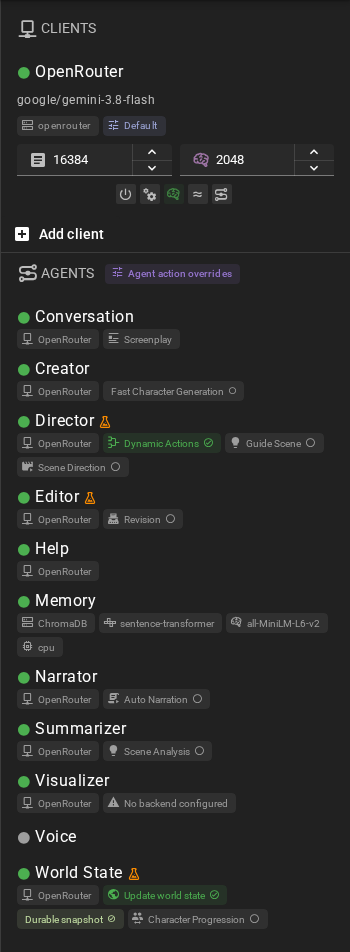
You can tell the client is assigned to the agent by checking the tag beneath the agent name, which will contain the client name if it is assigned.

Its not assigned!
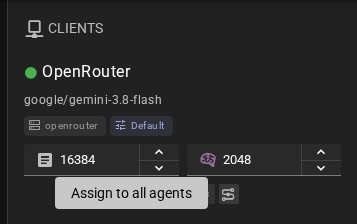
If for some reason the client is not assigned to the agent, you can manually assign it to all agents by clicking the Assign to all agents button.
The same action is available on the Clients settings page, above the client editor. There it is applied when you save, and it is disabled while the client itself is disabled — enable the client first.