Client Configuration
Each LLM client is configured through a settings dialog that you open from the client list in the sidebar. The dialog organizes settings into tabs so the common options stay easy to find while the less-used controls are grouped out of the way.
Updated in 0.37.0
Advanced settings (Inference Presets, Structured Data Format, Section Format, Response Length Enforcement, Prompt Caching, Rate Limit) were moved out of the General tab into a dedicated Advanced tab.
Opening the dialog
Click the cogwheels on a client row in the Clients sidebar to open its configuration dialog. When you switch to a different client, the dialog always opens on the General tab.
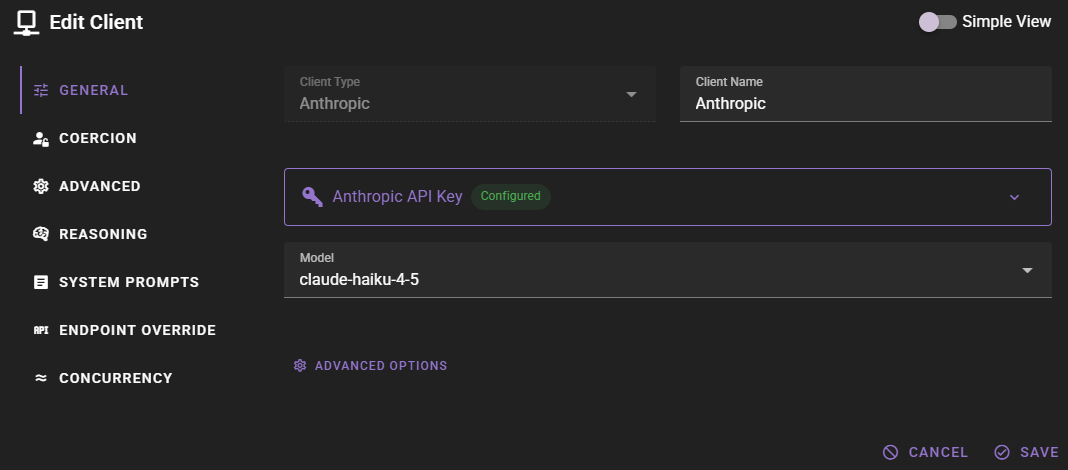
Tabs
The tabs that appear depend on the client type. The core set is:
| Tab | Purpose |
|---|---|
| General | Client type, name, API URL / key, model, context length, prompt template (for local clients). |
| Coercion | Prefill text used to enforce compliance. Only shown for clients that can be coerced. |
| Advanced | Inference Presets, Structured Data Format, Section Format, Response Length Enforcement, Prompt Caching, Rate Limit, and Auto Retry. |
| Reasoning | Reasoning model support settings. |
| System Prompts | Per-client system prompt overrides. |
Some client types add extra tabs (for example the Endpoint Override tab on remote clients, the Concurrency tab on clients that support concurrent requests, or the Parameters tab on the OpenRouter client).
Advanced tab
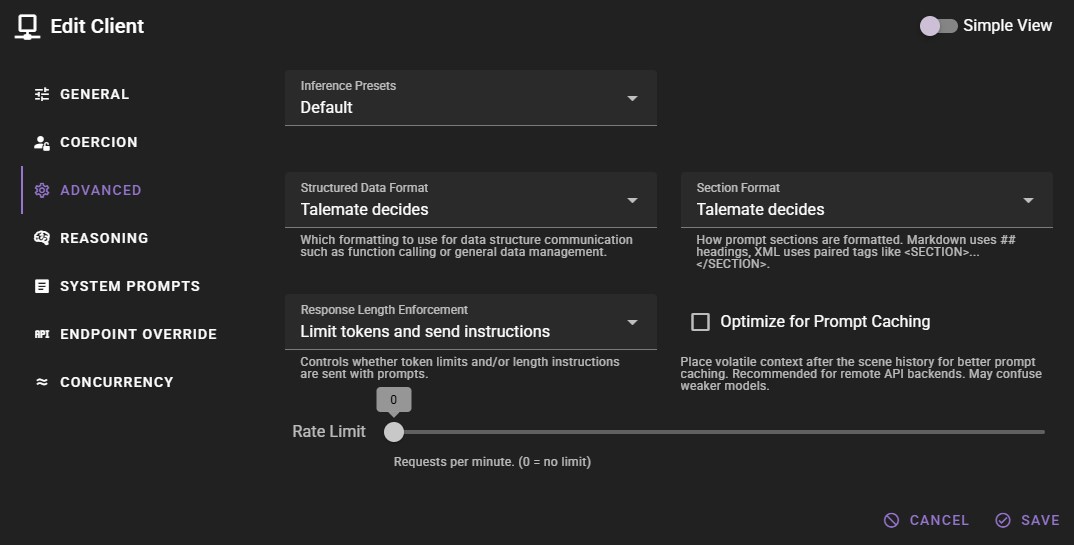
The Advanced tab contains settings that you usually only need to touch once per client:
- Inference Presets — selects which preset group is used for generation parameters.
- Structured Data Format — whether structured responses (function calls, data management) are formatted as JSON or YAML. Leave set to Talemate decides to use the application default.
- Section Format — whether prompt sections are rendered as Markdown headings or XML tags. See Section Format.
- Response Length Enforcement — how the response length is communicated to the model. See Response Length Enforcement.
- Optimize for Prompt Caching — moves volatile context after the scene history to improve cache hit rates. See Volatile Context Placement.
- Rate Limit — caps requests per minute. See Rate Limiting.
- Auto Retry — automatic retries on empty or rate-limited responses before you are notified. See Auto Retry.
From the General tab you can also jump straight to Advanced with the Advanced Options button underneath the basic fields.
Simple View
The Simple View switch at the top of the dialog hides everything except the essential fields on the General tab (client type, name, API URL / key, and model). Use it when you just need to wire up a client quickly.
- Toggling Simple View on or off resets the dialog to the General tab.
- When Simple View is on, the sidebar list of tabs is hidden and the Advanced Options button is hidden. A reminder at the bottom of the General tab links back to the full view.
- Turning Simple View off restores access to every tab, including Advanced.
Clients created through the onboarding wizard open in Simple View by default. All other clients open with Simple View off.