History
Will hold historical events for the scene.
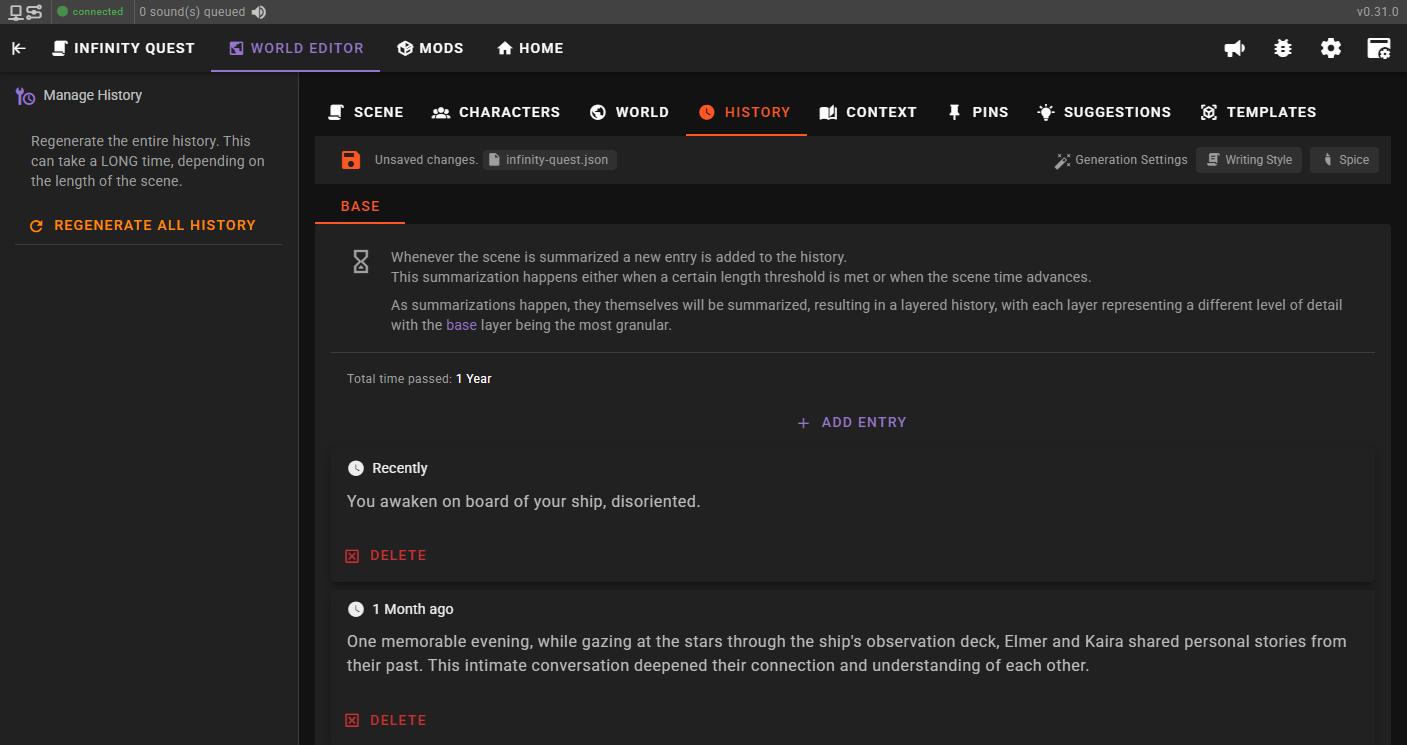
There are three types of historical entries:
- Archived history (static) - These are entries are manually defined and dated before the starting point of the scene. Things that happened in the past that are IMPORTANT for the understanding of the world. For anything that is not VITAL, use world entries instead.
- Archived history (from summary) - These are historical entries generated from the progress in the scene. Whenever a certain token (length) threshold is reached, the Summarizer Agent will generate a summary of the progression and add it to the history.
- Layered history (from summary) - As summary archives are generated, they themselves will be summarized again into compressed layers, creating a detail gradient from full detail (recent) to highly compressed (oldest). See Layered History for details.
Presence
Every entry generated from a summary carries the characters that were active in the scene while its source messages were written. They show as chips next to the entry time. Layered entries show the union over the entries they summarize.
The summarizer starts a new entry whenever the active character list changes, the same way a time passage does, so a summarized entry never mixes two known sets of present characters. An entry that contains a message without presence records unknown presence as a whole. This is the record the per-character knowledge features build on.
Scenes saved before presence tracking carry no presence on their old messages, and entries built from them show no chips. Unknown presence is never guessed from who spoke: an entry without chips counts as witnessed by everyone.
Perspective refresh
In Character perspectives mode, an entry containing a passage with out-of-date views shows an Analyze perceptions chip. Click it to refresh that passage, just as with its message action. Revisions also invalidate dependent summaries and memory documents. Standard mode has no knowledge analysis request; sending the next line settles the affected summary cleanup.
Managing entries
- All entries can be edited by double-clicking the text.
- Static entries can be deleted by clicking the Delete button.
- Summarized entries can be regenerated by clicking the Regenerate button. This will cause the LLM to re-summarize the entry and update the text.
- Summarized entries can be inspected by clicking the Inspect button. This will expand the entry and show the source entries that were used to generate the summary.
Adding static entries
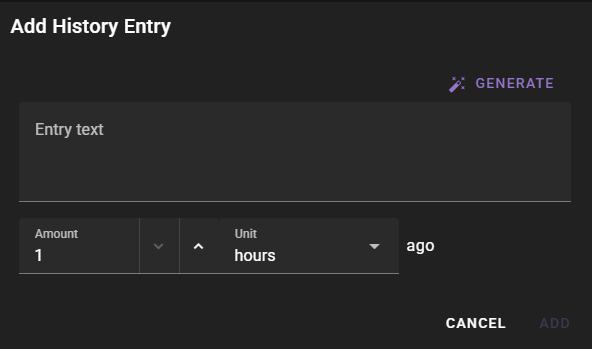
Static entries can be added by clicking the Add Entry button.
Static entries must be older than any summary entries
Static entries must be older than any summary entries. This is to ensure that the history is always chronological.
Trying to add a static entry that is more recent than any summary entry will result in an error.
Entry Text
The text of the entry. Should be at most 1 - 2 paragraphs. Less is more. Anything that needs great detail should be a world entry instead.
You can let the AI write the entry for you with the Generate button. Hold ctrl (or cmd on macOS) while clicking to provide instructions. For history entries your instruction is treated as the seed for the entry: the AI writes the entry about the event or state you describe and expands it with consistent detail, rather than ignoring it.
Known by
Static entries have a Known by field for their initial visibility. Choose everyone, nobody, or selected characters. Character knowledge controls can later Learn or Never Learn an entry without changing its authored text.
Unit
Defines the duration unit of the entry. So minutes, hours, days, weeks, months or years.
Amount
Defines the duration unit amount of the entry.
So if you want to define something that happened 10 months ago (from the current moment in the scene), you would set the unit to months and the amount to 10.
The scene keeps that distance. For example, you add "The war ended" 10 months ago to a new scene. After a reload, or after Regenerate All History, the entry still reads 10 Months ago. When the new entry is older than every other entry, the timeline moves back to make room for it: the other entries keep their age.
Time Passage Entries
The history view displays time passage entries with editable duration and chapter title fields. You can double-click a time passage entry to edit its duration (amount and unit) and the chapter title that names it in Replay, or delete it entirely. A time passage inserted before a summarized entry can only be edited here — it sits further back than the scene view loads.
For more details on managing time passages, see the Time Passage Management documentation.
Compression Statistics
The history tools menu displays layered history compression statistics for each layer. See Layered History -- Compression Statistics for details.
Regenerate everything
It is possible to regenerate the entire history by clicking the Regenerate All History button in the left sidebar. Static entries will remain unchanged. The regeneration builds summaries from the selected passage versions. In Character perspectives mode, pending perception analysis remains a separate operation.
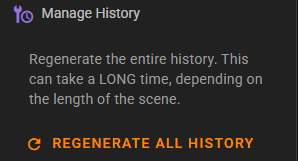
This can take a long time
This will go through the entire scene progress and regenerate all summarized entries.
If you have a lot of progress, be ready to wait for a while.
Reset Scene State
For more comprehensive reset options beyond regenerating history, see the Reset Scene State dialog, which provides granular control over resetting history, context DB, agent states, and other scene components.