Themes
Theme templates hold a complete set of colors for the interface surfaces, the application, the scene messages and the chats, together with how message text is styled, which color scheme the in-app code editors use and whether the theme is light or dark. Applying one repaints Talemate with those colors.
A theme is a world state template like any other — it lives in a template group, is edited in the Templates tab, and is shared as a file.
Choosing which theme paints the app happens in the settings, on the Appearance → Theme page: it lists every theme from every group with Apply and Manage actions, so picking a theme needs no template knowledge. The button in the app bar carries the same list and switches theme in two clicks. The Templates tab remains where themes are authored and edited.
Shipped themes: Talemate Dark and Talemate Light
Talemate ships two themes, both in a group called Themes:
| Theme | What it looks like |
|---|---|
| Talemate Dark | The application's standard look |
| Talemate Light | The same palette worked out for a light page |
Both are locked — they ship with Talemate and cannot be edited or deleted from the app. To build on one, create your own theme in your own group and use Reset to template to take a shipped theme as the starting point.
Creating a theme
Fist, if you have not done so, create a template group to store the template in.
Then select the group you want to add the template to and click the Create Template button.
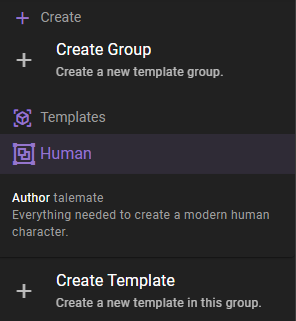
Next enter a template name and select Theme as the template type.
Template name
The name / label of the template. This is the name that will be displayed in the list of templates.
Notes
Optional notes about the theme, for example what it is meant to look like. They are not used for anything else.
Favorite
Mark the template as a favorite to make it easier to find in the list of templates. Favorited templates are shown at the top of the list.
Colors
The colors are edited in four accordion panels, 51 slots in total. They start collapsed — clicking the element you want to recolor in the preview is the shorter way in. Each slot opens a color picker and shows the color it currently holds; the theme is saved when the picker closes.
The picker carries an eyedropper where the browser supports it (Chromium, over a secure context) — pick any color on screen, including straight from the preview, which is the quickest way to take a neighboring element's color.
Preview
The preview above the panels renders the theme being edited — not the theme currently applied — so a light theme looks light while you edit it from a dark app. It shows the theme's real elements: the surfaces, the interface accents and markers, a scene message sample with its text markup, and the director and help chat bubbles, all painted from the theme's own colors, mode and message appearance.
Every element in it is clickable. Clicking one opens the color that paints it in a color picker right at the element, so you pick a color from the thing it colors rather than from a slot name you have to decode. Editing repaints the preview immediately and saves the theme.
Message and markup elements also carry their styling in the same popup, above the picker — the flags that type has, so a message type offers Italic and Bold (plus Show where it can be hidden) and a markup type adds Own color, plus Show when the renderer can hide it. Quotes and emphasis have no Show to switch. They are the same settings as in the Message appearance panel, editable from the thing they style.
Some elements have no color of their own and take one from somewhere else. Clicking one of those says so instead of silently editing something broader than you expect, and offers the color it derives from for editing:
- The text on filled elements (buttons, chat bubbles) is worked out automatically for readability, and the pickers of those elements note this.
- Your own chat bubbles take the Actor color from Messages, so both chats share one decision for the player's voice.
- Text markup with Own color switched off takes the color of the message it appears in. Its popup shows the note in place of the picker and keeps the Own color toggle, so the markup can be given a color of its own right there — tick it and the picker appears. Markup picked where no message encloses it — from its own row while hidden, or from the entities row outside the highlighted entity itself — shows the note without a source to edit, since there is no one message type it inherits from.
- Dividers and outlines are drawn from the theme Mode, not a color slot.
Switching Show off reaches the sample differently per type. Parentheses and Brackets leave it, so the popup closes and the type moves to a row of its own, from where it can be switched back on. Entities stops being highlighted — a popup opened on the highlight closes with it, and the entities row stays where it is. Quotes and emphasis have no Show to switch because they keep rendering either way.
| Panel | Slots | What it covers |
|---|---|---|
| Surfaces | 6 | The page background and the card surfaces everything else is drawn on. These decide whether the theme reads as light or dark, and Talemate works out readable text colors from them |
| App | 26 | The general interface palette — the accents, the muted tones, the highlight series, the status colors and the state markers |
| Messages | 14 | Every scene message type and text markup type, plus the message chrome around them |
| Chats | 5 | The message colors of the director chat and the help chat |
A slot a theme does not carry yet is filled in with the color currently in use, so a new theme starts out looking exactly like what you already see.
What each slot is for
Surfaces
| Slot | What it paints |
|---|---|
| Background | The page behind everything, including the scene message area |
| Surface | Cards, dialogs, panels and the message backdrop |
| Surface bright / Surface light | The lighter surface steps Vuetify draws for raised and inset areas |
| Surface variant / On surface variant | The contrasting chip and tooltip pair — the second is the text drawn on the first |
App
| Slot | What it paints |
|---|---|
| Primary | The main accent: buttons, active tabs, focus |
| Secondary | The second accent, used for background activity |
| Delete | Destructive actions |
| Cancel | Cancel, close and reset buttons |
| Muted / Muted header | De-emphasized text, and the small captions above it |
| Muted background | Toolbars and filled bands that sit on a card |
| Normal | Body text in the message edit box |
| Unsaved / Dirty / Favorite marker | The three state markers: not saved yet, edited, favorited |
| Persona | Persona and character card icons |
| Highlight 1 to 7 | The seven template and category accents — attributes, details, state reinforcement, spices, writing and visual style, scene types, scene tool shortcuts |
| Inactive | Text and icons of a switched-off setting. Named inactive rather than disabled because Vuetify turns every slot name into a text-<name> class, and text-disabled is also one of its own utilities |
| Selected node module / Selected locked node module | The two module tile borders in the node editor library |
| Success / Info / Warning / Error | The status colors, used by toasts, alerts and any component that asks for a status |
Messages
| Slot | What it paints |
|---|---|
| Narrator, Actor, Director, Time, Context investigation, Information | The text of each scene message type |
| Quotes, Parentheses, Brackets, Emphasis, Entities | The text markup inside a message |
| Play audio | The play-audio icon once a message has been spoken |
| Avatar and card borders | The border around avatars, message images and config tables |
| Default asset badge | The badge marking the current visual asset |
Chats
| Slot | What it paints |
|---|---|
| Director chat — director, action result, compaction | The three director chat bubble kinds |
| Help chat — help, doc result | The two help chat bubble kinds |
Both chats draw your own messages in the Actor color, so the player's voice is one decision rather than three.
Mode
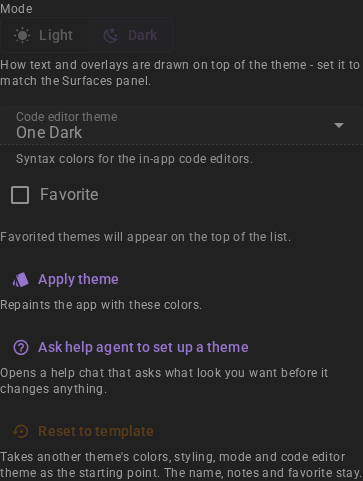
The Mode toggle above the panels marks the theme as Light or Dark. It does not change any color you have picked. It tells Talemate how to draw everything it derives rather than reads from the theme — the dividers and outlines, how strongly muted text is dimmed, and the appearance of native controls such as scrollbars.
Set Mode to match your Surfaces panel
Mode and the Surfaces panel have to agree. A theme with light surfaces left on Dark keeps its readable text, but draws white dividers and outlines on white cards and gives you dark scrollbars on a light page. A new theme starts on the mode you are currently running.
Code editor theme
The Code editor theme select under the Mode toggle sets the syntax colors of the in-app code editors — the node editor's property editors, the game state and debug scene state views, and the prompt views. These editors are not painted from the color slots; the theme names one of eight ready-made editor themes for them instead.
| Editor theme | Mode |
|---|---|
| One Dark | Dark — the default |
| GitHub Dark | Dark |
| Monokai | Dark |
| Nord | Dark |
| Tokyo Night Storm | Dark |
| VS Code Light | Light |
| GitHub Light | Light |
| Solarized Light | Light |
The choice is read live, like the colors — switching it repaints every open code editor immediately, with no reload. A theme that names no editor theme, or one this version of Talemate does not know, falls back to One Dark.
Mode does not decide this: a dark theme is free to use a light editor theme and the other way around. But a light theme that leaves the editors on a dark one drops a dark rectangle into a light page.
Pair a light theme with VS Code Light
A light theme should take one of the three light editor themes, and VS Code Light is the safest of them — it is the one where every syntax color stays comfortably readable against the editor background, which is not true of every light editor theme. It is what the shipped Talemate Light theme uses.
Message appearance
The Message appearance panel is the table view of the same styling the preview offers per element, and sets how message text is written, independent of its color:
- Italic and Bold, for each message type (narrator, actor, director, time, context investigation, information) and each markup type (quotes, parentheses, brackets, emphasis, entities)
- Show, for the types that can be hidden
- Own color, for the markup types — whether the markup uses its own color or inherits the color of the message it appears in. This one is also reachable from the preview, on the markup itself
- Backdrop panel opacity and Backdrop text shadow, which control the legibility of message text rendered over a scene backdrop
These are the same settings as on the Appearance settings page — a theme carries a set of them so it can be handed out complete.
Asking the help chat for a theme
The help agent can build and change themes for you, once you grant it the Allow changes to templates permission — it starts off. Applying a theme takes the Allow changes to settings permission as well, since it writes the theme's message styling and the active theme into your appearance settings. With the permission on, ask for what you want — "create a solarized dark theme", "make the narrator text a bit greener", "copy Talemate Dark into my own group and warm the background up" — and it writes a real theme template that shows up in the Templates tab and on the Appearance → Theme page like any other.
The theme editor has a shortcut for this: Ask help agent to set up a theme, under Apply theme. It opens the help chat, starts a new chat and asks the help agent to set up the theme you are editing. The request says what a theme controls and has the agent ask you what look you want — the mood, light or dark, colors you like — before it changes anything. For a shipped theme it asks for a copy of your own instead. Hover the button to read the request before you send it. The template has to be created first.
What it does with such a request:
- It creates the theme in a template group you name. An unknown name creates the group; if you have no preference it uses one called My Themes. The shipped Themes group is left alone — it holds Talemate's own themes.
- A new theme starts as a complete copy of another one — the theme you are running unless you name a different one — and only the colors you asked about are changed. There are no half-filled themes.
- It can change the colors, the message styling, the mode and the code editor theme of a theme you own, and it can apply a theme for you.
- Shipped themes are refused, with an offer to copy the theme into a group of your own instead.
- It cannot delete a theme. Deleting stays in the Templates tab, where you select the theme and click Remove template.
- It works from numbers rather than from looking: it knows what each slot paints, roughly what color it holds, and the WCAG contrast of that color against the worst of the theme's own fills that part of the theme is drawn on — with the slots whose real surface it cannot know reported as unmeasured rather than guessed. It names what falls under the reference after every change — see How it judges colors.
Unsaved edits in the Templates tab
While the Templates tab holds an unsaved theme edit — a color picker still open, a notes field you have not left — the help agent refuses to write a theme and asks you to let that edit save first. The tab saves the whole template it is on, so its save would push your copy back over whatever the agent had written.
The refusal is decided from what the tab reported when you sent the message, so a write can still land while you are typing. If it does, the editor shows a warning above the form saying the template was changed elsewhere — your unsaved edits win when they save, so redo the change you asked for if you still want it.
Applying a theme
The Apply theme button makes the theme the active one. The template has to be created first — for a new template, click Create template.
Applying does two different things, and the difference matters:
The colors are taken live. Talemate remembers which theme is active and reads its colors as it renders. Editing the active theme's colors repaints the running application immediately — no reload, no applying again.
The styling is copied. Applying writes the theme's message appearance into your Appearance settings, where it becomes yours to adjust. Editing the theme's Message appearance panel afterwards changes nothing until you apply the theme again — or click Restore from theme on the appearance settings page to pick the edit up there.
What a theme leaves alone
A theme does not touch the message asset settings — render cadence, display size and auto-attaching of visuals. Those are workflow preferences rather than a look, so they survive a theme switch untouched.
Message colors and your own overrides
The theme supplies the color of every message and markup type. A color you set yourself on the appearance settings page wins over the theme for that type — a deliberate exception, kept across theme switches. Click Reset next to the message or markup type to give the color back to the theme, or Restore from theme to hand all of them back at once.
Sharing a theme
Template groups are stored as single files in the templates/world-state directory, so sharing a theme means handing that group's file to someone else, who drops it into the same directory. There is no separate import or export.
The file carries every theme in the group, not just the one you meant to pass on — the shipped Themes file holds both Talemate Dark and Talemate Light. Keep a theme you intend to share in a group of its own.
Editing and deleting
To edit an existing template, select it from the list of templates in the left sidebar and adjust the fields — updates are applied automatically.
Reset to template
Reset to template takes another theme as the starting point for the theme being edited: the picked theme's colors, message styling, mode and code editor theme replace the current ones after a confirmation. The theme's identity — its name, notes, favorite marker and the group it lives in — always stays. The theme being edited is not in the list; the reset is for taking off from another theme, for example one of the shipped ones.
Locked templates
A template can be locked by writing locked: true into its group file — the lock exists only there, the app offers no way to set or clear it. Enforcement is generic and covers every template type: a locked template cannot be saved over or deleted, and a group that holds locked templates cannot be removed. The read-only editor treatment — inputs disabled with a note saying so, Remove template hidden, the group marked unremovable — currently applies to theme templates; for other types a locked template still opens in its editor, but every save and delete is refused by the backend. Apply theme keeps working on a locked theme — locking prevents changes, not use.
Talemate locks its own shipped themes this way. The mechanism is generic and applies to any template type; for now only the shipped themes use it.
To delete an unlocked template, select it and click Remove template, then confirm. If the deleted theme was the active one, Talemate falls back to its built-in default colors rather than rendering unstyled — the same thing happens when the active theme cannot be loaded for any other reason.
Limitations
What the theme does not reach
The node editor canvas itself brings its own colors and does not follow the theme. It stays dark, so it will stand out against a light theme. The in-app code editors do follow the theme, but only through the code editor theme it names — they are not painted from the color slots.
Opening a theme group in an older Talemate
A version of Talemate that does not know the theme template type drops the themes out of any group it loads that contains them — and writes the group back without them if the group is saved. The same goes one field down: an editor theme id the install does not know is repaired to One Dark as the theme loads, and the next save of the group writes that repaired value back over it. Keep a copy before handing a group to an older install.