Decision Model
Added in 0.40.0
A decision model is a small, fast model that answers quick questions about your story. It does not write prose. You give it some text and a question, and it answers with a number: how likely the answer is yes, which option it picks, or where the text sits on a scale you describe. Talemate uses that answer to decide things it would otherwise have to guess at, or to skip a slower request.
For example, before the World State agent refreshes a tracked detail such as "Where is Mara's ticket?", it can ask the decision model whether anything about the ticket changed. If the answer is a confident no, the agent keeps the old answer and saves a full request.
There is one decision model, and it is separate from the clients that write your scenes. It is off until you turn it on.
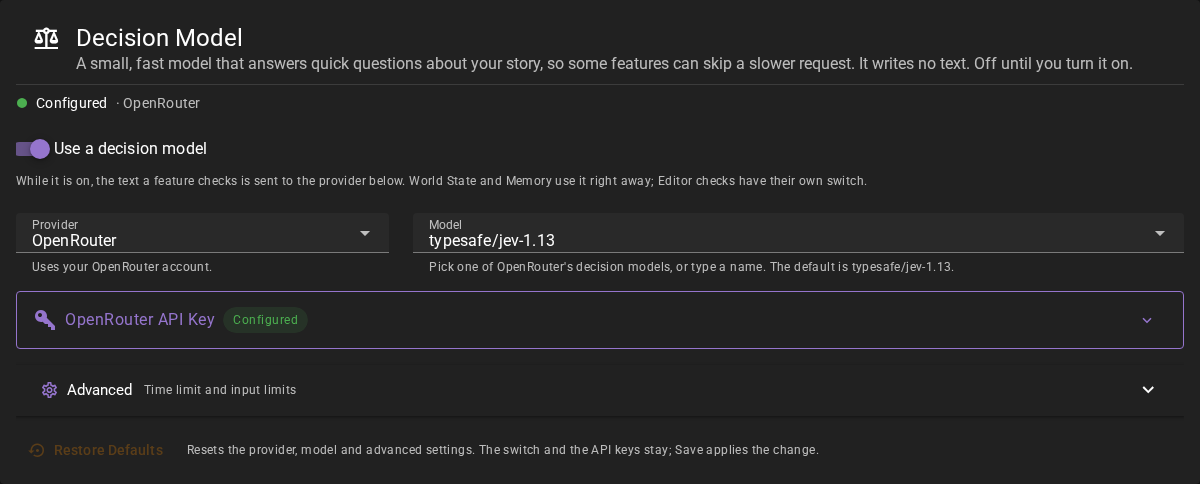
Turning it on
There are two switches for the same setting, and they always agree:
- Use a decision model at the top of this settings page. Press Save after you change it.
- The button on the Decision model entry in the sidebar, beneath the client list. It saves at once.
If you use the sidebar button while this settings page is open, the switch on the page follows it straight away. Your other unsaved edits on the settings pages stay as they were. Only when you have also changed the switch on this page without saving does Talemate show its usual warning that the settings changed elsewhere.
Turning the decision model on does not send anything by itself. Entering an API key never turns it on either: a key is a credential, not a decision to send your scene anywhere.
What gets sent
While the decision model is on, a feature that uses it sends the text it is checking — the passage, the messages before it, your writing style — to your selected provider: OpenRouter, or the SystemOne-compatible server at your server address, local or hosted. Nothing is sent while it is off.
Turning the decision model on also turns on the decision options of World State and Memory entity lookup, which are on by default. They can answer pin conditions and yes/no queries, skip unchanged tracked states, select existing portraits, and recognize character references. Each has its own option to turn it off. The Editor's Decision Checks have their own switch and stay off until you turn them on. Turning on the decision model does not turn them on.
Each feature asks its questions through a policy template, where you can change a question or its threshold: see Decision policy overrides.
The settings
Provider selects OpenRouter or SystemOne API. The features that use the decision model all share this one setup.
Model is the model name your provider expects. For OpenRouter the default is
typesafe/jev-1.13, and the field lists the decision models OpenRouter offers, with their
names, so you can pick one; you can still type any model name. If Talemate could not load
that list, for example without an internet connection, the field says so and takes a typed
name. For a SystemOne-compatible server, enter the name that server
accepts. Switching providers keeps the model name you entered, so check it before you
save. Talemate reads nothing into the name: it sends the value you enter and checks the
answers that come back.
Server address appears for SystemOne API. Enter an HTTP or HTTPS address, such as
https://api.typesafe.ai for hosted TypeSafe or http://localhost:8009 for a local
server, without a user name, a password, a query (?) or a fragment (#). Talemate adds
/v1/systemone itself, so do not include it. An address with a path, such as
https://example.com/decisions, works. The address must be reachable from the Talemate
backend. If Talemate runs in a container, localhost means that container, not the
machine that runs your browser. Without a server address the setup is Incomplete.
In config.yaml this setting is base_url.
The API key
For OpenRouter, the decision model uses the same OpenRouter API Key as the OpenRouter client and the API Keys page. There is no second key to manage. The key field on this page writes that one setting, so you can enter it without leaving the page, and a key entered in any of the three places appears in all three.
If the decision model is on with OpenRouter selected and no key is saved, the setup is Incomplete and every request stops before it is sent.
For SystemOne API, the SystemOne API Key is optional when your server needs no
key. Hosted TypeSafe requires one. Enter the raw key, without a Bearer prefix; Talemate
sends it in the Authorization: Bearer <API_KEY> header. This key is stored separately from
the OpenRouter key and encrypted on disk. Switching providers keeps both keys; Talemate
sends only the key of the selected provider. A server that needs no key can be
Configured without one.
Advanced
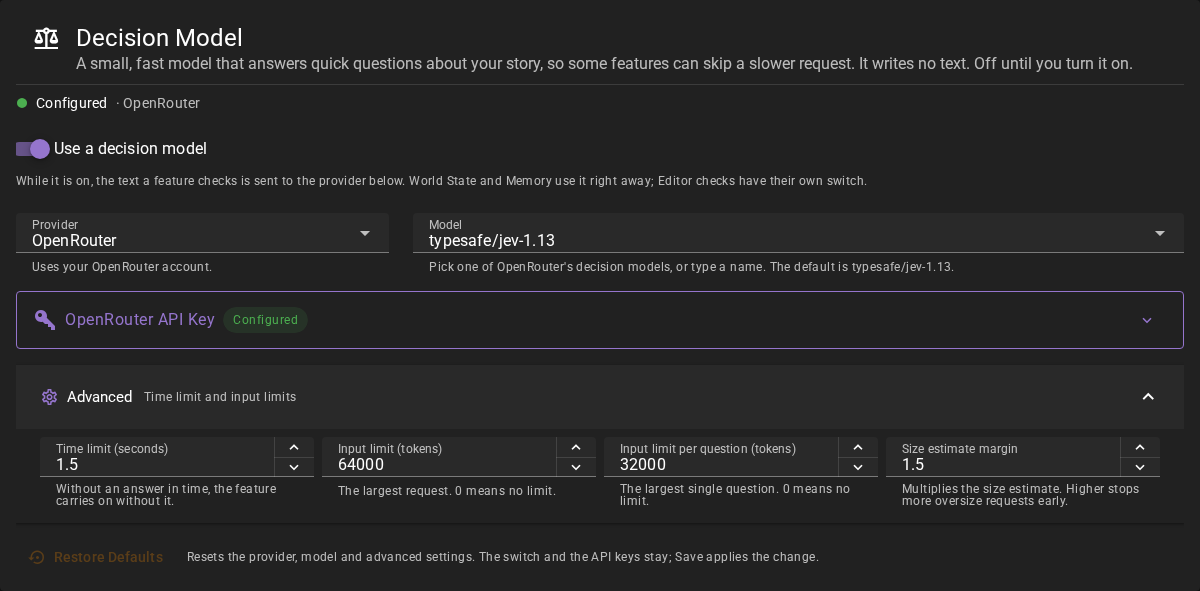
Click Advanced to see the settings that you rarely need to change. The defaults suit most setups.
Time limit (seconds) is one deadline for the whole request: waiting for a free slot,
connecting, reading the answer and checking that it is a well-formed answer, all on the
same clock. The default is 1.5 seconds. Decisions are meant to be quick; a decision model
that keeps you waiting costs more than the answer is worth. Talemate never retries a
decision request. A request that misses the deadline is dropped, and the feature carries on
as if the decision model were off. In config.yaml this setting is timeout_seconds.
Input limit (tokens) is the largest request Talemate sends: the text plus all the
questions. Input limit per question (tokens) is the largest single question with its
text. 0 means no limit. Use limits that your provider publishes, or for a local server
the limit it was started with. Changing the model name does not change these limits.
Talemate fits each request to these limits before it sends it:
- Each feature sends only the part of the story its decision needs, such as the Editor's Repetition Range or the messages since a tracked state's last update. Larger limits never make it send more.
- That text is shortened so that it fits in one request with all of the feature's questions. Story history loses its oldest messages first, so the most recent part of the story is always what the model reads.
- When the questions alone fill the limit, or the part of the text that cannot be shortened (such as the passage being checked and your writing style) does not fit beside all of them, the text is shortened to fit beside the largest question instead, and the questions go out in several requests, one after another, each with the same text. They share one time limit, and the Decision Log shows them as one request.
If a request still does not fit, for example because a single question is longer than the limit, it is not sent and the Decision Log says Request not sent.
Size estimate margin multiplies Talemate's own size estimate, to be on the safe side. It must be 1 or more. Talemate counts text with a general-purpose tokenizer, which can count fewer tokens than your model does. A higher margin leaves more room for that difference, and also shortens the text more than needed. A request that passes this check can still be rejected as too large by the provider.
In config.yaml these three settings and their defaults are:
decision_model:
  max_input_tokens: 64000          # state plus all questions
  max_question_input_tokens: 32000 # state plus the largest question
  input_token_multiplier: 1.5      # margin on the local estimate, 1 or more
Setting either limit to 0 leaves that limit undeclared.
Restore Defaults
Restore Defaults at the bottom of the page puts the provider, server address, model, time limit, both input limits and the size estimate margin back to their defaults. It keeps Use a decision model as it is and leaves your API keys alone, since the OpenRouter key is shared with the OpenRouter client. Like any other edit on the page, the change applies when you press Save, and Discard takes it back. The button is greyed out while the settings already hold the defaults.
Using a SystemOne-compatible server
Select SystemOne API for any server that accepts the TypeSafe /v1/systemone
request shape and returns the requested answer types. It can run locally or be hosted
remotely. Enter its server address and model name, add a key if it needs one, turn on
Use a decision model, and save.
For TypeSafe's hosted API, use:
| Setting | Value |
|---|---|
| Server address | https://api.typesafe.ai |
| Model | jev-latest, or a versioned ID such as jev-1.13.0 |
| SystemOne API Key | Your TypeSafe API key |
The jev-latest alias can change as TypeSafe releases models. See its
model list for current names.
Other compatible servers include Von, Kev, Decider, litjev,
openjev-sglang and llama.cpp builds that serve /v1/systemone, which you can run
locally. Start your server yourself; Talemate does
not download or start a model for you. There is no separate adapter or model-name check
for each server. An ordinary chat-completions server is not enough.
A local server has its own input limit: for llama.cpp it is the context size the model
was loaded with (n_ctx), and it covers the text, every question and a little of the
server's own prompt. Set Input limit (tokens) and Input limit per question (tokens)
somewhat below it. A request larger than the server's limit is refused by the server, and
Talemate reports that as a provider failure, not as text that was too long. A local model
can also need several seconds for a long request, so raise the Time limit to match.
For example, a llama.cpp server on another machine that serves clef-flash with a
context size of 8192:
| Setting | Value |
|---|---|
| Provider | SystemOne API |
| Server address | http://<server-address>:<port> |
| Model | clef-flash |
| SystemOne API Key | empty |
| Time limit (seconds) | 10 |
| Input limit (tokens) | 8000 |
| Input limit per question (tokens) | 8000 |
| Size estimate margin | 1.1 |
Treat decision answers as estimates. Talemate does not measure how accurate they are on your fiction, and calibration — whether a reported 80 percent probability is right about 80 percent of the time — is mostly unmeasured. Check the results on your own scenes; a high reported probability can still be wrong.
What the state means
The sidebar entry and this page show the same states.
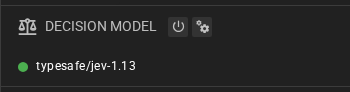
In the sidebar, the entry is one line while the decision model is off. Once it is on, a second line shows a coloured dot and the model, the way a client row does. Hover the dot to see the state, the provider and the time limit. The button turns the decision model on or off, and the button opens this page.

When the setup is not finished, the entry says Incomplete, names what is missing, and shows a Finish setup link that opens this page.
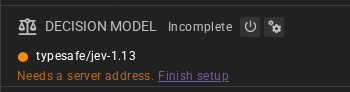
On this page, a green dot and Configured mean that the setup is complete; the other states appear in a banner.
| State | What it means |
|---|---|
| Off | No feature asks the decision model anything. |
| Incomplete | Turned on, but a setting is missing: a model name, an OpenRouter API key, or a SystemOne server address. The banner and the sidebar name which. Requests stop before they are sent. |
| Configured | Turned on with the settings the selected provider requires. A SystemOne server can still need an API key even though the field is optional; hosted TypeSafe does. |
| A failure | The last request failed, and why — for example "the provider did not accept the API key" or "no answer came within the time limit". |
Configured does not mean tested. Talemate makes no request of its own to check your key or your model — that would be a paid request you did not ask for. The first decision a feature asks for is what proves the setup, and its outcome appears here.
When a decision fails
Whatever goes wrong — a rejected key, an unreachable provider, an answer Talemate cannot read, a missing answer or wrong answer type, a request too large for the model, a missed time limit — the feature that asked carries on exactly as it would if you had never turned the decision model on. Your scene does not stop and nothing is left half-done.
The failure is recorded, and the state on this page and in the sidebar names it. Your saved settings are untouched: a failed request never switches the decision model off behind your back. The next request tries again as normal. The Decision Log shows each request and what went wrong.
Saving a change to this page, or to the shared OpenRouter key, clears the recorded failure. It described the settings you have just replaced, and the next request is what says whether the new ones work.
Turning it off
Use the sidebar button, or switch it off here and save. Requests stop at once, even though the key and the model stay where they are, so turning it back on later needs nothing but the switch. Your ordinary LLM clients and everything they generate are unaffected either way.