Scene Visuals
The Visuals tab in the Scene Editor provides a dedicated interface for managing the scene's own imagery — background illustrations, scene illustrations, scene cards, the scene cover image, and the scene backdrop — mirroring the character visual manager.
To access it, open the World Editor, navigate to the Scene tab, and click the Visuals tab.
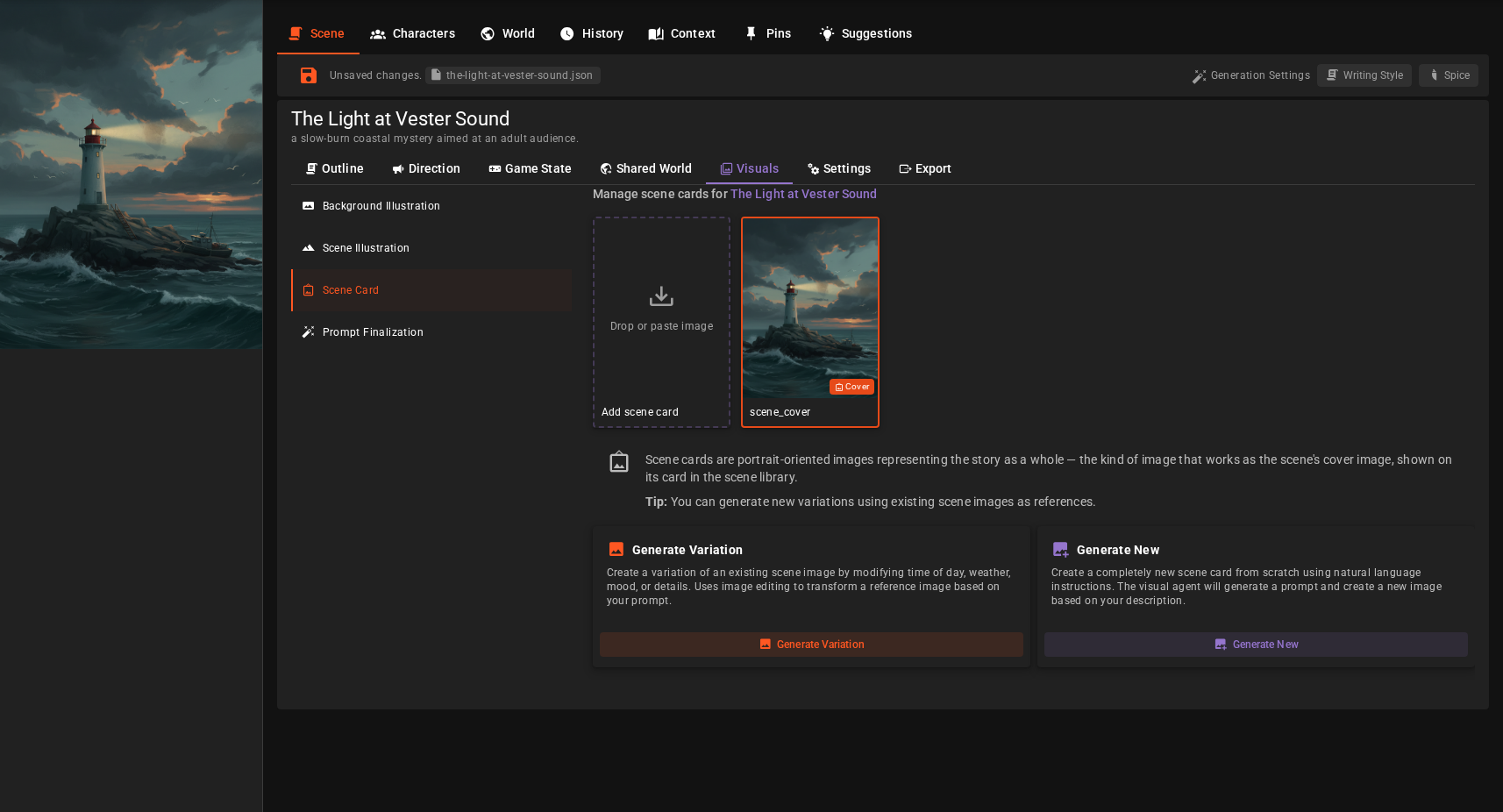
Overview
The Visuals tab is organized into four sub-tabs:
- Background Illustration - Purely environmental images of the scene ("Visualize Scene (Background)")
- Scene Illustration - Images of specific moments in the story ("Visualize Moment")
- Scene Card - Portrait images representing the story as a whole ("Visualize Scene (Card)"), the ones you pick the scene cover image from
- Prompt Finalization - Edit the Visualizer agent's per-scene prompt finalization overrides
Background Illustration, Scene Illustration & Scene Card
The three image sub-tabs work the same way and differ only in the visual type they manage. Each shows a grid of the scene's images of that type — badges mark the image currently used as the scene Cover and the current Backdrop. Background illustrations and scene illustrations are landscape images, scene cards are portrait ones.
When a backdrop is set, a banner above the grid names the backdrop image, offers a Render backdrop switch (the same toggle as the scene tools Immersive chip), and an Unset backdrop button that removes the backdrop entirely while keeping the image in the scene assets. The backdrop is meant for the landscape types, so the Scene Card sub-tab shows neither the banner nor the Set as Scene Backdrop action.
Adding images
- Drag and Drop: Drop an image file onto the upload card
- Paste: Copy an image to the clipboard and press Ctrl+V (Cmd+V on macOS). Click the drop zone first if more than one image panel is open.
- Generate Variation: Create a variation of an existing scene image — modify time of day, weather, mood, or details via an image-editing prompt (e.g. "make it night time", "add rain"). Batch prompts let you generate several variations in one go.
- Generate New: Create a completely new image; the visual agent builds a prompt from the current scene state and your instructions
Generation requires a ready Visualizer Agent; Generate Variation additionally needs a backend with image-editing support and at least one existing image to use as reference.
Image actions
Click an image to access its menu:
- Set as Scene Cover Image: Make this the scene's cover image (shown on the scene card in the scene directory)
- Set as Scene Backdrop / Unset Scene Backdrop: Make this image the scene backdrop, rendered behind the scene text — or unset it (the image stays in the scene assets). Setting is offered on the two illustration sub-tabs; unsetting is offered wherever the current backdrop image appears
- View Image: Open a larger preview
- Open in Visual Library: View and edit the image in the full Visual Library
- Delete: Permanently remove the image from the scene assets
Prompt Finalization
This sub-tab edits the Visualizer agent's per-scene overrides for Prompt Finalization without leaving the world editor — the same overrides you would otherwise manage in Scene mode on the Agents settings page.
Click the icon next to a field to activate an override for the scene, then edit and Save. Overrides are stored in the scene's agent-settings file; if the scene doesn't have one linked yet, it is created with the default name on first save.
Save writes only the fields you changed. Say you are editing the finalization instructions here while you switch Automatic Generation for the scene in the agent panel: saving keeps that switch.
Note
The scene must have been saved to disk at least once, and must not have opted out of per-scene agent settings (see Scene Settings) for overrides to be editable here.