Scene Header
New in 0.40.0

The scene header sits at the top of the scene, as part of the page. It shows the scene title in the middle and a set of information items on either side of it, and it stays in view while the scene scrolls.
[ Left of the title: items ] Scene title [ Right of the title: items ]
Each item reads as a value with a short label next to it, for example 105 messages. The Knowledge mode, Writing style and Visual style items show their icon in place of the label, the same icon as in the item menu; hover over the item to read its name. Both sides hold as many items as you like, in the order you pick them, and either side can be empty. A long title is cut short with an ellipsis; hover over it to read the whole title. Hover over any item, or move to it with the keyboard, for an explanation of what its number means.
In a narrow scene column (the creative environment, or a phone) the title moves to its own line above the items.
While a replay runs, the header shows the title alone: the information items and the header buttons are put away. A replay shows no title bar at all when you have turned the header off.
Because the header carries the title, the scene's tab in the main navigation reads Story rather than the scene title, in both the gameplay and the creative environment.
Items
History stats
Two values: the number of messages in the scene history (including messages that have already been summarized) and the number of summary layers. The base archive counts as the first summary layer once it holds a summary; each populated layer of the layered history adds one. The World Editor's History tab shows the same layers as Base, Layer 0, Layer 1 and so on.
Until the scene reports its history, the item reads History stats unavailable.
Summarizer
The dialogue tokens gathered since the last summary against the summarizer's threshold, for example 798 / 1536 tokens. The tooltip says how many more tokens take the scene past the threshold, after which the summarizer archives the recent messages. A time passage or a change in who is present can trigger a summary earlier, so that remainder is a ceiling, not a countdown.
When a summary is due on the next message, the value changes colour and gains a marker; the count stays visible. The tooltip names the reason: the gathered dialogue passed the threshold, a time passage cut the span, or who is present changed.
When the summarizer has no ready client the item reads Summarizer unavailable.
Active characters

A row of small round portraits, one for each character in the scene, in the same order as the character list in the World State panel. A character with a portrait shows it. A character without one shows the first letter of its name on a circle in the character's name color, the color its name has in the dialogue.
Hover over a portrait to read the name, and click it to open that character in the World Editor. The row follows the scene: when Elmer walks in, his portrait joins the row; when Nora leaves, hers goes; a new name, a new color or a new portrait shows at once.
The row holds up to six circles, or three in a narrow scene column. When more characters are present, the last circle reads +N for the rest. Hover over it for their names, or click it for a list you can open them from.
When nobody is in the scene the item reads No active characters.
Knowledge effort
A chip with the character knowledge effort of the scene's story mode, such as Balanced. Hover over it, or move to it with the keyboard, to read what it costs and what it may help with, the same explanation the full slider shows.
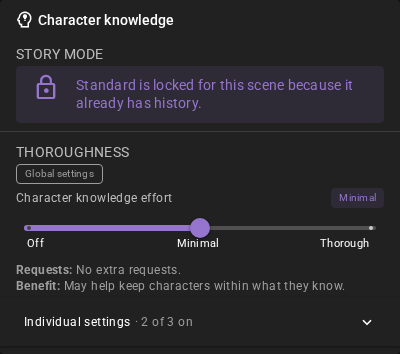
Click the chip to open the knowledge hub for the scene: the same popup a character's hub opens, without the part about one character. It holds Story mode, the Character knowledge effort slider under Thoroughness, and Individual settings. A stop you pick there is saved as a scene override, and your global agent settings stay as they are.
For example, when a long conversation starts to feel slow, open the chip and drag the slider from Thorough down to Minimal without opening the World State panel.
The chip's explanation also names the state the settings are in: while the agents have not reported yet, while a scene override change is being applied, and while one waits for a scene save. Scene override changes from other places, such as the agent panel chips or the visualizer menu, count too; a waiting change is named, for example "Character portraits: On". A change that waits for a scene save, for example because you cancelled the Save Scene dialog of a story that has no save file yet, offers Save and apply and Discard change in the popup itself. When a change could not be saved, the explanation names the reason.
Knowledge mode
The story's character knowledge mode: Standard or Perspectives (Character perspectives), followed by the icon. The item shows the mode only; it has no control. Hover over it to read where the mode is chosen: World Editor > Scene > Settings > Character perspectives, before the story has history. Once the story has history, the mode stays as it is.
Writing style
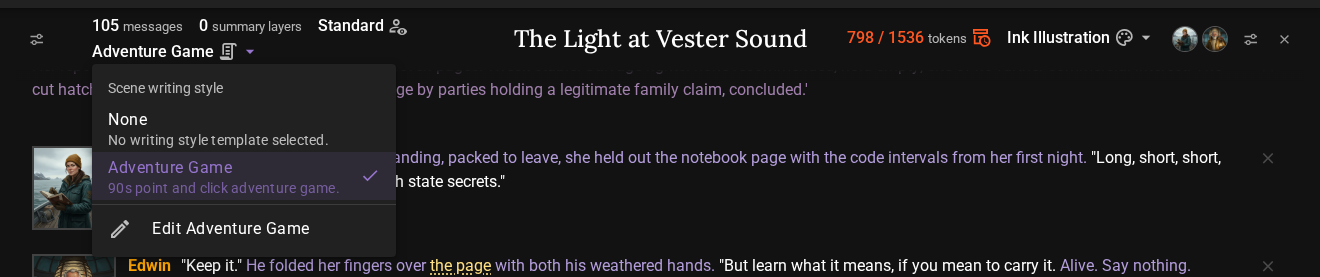
The scene's writing style template by name, followed by the icon, for example Adventure Game . Click it for a menu of your writing style templates and pick another one, or None for no template. It is the same setting as Writing Style in World Editor > Scene > Settings, so a change in one place shows in the other. Like any change in the scene settings, it marks the scene as unsaved.
When a template is selected, the menu ends with Edit {name} below a divider, for example Edit Adventure Game. It is not one of the choices: it opens that template in the Templates tab, ready to edit. With None selected, or with a Missing template, the menu has no such entry.
A scene without a writing style reads None, dimmed. When the scene names a template that is no longer in your template list, the item reads Missing template at full strength, not dimmed; pick another one from the menu.
Visual style
The scene's visual art style template by name, followed by the icon: the style new images of this scene are made in. Click it to pick another one from your visual style templates, or Use Agent Default to follow the Visualizer's own art style; the item then reads Agent default. It is the same setting as Visual Art Style in World Editor > Scene > Settings.
The menu ends with Edit {name} for the selected style, the same entry as in the writing style menu. With Use Agent Default selected, it is absent.
For example, when a noir story moves to a sunny coast, pick a watercolour style from the header before you generate the next scene image.
Choosing the items
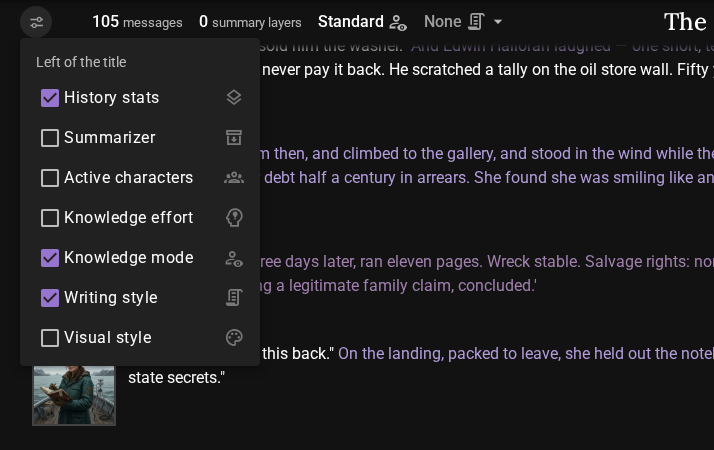
Each side of the header has its own menu. Hover over the header and click the button at its left edge for the items Left of the title, or the one at its right edge for the items Right of the title. The menu lists every item with its icon; tick an item to add it to that side, untick it to remove it. A menu changes only its own side. A newly ticked item goes to the end of its side, so untick and tick an item again to move it to the end. The header updates at once and the choice is saved.
The same choice is available as Left of the title and Right of the title in Settings > Game > General. Both places edit the same setting, so a change in one shows in the other.
By default the header is on, with History stats and Active characters on the left and Summarizer and Writing style on the right. The other items are off until you tick them for a side.
Perspective label
While you view a character's perspective in a Character perspectives story, the header shows a label such as Edwin's Perspective below the title, above the perspective column. Click the x on the label to close the perspective view; it does the same as None in the View Perspective chip. With the header off there is no label, and the chip is the only control. A replay shows neither the label nor the perspective column; both come back when you leave it.
Turning the header off and on
Hover over the header and click the button at its right edge to hide it. Hiding the header this way turns off the same setting as Show scene header in Settings > Game > General, which is where you turn it back on. Your item choices are kept while the header is hidden.
The menu and close buttons are also reachable with the keyboard, and they are always visible on touch screens.