Scene Tool Shortcuts
Scene tool shortcut templates package a scene tool shortcut — an agent action together with a label, an icon and canned instructions — so it can be installed again later or handed to someone else.
Shortcuts themselves live in the application configuration, not in a template. Installing a template copies the shortcut into that configuration, where it behaves like any shortcut you created by hand.
Creating a scene tool shortcut template
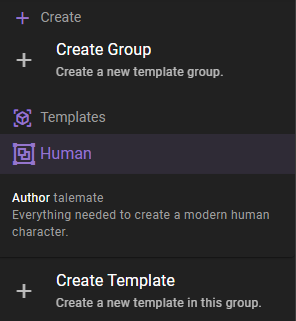
Fist, if you have not done so, create a template group to store the template in.
Then select the group you want to add the template to and click the Create Template button.
Next enter a template name and select Scene tool shortcut as the template type.
Template name
The name / label of the template. This is the name that will be displayed in the list of templates. It is also used as the initial shortcut label.
Action
The scene tool action the shortcut runs, picked from the same list of eligible actions the shortcut dialog offers, prefixed with the menu section it belongs to.
Label
The title the installed shortcut gets in the scene tools menu.
Instructions
Optional direction handed to the agent whenever the shortcut runs. Leave it empty to run the action as-is.
Icon
Click one of the common icons in the grid, or type any Material Design Icon name (for example mdi-sword-cross) into the field below it. The icon is previewed as soon as the name matches an icon that exists — misspelled or unknown names are rejected.
Favorite
Mark the template as a favorite to make it easier to find in the list of templates. Favorited templates are shown at the top of the list.
Installing the shortcut
The Install shortcut button adds the shortcut to your scene tools menu. It needs a created template — for a new template, click Create template first — plus an action, a label and a valid icon; installing the same shortcut twice does nothing, since a shortcut with the same action, label, icon and instructions is not added a second time.
Shortcut templates can also be installed straight from the scene tools, through the Add from template entry in the menu the action belongs to. See Installing a shortcut from a template.
Unavailable actions
A template that refers to an action this build of Talemate does not have is flagged in the editor and cannot be installed. It is also left out of the scene tools menus.
Sharing the shortcut
Template groups are stored as single files in the templates/world-state directory, so sharing a shortcut means handing that group's file to someone else, who drops it into the same directory.
Going the other way, an existing shortcut can be saved into a group from the scene tools — see Sharing a shortcut as a template.
Editing and deleting
To edit an existing template, select it from the list of templates in the left sidebar and adjust the fields — updates are applied automatically, except while the Icon field is empty or invalid: the field shows an error and nothing is saved until a valid icon is entered. Shortcuts that were already installed from it are not affected.
To delete a template, select it and click the Remove Template button.