Visual Prompt Finalizer
Visual prompt finalizer templates define a reusable set of post-processing actions that rewrite image generation prompts right before they are sent to the image generation backend — exact, fuzzy or regex match and replace, or an AI instruction applied to the whole prompt.
They exist so you can maintain a set of actions once and insert it wherever it is needed, instead of recreating the same rows in the visualizer agent's Prompt Finalization settings for every configuration.
Shipped presets
Two finalizer templates ship with Talemate and appear in the preset picker out of the box.
- Ideogram JSON converts the positive prompt into an Ideogram 4.0 structured JSON prompt via an AI action.
- Qwen 2.1 Image references rewrites the reference image labels of the positive prompt into the tag form that model expects, so
IMAGE 1becomes<image1>.
Creating a visual prompt finalizer
Fist, if you have not done so, create a template group to store the template in.
Then select the group you want to add the template to and click the Create Template button.
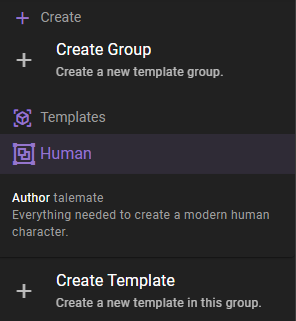
Next enter a template name and select Visual prompt finalizer as the template type.
Prompt finalizer name
The name / label of the template. This is the name displayed in the list of templates and in the preset picker.
Template description
A longer description of the template. What does this set of actions do, and when should it be used?
Favorite
Mark the template as a favorite to make it easier to find in the list of templates. Favorited templates are shown at the top of the list.
Actions
The table of post-processing actions, executed from top to bottom. The rows work exactly like the ones in the visualizer agent settings — see Post-processing Actions for a description of the available modes, flags, targets, and visual type restrictions.
Using a visual prompt finalizer
Open the visualizer agent settings and switch to the Prompt Finalization tab. The Preset picker below the actions table inserts the template's actions into the table as editable copies.
Because the rows are copied, you can reorder, edit, or remove them freely after inserting — and later changes to the template do not affect actions that were already inserted.
Editing and deleting
To edit an existing template, select it from the list of templates in the left sidebar and adjust the fields — updates are applied automatically.
To delete a template, select it and click the Remove Template button.