Replay
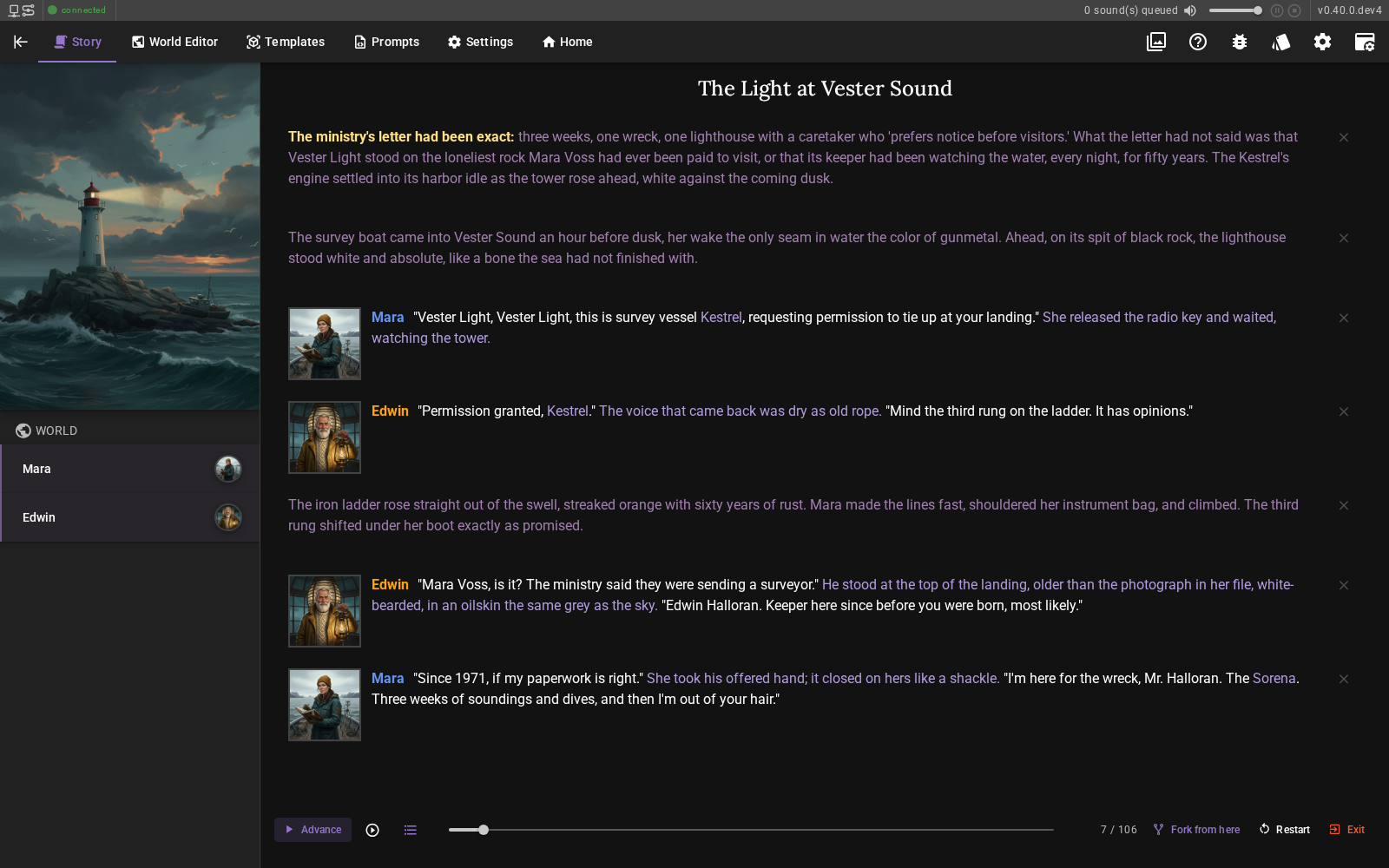
Replay walks through a scene from its beginning, one message at a time. It is for re-reading a story you have already played — on your own, or with someone watching. Nothing is added to the story while it runs, so the way onward is to fork it into a scene of your own.
Starting a replay
Click the Replay chip in the quick settings above the scene tools.

The scene collapses to its first message and the scene tools and message input are replaced by the replay toolbar. The chip is unavailable while an agent is busy.
The chip is only there when the scene holds more than 15 character and narrator messages. A shorter story has too little to walk through. Other message types — time passages, director messages and the rest — are not counted.
The whole history is loaded when the mode starts, rather than the last hundred messages a scene normally opens with, so a long scene can be replayed from its beginning.
Advancing
Reveal the next message by clicking anywhere in the message area, pressing Space, or using the Advance button. The view follows along, so the message that just appeared is always in sight.
The reveal counter next to the scrubber shows where you are — 7 / 106.
Moving around

- Scrubber — drag it to jump anywhere in the scene.
- Chapters — jump to the start of the scene or to any time passage in it, landing on the first message after the passage — or on the passage itself when another follows it straight away and the chapter is empty. Give a time passage a chapter title and it is listed under that name; otherwise it is listed by its duration.
- Restart — back to the first message.
- Fork from here — leave the replay and carry the story on in a scene of your own, described below.
Jumping backwards hides the messages after the new position again.
Narration and auto-advance
- Narration — when on, each message the cursor lands on is spoken by the Voice agent, however you got there, including stepping by hand. Stepping quickly does not queue up every message you pass — only the one you settle on is narrated. The toggle is only there when the Voice agent is enabled.
- Auto-advance — when on, the replay moves on by itself: after the current message has finished being narrated, or on a short delay when narration is off or no voice agent is available.
The two toggles are independent of each other. Narration is on by default and keeps whatever you set it to for the rest of the session; auto-advance starts off every time and is switched off again when the replay ends.
If narration is taking too long, the Advance button becomes a Cancel button that aborts it.
Forking from where you are
Fork from here takes the message you are on and makes a new scene of the story up to that point. Name the save and the new scene opens in the normal scene view, ready to be played on from there.
The scene you were replaying is left as it was, apart from remembering where you had got to, and the fork is a save of its own — an existing save is never written over. If a name is already in use, the dialog stays open so you can pick a different one.
A fork restores the scene's saved revision: its story, world state and characters. Several messages saved together share one revision, so the fork can include messages recorded in the same save. The new save keeps earlier revisions and their origins through its fork point.
The action is available for recorded character and narrator messages. If the selected message has not been saved yet, leave the replay and save the scene first. Use Save As for a read-only scene.
Forking preserves the shared world connection. Shared context remains at its current state; it is not restored to the selected revision.
What else the mode offers
A replay is a walkthrough of a story that is already written, so the surfaces that would add to it are put away while it runs:
- The message input and the scene tools are replaced by the replay toolbar.
- The scene header keeps the scene title and puts its information items and its header buttons away. With the header turned off, a replay shows no title bar.
- Per-message actions — edit, delete, regenerate, revisions — are disabled, and the entity actions that ask the narrator for new text are hidden.
- The Director console and its chat are gone, along with the activity chip that announces what the director is doing.
- The node editor and the Mods tab are gone.
- The world panel in the sidebar no longer offers to update the world state, or to make one of its characters real.
The scene backdrop follows the story: each passage is shown with the backdrop it had when it was written, using the Backdrop entries that record every backdrop change. Stories from before these entries existed keep showing the scene's saved backdrop.
Everything else keeps working normally — application and agent settings, template browsing, the world editor and image generation. All of it comes back when the replay ends.
The Help assistant knows when a replay is running, so it explains that the mode has put a surface away rather than walking you through opening it.
Leaving, and picking up where you left off
Leave with Exit or by pressing Escape. The full history comes back, along with the normal tools.
Your position is remembered in the scene — on the way out, when you load another scene, and when you fork — so starting a replay of the same scene again resumes at the message you left off on. Restart followed by Exit clears it, and the next replay starts at the beginning.
Read-only scenes
Scenes shipped with Talemate are read-only, so progress cannot be recorded in them. Save a copy of the scene first if you want a replay of it to resume.